1. හැඳින්වීම
The EnGenius EAP600 is a high-powered, dual-band 802.11a/b/g/n wireless indoor access point designed to extend network coverage and enhance connectivity in various environments. It supports data rates up to 300Mbps in each frequency band and features a Gigabit Ethernet port for high-speed data transfers. The EAP600 is suitable for large or multi-story buildings and client-intensive facilities, offering robust wireless performance and PoE (Power-over-Ethernet) capability for flexible deployment.
2. පැකේජ අන්තර්ගතය
ඔබේ පැකේජයේ පහත අයිතම අඩංගු බව තහවුරු කරන්න:
- EAP600 Dual Band N600 Indoor Access Point
- 12V/2A බල ඇඩැප්ටරය
- T-Rail Mounting Kit
- Ceiling Mount and Wall Screw Kit
3. නිෂ්පාදන අවසන්view සහ විශේෂාංග
The EnGenius EAP600 is designed to appear as a low-profile smoke detector, allowing it to blend unobtrusively into various indoor environments. Its robust design supports a wide range of applications.
ප්රධාන ලක්ෂණ:
- Concurrent Dual-Band 802.11a/b/g/n with up to 300Mbps data rate in each frequency band
- Up to 29 dBm high RF power for longer range and enhanced wireless coverage
- Offers greater bandwidth capacity with a Gigabit Ethernet Port
- Designed for indoor deployments with ceiling mountable smoke detector design
- Ideal for extending networks within large or multi-story buildings
- Suitable for client-intensive facilities like hotels, resorts, hospitals, office buildings, and universities
- Industry Standard Security protocols
- SSID-to-VLAN Tagging support
- 802.3at/af PoE Compatible for flexible power options
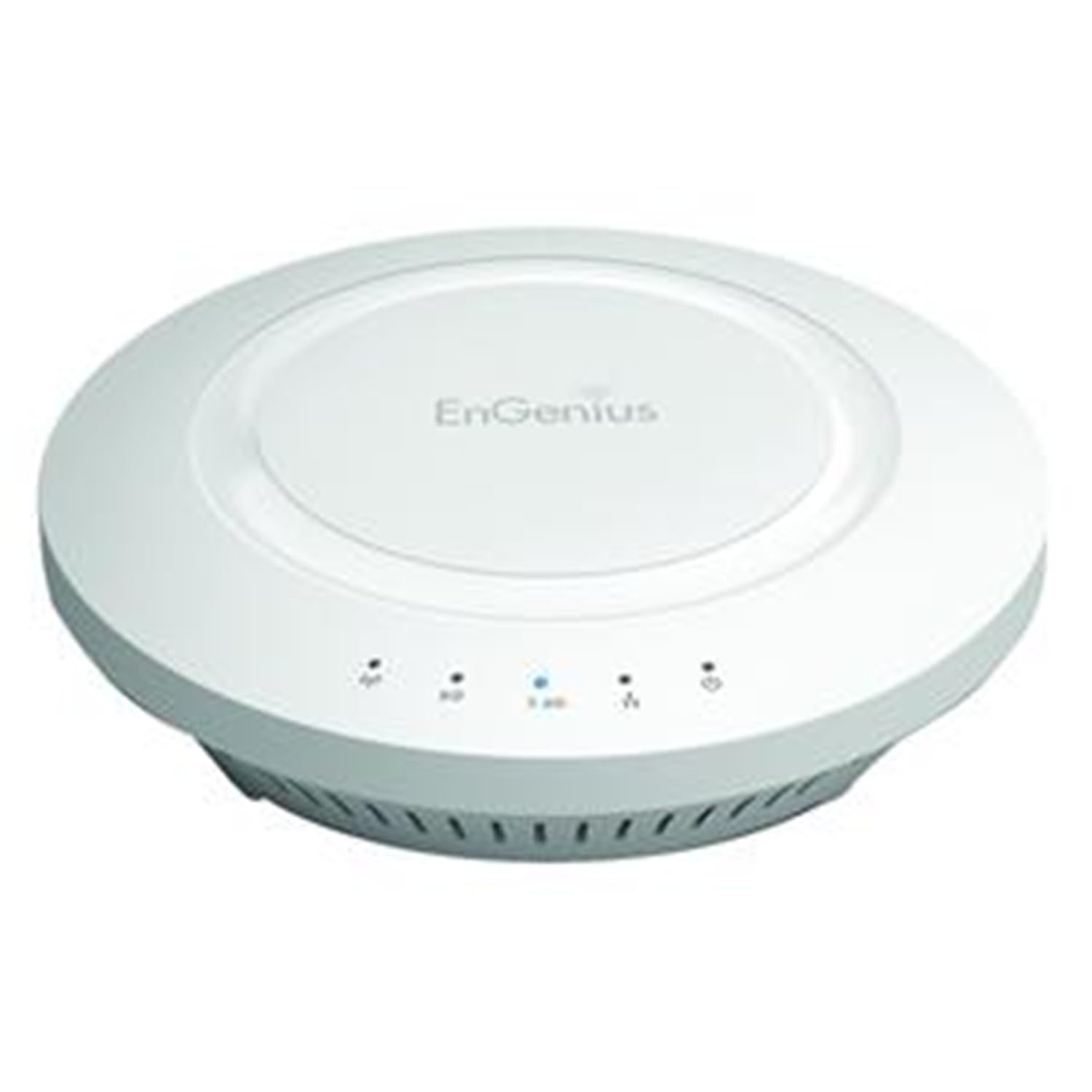
Figure 1: EnGenius EAP600 Dual-Band Wireless Access Point. This image shows the EnGenius EAP600 Dual-Band Wireless Access Point, a white, circular device designed for ceiling mounting, resembling a smoke detector.
4. සැකසුම් මාර්ගෝපදේශය
This section provides detailed instructions for configuring your EnGenius EAP600 Access Point. A basic understanding of network concepts like IP addresses, subnet masks, and gateways is beneficial.
4.1 Network Fundamentals for AP Configuration
To configure an Access Point (AP), it is important to understand how devices communicate on a network:
- IP ලිපිනය: A unique identifier for each device on a network (e.g., 192.168.1.1).
- සබ්නෙට් මාස්ක්: Typically 255.255.255.0, it defines the network portion of an IP address. For this mask, the first three numbers define the network domain (e.g., 192.168.1.x). All devices on the same network must share the same domain.
- දොරටුව: The IP address of the router, which acts as the entry and exit point for network traffic.
- DHCP සේවාදායකය: A service, usually on your router, that automatically assigns IP addresses to devices. A network should only have one active DHCP server to avoid conflicts.
4.2 මානකරන පියවර
Follow these steps to set up your EAP600 Access Point:
- Prepare Router Settings:
- Before powering on the AP, access your router's configuration interface.
- Decide on a fixed IP address for the AP. This IP address must be within your network's domain (e.g., 192.168.1.x) but outside the range of IP addresses assigned by your router's DHCP server (e.g., if DHCP assigns 192.168.1.2-127, choose an IP like 192.168.1.128 or higher).
- Note your router's fixed IP address (this will be the AP's gateway).
- Optionally, you can reserve this fixed IP address for the AP in your router's settings using the AP's MAC address (found on the device label).
- Initial AP Connection:
- Power on the EAP600. The default IP address is often 192.168.1.1, which may conflict with your router.
- Connect the AP directly to your computer using an Ethernet cable. Temporarily disconnect your computer from your main network or turn off your router if necessary to avoid IP conflicts.
- Access the AP's web a විවෘත කිරීමෙන් අතුරු මුහුණත web browser and entering its default IP address (e.g., 192.168.1.1).
- Configure Basic AP Settings:
- Navigate to the 'Operation Mode' section and ensure both 2.4 GHz and 5 GHz bands are set to 'Access Point' mode. Select your region (e.g., 'United States').
- Go to 'IP Settings' and change the AP's IP address to the fixed IP address you selected in Step 1.
- Set the AP's Gateway to your router's fixed IP address.
- After making changes, look for a 'Save/Reload' or 'Apply' option. It is crucial to save and apply pending changes, which often requires a device reboot. Wait for the reboot process to complete.
- Connect AP to Router:
- If your router was off, power it back on.
- Connect the EAP600 to your router using an Ethernet cable.
- Access the AP's web interface again, this time using its newly assigned fixed IP address.
- Configure Wireless Network (SSID and Security):
- For each wireless band (2.4 GHz and 5 GHz), go to the 'Wireless Network' settings.
- Configure the SSID (network name) and security settings (e.g., WPA2-PSK with a strong password).
- For seamless roaming between your router's Wi-Fi and the AP's Wi-Fi, it is recommended to use the same SSID and security password for both the router and the AP. This allows devices to automatically switch to the strongest signal. Do not use the same SSID with different security types, as this can cause connectivity issues.
- Save and apply changes, and allow the AP to reboot.
- මෙහෙයුම තහවුරු කරන්න:
- Connect a wireless device (e.g., smartphone, laptop) to one of the AP's Wi-Fi bands.
- Check if the device has internet access.
- You can verify which device your client is connected to by checking the client lists in both your router's and the AP's configuration interfaces.
5. මෙහෙයුම් උපදෙස්
Once configured, the EnGenius EAP600 operates as an extension of your existing network, providing enhanced wireless coverage.
5.1 ද්විත්ව කලාප ක්රියාකාරිත්වය
The EAP600 supports both 2.4 GHz and 5 GHz wireless bands. The 2.4 GHz band offers wider coverage and better penetration through obstacles, while the 5 GHz band provides higher speeds and less interference, ideal for bandwidth-intensive tasks like streaming HD video.
5.2 Client Roaming
If you configured the AP with the same SSID and security as your main router, wireless clients will automatically roam between the AP and the router, connecting to the signal with the best strength. This ensures continuous connectivity as you move throughout the coverage area.
5.3 Transmit Power Settings
The EAP600 allows adjustment of transmit power. While increasing transmit power can extend range, it is important to note that the Wi-Fi link requires communication in both directions. Client devices (laptops, phones) have limited transmit power. If the AP's signal is strong but the client's signal back to the AP is weak, bandwidth will be reduced, or the connection may drop. Increasing transmit power also increases the heat generated by the RF transistors, which can potentially shorten the unit's lifespan. Adjust transmit power cautiously and only if necessary.
6. නඩත්තු කිරීම
Regular maintenance helps ensure optimal performance and longevity of your EnGenius EAP600.
6.1 පිරිසිදු කිරීම
Periodically clean the exterior of the device with a soft, dry cloth. Avoid using liquid cleaners or aerosols, as they may damage the unit.
6.2 ස්ථිරාංග යාවත්කාලීන කිරීම්
Check the official EnGenius website for available firmware updates. Firmware updates can improve performance, add new features, and address security vulnerabilities. Follow the instructions provided by EnGenius carefully when performing firmware updates.
6.3 පාරිසරික සලකා බැලීම්
Ensure the device is installed in a well-ventilated area, away from direct sunlight, heat sources, and excessive moisture. Maintain operating temperatures within the recommended range specified in the product's technical specifications.
7. දෝශ නිරාකරණය
This section addresses common issues you might encounter with your EAP600 Access Point.
7.1 Configuration Issues
- Changes not applied: Always ensure you click 'Save/Reload' or 'Apply' and allow the device to reboot after making configuration changes.
- ප්රවේශ විය නොහැක web අතුරු මුහුණත: Verify that your computer's IP address is on the same subnet as the AP's IP address. If connecting directly, ensure no other DHCP server is active.
7.2 සම්බන්ධතා ගැටළු
- No internet access: Check the physical Ethernet cable connection between the AP and your router. Verify that the AP's gateway IP address is correctly set to your router's IP.
- Client devices not connecting: Ensure the correct SSID and Wi-Fi password are being used. Check the AP's wireless settings for any disabled bands or incorrect security configurations.
7.3 Slow Speeds or Dropped Connections
- දුර්වල සංඥා: Consider the placement of the AP. Obstacles like thick walls can degrade signal strength.
- බාධා කිරීම්: In congested areas, other wireless networks or devices can cause interference. Try changing the wireless channel in the AP's configuration settings.
- Client device limitations: Ensure your client devices support dual-band Wi-Fi to utilize the 5 GHz band for higher speeds.
7.4 විදුලිබල ගැටළු
- AP not powering on: Verify the power adapter is correctly connected and functioning, or if using PoE, ensure the PoE injector or switch is providing power.
8. පිරිවිතර
The following table outlines the technical specifications for the EnGenius EAP600 Dual-Band Wireless Access Point:
| විශේෂාංගය | පිරිවිතර |
|---|---|
| වෙළඳ නාමය | එන්ජීනියස් |
| මාදිලියේ නම | ඊඒපී 600 |
| අයිතම ආදර්ශ අංකය | N600 |
| රැහැන් රහිත වර්ගය | 802.11a/b/g/n |
| සංඛ්යාත කලාප පන්තිය | ද්විත්ව කලාප (2.4 GHz සහ 5 GHz) |
| සම්බන්ධතා තාක්ෂණය | රැහැන් රහිත |
| RAM | 64 MB |
| ෆ්ලෑෂ් මතක ප්රමාණය | 8 MB |
| දෘඪාංග වේදිකාව | PC |
| මෙහෙයුම් පද්ධති අනුකූලතාව | Mac, PC, Windows 7, etc |
| බලශක්ති ප්රභවය | 90 - 240 VDC ± 10%, 50/60 Hz; 48 VDC/0.375A (PoE) |
| වෙළුමtage | වෝල්ට් 12 (ඇඩැප්ටරය හරහා) |
| අයිතමයේ බර | අවුන්ස 10.4 කි |
| නිෂ්පාදන මානයන් (LxWxH) | අඟල් 6.36 x 1.64 x 6.36 |
| වර්ණය | සුදු |
| විශේෂ ලක්ෂණය | ජැක්හි ඩී.සී |
| ගැළපෙන උපාංග | පුද්ගලික පරිගණකය |
| නිර්දේශිත භාවිතයන් | Large Offices, Public Spaces, Multi-floor Buildings, Client-intensive Facilities |
9. නිල නිෂ්පාදන වීඩියෝ
The following videos provide additional information and visual guidance for the EnGenius EAP600.
Video 1: EnGenius EAP600 Overview (Duration: 2:25). This video provides a general overview of the EnGenius EAP600 Dual-Band Wireless Access Point, highlighting its features and benefits.
Video 2: EnGenius EAP600 Feature Spotlight (Duration: 0:54). This video focuses on specific features of the EAP600, demonstrating its capabilities.
Video 3: EnGenius EAP600 Installation Guide (Duration: 2:40). This video provides visual instructions for the physical installation of the EnGenius EAP600 Access Point.
Video 4: EnGenius EAP600 Advanced Configuration (Duration: 1:17). This video demonstrates advanced configuration options for the EnGenius EAP600.
10. වගකීම් සහ සහාය
For detailed warranty information, technical support, and customer service, please refer to the official EnGenius website or contact EnGenius customer support directly. Keep your purchase receipt for warranty claims.


