
Gioteck E5SUNI-11-MU
Gioteck EX-05S Universal High Definition Stereo Headset User Manual
Model: EX-05S
1. නිෂ්පාදන අවසන්view
The Gioteck EX-05S High Definition Headset is designed to deliver superior stereo game sound and crystal-clear voice communication. It is compatible with multiple platforms including PS4, PS3, Xbox 360, PC, and Mac. This headset features 40mm high-quality stereo drivers, a noise-isolating microphone, and breathable micro-fibre ear cups for extended comfort.
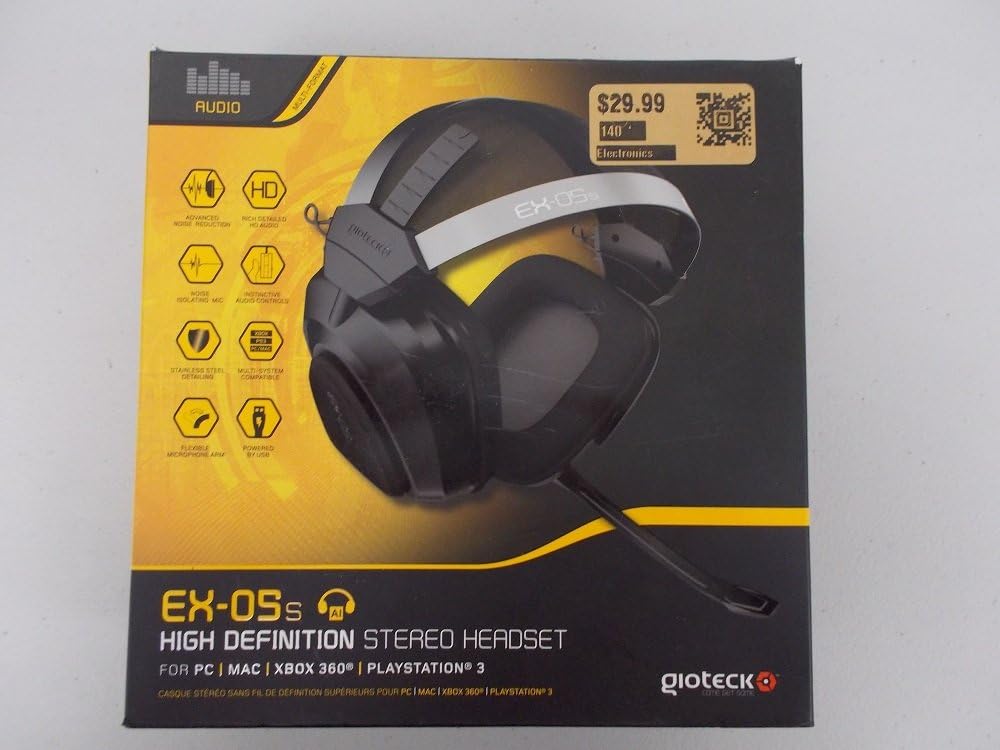
Figure 1.1: Gioteck EX-05S Headset packaging, highlighting key features and compatibility.

රූපය 1.2: පැත්ත view of the Gioteck EX-05S Headset, showing the ear cup and microphone arm.
2. විශේෂාංග
- 40mm High Quality Stereo Drivers: Delivering rich, detailed audio for an immersive gaming experience.
- Noise Isolating Microphone: Designed to eliminate echo and external noise for clear communication.
- Breathable Micro-Fibre Ear Cups: Ensures comfort during long gaming sessions.
- උසස් ශබ්ද අඩු කිරීම: Minimizes game sound interference from external speakers.
- Flexible and 180-Degree Rotating Microphone Arm: Allows for optimal microphone positioning.
- Instinctive and Accessible Controls: Conveniently located controls for voice and game sound adjustments.
- Stainless Steel Detailing: කල්පැවැත්ම සහ උසස් නිමාවක් ලබා දෙයි.
- බහු වේදිකා අනුකූලතාව: Works with PS4, PS3, Xbox 360, PC, and Mac.
3. පැකේජ අන්තර්ගතය
Please ensure all the following items are present in your package:
- Gioteck EX-05S Universal High Definition Stereo Headset
4. සැකසුම් මාර්ගෝපදේශය
4.1 Connecting to Gaming Consoles (PS4, PS3, Xbox 360)
- Locate the 3.5mm audio jack on your gaming controller or console.
- Insert the 3.5mm connector from the EX-05S headset firmly into the audio jack.
- Ensure your console's audio settings are configured to output game audio and chat through the connected headset. Refer to your console's system settings for specific audio output configurations.
4.2 PC/Mac වෙත සම්බන්ධ වීම
- For PCs with separate audio and microphone jacks, you may need a PC splitter cable (not included) to connect the single 3.5mm headset jack to your computer's audio output and microphone input ports.
- For devices with a combined 3.5mm audio/microphone jack, simply plug the headset's 3.5mm connector directly into the port.
- Adjust your computer's sound settings to select the EX-05S headset as the default playback and recording device.
5. මෙහෙයුම් උපදෙස්
5.1 වෙළුම් පාලනය
The EX-05S headset features an inline control box on the cable. Use the volume dial to adjust the overall audio level of your game and chat sound.
5.2 මයික්රෆෝනය නිශ්ශබ්ද කරන්න
A switch or button on the inline control box allows you to quickly mute or unmute your microphone. Ensure the microphone is unmuted when you wish to communicate.
5.3 මයික්රෆෝනය ස්ථානගත කිරීම
The flexible microphone arm can be rotated 180 degrees. Position the microphone approximately 1-2 inches from your mouth for optimal voice clarity and to minimize background noise.
6. නඩත්තුව සහ රැකවරණය
- පිරිසිදු කිරීම: Use a soft, dry cloth to clean the headset. For ear cups, a slightly damp රෙදි භාවිතා කළ හැකි නමුත්, ස්පීකර් ග්රිල් වලට තෙතමනය ඇතුළු නොවන බවට වග බලා ගන්න. රළු රසායනික ද්රව්ය හෝ උල්ෙල්ඛ පිරිසිදු කරන්නන් භාවිතා නොකරන්න.
- ගබඩා: Store the headset in a cool, dry place away from direct sunlight and extreme temperatures. Avoid tangling the cable.
- හැසිරවීම: Always grasp the plug when disconnecting the cable, rather than pulling on the cable itself, to prevent damage to the wiring.
- කන් කෝප්ප: The breathable micro-fibre ear cups can be gently wiped clean. Avoid excessive pressure or stretching.
7. දෝශ නිරාකරණය
7.1 හෙඩ්සෙට් එකෙන් ශබ්දයක් නැත
- 3.5mm ජැක් සම්පූර්ණයෙන්ම ශ්රව්ය තොටට ඇතුළු කර ඇති බවට සහතික වන්න.
- Check the inline volume control on the headset cable and ensure it is turned up.
- Verify your device's (console, PC, Mac) audio output settings are configured to send sound to the headset.
- උපාංගයට විශේෂිත ගැටළුවක් බැහැර කිරීම සඳහා වෙනත් උපාංගයක හෙඩ්සෙට් එක පරීක්ෂා කරන්න.
7.2 මයික්රෆෝනය ක්රියා නොකරයි
- Check the microphone mute switch on the inline control box and ensure it is unmuted.
- Verify your device's (console, PC, Mac) microphone input settings are configured to receive input from the headset.
- Ensure the microphone arm is positioned correctly and not obstructed.
- Test the microphone on another device or application to confirm functionality.
7.3 Static or Distorted Audio
- සම්බන්ධතාවය ආරක්ෂිත බවත් සුන්බුන් වලින් තොර බවත් සහතික කර ගන්න.
- Try adjusting the volume levels on both the headset and the connected device.
- Move away from potential sources of electromagnetic interference (e.g., Wi-Fi routers, cordless phones).
- වෙනත් ශ්රව්ය ප්රභවයක් හෝ උපාංගයක් සමඟ පරීක්ෂා කරන්න.
8. පිරිවිතර
| විශේෂාංගය | විස්තර |
|---|---|
| මාදිලියේ නම | E5SUNI-11-MU |
| සම්බන්ධතා තාක්ෂණය | රැහැන්ගත |
| ඇතුළත් සංරචක | හෙඩ්ෆෝන් |
| වයස් පරාසය (විස්තරය) | වැඩිහිටි |
| ද්රව්ය | මල නොකන වානේ |
| නිෂ්පාදනය සඳහා විශේෂිත භාවිතයන් | ක්රීඩා කිරීම |
| ගැළපෙන උපාංග | Gaming Consoles, Computers |
| පාලන වර්ගය | පරිමාව පාලනය |
| කේබල් විශේෂාංගය | ආපසු ගත හැකි |
| අයිතමයේ බර | ග්රෑම් 669 (රාත්තල් 1.47) |
| පාලන ක්රමය | හඬ |
| ශ්රව්ය ධාවක වර්ගය | ගතික ධාවකය |
| ඉයර්පීස් හැඩය | කණට උඩින් |
| හෙඩ්ෆෝන් ජැක් | 3.5 mm ජැක් |
| නිෂ්පාදන මානයන් | අඟල් 8.46 x 7.87 x 3.94 |
9. වගකීම් සහ සහාය
Gioteck products are manufactured to high standards and undergo rigorous testing. For information regarding warranty coverage, technical support, or service, please refer to the official Gioteck webවෙබ් අඩවියට හෝ ඔවුන්ගේ පාරිභෝගික සහාය සෘජුවම අමතන්න. ඕනෑම වගකීම් හිමිකම් සඳහා ඔබේ මිලදී ගැනීමේ සාක්ෂි තබා ගන්න.
වඩාත්ම යාවත්කාලීන සහාය තොරතුරු සඳහා, කරුණාකර පිවිසෙන්න: www.gioteck.com/support
Ask a question about this manual
Ask about setup, troubleshooting, compatibility, parts, safety, or missing instructions. Manuals+ will review the question and use this page’s manual context to help answer it.