
හැඳින්වීම
This manual provides detailed instructions for the setup, operation, and maintenance of your A4tech Bloody Light Strike B314 Gaming Keyboard. Please read this manual thoroughly before using the product to ensure optimal performance and longevity.
ප්රධාන ලක්ෂණ
- Bloody 4 Light Strike Mechanical Switches: Experience ultra-fast response times of 0.2ms with infrared optic switches, providing a competitive edge in gaming.
- වැඩි දියුණු කළ කල්පැවැත්ම: Designed for intensive use, featuring A,S,D,W silicon keys with a convex shape for improved control and longevity.
- Neon Glare System LED Backlighting: Customize your gaming environment with vibrant LED backlighting, making keys easy to locate in low-light conditions.
- 9 වැඩසටහන්ගත කළ හැකි යතුරු: Personalize your gaming experience by assigning custom functions to 9 individually programmable keys.
- Double Secure Water-Resistance: The keyboard is electronically sealed with a water drain hole, protecting it from accidental spills and extending its lifespan.
පැකේජයේ අන්තර්ගතය
සියලුම අයිතම පැකේජයේ ඇති බව තහවුරු කරගන්න:
- Bloody Light Strike B314 Gaming Keyboard
- පරිශීලක අත්පොත (මෙම ලේඛනය)

Image: The retail packaging for the Bloody Light Strike B314 Gaming Keyboard, showing the keyboard with LED backlighting and key features highlighted.
සැකසුම් මාර්ගෝපදේශය
- යතුරු පුවරුව සම්බන්ධ කරන්න: යතුරුපුවරුවේ USB සම්බන්ධකය ඔබේ පරිගණකයේ තිබෙන USB පෝට් එකකට සම්බන්ධ කරන්න.
- ධාවක ස්ථාපනය: The keyboard is typically plug-and-play. Your operating system should automatically detect and install the necessary drivers. If prompted, follow the on-screen instructions.
- මෘදුකාංග ස්ථාපනය (විකල්ප): For advanced customization, including programming keys and managing backlighting, download and install the official Bloody software from the A4tech webඅඩවිය.
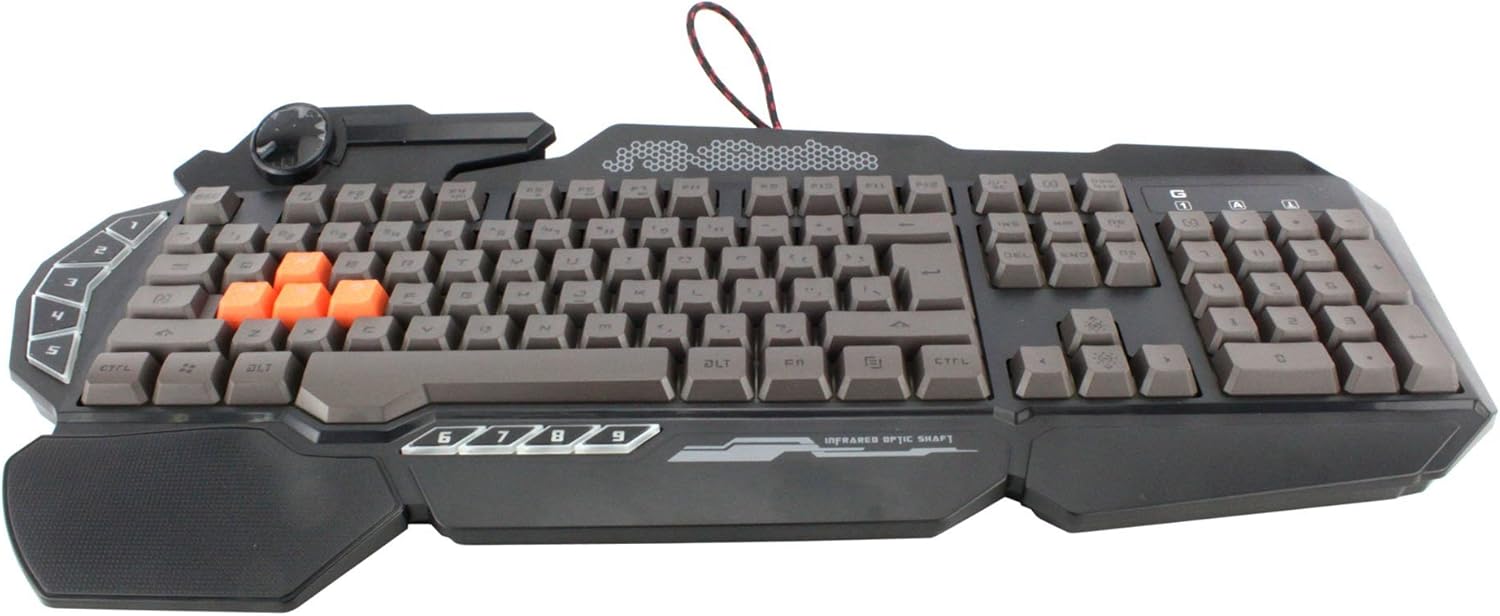
රූපය: ඉහළ-පහළ view of the Bloody Light Strike B314 Gaming Keyboard, showcasing the full QWERTY layout with orange WASD keys and dedicated macro keys on the left.
මෙහෙයුම් උපදෙස්
මූලික භාවිතය
The Bloody B314 functions as a standard QWERTY keyboard for everyday typing and gaming. Its infrared mechanical switches provide a fast and responsive typing experience.
වැඩසටහන්ගත කළ හැකි යතුරු
The keyboard features 9 programmable keys, typically located on the left side. To customize these keys:
- Install the official Bloody software from the A4tech webඅඩවිය.
- Launch the software and navigate to the key customization section.
- Select the desired programmable key (e.g., G1-G9 or similar).
- Assign macros, key functions, or multimedia controls as needed.
- ඔබේ වෘත්තිකයාව බේරා ගන්නfile වෙනස්කම් යෙදීමට.
LED Backlighting Control
The Neon Glare System LED backlighting can be adjusted using function key combinations:
- Fn+F12: Cycle through different backlighting modes (e.g., static, breathing, off).
- Fn + ඉහළ/පහළ ඊතලය: පසුබිම් ආලෝකයේ දීප්තිය සකසන්න.
- Fn + වම්/දකුණු ඊතලය: Adjust backlight speed or direction (if applicable to the mode).
ක්රීඩා මාදිලිය
Activate Game Mode to disable the Windows key and prevent accidental interruptions during gameplay.
- Fn+F8: ක්රීඩා ප්රකාරය සක්රිය/අක්රිය කරන්න.

රූපය: කෝණික view of the Bloody Light Strike B314 Gaming Keyboard, highlighting the ergonomic wrist rest and the distinct orange WASD keys.
නඩත්තු කිරීම
පිරිසිදු කිරීම
- පිරිසිදු කිරීමට පෙර ඔබේ පරිගණකයෙන් යතුරු පුවරුව විසන්ධි කරන්න.
- මෘදු, ඩී භාවිතා කරන්නamp cloth to wipe the surface of the keyboard. Avoid harsh chemicals or abrasive materials.
- යතුරු අතර දූවිලි හා සුන්බුන් සඳහා, සම්පීඩිත වාතය භාවිතා කරන්න.
- The water-resistant design helps protect against spills, but it is still recommended to clean up liquids promptly.
ගබඩා කිරීම
දීර්ඝ කාලයක් තිස්සේ භාවිතයේ නොමැති විට සෘජු හිරු එළියෙන් සහ අධික උෂ්ණත්වයන්ගෙන් ඈත්ව සිසිල් වියළි ස්ථානයක යතුරු පුවරුව ගබඩා කරන්න.
දෝෂගවේෂණය
යතුරුපුවරුව ප්රතිචාර නොදක්වයි
- USB කේබලය යතුරු පුවරුවට සහ පරිගණකයට ආරක්ෂිතව සම්බන්ධ කර ඇති බවට වග බලා ගන්න.
- යතුරුපුවරුව වෙනත් USB පෝට් එකකට සම්බන්ධ කිරීමට උත්සාහ කරන්න.
- ඔබේ පරිගණකය නැවත ආරම්භ කරන්න.
- ඔබේ පරිගණකයේ උපාංග කළමනාකරු (Windows) හෝ පද්ධති තොරතුරු (macOS) තුළ යතුරුපුවරුව හඳුනාගෙන ඇත්දැයි පරීක්ෂා කරන්න.
පසුබිම් ආලෝකය ක්රියා නොකරයි
- Ensure the backlighting is not turned off using the Fn + F12 combination.
- Adjust brightness using Fn + Up Arrow.
- custom pro භාවිතා කරන්නේ නම්files, ensure the backlighting settings are correctly configured in the Bloody software.
වැඩසටහන්ගත කළ හැකි යතුරු ක්රියා නොකරයි
- Verify that the Bloody software is installed and running.
- Ensure your custom profiles are loaded and active within the software.
- Check for any software updates for the Bloody keyboard utility.
පිරිවිතර
| විශේෂාංගය | විස්තර |
|---|---|
| වෙළඳ නාමය | A4tech විසින් තවත් |
| ආදර්ශ අංකය | A4TKLA45173 |
| සම්බන්ධතා තාක්ෂණය | අධෝරක්ත කිරණ |
| යතුරුපුවරු විස්තරය | යාන්ත්රික |
| මාරු වර්ගය | Mechanical (Light Strike Optic) |
| විශේෂ ලක්ෂණය | Backlit, Programmable Keys, Water Resistant |
| වර්ණය | කළු |
| යතුරුපුවරු පසුබිම් ආලෝකකරණ වර්ණ සහාය | RGB (Neon Glare System) |
| යතුරු ගණන | 104 |
| වැඩසටහන්ගත කළ හැකි බොත්තම් | 9 |
| ජල ප්රතිරෝධක මට්ටම | වතුර කාන්දු නොවන |
| අයිතමයේ බර | පවුම් 2.9ක් |
වගකීම් සහ සහාය
වගකීම් තොරතුරු සහ තාක්ෂණික සහාය සඳහා, කරුණාකර නිල A4tech වෙබ් අඩවිය වෙත යොමු වන්න. webවෙබ් අඩවියට හෝ ඔවුන්ගේ පාරිභෝගික සේවයට සෘජුවම සම්බන්ධ වන්න. වගකීම් හිමිකම් සඳහා මිලදී ගැනීමේ සාක්ෂියක් ලෙස ඔබේ මිලදී ගැනීමේ රිසිට්පත තබා ගන්න.
Official A4tech Webඅඩවිය: www.a4tech.com