
1. හැඳින්වීම
This manual provides instructions for the SAFFUN 2.4 GHz Wireless USB Controller, designed for a retro gaming experience. This controller is compatible with various platforms including Windows PC, Mac, Linux, and Raspberry Pi systems. Please read this manual thoroughly before use to ensure proper setup and operation.
2. නිෂ්පාදන අවසන්view
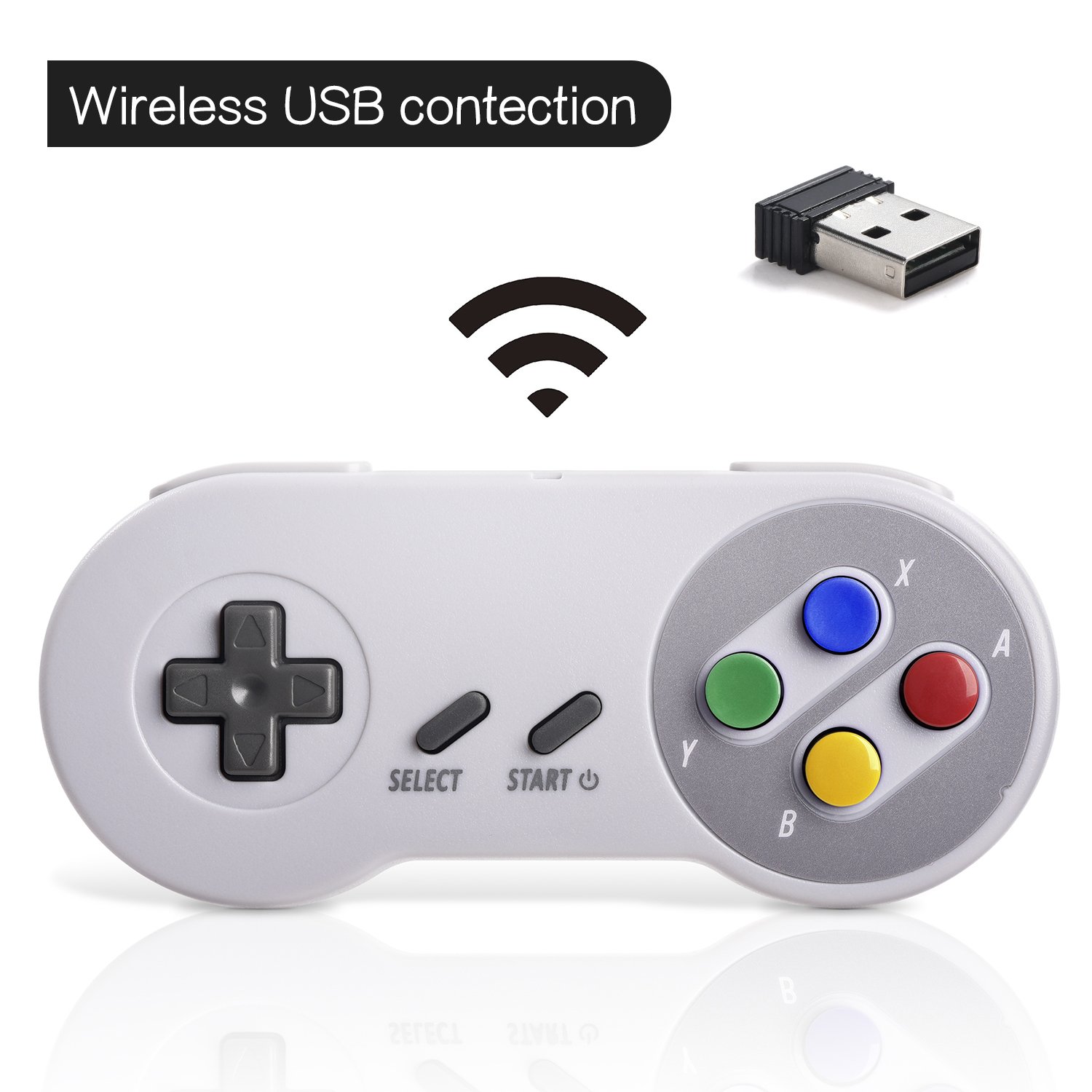
The SAFFUN Wireless USB Controller offers a classic SNES-style design with modern wireless connectivity. It features a 2.4 GHz wireless RF connection, providing a range of up to 10 meters for flexible gameplay.
ප්රධාන ලක්ෂණ:
- 2.4 GHz Wireless Connectivity: Offers a stable connection with up to 10 meters range.
- ප්ලග් සහ ප්ලේ: Generic USB controller that requires no additional setup for most compatible systems.
- Sensitive Buttons: Designed for precision control.
- දිගු බැටරි ආයු කාලය: Up to 3 years battery life with a 240mA capacity.
- ඉක්මන් ආරෝපණය: සම්පූර්ණ ආරෝපණය සඳහා ආසන්න වශයෙන් පැය 1 ක්.
පාලක සංරචක:

3. පිහිටුවීම
ආරම්භක සම්බන්ධතාවය:
- Insert the 2.4 GHz USB receiver into an available USB port on your PC, Mac, Linux device, or Raspberry Pi.
- Press the 'START' button on the controller to power it on. The controller should automatically connect to the USB receiver. A red indicator light on the controller will confirm connection status.
- If your program or application accepts USB controller input, the controller should be ready for use.
Pairing and Resetting:
If the controller does not pair automatically or experiences connection issues, you may need to reset it:
- USB ග්රාහකය ඔබගේ උපාංගයට ආරක්ෂිතව සම්බන්ධ කර ඇති බවට වග බලා ගන්න.
- ඔබා අල්ලාගෙන සිටින්න තෝරන්න, ආරම්භ කරන්න, සහ D-PAD DOWN buttons simultaneously on the controller to initiate a reset and re-pairing sequence.
- The controller should then attempt to re-establish a connection with the USB receiver.

4. මෙහෙයුම් උපදෙස්
The controller functions similarly to a classic SNES controller. The buttons are mapped as follows:
- D-Pad: Directional control (Up, Down, Left, Right).
- තෝරා බොත්තම: Typically used for menu selections or secondary functions.
- ආරම්භක බොත්තම: Used to pause games, confirm selections, or power on/off the controller.
- Action Buttons (Y, X, A, B): Primary action buttons for gameplay.
- Shoulder Buttons (L, R): Located on the top edge of the controller for additional in-game actions.
For specific button assignments within games or emulators, refer to the in-game settings or emulator configuration options.
5. ගැළපුම
සහාය දක්වන මෙහෙයුම් පද්ධති:
- Windows (98, ME, 2000, 2003, XP, Vista, 7, 8, 8.1, 10)
- Linux (Ubuntu, Linux Mint, Android Linux via USB OTG cable)
- Mac OS X and beyond
- Retrogaming operating systems (RetroPie, Recalbox, Happi Game Center, Lakka, ChameleonPi, Piplay)
සහාය දක්වන උපාංග:
- PC, Notebook Computer, Laptop Computer
- Android Smartphone (via USB OTG cable)
- Raspberry Pi (RPI, Raspberry pie): Raspberry Pi 1 Model B, Model A, Raspberry Pi 1 Model B+, Raspberry Pi Zero, Raspberry Pi 2, Raspberry Pi 3 Model B, Raspberry Pi 3, Retro Pie

Unsupported Devices:
- Android TV පෙට්ටිය
- C64 (Commodore 64)
- Google Chromebook
- ගිනි රූපවාහිනිය
- වාෂ්ප
- ටෙස්ලා
- Nintendo NES Classic Edition Console, NES Mini Console, Nintendo SNES Classic Edition Console, SNES Mini Console

සහාය දක්වන ක්රීඩා ඉමුලේටර්:
- NES, SNES, Snes9x, ZSNES, Higan
- Handheld GBA emulator
- Sega Genesis emulator
- Sega OpenEmu (Only supports OS X)
- RetroArch (Works well on Android)
- BSNES (Ideal for two-player action)
6. ආරෝපණය සහ බැටරි ආයු කාලය
The controller is equipped with a rechargeable battery. To charge the controller:
- Connect the provided charging cable to the micro USB port on the top edge of the controller.
- Connect the other end of the cable to a standard USB power source (e.g., computer USB port, USB wall adapter).
- The red indicator light on the controller will flash while charging and remain solid when fully charged.
බැටරි පිරිවිතර:
- බැටරි ධාරිතාව: 240mA
- ආරෝපණ කාලය: ආසන්න වශයෙන් පැය 1 යි
- ආරෝපණ වෙළුමtagඊ: 3.7V
- Usage time: Up to 3 hours on a full charge
- බැටරි මට්ටමේ දර්ශකය: ඔව්
7. දෝශ නිරාකරණය
සම්බන්ධතා ගැටළු:
- පාලකය ප්රතිචාර නොදක්වයි: Ensure the USB receiver is properly inserted into a working USB port. Verify the controller is powered on by pressing the 'START' button.
- අතරමැදි සම්බන්ධතාවය: Move closer to the USB receiver to ensure you are within the 10-meter range. Check for potential interference from other 2.4 GHz wireless devices.
- නැවත යුගල කිරීම: If connection is lost or unstable, perform the reset procedure by holding SELECT + START + D-PAD DOWN simultaneously.
Input/Button Mapping Problems:
- Incorrect button functions: Check the in-game or emulator settings to ensure the controller buttons are correctly mapped. Some emulators may require manual configuration.
- Controller not recognized as SNES type: Some systems or games might incorrectly identify the controller. If possible, manually select a generic USB gamepad or SNES controller profile මෘදුකාංග සැකසුම් තුළ.
ආරෝපණ ගැටළු:
- පාලකය ආරෝපණය නොවේ: Ensure the charging cable is securely connected to both the controller and the power source. Try a different USB port or charging adapter. Check if the red indicator light flashes during charging.
8. පිරිවිතර
| විශේෂාංගය | විස්තර |
|---|---|
| ආදර්ශ අංකය | 8541667389 |
| සම්බන්ධතාවය | 2.4 GHz Wireless RF |
| රැහැන් රහිත පරාසය | මීටර් 10 දක්වා |
| නිෂ්පාදන මානයන් | අඟල් 5.51 x 2.36 x 0.79 |
| අයිතමයේ බර | අවුන්ස 8.1 කි |
| බැටරි වර්ගය | Rechargeable (1 A battery included) |
| බැටරි ධාරිතාව | 240mA |
| ආරෝපණ කාලය | පැය 1 යි |
| ආරෝපණ වෙළුමtage | 3.7V |
| භාවිත කාලය | පැය 3 යි |
| නිෂ්පාදකයා | කුංකුම |
| පළමු දිනය තිබේ | 8 මැයි 2018 |
9. වගකීම් සහ සහාය
SAFFUN is registered with the United States Patent and Trademark Office. We are committed to 100% customer satisfaction.
- වගකීම්: We provide a hassle-free 12-month replacement warranty.
- පාරිභෝගික සේවාව: For any questions or support, please feel free to contact us.
