
හැඳින්වීම
The Hyper Drive GEN2 12-in-1 USB-C Docking Station is designed to expand the connectivity of your USB-C enabled laptop or tablet. This docking station provides a comprehensive solution for connecting multiple peripherals, external displays, and power delivery through a single USB-C port. It supports high-speed data transfer, multiple 4K video outputs, and efficient power charging for enhanced productivity.
නිෂ්පාදන විශේෂාංග
The Hyper Drive GEN2 12-in-1 USB-C Docking Station offers a wide array of ports and capabilities:
- Dual HDMI 4K60Hz HDR: Connect up to two external displays with stunning 4K resolution at 60Hz, supporting High Dynamic Range (HDR) for vibrant visuals.
- DisplayPort 4K60Hz: Connect an additional external display via DisplayPort, also supporting 4K resolution at 60Hz.
- USB-C Power Delivery (PD) 100W: Charge your host laptop or tablet with up to 100W of power through the dedicated USB-C PD port.
- 2x USB-A 10Gbps (USB 3.1 Gen 2): Experience ultra-fast data transfer speeds for compatible USB-A devices.
- 2x USB-A 2.0: Connect standard USB peripherals such as keyboards, mice, or printers.
- ගිගාබිට් ඊතර්නෙට්: Enjoy stable and high-speed wired network connectivity.
- MicroSD UHS-II (300MB/s): Fast data transfer for MicroSD cards, ideal for photographers and videographers.
- SD UHS-II (300MB/s): Fast data transfer for standard SD cards.
- 3.5mm ඕඩියෝ ජැක්: Connect headphones or speakers for audio output.

රූපය 1: ඉදිරිපස view of the Hyper Drive GEN2 12-in-1 USB-C Hub, highlighting MicroSD, SD, 3.5mm Audio, and two USB-A 10Gbps ports.
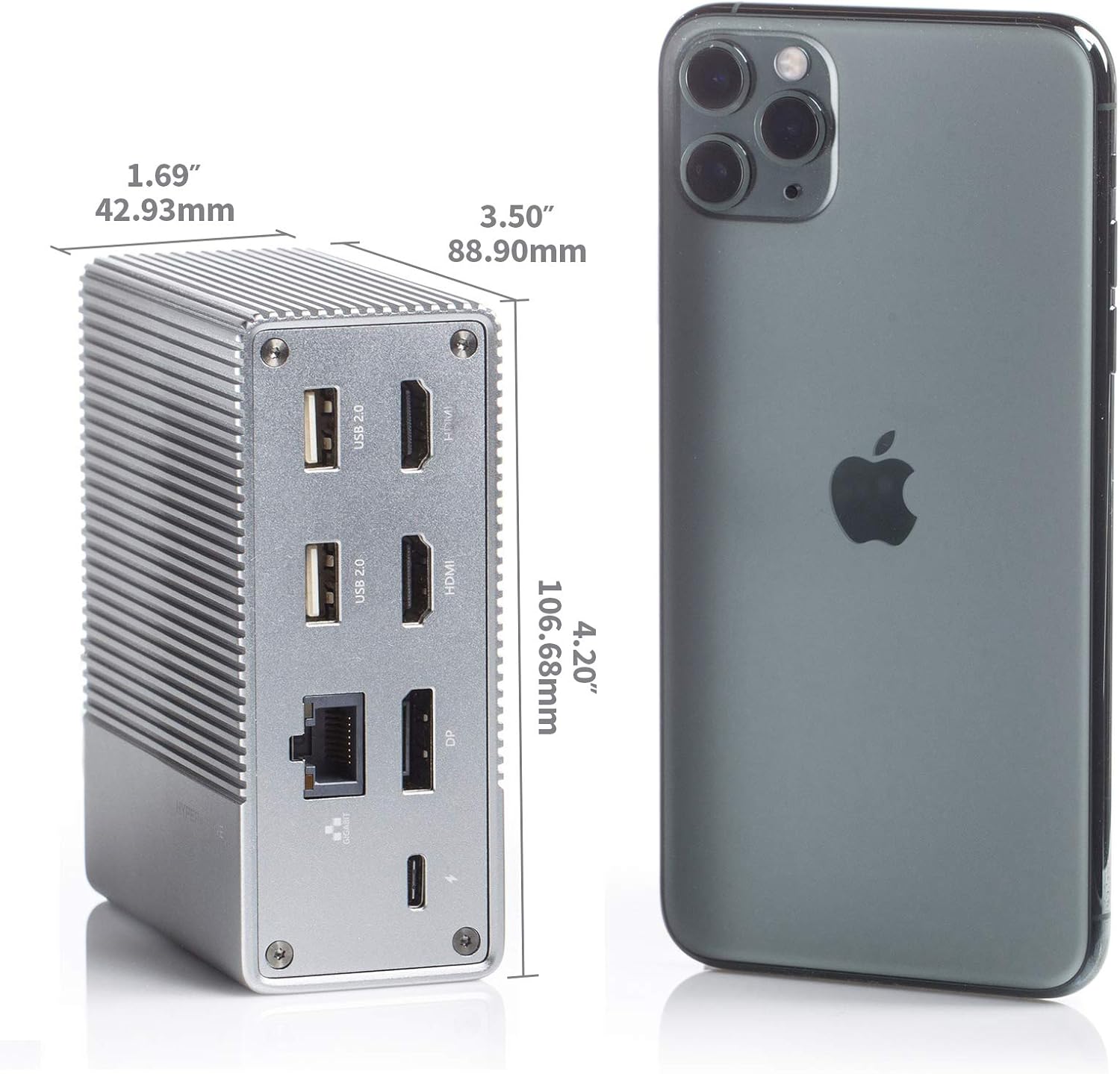
රූපය 2: පසුපස view of the Hyper Drive GEN2 12-in-1 USB-C Hub, highlighting USB-C Power Delivery, Gigabit Ethernet, DisplayPort, two HDMI, and two USB-A 2.0 ports.
සැකසුම් මාර්ගෝපදේශය
- සත්කාරක උපාංගයට සම්බන්ධ වන්න: Plug the integrated USB-C cable from the docking station into an available USB-C port on your laptop or tablet. Ensure the USB-C port on your host device supports DisplayPort Alternate Mode (Alt Mode) and Power Delivery for full functionality.
- බල සම්බන්ධතාවය (විකල්ප නමුත් නිර්දේශිත): For optimal performance and to charge your host device, connect your laptop's USB-C power adapter to the USB-C PD port on the docking station. The docking station supports up to 100W power delivery.
- බාහිර සංදර්ශක සම්බන්ධ කරන්න:
- Connect your HDMI monitors to the HDMI ports on the docking station.
- Connect your DisplayPort monitor to the DisplayPort on the docking station.
සටහන: For macOS, only one extended display is supported with the same image on all external displays at 4K60Hz. Windows/Chrome OS supports Multi-Stream Transport (MST) for up to three extended displays.
- පර්යන්ත සම්බන්ධ කරන්න: Plug your USB devices (keyboard, mouse, external drives), Ethernet cable, and audio devices into the corresponding ports on the docking station.
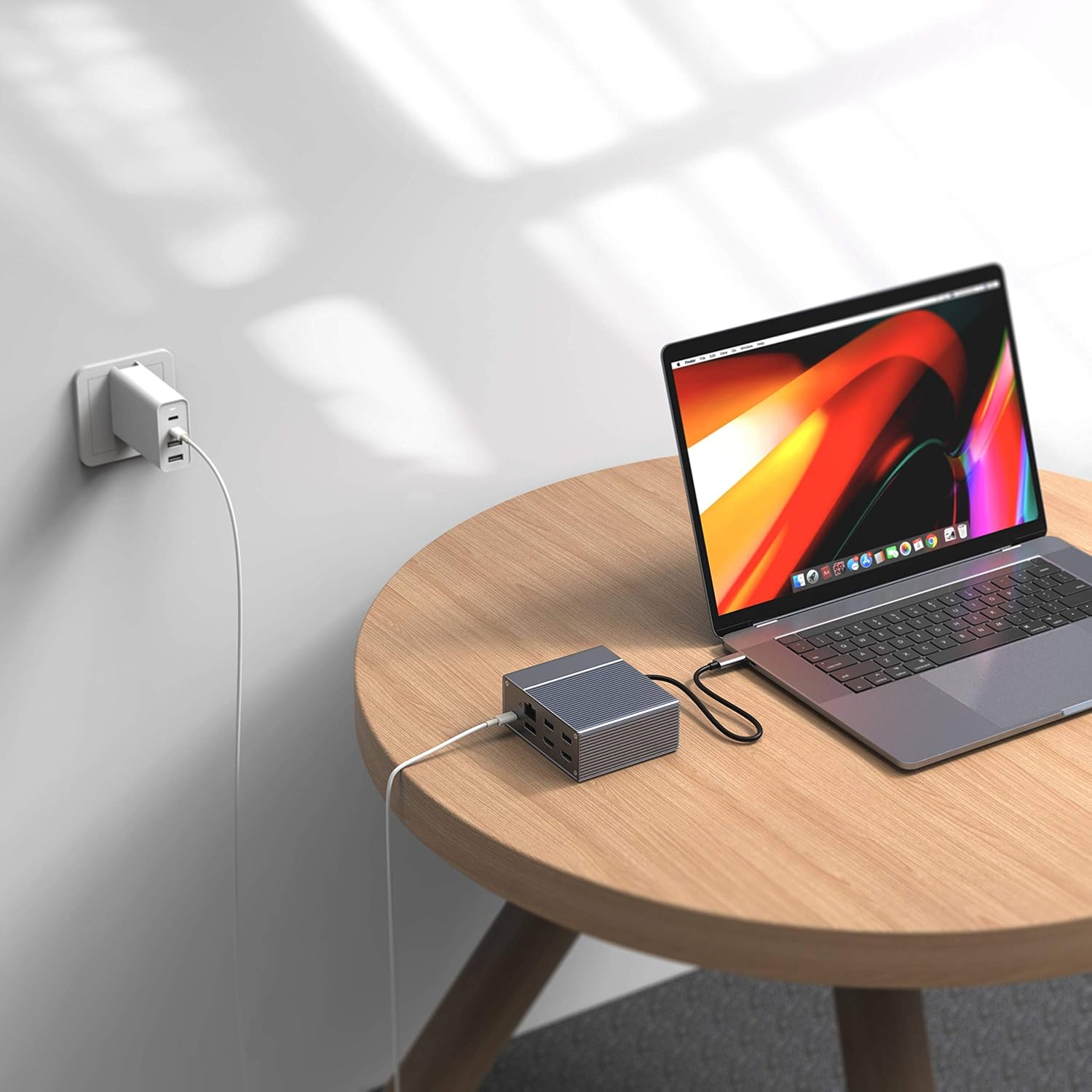
Figure 3: Laptop connected to the docking station and a power adapter for charging.
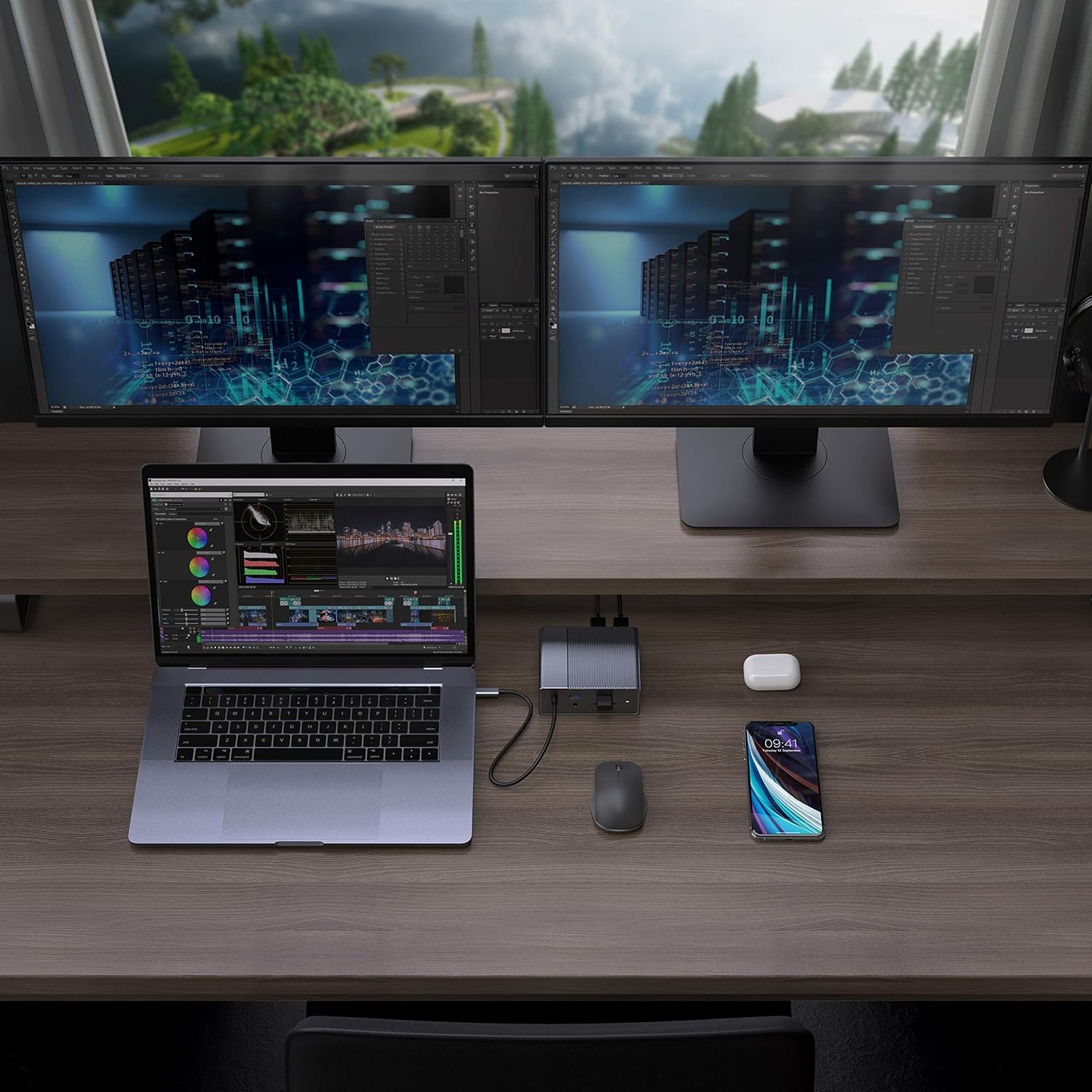
Figure 4: A typical setup showing a laptop connected to the docking station with multiple peripherals and external displays.
මෙහෙයුම් උපදෙස්
සංදර්ශක මාදිලි
The docking station supports various display configurations depending on your operating system:
- මැකෝස්: Supports one extended display with the same image mirrored across all external displays at 4K60Hz. macOS does not support Multi-Stream Transport (MST) for independent extended displays.
- Windows/Chrome OS: Supports Multi-Stream Transport (MST), allowing for up to three extended displays with independent content at 4K60Hz.

Figure 5: Illustration of display modes for macOS (mirror mode) and Windows (mirror and extended modes) using the docking station.
Data Transfer and Power Delivery
- USB-A 10Gbps Ports: Use these ports for high-speed data transfer with compatible external hard drives, SSDs, or other USB 3.1 Gen 2 devices.
- USB-A 2.0 වරාය: Ideal for connecting standard peripherals like keyboards, mice, or USB flash drives where high-speed data transfer is not critical.
- SD/MicroSD Card Slots: Insert your memory cards for quick access and transfer of photos and videos at up to 300MB/s (UHS-II speeds).
- USB-C PD Port: Connect your laptop's power adapter to this port to charge your laptop while using the docking station. This port also supports data transfer.
වීඩියෝව 1: නිල වශයෙන් අවසන්view of the HyperDrive GEN2 USB-C Hub, demonstrating its speed, power, and various port functionalities.
නඩත්තු කිරීම
- Keep the docking station in a clean, dry environment.
- උපාංගය අධික උෂ්ණත්වයකට හෝ සෘජු හිරු එළියට නිරාවරණය කිරීමෙන් වළකින්න.
- මෘදු වියළි රෙද්දකින් බාහිර පිරිසිදු කරන්න. දියර පිරිසිදු කරන්නන් හෝ එයරෙසෝල් භාවිතා නොකරන්න.
- උනුසුම් වීම වැළැක්වීම සඳහා උපාංගය වටා නිසි වාතාශ්රය සහතික කරන්න.
දෝෂගවේෂණය
- No display output or flickering screen:
- ඔබගේ සත්කාරක උපාංගයේ USB-C port එක DisplayPort Alt Mode සඳහා සහය දක්වන බවට වග බලා ගන්න.
- Check all cable connections (USB-C to host, HDMI/DP to monitors).
- Try a different HDMI or DisplayPort cable.
- Verify your monitor input settings are correct.
- For macOS, remember that only one extended display is supported, with other external displays mirroring the extended one.
- හඳුනා නොගත් USB උපාංග:
- Reconnect the USB device to the docking station.
- Try a different USB port on the docking station.
- Ensure the docking station is properly connected to your host device.
- If using high-power USB devices, ensure the docking station is connected to a power source via its USB-C PD port.
- Laptop not charging:
- Ensure your laptop's original USB-C power adapter is connected to the USB-C PD port on the docking station.
- Verify that your laptop supports USB-C Power Delivery.
- කිසියම් හානියක් සඳහා බල ඇඩැප්ටරය සහ කේබලය පරීක්ෂා කරන්න.
පිරිවිතර
| විශේෂාංගය | පිරිවිතර |
|---|---|
| ආකෘතිය | GEN2 12-in-1 USB-C Hub |
| වෙළඳ නාමය | අධි |
| HDMI වරායන් | 2x HDMI 4K60Hz HDR |
| DisplayPort | 1x DisplayPort 4K60Hz |
| USB-C පීඩී වරාය | 1x USB-C බල සැපයුම 100W |
| USB-A දත්ත වරායන් | 2x USB-A 10Gbps (USB 3.1 Gen 2), 2x USB-A 2.0 |
| ඊතර්නෙට් | 1x ගිගාබිට් ඊතර්නෙට් |
| කාඩ්පත් කියවන්නන් | 1x MicroSD UHS-II (300MB/s), 1x SD UHS-II (300MB/s) |
| ඕඩියෝ ජැක් | 1x 3.5mm ඕඩියෝ ජැක් |
| ගැළපෙන OS | macOS, වින්ඩෝස්, ක්රෝම් මෙහෙයුම් පද්ධතිය |
| අයිතමයේ බර | ග්රෑම් 480.8 යි |
| UPC | 817110014519 |
වගකීම් සහ සහාය
For warranty information and technical support, please refer to the official Hyper webවෙබ් අඩවියට හෝ ඔවුන්ගේ පාරිභෝගික සේවය අමතන්න. වගකීම් හිමිකම් සඳහා ඔබේ මිලදී ගැනීමේ රිසිට්පත තබා ගන්න.
මාර්ගගත සහාය: www.hyper.com/support