
හැඳින්වීම
The Sharkoon Skiller SGK30 is a mechanical gaming keyboard designed for performance and durability. It features customizable RGB lighting, N-Key rollover, and a 1000Hz polling rate for responsive gameplay and typing. This manual provides essential information for setting up, operating, and maintaining your keyboard.

Image: Sharkoon Skiller SGK30 Mechanical Gaming Keyboard banner displaying the product name and type.
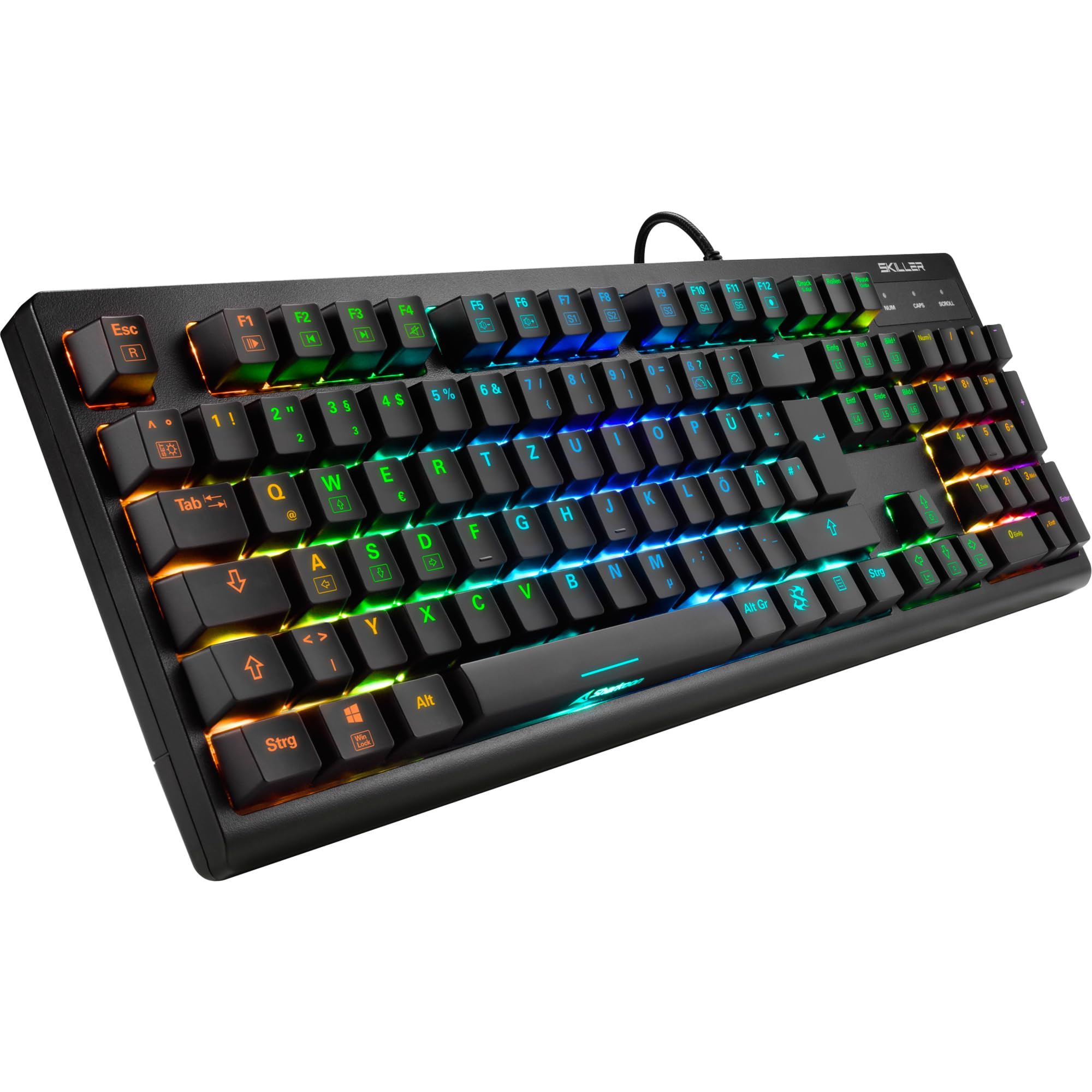
රූපය: ඉහළ-පහළ view of the Sharkoon Skiller SGK30 mechanical gaming keyboard, showcasing එහි සම්පූර්ණ පිරිසැලසුම සහ විචිත්රවත් RGB පසුබිම් ආලෝකය.
නිෂ්පාදනය අවසන්view වීඩියෝ
වීඩියෝ: නිල නිෂ්පාදනයක් අවසන්view of the Sharkoon Skiller SGK30 Mechanical Gaming Keyboard, demonstrating its features, RGB lighting effects, and mechanical switches.
සැලසුම
Follow these steps to set up your Sharkoon Skiller SGK30 keyboard:
- යතුරු පුවරුව ඉවත් කරන්න: Carefully remove the keyboard and the included USB cable from its packaging.
- පරිගණකයට සම්බන්ධ කරන්න: Plug the Micro USB end of the cable into the keyboard's port and the standard USB-A end into an available USB port on your computer.
- ධාවක ස්ථාපනය: The keyboard is plug-and-play. Your operating system (Windows 10 or later recommended) should automatically detect and install the necessary drivers.
- මෘදුකාංග ස්ථාපනය (විකල්ප): For advanced customization of RGB lighting and key assignments, download the official Sharkoon software from the manufacturer's webඅඩවිය.

Image: The Sharkoon Skiller SGK30 keyboard positioned on a desk, ready for connection.
මෙහෙයුම් උපදෙස්
මූලික ප්රධාන කාර්යයන්
The Sharkoon Skiller SGK30 features a standard layout with additional function keys accessible via the FN යතුර.
- එෆ්එන් + එෆ්1-එෆ්12: Access multimedia controls (e.g., play/pause, volume up/down, mute).
- FN + Windows යතුර: ක්රීඩා කරන අතරතුර අහම්බෙන් එබීම වැළැක්වීම සඳහා Windows යතුර අගුළු හරින්න/අගුළු හරින්න.
- එන්-යතුරු පෙරළීම: All keys are registered simultaneously, ensuring every keystroke is detected, even during rapid input.
ආර්ජීබී ආලෝකකරණ පාලනය
The keyboard offers extensive RGB lighting customization. Use the following combinations to adjust lighting effects:
- FN + Insert/Home/Page Up/Delete/End/Page Down: Cycle through various pre-programmed lighting effects.
- FN + Arrow Keys (Up/Down): Adjust brightness levels of the lighting.
- FN + Arrow Keys (Left/Right): ගතික ආලෝකකරණ බලපෑම්වල වේගය සකසන්න.
- Custom Illumination: Use the dedicated software for advanced per-key lighting customization.

රූපය: සමීප ඡායාරූපයක් view of the keyboard keys highlighting the adjustable RGB illumination capabilities.
මෘදුකාංග අභිරුචිකරණය
For advanced settings, macro programming, and detailed RGB customization, download and install the Sharkoon Skiller SGK30 software from the official Sharkoon webඅඩවිය. මෘදුකාංගය ඔබට ඉඩ දෙන්නේ:
- අභිරුචි ආලෝකකරණ වෘත්තිකයෙකු නිර්මාණය කර සුරකින්නfiles.
- Program macros for specific keys.
- Remap key functions.

Image: A screenshot showing the graphical user interface of the Sharkoon Skiller SGK30 customization software, illustrating various options for lighting and key remapping.
නඩත්තු කිරීම
නිසි නඩත්තුව ඔබේ යතුරුපුවරුවේ ආයු කාලය සහ ක්රියාකාරිත්වය සහතික කරයි:
- පිරිසිදු කිරීම: යතුරු පුවරුවේ මතුපිට පිස දැමීමට මෘදු වියළි රෙද්දක් භාවිතා කරන්න. ගැඹුරු පිරිසිදු කිරීම සඳහා, යතුරු කැප් අතර ඇති දූවිලි හා සුන්බුන් ඉවත් කිරීමට සම්පීඩිත වාතය භාවිතා කරන්න.
- යතුරු කැප් ඉවත් කිරීම: If necessary, keycaps can be carefully removed using a keycap puller (not included) for thorough cleaning of the switches. Reinstall keycaps by pressing them firmly onto the switch stems.
- දියර වලින් වළකින්න: යතුරු පුවරුව ද්රව වලට නිරාවරණය නොකරන්න. කාන්දු වීමක් සිදුවුවහොත්, වහාම යතුරු පුවරුව විසන්ධි කර නැවත සම්බන්ධ කිරීමට පෙර එය සම්පූර්ණයෙන්ම වියළීමට ඉඩ දෙන්න.
- ගබඩා: යතුරු පුවරුව සෘජු හිරු එළියෙන් සහ අධික උෂ්ණත්වයන්ගෙන් ඈත්ව සිසිල් වියළි ස්ථානයක ගබඩා කරන්න.

රූපය: සමීප ඡායාරූපයක් view of the mechanical switches on the Sharkoon Skiller SGK30 keyboard, illustrating their design for durability and ease of maintenance. Note: This model is available with Red switches, while the image shows Blue switches.
දෝෂගවේෂණය
If you encounter issues with your Sharkoon Skiller SGK30 keyboard, refer to the following common solutions:
| ගැටලුව | විය හැකි හේතුව | විසඳුම |
|---|---|---|
| යතුරු පුවරුව ප්රතිචාර නොදක්වයි | ලිහිල් USB සම්බන්ධතාවය, දෝෂ සහිත USB පෝට් එක, ධාවක ගැටළුව. |
|
| RGB ආලෝකකරණය ක්රියා නොකරයි හෝ වැරදියි | Lighting settings incorrect, software conflict. |
|
| යතුරු ලියාපදිංචි නොවේ. | යතුරු කැප් එක යට දූවිලි/සුන්බුන්, දෝෂ සහිත ස්විචය. |
|
පිරිවිතර
| විශේෂාංගය | විස්තර |
|---|---|
| වෙළඳ නාමය | ෂර්කෝන් |
| ආදර්ශ අංකය | 4044951030026 |
| යතුරුපුවරු වර්ගය | යාන්ත්රික සූදු යතුරු පුවරුව |
| මාරු වර්ගය | Red Switch (Blue switches are also available for this model series) |
| සම්බන්ධතාවය | මයික්රෝ USB |
| ඡන්ද අනුපාතය | 1000Hz |
| එන්-යතුරු පෙරළීම | සහාය දුන්නා |
| RGB ආලෝකකරණය | අභිරුචිකරණය කළ හැකි RGB |
| මෙහෙයුම් පද්ධතිය | Windows 10 (and compatible with other Windows versions) |
| මානයන් (LxWxH) | 44 x 14.4 x 3.5 සෙ.මී |
| බර | 867 ග්රෑම් |
පෙට්ටියේ ඇති දේ
The Sharkoon Skiller SGK30 package includes:
- Sharkoon Skiller SGK30 Mechanical Gaming Keyboard
- USB කේබලය
වගකීම් සහ සහාය
For warranty information and technical support, please refer to the official Sharkoon webවෙබ් අඩවියට පිවිසෙන්න හෝ ඔබේ ප්රදේශයේ සිල්ලර වෙළෙන්දා අමතන්න. වගකීම් හිමිකම් සඳහා ඔබේ මිලදී ගැනීමේ සාක්ෂි තබා ගන්න.
සටහන: නිෂ්පාදන පිරිවිතර සහ විශේෂාංග පූර්ව දැනුම්දීමකින් තොරව වෙනස් විය හැකිය.