
හැඳින්වීම
Thank you for choosing the Newskill Manticore Gaming PC Case. This manual provides essential information for the proper installation, operation, and maintenance of your new PC chassis. Please read these instructions carefully before beginning the assembly process to ensure optimal performance and longevity of your components.
නිෂ්පාදනය අවසන්view
The Newskill Manticore is an ATX mid-tower gaming PC case designed for high-performance builds. It features a mesh front panel for superior airflow, a tempered glass side panel to showcase your components, and four pre-installed 120mm ARGB fans for effective cooling and customizable aesthetics.
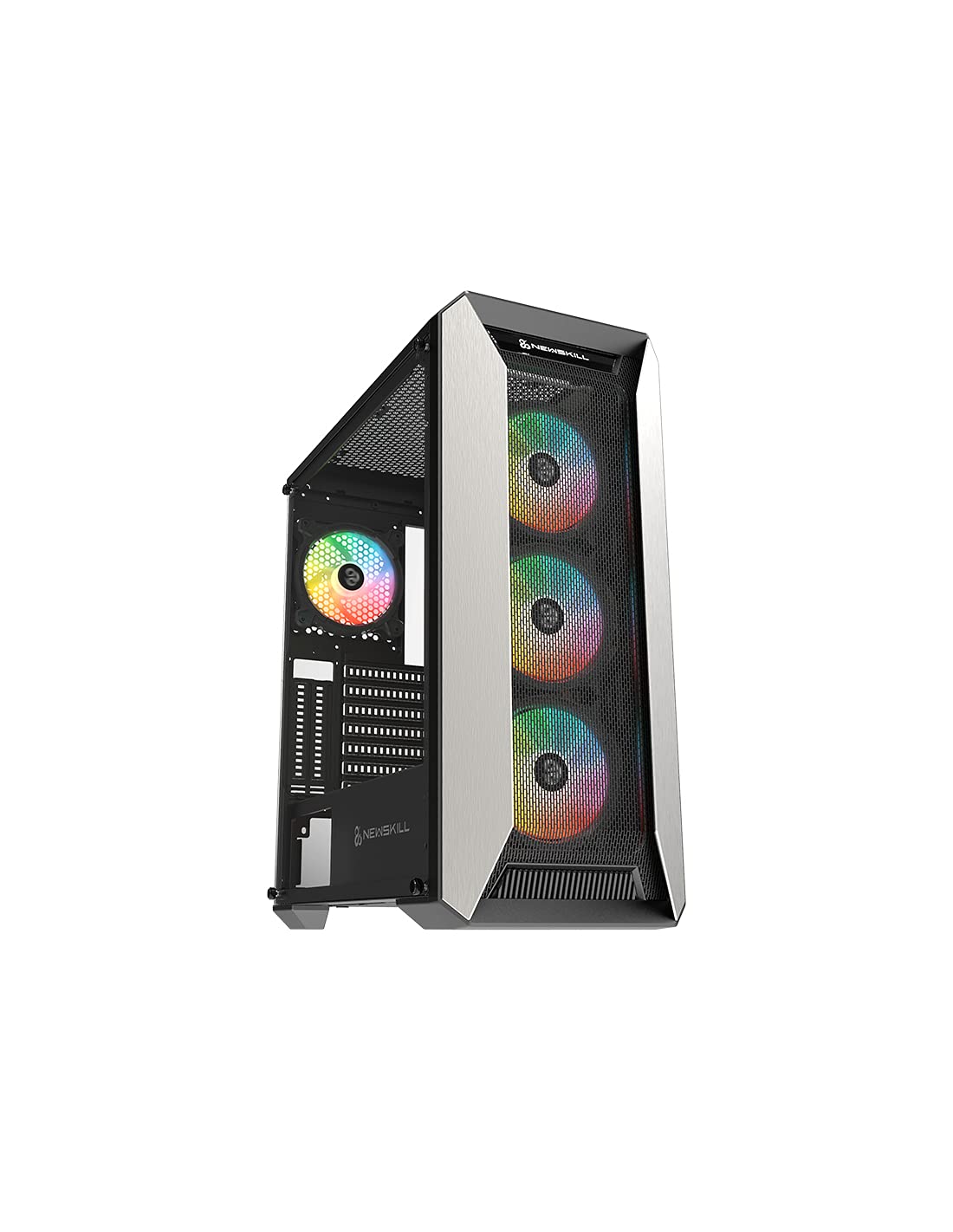
රූපය 1: ඉදිරිපස view of the Newskill Manticore Gaming PC Case, highlighting the mesh front and tempered glass side panel.
ප්රධාන ලක්ෂණ:
- ATX Mid-Tower compatibility
- Mesh front panel for optimized airflow
- මෘදු වීදුරු පැති පුවරුව
- Four pre-installed 120mm ARGB fans
- Two removable dust filters
- USB 3.0 connectivity on the front panel
සැකසුම සහ ස්ථාපනය
1. ඇසිරීම
Carefully remove the PC case from its packaging. Inspect for any damage that may have occurred during shipping. Retain the packaging for future transport or warranty claims.
2. සංරචක හඳුනා ගැනීම
Before installation, familiarize yourself with the case components and included accessories:
- Newskill Manticore PC Case
- Accessory box (screws, cable ties, standoffs)
- පරිශීලක අත්පොත (මෙම ලේඛනය)
3. මවු පුවරු ස්ථාපනය
- මාපටැඟිලි ඉස්කුරුප්පු ගලවා තෙම්පරාදු වීදුරු පැති පුවරුව ඉවත් කරන්න.
- Install the necessary motherboard standoffs into the motherboard tray.
- Carefully place your ATX motherboard onto the standoffs, aligning the screw holes.
- සපයා ඇති ඉස්කුරුප්පු වලින් මවු පුවරුව සුරක්ෂිත කරන්න.
4. බල සැපයුම් ඒකකය (PSU) ස්ථාපනය
- Locate the PSU mounting area at the bottom rear of the case.
- Slide your PSU into position from the rear of the case.
- Secure the PSU with screws from the exterior rear of the case.
5. ගබඩා ධාවක ස්ථාපනය
The case supports various storage configurations. Refer to your specific drive type for mounting instructions (e.g., 2.5" SSDs, 3.5" HDDs).
6. ග්රැෆික් කාඩ් සහ විස්තාරණ කාඩ් ස්ථාපනය
Remove the necessary PCIe slot covers and install your graphics card or other expansion cards, securing them with screws.
7. ඉදිරිපස පැනල් සම්බන්ධතා
Connect the front panel cables (USB 3.0, HD Audio, Power Switch, Reset Switch, Power LED, HDD LED) to the corresponding headers on your motherboard. Consult your motherboard manual for exact pin layouts.
8. කේබල් කළමනාකරණය
කේබල් කළමනාකරණය කිරීම සඳහා මවු පුවරුවේ තැටිය පිටුපස ඇති කේබල් රවුටින් කටවුට් සහ ගැටගැසීම් ස්ථාන භාවිතා කරන්න. මෙය වායු ප්රවාහය සහ සෞන්දර්යය වැඩි දියුණු කරයි.
මෙහෙයුම් උපදෙස්
බල ගැන්වීම / අක්රිය කිරීම
Press the power button located on the top panel of the case to turn on your system. To shut down, use the operating system's power-off function or press and hold the power button for several seconds for a forced shutdown (not recommended for regular use).
ARGB ආලෝකකරණ පාලනය
The pre-installed ARGB fans can be controlled via your motherboard's ARGB software (if compatible) or a dedicated ARGB controller (if included or purchased separately). Refer to your motherboard or controller manual for specific instructions on changing lighting effects and colors.
නඩත්තු කිරීම
දූවිලි පෙරහන පිරිසිදු කිරීම
The Newskill Manticore includes two removable dust filters (typically located on the top and bottom/front). Regularly clean these filters to maintain optimal airflow and prevent dust buildup inside your PC. Gently slide them out, clean with water and mild soap, or use a vacuum cleaner, and ensure they are completely dry before re-inserting.
බාහිර පිරිසිදු කිරීම
මෘදු, d සමග බාහිර පෘෂ්ඨයන් පිස දමන්නamp රෙදි. නිමාව හෝ තෙතමනය සහිත වීදුරුවට හානි කළ හැකි උල්ෙල්ඛ පිරිසිදු කරන්නන් හෝ ද්රාවක වලින් වළකින්න.
දෝෂගවේෂණය
බලය නැත
- Ensure the PSU is properly connected to the wall outlet and switched on.
- Verify all power cables from the PSU are correctly connected to the motherboard and components.
- Check front panel power switch connections to the motherboard.
විදුලි පංකා කැරකෙන්නේ නැත / ARGB දැල්වෙන්නේ නැත
- විදුලි පංකා බල කේබල් මවු පුවරුවට හෝ විදුලි පංකා පාලකයට ආරක්ෂිතව සම්බන්ධ කර ඇති බව තහවුරු කරන්න.
- Check ARGB connections to the motherboard's ARGB header or dedicated controller.
- Ensure ARGB software or controller settings are correctly configured.
දුර්වල වායු ප්රවාහය / අධික උනුසුම් වීම
- දූවිලි පෙරහන් නිතිපතා පිරිසිදු කරන්න.
- Ensure no obstructions are blocking air intake or exhaust vents.
- Verify all fans are spinning correctly and oriented for optimal airflow.
For further assistance, please contact Newskill support.
පිරිවිතර
| විශේෂාංගය | විස්තර |
|---|---|
| මාදිලියේ නම | මැන්ටිකෝර් |
| ආදර්ශ අංකය | 1102 |
| නඩු වර්ගය | මැද කුළුණ |
| මවු පුවරු අනුකූලතාව | ATX |
| මානයන් (L x W x H) | 60 x 60 x 85 සෙ.මී |
| බර | කිලෝ ග්රෑම් 1 කි |
| ද්රව්ය | තෙම්පරාදු වීදුරු, ලෝහ |
| සිසිලන ක්රමය | Air (4x 120mm ARGB fans included) |
| ඉදිරිපස I / O වරාය | USB 3.0, Audio Jacks, Power, Reset |
| දූවිලි පෙරහන් | 2 (ඉවත් කළ හැකි) |
| නිර්දේශිත භාවිතය | ක්රීඩා කිරීම |
වගකීම් තොරතුරු
The Newskill Manticore PC Case comes with a වසර 2ක නිෂ්පාදකයාගේ වගකීමක්. This warranty covers defects in materials and workmanship under normal use. It does not cover damage caused by misuse, accident, modification, or unauthorized repair. Please retain your proof of purchase for warranty claims.
සහාය සහ සම්බන්ධතා
For technical support, troubleshooting assistance, or warranty inquiries, please visit the official Newskill website or contact their customer service department. You can find contact information on the Newskill webඅඩවිය: www.newskillgaming.com