
1. හැඳින්වීම
This manual provides essential information for the proper installation, operation, and maintenance of your PowerColor Red Devil AMD Radeon RX 6650 XT Graphics Card. Please read this guide thoroughly before proceeding with installation to ensure optimal performance and longevity of your product.
The PowerColor Red Devil AMD Radeon RX 6650 XT is designed for high-performance gaming and demanding graphical tasks, featuring 8GB of GDDR6 memory and advanced cooling solutions.
2. පැකේජ අන්තර්ගතය
පහත ලැයිස්තුගත කර ඇති සියලුම අයිතම ඔබේ නිෂ්පාදන පැකේජයේ ඇති බව තහවුරු කර ගන්න:
- PowerColor Red Devil AMD Radeon RX 6650 XT Graphics Card
- ඉක්මන් ස්ථාපන මාර්ගෝපදේශය / පරිශීලක අත්පොත
- Graphics Card Holder (for support)
- ARGB LED Cable (for lighting synchronization)
- සවිකරන ඉස්කුරුප්පු
3. පද්ධති අවශ්යතා
ස්ථාපනය කිරීමට පෙර, ඔබේ පද්ධතිය පහත අවම අවශ්යතා සපුරාලන බවට වග බලා ගන්න:
- මවු පුවරුව: PCI Express compatible motherboard with one x16 PCIe slot.
- බල සැපයුම: Minimum 650W or greater power supply.
- පද්ධති මතකය (RAM): Minimum 8GB, Recommended 16GB.
- සංදර්ශකය: A display with HDMI or DisplayPort input is required.
- ආදාන උපාංග: Keyboard and mouse required for installation software.
- මෙහෙයුම් පද්ධතිය: 64-bit operating system required. Supported OS include Linux, Windows 7/10/11.
- API සහාය: DirectX 12 and Vulkan support.
4. පිහිටුවීම
4.1. භෞතික ස්ථාපනය
- ඔබේ පද්ධතිය සූදානම් කරන්න:
- ඔබේ පරිගණකය ක්රියා විරහිත කර බිත්ති අලෙවිසැලෙන් බල කේබලය විසන්ධි කරන්න.
- මවු පුවරුවට ප්රවේශ වීමට ඔබේ පරිගණක ආවරණය විවෘත කරන්න.
- If replacing an existing graphics card, disconnect its power cables and display cables. Carefully unlatch the PCIe retention clip and remove the old card.
- ග්රැෆික් කාඩ්පත ඇතුළු කරන්න:
- Locate an available x16 PCIe slot on your motherboard.
- Align the graphics card with the PCIe slot and press down firmly until it is securely seated and the retention clip locks into place.
- ග්රැෆික් කාඩ්පත සුරක්ෂිත කරන්න:
- Use the provided mounting screws to secure the graphics card to your computer case's expansion slot brackets.
- Install the included graphics card holder to prevent GPU sag, adjusting its height as needed.
- බල කේබල් සම්බන්ධ කරන්න:
- Connect the 8-pin and 6-pin PCIe power connectors from your power supply to the corresponding ports on the graphics card. Ensure a firm connection.
- සංදර්ශක කේබල් සම්බන්ධ කරන්න:
- Connect your monitor(s) to the graphics card using HDMI or DisplayPort cables. The card supports 1 HDMI and 3 DisplayPort outputs.
- කවරය වසා බලය සක්රිය කරන්න:
- ඔබේ පරිගණක කවරය වසා දමා විදුලි රැහැන නැවත සම්බන්ධ කරන්න.
- ඔබේ පරිගණකය සක්රිය කරන්න.
4.2. මෘදුකාංග ස්ථාපනය
- ධාවක බාගන්න:
- Visit the official AMD or PowerColor website to download the latest Radeon Software drivers for your specific operating system.
- Uninstall Old Drivers (if applicable):
- If you had a previous graphics card, it is recommended to uninstall its drivers using a utility like Display Driver Uninstaller (DDU) in Safe Mode to prevent conflicts.
- Install New Drivers:
- Run the downloaded Radeon Software installer. Follow the on-screen prompts to complete the installation.
- During installation, your display may flicker or go black temporarily. This is normal.
- පද්ධතිය නැවත ආරම්භ කරන්න:
- ධාවක ස්ථාපනය අවසන් වූ පසු ඔබේ පරිගණකය නැවත ආරම්භ කරන්න.
- දර්ශන සැකසුම් වින්යාස කරන්න:
- Once Windows loads, right-click on the desktop and select "Display settings" or open Radeon Software.
- Adjust your display resolution and refresh rate to match your monitor's capabilities.
- Enable AMD FreeSync (if your monitor supports it) for a smoother gaming experience.
5. මෙහෙයුම් ආකාර සහ විශේෂාංග
5.1. Dual BIOS Switch
Your graphics card features a Dual BIOS switch, allowing you to choose between two performance profiles:
- OC (Overclock) Mode: Provides higher clock speeds for maximum performance.
- නිශ්ශබ්ද ආකාරය: Offers quieter operation with slightly reduced clock speeds.
The BIOS switch is located on the side of the card, near the power connectors. Ensure your system is powered off before changing the BIOS mode.
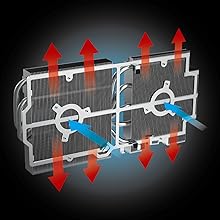
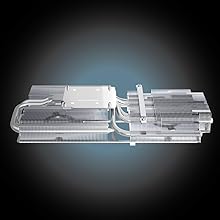
5.2. Advanced Cooling System
The Red Devil series is equipped with a robust cooling solution to maintain optimal temperatures during intense gaming sessions:
- Triple-Fan Design: Features three optimized static pressure fans for efficient airflow.
- Large Heatsink: A massive heatsink with vertical aluminum fins maximizes heat dissipation.
- Copper Base Direct Touch: Ensures efficient heat transfer from the GPU to the heatsink.
5.3. Customizable RGB Lighting
The graphics card features customizable RGB lighting on the fans, side shroud, and backplate. Use the PowerColor Devil Zone RGB software to personalize lighting effects and colors to match your system's aesthetic. The output LEDs on the display ports also illuminate for easy connection in low-light conditions.


Video: OVERVIEW | Red Devil AMD Radeon RX 6600 XT Graphics Card. මෙම වීඩියෝව අවසන් කිරීමක් සපයයිview of the PowerColor Red Devil AMD Radeon RX 6600 XT, highlighting its design and features. While the video specifically mentions the RX 6600 XT, many features and design elements are similar to the RX 6650 XT model.
6. පිරිවිතර
| විශේෂාංගය | වටිනාකම |
|---|---|
| වීඩියෝ මතකය | 8GB GDDR6 |
| Stream Processors | 2048 |
| Game Clock (OC/Silent) | 2523 MHz / 2447 MHz |
| Boost Clock (OC/Silent) | 2694 MHz / 2669 MHz |
| මතක ඔරලෝසුව | 17.5 Gbps |
| අවම පද්ධති බලය | 650W |
| උපරිම තිර විභේදනය | 7680x4320 |
| ග්රැෆික් කොප්රොසෙසරය | AMD Radeon RX 6650 XT |
| චිප්සෙට් වෙළඳ නාමය | AMD |
| වීඩියෝ ප්රතිදාන අතුරුමුහුණත | 1x HDMI, 3x ඩිස්ප්ලේපෝට් |
| අයිතමයේ බර | රාත්තල් 3.17 කි |
| නිෂ්පාදන මානයන් (LxWxH) | අඟල් 10.39 x 5.94 x 2.13 |
7. නඩත්තු කිරීම
To ensure the longevity and optimal performance of your graphics card, regular maintenance is recommended:
- දූවිලි ඉවත් කිරීම: Periodically clean dust from the fans and heatsink using compressed air. Ensure the system is powered off before cleaning.
- වායු දහරාව: Ensure your computer case has adequate airflow to prevent overheating. Keep cables tidy and clear of fan pathways.
- ධාවක යාවත්කාලීන: නිතිපතා AMD පරීක්ෂා කරන්න website for the latest driver updates to benefit from performance improvements and bug fixes.
8. දෝශ නිරාකරණය
ඔබගේ ග්රැෆික් කාඩ්පත සමඟ ගැටළු ඇති වුවහොත්, පහත දෝශ නිරාකරණ පියවර සලකා බලන්න:
- සංදර්ශකයක් නැත/කළු තිරයක් නැත:
- Ensure all power cables (8-pin and 6-pin) are securely connected to the graphics card.
- Verify that display cables are firmly connected to both the graphics card and the monitor.
- ඔබගේ මොනිටරය නිවැරදි ආදාන ප්රභවයට සකසා ඇත්දැයි පරීක්ෂා කරන්න.
- තිබේ නම් වෙනත් සංදර්ශක කේබලයක් හෝ මොනිටරයක් උත්සාහ කරන්න.
- පද්ධති අස්ථාවරත්වය/බිඳවැටීම්:
- Ensure your power supply meets the minimum 650W requirement.
- ඔබගේ ග්රැෆික් ධාවක නවතම අනුවාදයට යාවත්කාලීන කරන්න.
- Monitor GPU temperatures using Radeon Software or third-party tools. Ensure adequate cooling.
- If overclocking, try reverting to default clock speeds or switching to Silent BIOS mode.
- දුර්වල කාර්ය සාධනය:
- ඔබගේ ග්රැෆික් ධාවක යාවත්කාලීන බව සහතික කර ගන්න.
- Check in-game settings and reduce demanding options if necessary.
- Verify that your system's CPU and RAM meet recommended specifications.
- Ensure AMD FreeSync is enabled if your monitor supports it.
9. වගකීම් සහ සහාය
Your PowerColor Red Devil AMD Radeon RX 6650 XT Graphics Card is covered by a manufacturer's warranty. Please refer to the warranty information included in your product packaging or visit the official PowerColor website for details on warranty terms, registration, and technical support. Keep your proof of purchase for warranty claims.
For further assistance, visit the PowerColor support webවෙබ් අඩවිය හෝ ඔවුන්ගේ පාරිභෝගික සේවා කණ්ඩායම අමතන්න.