
1. හැඳින්වීම
Thank you for choosing the EKSA Wireless Headset H5. This headset is designed to provide clear communication and comfortable wear for various professional environments, including office work, call centers, and trucking. It features AI noise-cancelling technology, dual connectivity options (Bluetooth and USB dongle), and extended battery life. This manual provides detailed instructions for setup, operation, maintenance, and troubleshooting to ensure optimal performance.
2. පැකේජ අන්තර්ගතය
කරුණාකර ඔබගේ පැකේජයේ සියලුම අයිතම ඇති බව තහවුරු කරගන්න:
- EKSA Wireless Headset H5
- USB Dongle
- ආරෝපණ පදනම
- USB-C ආරෝපණ කේබලය
- පරිශීලක අත්පොත
3. නිෂ්පාදන අවසන්view
Familiarize yourself with the components of your EKSA Wireless Headset H5.
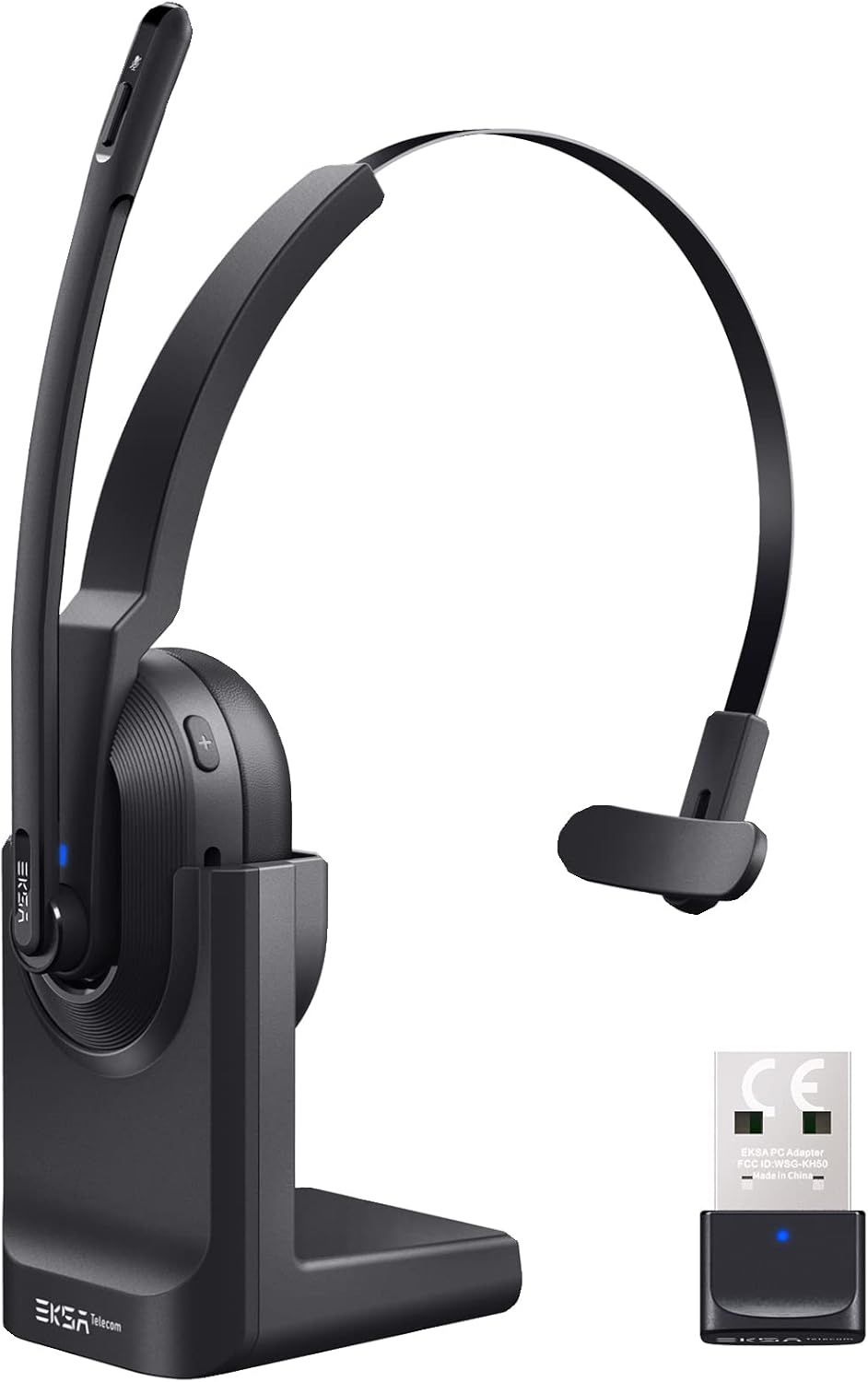

4. පිහිටුවීම
4.1 හෙඩ්සෙට් එක ආරෝපණය කිරීම
The headset supports two charging methods:
- සෘජු ආරෝපණය: Connect the USB-C charging cable directly to the headset's Type-C port and a power source.
- ආරෝපණ පදනම: Place the headset onto the included charging base. Ensure the charging contacts align. Connect the charging base to a power source using the USB-C cable.

A full charge takes approximately 1.5 hours. The headset provides up to 25 hours of talk time and 45 hours of music playback at 70% volume.

4.2 Connecting via USB Dongle
For PC and laptop connections, the USB dongle provides a stable wireless link.
- Insert the USB dongle into an available USB port on your PC or laptop.
- The LED indicator on the dongle will turn solid blue when successfully paired with the headset.
- On your PC/laptop, navigate to සැකසීම් > ශබ්දය.
- සකසන්න EKSA Telecom H5 as both the input and output device.

4.3 බ්ලූටූත් හරහා සම්බන්ධ වීම 5.0
The headset can connect to mobile phones, tablets, and other Bluetooth-enabled devices.
- Ensure the headset is powered on and in pairing mode (the Bluetooth indicator will flash).
- ඔබගේ ජංගම උපාංගයේ, වෙත යන්න Settings > Bluetooth & other devices.
- තෝරන්න "Add Bluetooth or other device" සහ සොයන්න "EKSA Telecom H5".
- තෝරන්න EKSA Telecom H5 යුගල කිරීමට.
- Once connected, set EKSA Telecom H5 as the input and output device in your device's sound settings.


4.4 Meeting Application Settings
For applications like Zoom or Skype:
- In the application's audio/video settings, select EKSA Telecom H5 as both the microphone and speaker.

5. මෙහෙයුම් උපදෙස්
5.1 මූලික පාලන
- බලය සක්රිය / අක්රිය: බහුකාර්ය බොත්තම ඔබාගෙන සිටින්න.
- ශබ්දය වැඩි කිරීම/ඊළඟ ඛණ්ඩය: Press the '+' button. Hold for next track.
- වෙළුම පහළට/පෙර ඛණ්ඩය: Press the '-' button. Hold for previous track.
- පිළිතුර/අවසන් ඇමතුම: Press the Multi-Function Button during an incoming call or active call.
- ඇමතුම ප්රතික්ෂේප කරන්න: Press and hold the Multi-Function Button during an incoming call.
- මයික්රෆෝනය නිශ්ශබ්ද කරන්න/නිශ්ශබ්ද කරන්න: Press the Mute Button located on the microphone arm.
5.2 හෙඩ්සෙට් එක පැළඳීම
The headset is designed for comfort and flexibility:
- The microphone arm can be rotated up to 270 degrees, allowing you to wear the headset on either your left or right ear.
- ආරක්ෂිත සහ සුවපහසු ගැලපීම සඳහා හිස පටි සකස් කරන්න.

5.3 AI Noise Cancelling Microphone
The headset features an AI-powered Environmental Noise Cancelling (ENC) microphone with a Qualcomm chip. This technology intelligently suppresses up to 99.6% of environmental noise, ensuring your voice is clear during calls, even in noisy environments.


6. නඩත්තු කිරීම
To ensure the longevity and optimal performance of your headset:
- මෘදු, වියළි රෙද්දකින් හෙඩ්සෙට් එක නිතිපතා පිරිසිදු කරන්න.
- හෙඩ්සෙට් එක අධික උෂ්ණත්වයන්ට, ආර්ද්රතාවයට හෝ සෘජු හිරු එළියට නිරාවරණය කිරීමෙන් වළකින්න.
- උල්ෙල්ඛ පිරිසිදු කරන්නන් හෝ ද්රාවණ භාවිතා නොකරන්න.
- Store the headset in a cool, dry place when not in use, preferably on its charging base or in a protective case.
7. දෝශ නිරාකරණය
| ගැටලුව | විය හැකි හේතුව | විසඳුම |
|---|---|---|
| හෙඩ්සෙට් බලය සක්රිය නොවේ | අඩු බැටරි | Charge the headset using the USB-C cable or charging base. |
| ශබ්දයක් නැත/මයික්රෆෝනයක් ක්රියා නොකරයි | Not connected or incorrect audio settings | Ensure the headset is paired via Bluetooth or dongle. Check your device's sound settings to confirm "EKSA Telecom H5" is selected as input/output. |
| දුර්වල ශබ්ද ගුණාත්මකභාවය/අතරමැදි සම්බන්ධතාවය | Out of range, interference, or low battery | Move closer to the connected device (within 10 meters). Avoid strong electromagnetic interference. Charge the headset. |
| බ්ලූටූත් හරහා යුගල කළ නොහැක. | Headset not in pairing mode or device already connected | Ensure the headset is in pairing mode (flashing indicator). Disconnect from any other devices. Restart Bluetooth on your device. |
| AI Noise Cancelling not effective | මයික්රොෆෝන ස්ථානය | Ensure the microphone is positioned correctly near your mouth for optimal voice pickup and noise suppression. |
8. පිරිවිතර
| විශේෂාංගය | විස්තර |
|---|---|
| මාදිලියේ නම | H5 |
| සම්බන්ධතා තාක්ෂණය | Wireless (Bluetooth 5.0, USB Dongle) |
| රැහැන් රහිත පරාසය | මීටර් 10 දක්වා |
| බැටරි ආයු කාලය (සංගීතය) | පැය 45 දක්වා (70% පරිමාවකින්) |
| බැටරි ආයු කාලය (කතා) | පැය 25 දක්වා (70% පරිමාවකින්) |
| ආරෝපණ කාලය | ආසන්න වශයෙන්. පැය 1.5 යි |
| ශබ්ද පාලනය | Active Noise Cancellation (AI Environmental Noise Cancelling) |
| මයික්රෆෝනය | 270° Rotatable, AI ENC |
| බර | Approx. 75g (headset only) / 0.54 kg (packaged) |
| ද්රව්ය | ලෝහ, ප්ලාස්ටික් |
| ඇතුළත් සංරචක | Charging Base, USB Dongle |
| සංඛ්යාත පරාසය | හර්ට්ස් 20 - හර්ට්ස් 20,000 |
9. වගකීම් සහ සහාය
EKSA products come with a standard manufacturer's warranty. For specific warranty details, please refer to the warranty card included in your package or visit the official EKSA website. For technical support, troubleshooting assistance, or any inquiries, please contact EKSA customer service through their official channels. You can find contact information on the EKSA webඅඩවිය හෝ ඔබේ මිලදී ගැනීමේ වේදිකාව හරහා.