
නිෂ්පාදනය අවසන්view
The Turtle Beach Pure Air Wireless RGB Gaming Mouse is designed for high-performance gaming, featuring an ultra-lightweight ergonomic design, advanced optical sensor, and versatile connectivity options. This manual provides essential information for setting up, operating, and maintaining your device.

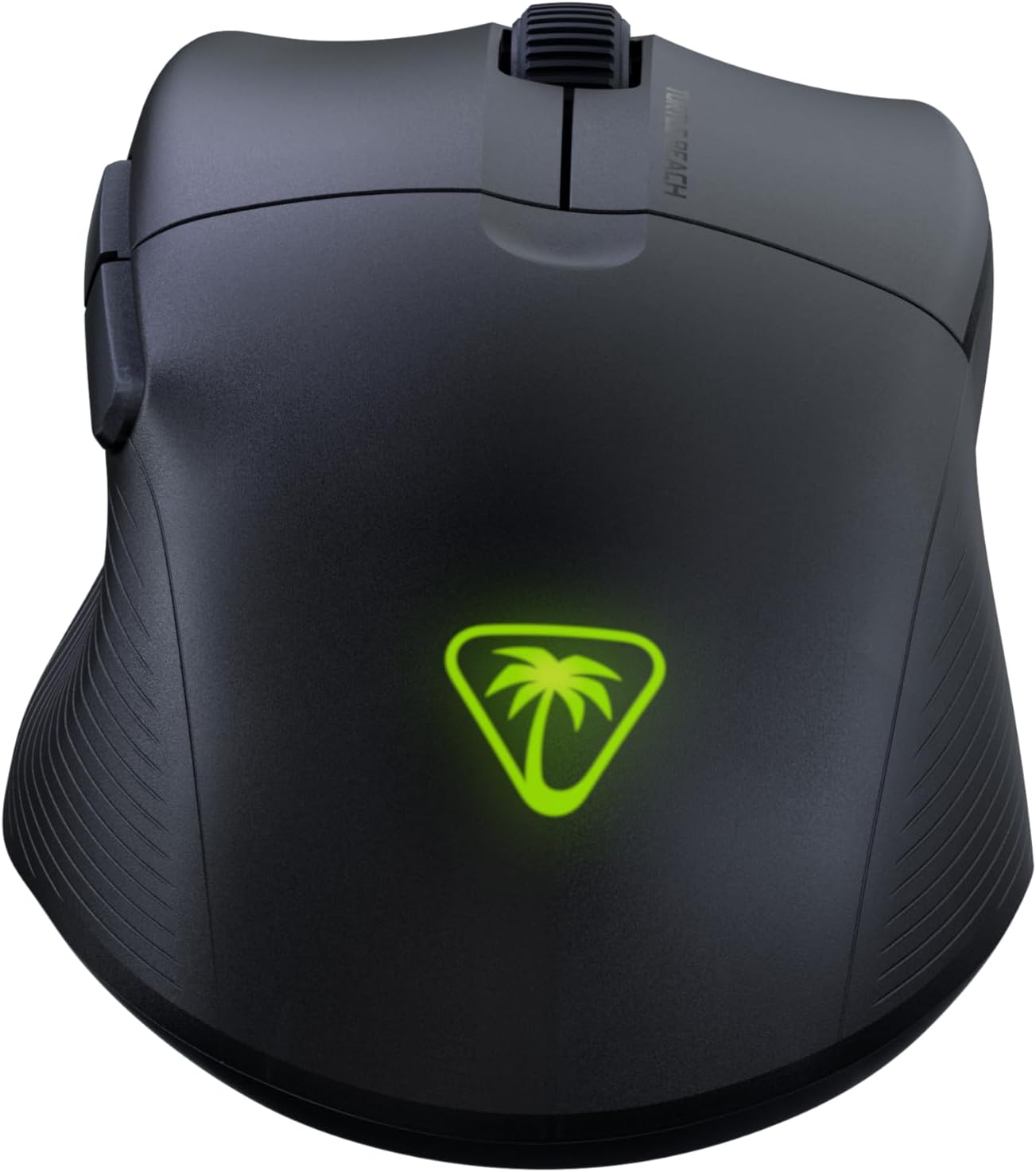
The Turtle Beach Pure Air Wireless RGB Gaming Mouse, showcasing its ergonomic shape and customizable RGB logo.
සැකසුම් මාර්ගෝපදේශය
පැකේජයේ අන්තර්ගතය
- Turtle Beach Pure Air Wireless RGB Gaming Mouse
- රැහැන් රහිත USB ඇඩැප්ටරය
- PhantomFlex Charging Cable (USB-C to USB-A)

The essential components included with your Turtle Beach Pure Air mouse.
මූලික ආරෝපණය
Before first use, it is recommended to fully charge the mouse. Connect the PhantomFlex Charging Cable to the USB-C port on the front of the mouse and to a powered USB-A port on your computer or a USB wall adapter.
The USB-C port located at the front of the mouse for charging and wired connection.
A full charge provides up to 125 hours of continuous use. Rapid charging allows for approximately 5 hours of game time with just 10 minutes of charging.
සම්බන්ධතා විකල්ප
The Pure Air mouse offers three connectivity modes: 2.4GHz Wireless, Bluetooth, and Wired.
- 2.4GHz රැහැන් රහිත සම්බන්ධතාවය:
- Insert the Wireless USB Adapter into an available USB-A port on your PC.
- Locate the switch on the bottom of the mouse. Slide it to the 2.4GHz රැහැන් රහිත position (indicated by a Wi-Fi icon).
- The mouse should automatically connect to the adapter.
- බ්ලූටූත් සම්බන්ධතාවය:
- Slide the switch on the bottom of the mouse to the බ්ලූටූත් position (indicated by a Bluetooth icon).
- On your PC, navigate to Bluetooth settings and search for new devices.
- Select "Turtle Beach Pure Air" from the list of available devices to pair.
- රැහැන්ගත සම්බන්ධතාවය:
- Connect the PhantomFlex Charging Cable directly from the mouse to a USB-A port on your PC.
- The mouse will function as a wired device and charge simultaneously.

The mouse can be connected via its wireless USB adapter or the flexible PhantomFlex charging cable.
මෙහෙයුම
බොත්තම් කාර්යයන්
- වම්/දකුණු ක්ලික් කරන්න: Equipped with TITAN Optical Switches for fast, precise actuation and a 100 million click life cycle.
- අනුචලන රෝදය: Provides tactile feedback for accurate scrolling.
- පැති බොත්තම්: Two programmable buttons on the left side for custom commands.
- DPI බොත්තම: Located on the top of the mouse, behind the scroll wheel. Press to cycle through preset DPI levels.
DPI ගැලපීම
The Pure Air mouse features a 26K Owl-Eye Optical Sensor. Use the dedicated DPI button to switch between sensitivity settings on the fly. Default DPI settings can be customized using the Swarm 2 software.
RGB Illumination (AIMO)
The Turtle Beach logo on the back of the mouse features customizable AIMO intelligent RGB illumination. Lighting effects and colors can be configured through the Swarm 2 software.
Swarm 2 Software
For advanced customization, download and install the Swarm 2 software from the official Turtle Beach webඅඩවිය. මෙම මෘදුකාංගය ඔබට ඉඩ දෙන්නේ:
- Adjust DPI levels and create custom profiles.
- Program button assignments.
- RGB ආලෝකකරණ බලපෑම් අභිරුචිකරණය කරන්න.
- Update mouse firmware.
නඩත්තු කිරීම
පිරිසිදු කිරීම
To clean your Turtle Beach Pure Air mouse, use a soft, dry, lint-free cloth. Avoid using harsh chemicals, solvents, or abrasive materials, as these can damage the mouse's surface and internal components.
PTFE Glides
The mouse is equipped with Pure PTFE glides for smooth movement. Ensure these glides remain clean and free of debris to maintain optimal performance. Avoid scratching or damaging the glides.
දෝෂගවේෂණය
සම්බන්ධතා ගැටළු
- 2.4GHz රැහැන් රහිත: Ensure the Wireless USB Adapter is securely plugged into a working USB port. Verify the mouse switch is set to the 2.4GHz mode. Try a different USB port.
- බ්ලූටූත්: Confirm Bluetooth is enabled on your PC and the mouse switch is set to Bluetooth mode. Remove and re-pair the device in your PC's Bluetooth settings.
- සාමාන්ය: Ensure the mouse is charged. Try connecting the mouse in wired mode to confirm functionality.
බැටරි ආයු කාලය පිළිබඳ ගැටළු
While rated for up to 125 hours, actual battery life can vary based on usage patterns, DPI settings, and RGB illumination intensity. If battery life seems significantly shorter, ensure the mouse is fully charged and consider reducing RGB brightness or disabling it via the Swarm 2 software.
මෘදුකාංග සහ ස්ථිරාංග
If you experience unexpected behavior or wish to access the latest features, ensure your Swarm 2 software and mouse firmware are up to date. Connect the mouse via USB and use the Swarm 2 application to check for and apply updates.
පිරිවිතර
| වෙළඳ නාමය | කැස්බෑ වෙරළ |
| ආදර්ශ අංකය | TBM-1102-05 |
| සම්බන්ධතාවය | Bluetooth, 2.4GHz Radio Frequency Wireless, Wired (USB-C) |
| සංවේදකය | Owl-Eye 26K DPI Optical Sensor |
| ස්විචයන් | TITAN Optical Switches (100 Million Click Life Cycle) |
| බර | 54g (Ultra-light) |
| බැටරි ආයු කාලය | Up to 125 Hours (Rechargeable Lithium Polymer) |
| ආරෝපණ කේබලය | PhantomFlex USB-C |
| අත් දිශානතිය | හරි |
| ගැළපෙන OS | වින්ඩෝස් 10, වින්ඩෝස් 11 |
| මානයන් (L x W) | 121mm (4.77") x 69mm (2.73") |
| ද්රව්ය | ප්ලාස්ටික් |
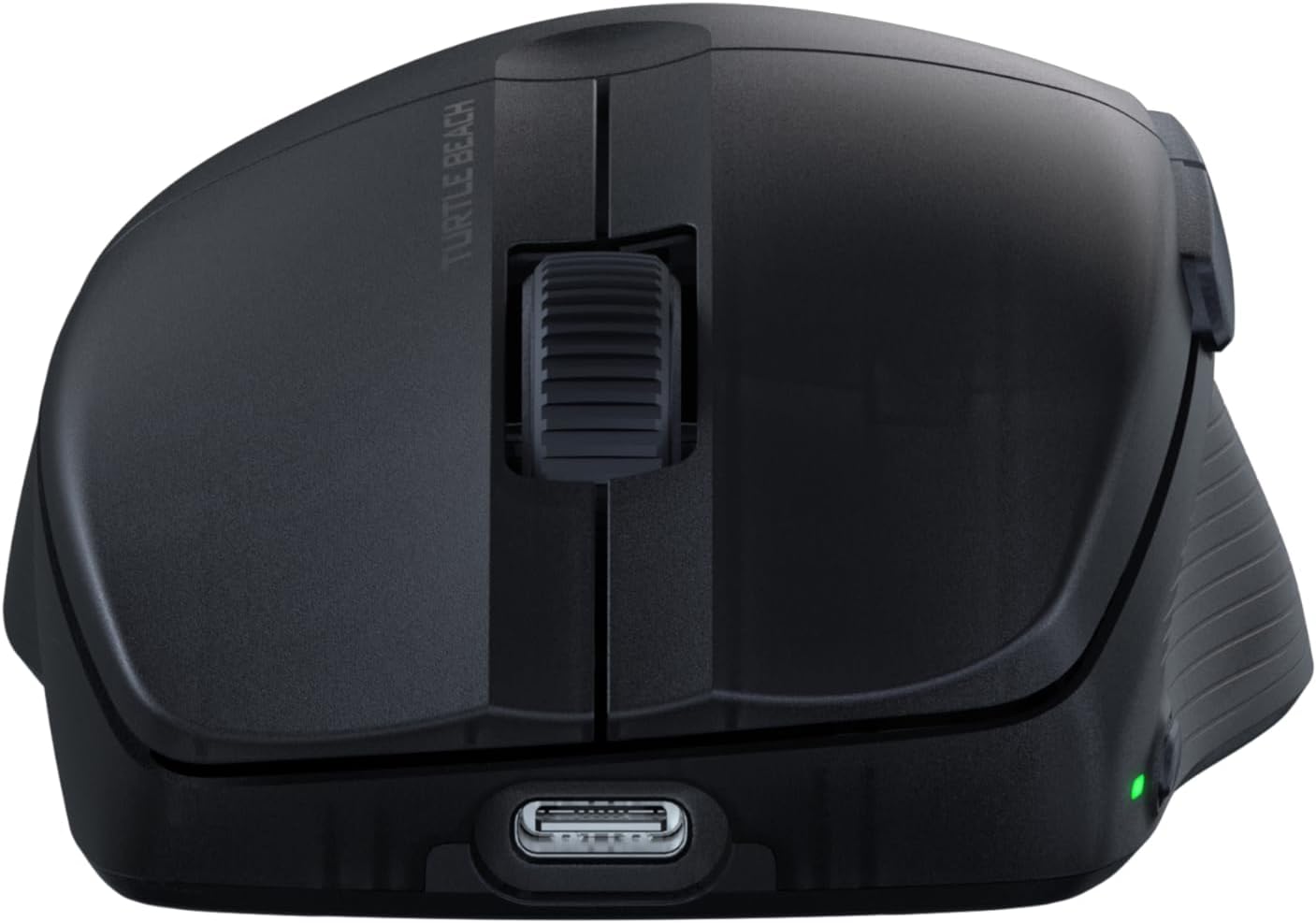
Physical dimensions of the Turtle Beach Pure Air mouse.
වගකීම් තොරතුරු
The Turtle Beach Pure Air Wireless RGB Gaming Mouse comes with a වසර 1ක නිෂ්පාදක වගකීම. Please retain your proof of purchase for warranty claims. For detailed terms and conditions, refer to the official Turtle Beach warranty policy available on their webඅඩවිය.
සහාය
For further assistance, technical support, or to download the latest software and drivers, please visit the official Turtle Beach support webඅඩවිය:
නිල නිෂ්පාදන වීඩියෝව
මෙම වීඩියෝව අවසන් කිරීමක් සපයයිview of the Turtle Beach Pure Air Wireless RGB Gaming Mouse, highlighting its key features and design.