හැඳින්වීම
The Generic Staff Fingerprint Check-in Machine Q-A26 is an advanced biometric time attendance system designed for efficient employee management and enhanced security. This device utilizes state-of-the-art fingerprint recognition technology to ensure accurate tracking of staff check-ins and check-outs, eliminating issues like 'buddy punching'. It features a high-resolution fingerprint sensor, a user-friendly LCD interface, and robust data storage capabilities for attendance records and payroll processing.
පැකේජයේ අන්තර්ගතය
- Staff Fingerprint Check-in Machine Q-A26
- බල ඇඩැප්ටරය
- සවි කිරීමේ දෘඩාංග (ඉස්කුරුප්පු, බිත්ති ප්ලග්)
- පරිශීලක අත්පොත (මෙම ලේඛනය)
- Battery (as per specifications)
සැකසුම් උපදෙස්
- Unboxing: Carefully remove all components from the packaging. Inspect the device for any signs of damage.
- බල සම්බන්ධතාවය: Connect the provided power adapter to the machine's power input port and then plug it into a standard electrical outlet. The device should power on automatically.
- ආරම්භක වින්යාසය: Upon first power-on, the device may prompt you to set the date, time, and language. Follow the on-screen instructions using the keypad and LCD interface.
- සවි කිරීම (විකල්ප): If wall-mounting, choose a suitable location. Use the provided mounting hardware to secure the device firmly to a wall at an accessible height. Ensure the power cable can reach the outlet without strain.
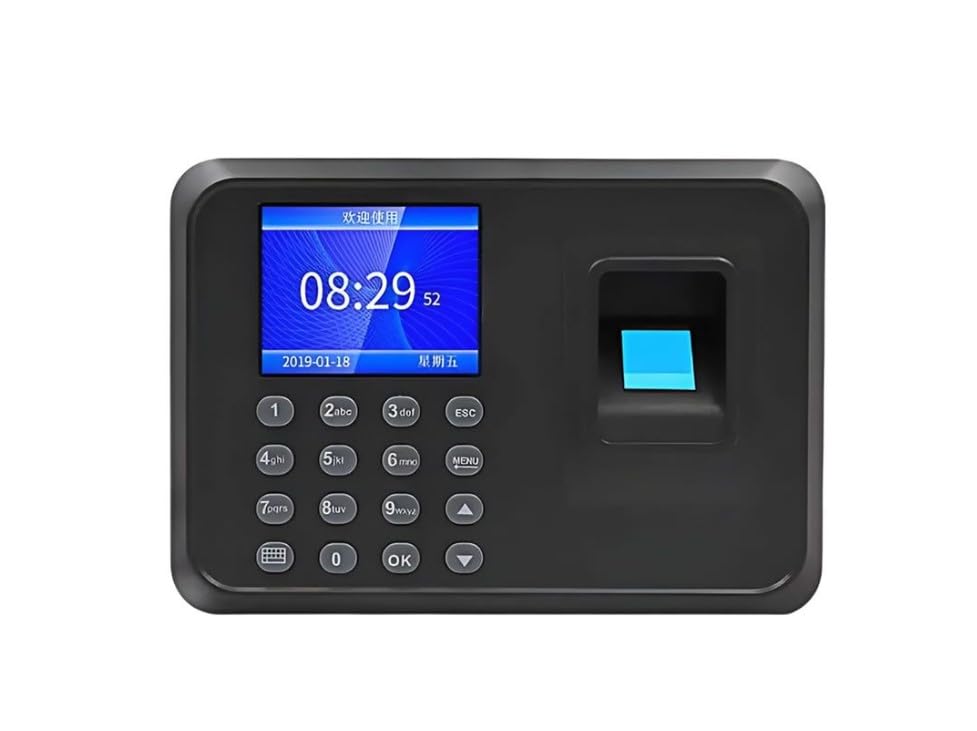
Image: User interacting with the fingerprint scanner on the Q-A26 device.
මෙහෙයුම් උපදෙස්
1. Enrolling Fingerprints
- ප්රවේශ මෙනුව: Press the 'MENU' button (or equivalent, refer to on-screen prompts) to enter the main menu. You may need administrator privileges or a password.
- Navigate to User Management: Use the arrow keys to navigate to 'User Management' or 'Enroll User' and press 'OK'.
- Add New User: Select 'Add User' and enter the employee ID.
- Enroll Fingerprint: Select 'Enroll Fingerprint'. Place the employee's finger firmly on the scanner. The device will prompt you to lift and place the finger multiple times (typically 3 times) for accurate registration.
- සුරකින්න: Confirm and save the user's information. Repeat for all employees.
2. Clocking In/Out
- පොරොත්තු ප්රකාරය: Ensure the device is in standby mode, displaying the current time.
- Place Finger: Instruct the employee to place their registered finger firmly on the fingerprint scanner.
- තහවුරු කිරීම: The device will display a confirmation message (e.g., "Thank You" or employee ID) upon successful recognition. A voice prompt may also confirm the action.
3. Accessing Attendance Records
- ප්රවේශ මෙනුව: Enter the main menu as an administrator.
- Navigate to Data Management: Select 'Data Management' or 'Attendance Records'.
- View/Download: ඔයාට පුළුවන් view records directly on the device or download them via USB (if supported) for further processing. Refer to the device's on-screen options for specific download procedures.
නඩත්තු කිරීම
- සංවේදකය පිරිසිදු කිරීම: Regularly clean the fingerprint sensor with a soft, dry, lint-free cloth. Avoid using abrasive cleaners or liquids directly on the sensor.
- සාමාන්ය පිරිසිදු කිරීම: Wipe the device's exterior with a slightly damp cloth. Ensure no moisture enters the device.
- පාරිසරික තත්ත්වයන්: Keep the device in a dry environment, away from direct sunlight, extreme temperatures, and excessive dust.
- දත්ත උපස්ථ: Periodically back up attendance data to an external storage device or computer to prevent data loss.
දෝෂගවේෂණය
| ගැටලුව | විය හැකි හේතුව | විසඳුම |
|---|---|---|
| උපාංගය බලගන්වන්නේ නැත. | බල ඇඩැප්ටරය සම්බන්ධ වී නැත හෝ දෝෂ සහිතයි; බල සැපයුමේ ගැටළුවක්. | බල සම්බන්ධතා පරීක්ෂා කරන්න. වෙනත් බල සැපයුමක් උත්සාහ කරන්න. බල ඇඩැප්ටරය නිවැරදිව ක්රියාත්මක වන බවට වග බලා ගන්න. |
| ඇඟිලි සලකුණ හඳුනා නොගන්නා ලදී. | Finger not placed correctly; sensor is dirty; fingerprint not enrolled; finger condition (wet, dry, damaged). | Ensure the finger covers the entire sensor. Clean the sensor. Re-enroll the fingerprint if necessary. Ensure finger is clean and dry. |
| වැරදි දිනය/වේලාව ප්රදර්ශනය කර ඇත. | Settings not configured or battery backup for clock is low. | Access the system settings via the menu and correct the date and time. |
| Cannot access menu. | No administrator privileges; incorrect password. | Ensure you are using an administrator account. Verify the administrator password. |
පිරිවිතර
| විශේෂාංගය | විස්තර |
|---|---|
| ආකෘතිය | Q-A26 |
| වෙළඳ නාමය | සාමාන්ය |
| නිෂ්පාදකයා | CM |
| නිෂ්පාදන මානයන් (L x W x H) | 22 x 22 x 18 සෙ.මී |
| ඇතුළත් සංරචක | බැටරි |
| පළමු ලබා ගත හැකි දිනය | 4 ජූලි 2024 |
| ඇඟිලි සලකුණු හඳුනාගැනීම | High-resolution sensor for secure and fast identification. |
| අතුරු මුහුණත | Intuitive LCD screen and keypad. |
| දත්ත ගබඩා කිරීම | Capable of storing thousands of fingerprint templates and attendance records. |
වගකීම් සහ සහාය
Information regarding specific warranty terms for the Generic Staff Fingerprint Check-in Machine Q-A26 is not provided in the product details. Please refer to your purchase documentation or contact the retailer for warranty details.
For technical support or further assistance, please contact the manufacturer or your point of purchase. Ensure you have your product model number (Q-A26) and purchase details available when seeking support.
- නිෂ්පාදකයා: CM
- ASIN: B0D8TN8FFN


