
1. නිෂ්පාදන අවසන්view
The Monster Wireless CarPlay & Android Auto Adapter converts your vehicle's existing wired CarPlay or Android Auto system into a wireless connection. This compact dongle eliminates the need for physical cable connections, allowing for seamless integration of your smartphone's features with your car's infotainment system.
ප්රධාන ලක්ෂණ ඇතුළත් වේ:
- Instant Wireless Connectivity: Connect your device to your car’s infotainment system wirelessly for apps, navigation, and media.
- Bluetooth & Wi-Fi Integration: Utilizes advanced Bluetooth and Wi-Fi technologies for a stable and reliable connection.
- විශ්ව අනුකූලතාව: Works with most vehicles that support wired Apple CarPlay or Android Auto.
- සංයුක්ත සහ බහුකාර්ය නිර්මාණය: Discreetly fits into your car's existing setup without clutter.
- Enhanced Driving Experience: Access navigation, music streaming, hands-free calls, and voice control wirelessly.
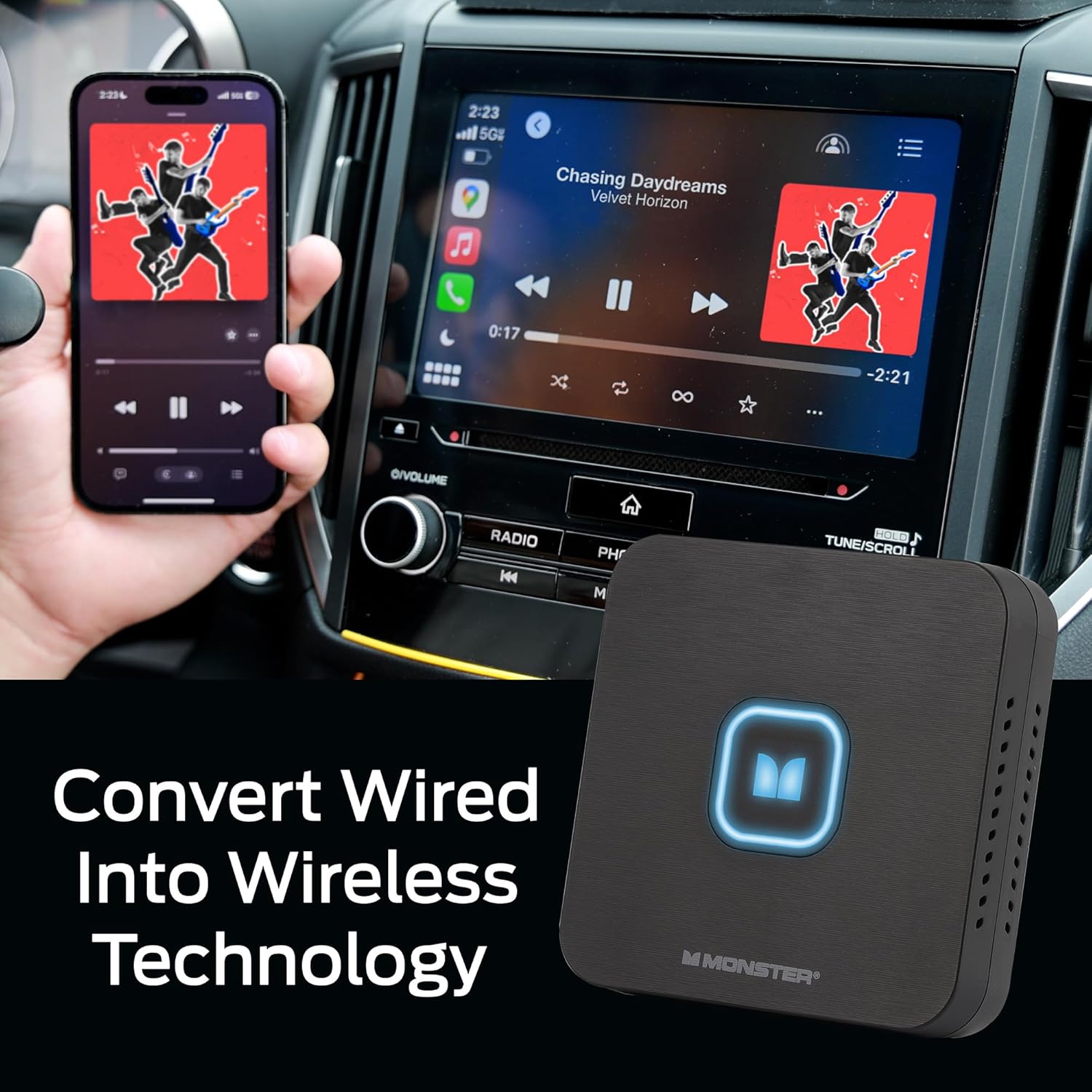
Image 1: The Monster Wireless Adapter in a car interior, demonstrating wireless CarPlay functionality.
2. ඇතුළත් කර ඇති දේ
නිෂ්පාදන පැකේජයේ පහත අයිතම අඩංගු වේ:
- Monster Wireless Adapter Unit
- USB-C සිට USB-A කේබලය
- USB-C සිට USB-C කේබලය
- පරිශීලක අත්පොත
- Double Sided Mounting Sticker
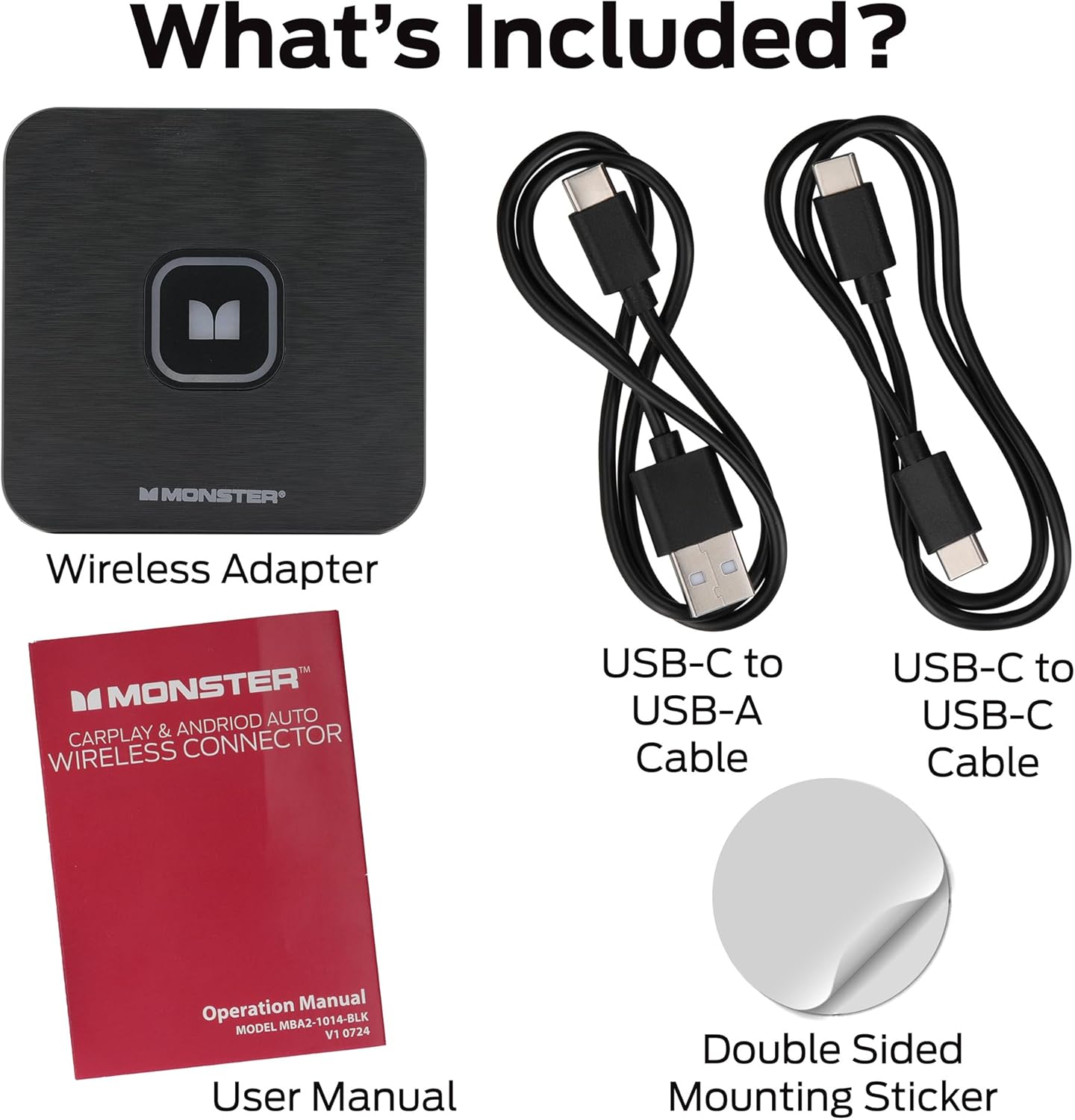
Image 2: All items included in the Monster Wireless Adapter package.
3. සැකසුම් උපදෙස්
Follow these steps to set up your Monster Wireless Adapter:
- ඇඩැප්ටරය සම්බන්ධ කරන්න: Plug the Monster Wireless Adapter into your car's primary USB port. This is typically the same port used for wired CarPlay or Android Auto. Use the provided USB-C to USB-A or USB-C to USB-C cable as needed for your vehicle. The adapter's LED indicator will illuminate.
- ඔබගේ ස්මාර්ට් ජංගම දුරකථනයේ බ්ලූටූත් සක්රීය කරන්න: On your smartphone, go to your Bluetooth settings and ensure Bluetooth is enabled.
- ඇඩැප්ටරය සමඟ යුගල කරන්න: Look for the adapter in the list of available Bluetooth devices (e.g., "MonsterBox-XXXX"). Select it to initiate the pairing process. Confirm any pairing requests on your phone and allow access for contacts and data sync if prompted.
- සම්බන්ධතාවය තහවුරු කරන්න: Once successfully paired, the adapter's LED indicator will turn green, and your car's infotainment system should display the CarPlay or Android Auto interface.
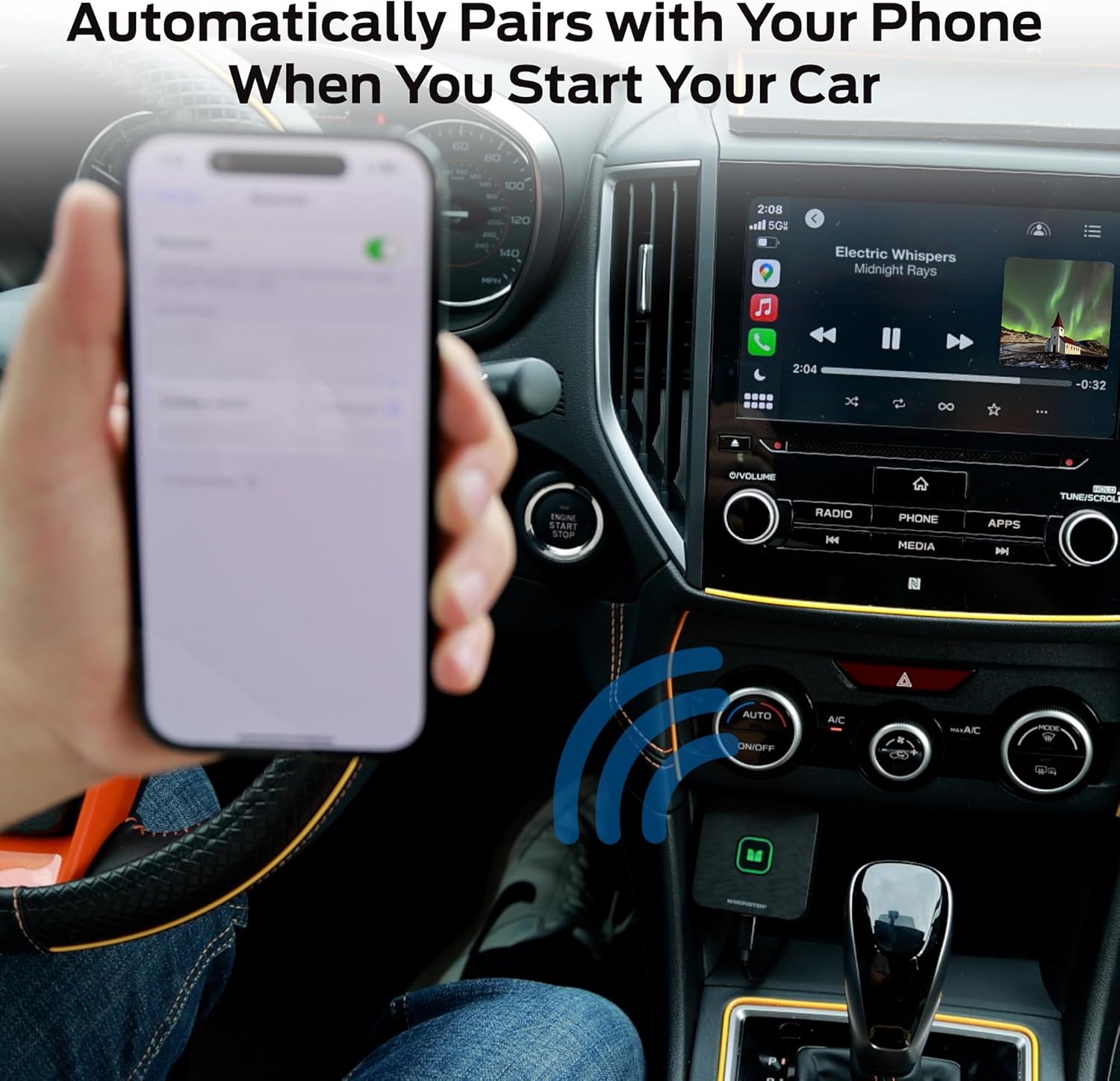
Image 3: The adapter connected to a car's USB port, ready for pairing.
වීඩියෝ මාර්ගෝපදේශය සැකසීම
Video 1: Official setup guide for the Monster Wireless CarPlay and Android Auto Adapter, demonstrating connection and pairing steps.
4. මෙහෙයුම් උපදෙස්
After successful setup, the adapter will automatically connect to your paired smartphone when you start your car. You can then use your car's infotainment system to access CarPlay or Android Auto features wirelessly.
- ස්වයංක්රීය සම්බන්ධතාවය: The adapter is designed to automatically pair with your phone when you start your car, provided Bluetooth is enabled on your phone.
- යෙදුම් වෙත ප්රවේශ වීම: Navigate through your car's touchscreen or voice commands to access compatible apps like navigation, music, and messaging.
- හඬ පාලනය: Utilize voice assistants (Siri for CarPlay, Google Assistant for Android Auto) for hands-free operation.
- සම්පූර්ණ පාලනය: Your phone's interface will be mirrored on your car's display, allowing full control of supported applications.
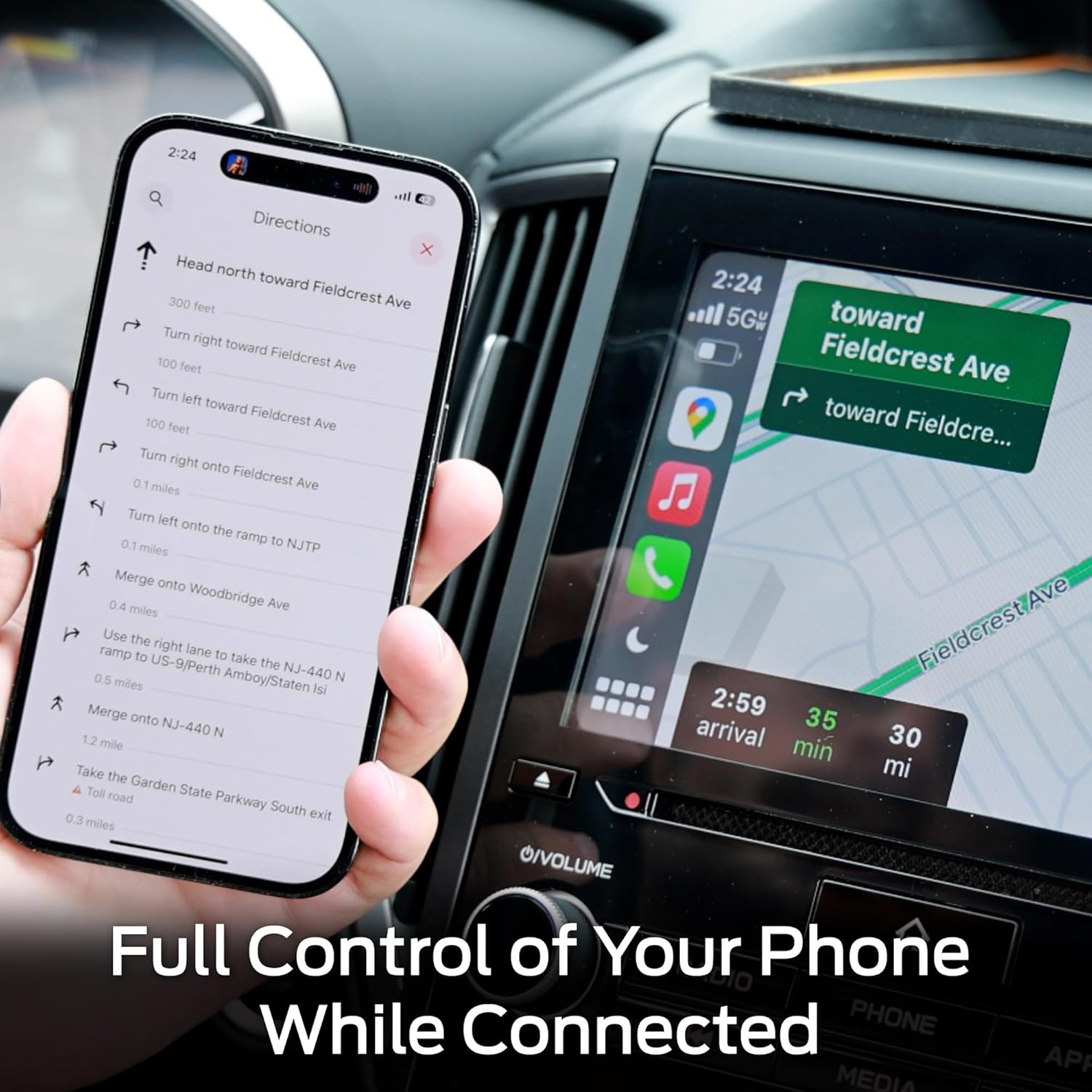
Image 4: Demonstrating full control of phone functions, such as navigation, through the car's display.

Image 5: The adapter supports both Apple CarPlay and Android Auto, as shown on the car's display.
5. දෝශ නිරාකරණය
If you encounter issues with your Monster Wireless Adapter, try the following troubleshooting steps:
- යුගල කිරීමේ මාදිලිය නැවත ඇතුල් කරන්න: If the adapter is not connecting or experiencing issues, press and hold the button on the adapter for 5 seconds. The LED will change, indicating it has re-entered pairing mode. Then, attempt to re-pair with your smartphone.
- USB සම්බන්ධතාවය පරීක්ෂා කරන්න: Ensure the adapter is securely plugged into a functional USB port in your car. Some cars have multiple USB ports; ensure you are using the one designated for data transfer (often the same one used for wired CarPlay/Android Auto).
- Restart Car and Phone: Turn off your car's ignition and restart it. Also, restart your smartphone. This can resolve temporary connectivity glitches.
- Forget Device and Re-pair: On your smartphone, go to Bluetooth settings, "forget" or "unpair" the Monster Wireless Adapter, and then repeat the setup process from step 1.
- Disable Other Bluetooth Connections: If your car or phone automatically connects to other Bluetooth devices (e.g., a dash cam or another car system) before the adapter, this might interfere. Try temporarily disabling other Bluetooth connections or ensuring the adapter is prioritized.
- ස්ථිරාංග යාවත්කාලීන කිරීම්: Check the Monster official website for any available firmware updates for your adapter, as these can resolve known issues and improve performance.

Image 6: Pressing the adapter button to re-enter pairing mode.
6. පිරිවිතර
| විශේෂාංගය | විස්තර |
|---|---|
| වෙළඳ නාමය | රකුසා |
| ආකෘතිය | Monster Wireless CarPlay & Android Auto Adapter |
| ද්රව්ය | ප්ලාස්ටික් |
| අයිතමයේ බර | කිලෝ ග්රෑම් 0.12 යි |
| රැහැන් රහිත සන්නිවේදන ප්රමිතිය | බ්ලූටූත්, වයි-ෆයි |
| දෘඩාංග අතුරුමුහුණත | බ්ලූටූත් |
| නාලිකා ගණන | 1 |
| නැවත ආරෝපණය කළ හැකි බැටරිය ඇතුළත් වේ | නැත |
| UPC | 805106896829 |
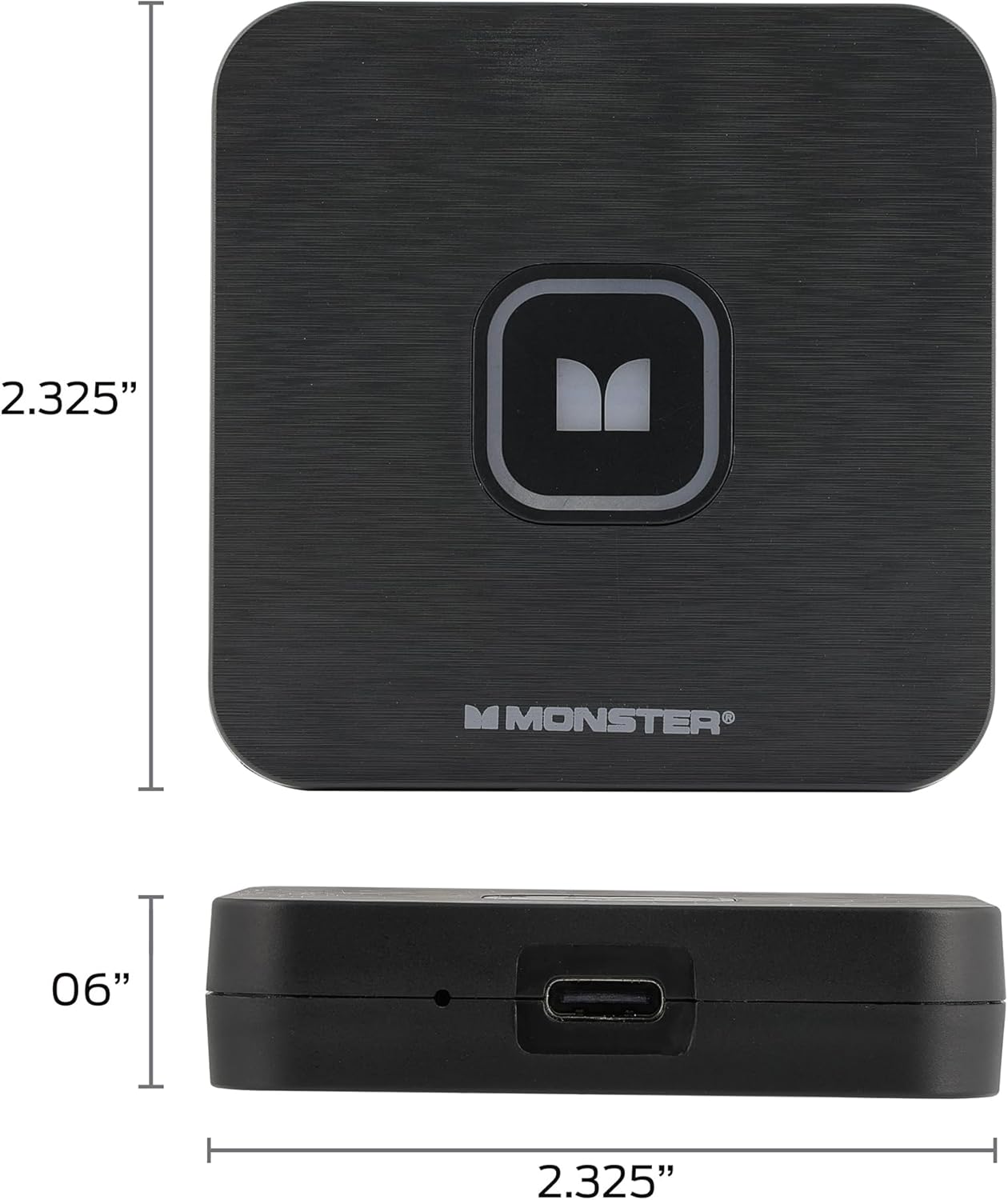
Image 7: Physical dimensions of the Monster Wireless Adapter.
7. වගකීම් සහ සහාය
වගකීම් තොරතුරු සහ තාක්ෂණික සහාය සඳහා, කරුණාකර ඔබේ නිෂ්පාදන ඇසුරුම්වල ඇතුළත් ලියකියවිලි වෙත යොමු වන්න හෝ නිල Monster වෙත පිවිසෙන්න. webවෙබ් අඩවිය. වගකීම් හිමිකම් සඳහා ඔබේ මිලදී ගැනීමේ සාක්ෂි තබා ගන්න.
If you require further assistance, please contact Monster customer service through their official channels.