
1. හැඳින්වීම
This manual provides essential information for the safe and effective use of your PICO 4 Ultra Enterprise A9210 All-in-One 6DoF VR Headset. Please read this manual thoroughly before using the device and retain it for future reference.
2 ආරක්ෂිත තොරතුරු
- Clear Your Space: Ensure you have a clear, unobstructed area for use to prevent injury or damage to property.
- විවේක ගන්න: Prolonged use may cause eye strain, fatigue, or motion sickness. Take regular breaks.
- අධීක්ෂණය: Not recommended for children without adult supervision.
- සෞඛ්ය සලකා බැලීම්: If you experience discomfort, dizziness, or nausea, discontinue use immediately. Consult a doctor if symptoms persist.
- පාරිසරික තත්ත්වයන්: උපාංගය අධික උෂ්ණත්වයට, ආර්ද්රතාවයට හෝ සෘජු හිරු එළියට නිරාවරණය නොකරන්න.
3. පැකේජ අන්තර්ගතය
ඔබගේ පැකේජයේ සියලුම අයිතම ඇති බව තහවුරු කරගන්න:
- PICO 4 Ultra Enterprise A9210 VR Headset
- 6DoF Controllers (x2)
- වීදුරු ස්පේසර්
- USB Type-C කේබලය (ආරෝපණය කිරීම සහ දත්ත හුවමාරුව සඳහා)
- බල ඇඩැප්ටරය
4. නිෂ්පාදන අවසන්view
4.1 හෙඩ්සෙට් සංරචක

රූපය: ඉදිරිපස view of the PICO 4 Ultra Enterprise A9210 VR Headset, showing the integrated cameras and sensors.
- Front Cameras & Sensors: Used for inside-out tracking and environmental mapping.
- කාච: High-resolution displays with pancake lenses for a wide field of view.
- හිස් පටිය: Adjustable strap for secure and comfortable fit.
- IPD Adjustment Wheel: Located on the bottom of the headset for seamless interpupillary distance adjustment.
- USB Type-C Port: අයකිරීම් සහ දත්ත හුවමාරුව සඳහා.
- බල බොත්තම: හෙඩ්සෙට් එක සක්රිය හෝ අක්රිය කිරීමට.
- වෙළුම් බොත්තම්: To adjust audio output.
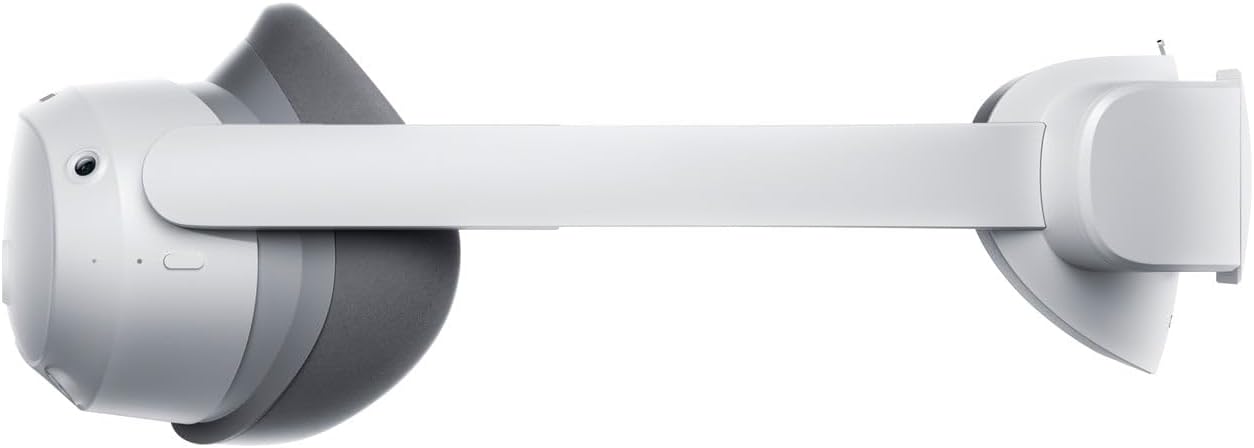
රූපය: පැත්ත view of the PICO 4 Ultra Enterprise A9210 VR Headset, illustrating the head strap and overall profile.
4.2 පාලක සංරචක
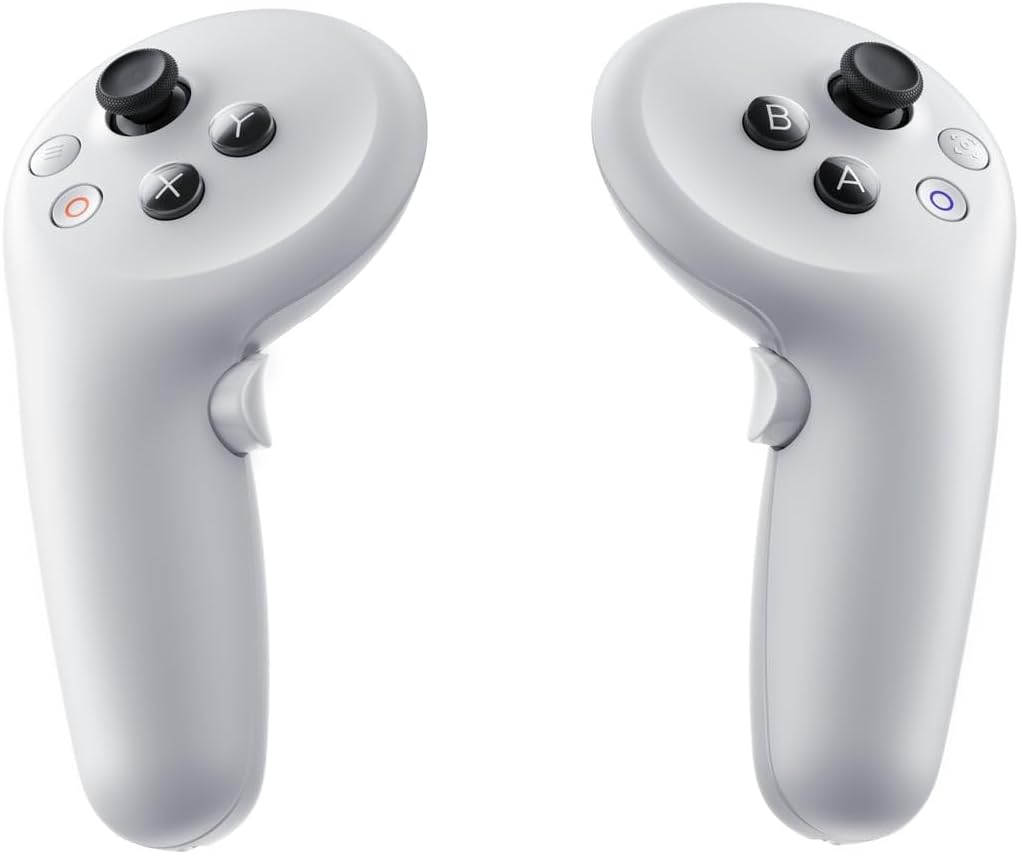
රූපය: Two PICO 4 Ultra Enterprise A9210 VR controllers, showing buttons and joysticks.
- Analog Stick: For movement and navigation.
- ක්රියා බොත්තම් (A/B/X/Y): For in-app interactions.
- ප්රේරක බොත්තම: For selection and interaction.
- Grip Button: For grabbing or holding objects in VR.
- පද්ධති බොත්තම: For accessing system menus.
5. පිහිටුවීම
5.1 Charging the Headset and Controllers
- Connect the USB Type-C cable to the headset's charging port and the other end to the power adapter.
- Plug the power adapter into a wall outlet. The indicator light on the headset will show charging status.
- The controllers typically use AA batteries. Open the battery compartment and insert fresh batteries if needed.
5.2 හෙඩ්සෙට් එක පැළඳීම

රූපය: ඉහළ view of the PICO 4 Ultra Enterprise A9210 VR Headset, showing the adjustable head strap.
- Loosen the head strap to its widest setting.
- Place the headset on your head, ensuring the display is centered over your eyes.
- Tighten the head strap until the headset feels secure and comfortable, without being too tight.
- Adjust the IPD (Interpupillary Distance) using the wheel on the bottom of the headset until the image appears clear and comfortable. The optimal range is 58-72mm.
- If you wear glasses, insert the included glasses spacer before wearing the headset to ensure proper fit and prevent lens scratching.
5.3 මූලික මෘදුකාංග සැකසුම
- Power on the headset by pressing and holding the Power button.
- Follow the on-screen instructions to select your language, connect to a Wi-Fi network (supports Wi-Fi 7), and set up your user account.
- The controllers should automatically pair. If not, follow the on-screen prompts for manual pairing.
- Define your play space as instructed by the headset. This involves drawing a boundary in your physical environment.
6. මෙහෙයුම් උපදෙස්
6.1 බල ගැන්වීම සක්රිය / අක්රිය කිරීම
- බල ගැන්වීම: Press and hold the Power button on the headset until the PICO logo appears.
- විදුලිය විසන්ධි කිරීම: Press and hold the Power button until a power-off menu appears, then select 'Power Off'.
- නින්ද ප්රකාරය: Briefly press the Power button to put the headset into sleep mode. Press again to wake it up.
6.2 Navigation and Interaction
- භාවිතා කරන්න ඇනලොග් ස්ටික් on the controller to move around in virtual environments.
- Point the controller at menu items or objects and use the ප්රේරක බොත්තම ඒවා තෝරා ගැනීමට.
- ද Action Buttons (A/B/X/Y) perform various functions depending on the application.
- ඔබන්න පද්ධති බොත්තම to access the main menu or return to the home screen.
6.3 Wi-Fi සම්බන්ධතාවය
To connect to a Wi-Fi network or change networks:
- From the home screen, access the Quick Settings menu (usually by pressing the System button or a specific gesture).
- Wi-Fi නිරූපකය තෝරන්න.
- Choose your desired network from the list and enter the password if prompted.
7. නඩත්තු කිරීම
7.1 කාච පිරිසිදු කිරීම
- Use a dry microfiber cloth specifically designed for optical lenses.
- Gently wipe the lenses in a circular motion from the center outwards.
- Do not use liquid cleaners, alcohol, or abrasive materials, as these can damage the lenses.
7.2 Cleaning the Headset and Controllers
- Use a soft, dry cloth to wipe the exterior surfaces of the headset and controllers.
- මුරණ්ඩු අපිරිසිදුකම සඳහා, තරමක් dampරෙදි කැබැල්ල වතුරෙන් පුරවන්න. තෙතමනය සිදුරුවලට ඇතුළු වීමෙන් වළකින්න.
- රළු රසායනික ද්රව්ය හෝ ද්රාවක භාවිතා නොකරන්න.
7.3 ගබඩා කිරීම
- Store the headset in a cool, dry place away from direct sunlight.
- Protect the lenses from scratches by keeping the headset in its original packaging or a protective case when not in use.
- Remove batteries from controllers if storing for extended periods.
8. දෝශ නිරාකරණය
8.1 හෙඩ්සෙට් එක ක්රියාත්මක නොවේ
- Ensure the headset is fully charged. Connect it to the power adapter and wait for a few minutes before attempting to power on again.
- වෙනස් USB Type-C කේබලයක් සහ බල ඇඩැප්ටරයක් උත්සාහ කරන්න.
- තත්පර 10-15ක් බල බොත්තම ඔබාගෙන සිටීමෙන් දෘඪ යළි පිහිටුවීමක් සිදු කරන්න.
8.2 Controllers Not Responding
- Check the batteries in the controllers and replace them if necessary.
- Ensure the controllers are within the headset's tracking range.
- Try re-pairing the controllers through the headset's settings menu.
8.3 නොපැහැදිලි රූපය
- Adjust the IPD (Interpupillary Distance) using the wheel on the bottom of the headset.
- Ensure the headset is properly positioned on your head and the straps are adjusted correctly.
- මයික්රෝෆයිබර් රෙද්දකින් කාච පිරිසිදු කරන්න.
- If you wear glasses, ensure the glasses spacer is correctly installed.
8.4 Wi-Fi සම්බන්ධතා ගැටළු
- Verify that your Wi-Fi router is working correctly and other devices can connect.
- ඔබ නිවැරදි Wi-Fi මුරපදය ඇතුළත් කර ඇති බවට සහතික වන්න.
- Restart your Wi-Fi router and the PICO headset.
- Move closer to your Wi-Fi router to improve signal strength.
9. පිරිවිතර
| ප්රොසෙසරය | Qualcomm Snapdragon XR2 Gen 2 |
| මතකය | 12GB LPDDR5 |
| අභ්යන්තර ගබඩාව | 256GB UFS 3.1 |
| විභේදනය | 4320 x 2160 (1200ppi) |
| ක්ෂේත්රයේ View (FOV) | අංශක 105 යි |
| Refresh Rate | 90Hz |
| ලුහුබැඳීමේ ක්රමය | Inside-out (6DoF), Environmental tracking cameras x4, iToF depth sensor camera x1 |
| IPD ගැලපීම | 58-72mm (Seamless) |
| ශ්රව්ය උපකරණ | Stereo speakers, Spatial audio compatible microphones x4 |
| පාලකයන් | 6DoF Controllers (x2) |
| බාහිර සම්බන්ධතාවය | Wi-Fi 7, බ්ලූටූත් 5.3 |
| සම්බන්ධතා වරාය | USB Type-C |
| Headset Dimensions (W x H x D) | 165 x 84 x 62 මි.මී |
| ආදර්ශ අංකය | A9210 |
| JAN කේතය | 6970214574083 |
| ඇතුළත් සංරචක | Glasses spacer |
10. වගකීම් සහ සහාය
For warranty information and technical support, please refer to the official PICO website or contact your regional PICO customer service. Keep your proof of purchase for warranty claims.
This device includes a commercial use license and business support via PICO Business Suite for enterprise applications.