
1. හැඳින්වීම
Welcome to the instruction manual for your Jectse WiFi 6 4G/5G CPE LTE Router. This document provides essential information on how to set up, operate, maintain, and troubleshoot your device. Please read this manual carefully before using the product to ensure optimal performance and longevity.
The Jectse WiFi 6 Router is designed to provide high-speed internet connectivity by converting a 4G LTE signal into a Wi-Fi hotspot, supporting multiple devices simultaneously. Its robust design with four antennas ensures stable and wide coverage.
2. නිෂ්පාදන අවසන්view
2.1 ප්රධාන ලක්ෂණ
- 4G LTE සහාය: Compatible with multiple 4G LTE bands, including FDD B1, B3, B5, B7, B8, B20, TDD B38, B40, B41, and WCDMA B1, B5, B8. This ensures versatile connectivity across various networks.
- වේගවත් වේගයන්: Experience 4G download speeds up to 150 Mbps and upload speeds up to 50 Mbps. Wireless transfer rates reach up to 300 Mbps for smooth streaming, gaming, and browsing.
- පහසු සැකසුම: Simply insert a standard SIM card to transform the 4G LTE signal into a Wi-Fi hotspot. Enjoy immediate internet access with minimal configuration.
- ඉහළ උපාංග ධාරිතාව: Connect up to 32 devices simultaneously, including smartphones, tablets, and PCs, within a maximum coverage area of 300 square meters.
- 4-Antenna Design: Equipped with four antennas for enhanced signal coverage, faster network speeds, and stable connectivity throughout your space.
2.2 පැකේජයේ අන්තර්ගතය
කරුණාකර පහත අයිතම සඳහා කොටුව සලකුණු කරන්න:
- 1 x Jectse WiFi 6 4G/5G CPE LTE Router
- 1 x බල ඇඩැප්ටරය
- 1 x ඊතර්නෙට් කේබලය
- 1 x USB කේබලය
- 1 x පරිශීලක අත්පොත (මෙම ලේඛනය)

Image: Jectse WiFi 6 Router with its power adapter, Ethernet cable, and USB cable.
3. සැකසුම් උපදෙස්
Follow these steps to set up your Jectse WiFi 6 Router:
- රවුටරය ඉවත් කරන්න: රවුටරය සහ සියලුම උපාංග ඇසුරුම්කරණයෙන් ප්රවේශමෙන් ඉවත් කරන්න.
- SIM කාඩ්පත ඇතුළු කරන්න: Locate the SIM card slot on the side of the router. Insert a standard-sized 4G LTE SIM card into the slot until it clicks into place. Ensure the SIM card is correctly oriented as indicated by the diagram near the slot.

රූපය: පැත්ත view of the router highlighting the SIM card slot and USB/WAN/LAN ports.
- සම්බන්ධක බලය: Connect the power adapter to the router's power input port and then plug the adapter into a wall outlet. The router will power on automatically.
- බල ගැන්වීම: Wait for the router's indicator lights to stabilize. The Wi-Fi and network status lights should indicate a successful connection.
- Optional: Wired Connection: If you prefer a wired connection, connect one end of the Ethernet cable to the WAN/LAN port on the router and the other end to your computer or another network device.
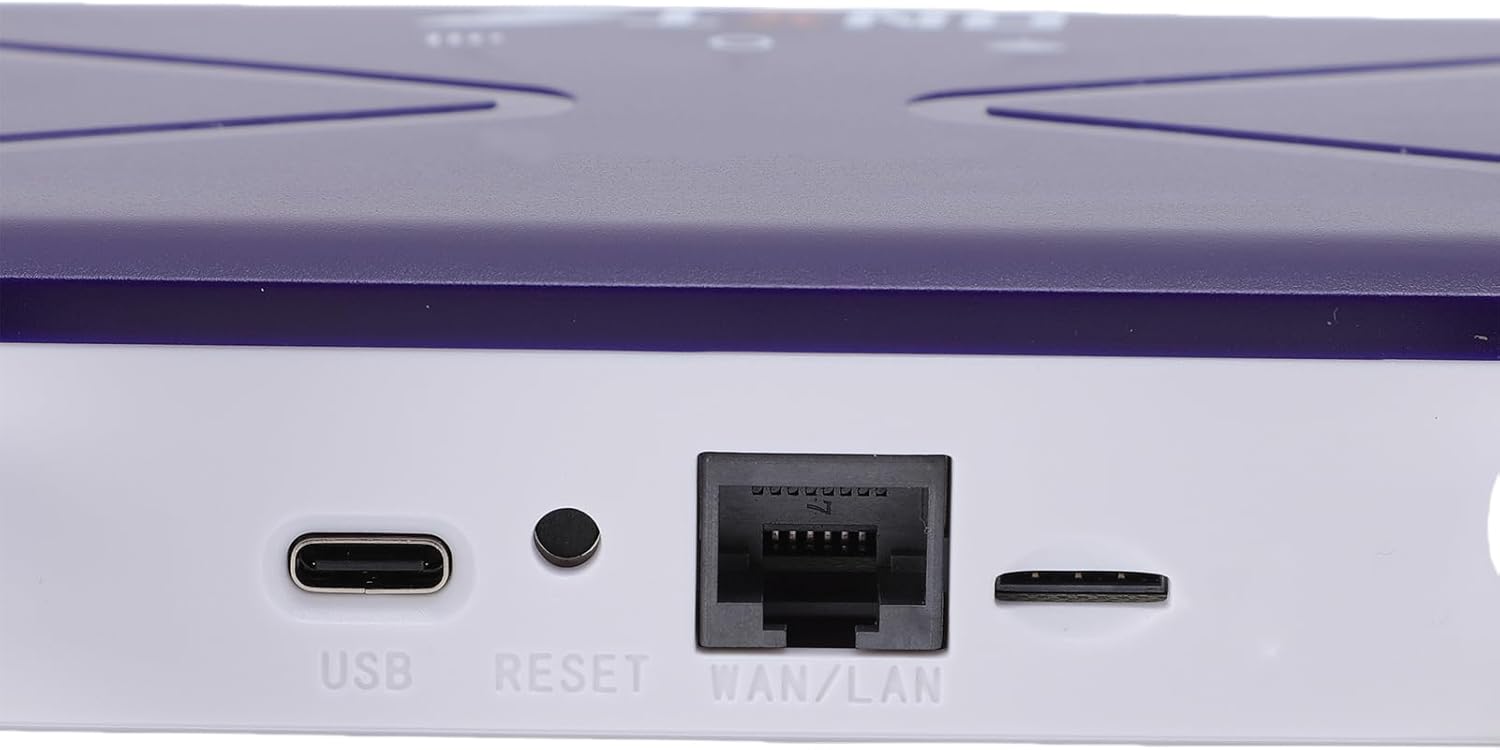
Image: Close-up of the router's rear panel showing the USB port, Reset button, and WAN/LAN port.
4. මෙහෙයුම් උපදෙස්
4.1 Wi-Fi වෙත සම්බන්ධ කිරීම
To connect your devices to the router's Wi-Fi network:
- On your device (smartphone, tablet, laptop), open the Wi-Fi settings.
- ඒ සඳහා සොයන්න available Wi-Fi networks. The router's default Wi-Fi network name (SSID) and password (Wi-Fi Key) are typically printed on a label on the bottom of the router.
- Select the router's SSID from the list.
- Enter the Wi-Fi Key when prompted. The default Wi-Fi Key is usually 1234567890.
- Once connected, your device should have internet access.

Image: Bottom label of the router displaying default Wi-Fi Key and Web IP ලිපිනය.
4.2 Accessing Router Settings
To manage your router settings, such as changing the Wi-Fi name or password, or configuring advanced network options:
- Connect your device to the router's Wi-Fi network or via an Ethernet cable.
- a විවෘත කරන්න web බ්රවුසරය (උදා: ක්රෝම්, ෆයර්ෆොක්ස්, එජ්).
- In the address bar, type the default Web IP ලිපිනය: 192.168.100.1 සහ Enter ඔබන්න.
- You will be prompted for a username and password. Refer to the label on the bottom of your router for default login credentials.
- Once logged in, you can customize your network settings.
4.3 ජාල ආවරණය
The router provides Wi-Fi wireless coverage and supports network port wired output for various environments.

Image: Diagram showing the router's Wi-Fi coverage and wired output capabilities.
5. නඩත්තු කිරීම
To ensure the optimal performance and longevity of your router, consider the following maintenance tips:
- ස්ථානගත කිරීම: රවුටරය බාධා, විශාල ලෝහ වස්තූන් සහ බාධා ඇති කළ හැකි වෙනත් ඉලෙක්ට්රොනික උපාංගවලින් ඈත්ව මධ්යම ස්ථානයක තබන්න.
- වාතාශ්රය: Ensure the router has adequate ventilation. Do not cover the ventilation holes or place it in an enclosed space.
- පිරිසිදු කිරීම: Gently clean the router's exterior with a soft, dry cloth. Avoid using liquid cleaners or aerosols.
- ස්ථිරාංග යාවත්කාලීන කිරීම්: නිෂ්පාදකයාගේ website for firmware updates. Keeping your router's firmware up-to-date can improve performance, security, and add new features.
- බල චක්රය: If you experience minor network issues, try power cycling the router by unplugging it from the power outlet for 10-15 seconds and then plugging it back in.
6. දෝශ නිරාකරණය
ඔබේ රවුටරය සමඟ ගැටළු ඇති වුවහොත්, පහත පොදු ගැටළු සහ විසඳුම් වෙත යොමු වන්න:
- අන්තර්ජාල සම්බන්ධතාවයක් නොමැත:
- SIM කාඩ්පත නිසි ලෙස ඇතුළත් කර සක්රිය කර ඇත්දැයි පරීක්ෂා කරන්න.
- Verify that the router's network indicator lights are stable and show a connection.
- ඔබගේ SIM කාඩ්පතෙහි සක්රිය දත්ත සැලැස්මක් ඇති බවට වග බලා ගන්න.
- Try power cycling the router.
- මන්දගාමී Wi-Fi වේගයන්:
- සංඥා ශක්තිය වැඩි දියුණු කිරීම සඳහා රවුටරයට සමීප වන්න.
- බොහෝ දෙනෙක් කලාප පළල සක්රියව භාවිතා කරන්නේ නම්, සම්බන්ධිත උපාංග ගණන අඩු කරන්න.
- වෙනත් ඉලෙක්ට්රොනික උපාංගවලින් බාධා ඇත්දැයි පරීක්ෂා කරන්න.
- රවුටරය නැවත ආරම්භ කරන්න.
- Wi-Fi වෙත සම්බන්ධ විය නොහැක:
- Ensure you are entering the correct Wi-Fi password (Wi-Fi Key).
- Check if the Wi-Fi function on the router is enabled (refer to router settings via web අතුරු මුහුණත).
- Restart both the router and your connecting device.
- රවුටරය ප්රතිචාර නොදක්වයි:
- Perform a hard reset by pressing and holding the 'RESET' button (located near the WAN/LAN port) with a pin for about 10 seconds until the lights flash. This will restore the router to factory default settings, including the default Wi-Fi name and password.
7. පිරිවිතර
| විශේෂාංගය | පිරිවිතර |
|---|---|
| ආදර්ශ අංකය | Jectseak28xtdzqf |
| Wi-Fi ප්රමිතිය | 802.11b/g/n |
| රැහැන් රහිත සංඛ්යාතය | 2.4 GHz |
| 4G LTE Bands (FDD) | B1, B3, B5, B7, B8, B20 |
| 4G LTE Bands (TDD) | B38, B40, B41 |
| WCDMA සංගීත කණ්ඩායම් | B1, B5, B8 |
| උපරිම බාගත කිරීමේ වේගය | 150 Mbps |
| උපරිම උඩුගත කිරීමේ වේගය | 50 Mbps |
| Wireless Transfer Rate | 300 Mbps |
| SIM කාඩ් පත | සම්මත SIM |
| ඇන්ටනා | 4 |
| බිල්ට්-ඉන් ෆයර්වෝල් | ඔව් |
| උපරිම සම්බන්ධිත උපාංග | 32 |
| ආවරණ ප්රදේශය | 300 m² දක්වා |
| නිෂ්පාදකයා | ජෙක්ට්සේ |
| මුල් රට | චීනය |
8. වගකීම් සහ සහාය
8.1 වගකීම් තොරතුරු
This Jectse WiFi 6 4G/5G CPE LTE Router comes with a වසර 2ක නිෂ්පාදකයාගේ වගකීමක් මිලදී ගත් දින සිට. මෙම වගකීම් සහතිකය සාමාන්ය භාවිතය යටතේ ද්රව්ය හා වැඩ කිරීමේ දෝෂ ආවරණය කරයි. වගකීම් හිමිකම් සඳහා කරුණාකර ඔබේ මිලදී ගැනීමේ සාක්ෂි තබා ගන්න.
The warranty does not cover damage caused by misuse, accidents, unauthorized modifications, or external factors such as power surges.
8.2 පාරිභෝගික සහාය
For technical assistance, troubleshooting beyond this manual, or warranty inquiries, please contact your retailer or the Jectse customer support team. Refer to the contact information provided with your purchase or visit the official Jectse webආධාරක සම්පත් සඳහා අඩවිය.