
1. හැඳින්වීම
This manual provides detailed instructions for the installation, configuration, and operation of the D-Link Guardian 700 Pro Multi-Gig Business Router (DBR-700). The DBR-700 is designed to provide enterprise-level networking capabilities for small and medium businesses, offering high-speed connectivity, robust security features, and simplified management.
Key features include a 2.5GbE WAN port, six 2.5GbE LAN ports, a 2.5GbE SFP uplink for flexible fiber connections, Multi-WAN failover, SPI Firewall, VPN support (IPSec, WireGuard, OpenVPN), and centralized management for up to 15 D-Link Guardian Wi-Fi 6 Smart Access Points (DBR-X3000-AP, sold separately).

Image: The D-Link Guardian 700 Pro Multi-Gig Router (DBR-700) designed for small and medium business environments.
2. පැකේජ අන්තර්ගතය
ඔබේ පැකේජයේ පහත අයිතම අඩංගු බව තහවුරු කරන්න:
- D-Link Guardian 700 Pro Multi-Gig Business Router (DBR-700)
- බල ඇඩැප්ටරය
- ඉක්මන් ස්ථාපන මාර්ගෝපදේශය (QIG)
If any items are missing or damaged, please contact your local D-Link reseller.
3. දෘඩාංග අවසන්view
3.1. ඉදිරිපස පුවරුව
The front panel of the DBR-700 features status indicators and network ports.

රූපය: ඉදිරිපස view of the DBR-700 router, showing LED indicators, Console port, LAN ports, WAN port, and LAN/WAN SFP port.
- SYS LED: පද්ධතියේ තත්ත්වය පෙන්නුම් කරයි.
- SFP LED: Indicates status of the SFP port.
- යළි පිහිටුවීමේ බොත්තම: Used to reset the device or restore factory defaults.
- කොන්සෝල වරාය: For command-line interface access.
- LAN වරාය (1-6): Six 2.5GbE LAN ports for connecting local network devices.
- LAN/WAN තොට: A 2.5GbE port configurable as either a LAN or WAN interface.
- WAN වරාය: A dedicated 2.5GbE WAN port for internet connectivity.
- LAN/WAN SFP Port: A 2.5GbE/1GbE SFP port for fiber or copper connections, configurable as LAN or WAN.
3.2 පසුපස මණ්ඩලයක්
The rear panel includes the power input and power switch.

රූපය: පසුපස view of the DBR-700 router, showing the DC 12V/2A power input and On/Off switch.
- ඩීසී 12V/2A: බල ආදාන සම්බන්ධකය.
- සක්රිය / අක්රිය ස්විචය: උපාංගය සඳහා බල පාලනය.
4. ස්ථාපනය
Follow these steps for the initial setup of your DBR-700 router:
- බල සම්බන්ධතාවය: Connect the provided power adapter to the DC 12V/2A port on the rear panel of the router and plug it into a power outlet. Turn on the router using the On/Off switch.
- WAN සම්බන්ධතාවය: Connect your internet service provider's modem or main network line to the WAN port on the router using an Ethernet cable. If using fiber, insert the SFP module (sold separately) into the LAN/WAN SFP port and connect the fiber cable.
- LAN සම්බන්ධතාවය: Connect your local network devices (e.g., computers, switches, access points) to the LAN ports (1-6) or the configurable LAN/WAN port using Ethernet cables.
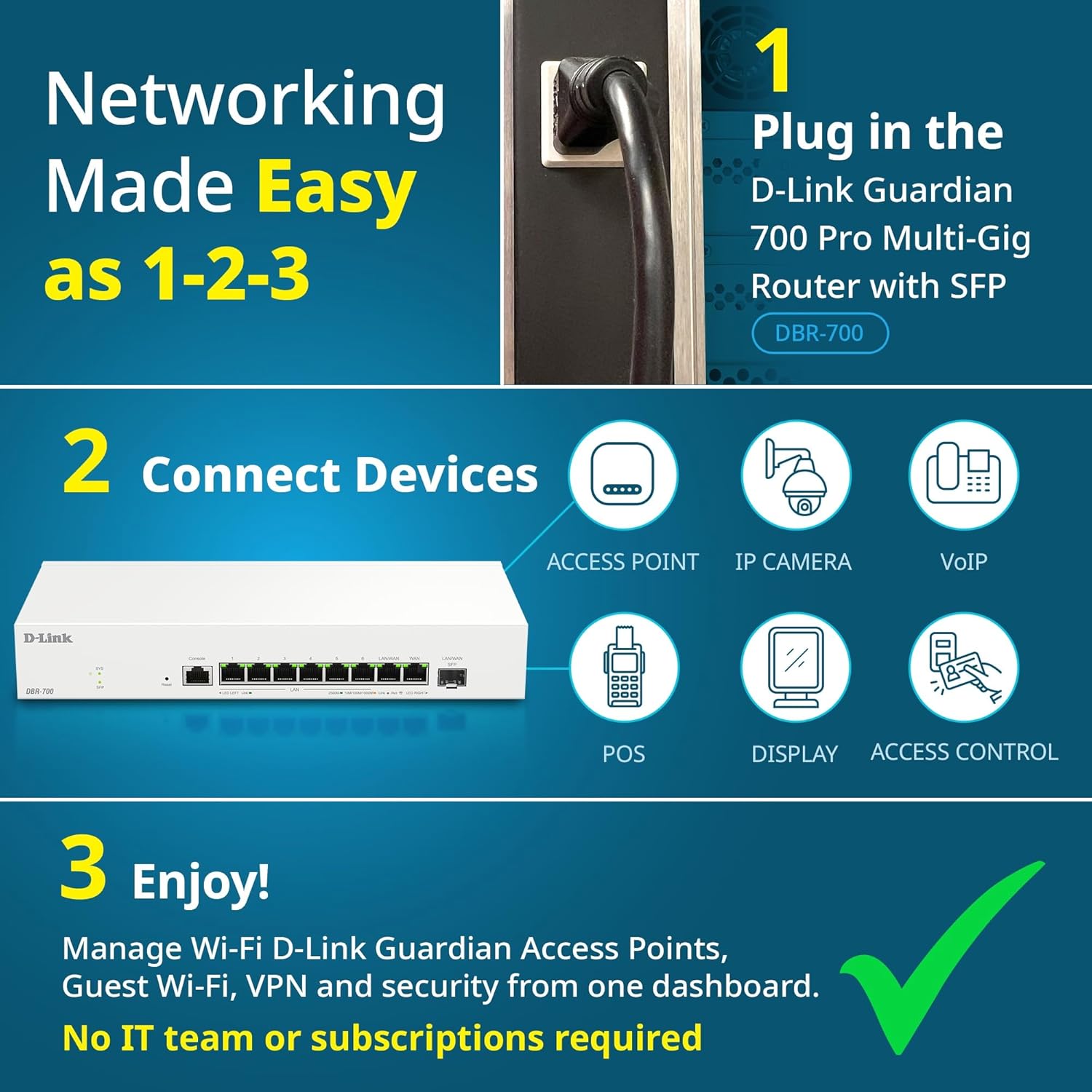
Image: Visual guide for router installation: 1. Plug in the DBR-700 router. 2. Connect devices like access points, IP cameras, VoIP, POS, displays, and access control. 3. Enjoy managed Wi-Fi, Guest Wi-Fi, VPN, and security from one dashboard.
5. වින්යාසය
5.1 වෙත ප්රවේශ වීම Web අතුරු මුහුණත
To configure the DBR-700, access its web- පදනම් වූ කළමනාකරණ අතුරු මුහුණත:
- ඔබේ පරිගණකය රවුටරයේ LAN port එකකට සම්බන්ධ කර ඇති බවට වග බලා ගන්න.
- a විවෘත කරන්න web බ්රවුසරය (උදා: ක්රෝම්, ෆයර්ෆොක්ස්, එජ්).
- Enter the router's default IP address (typically
192.168.1.1or similar, refer to the Quick Installation Guide for the exact address) into the address bar and press Enter. - Enter the default username and password when prompted. (Refer to the Quick Installation Guide for default credentials).
5.2. Basic Network Settings
Once logged in, you can configure basic network settings:
- WAN සැකසුම්: Configure your internet connection type (e.g., DHCP, Static IP, PPPoE) as provided by your ISP.
- LAN සැකසුම්: Adjust the router's internal IP address, subnet mask, and DHCP server settings for your local network.
- කාල සැකසුම්: Set the correct time zone and synchronize the router's clock.
6. උසස් විශේෂාංග
6.1. Multi-WAN Failover
The DBR-700 supports Multi-WAN with intelligent failover, ensuring business continuity by providing redundant internet connections. If the primary WAN link fails, the router automatically switches to a secondary WAN link.

Image: The DBR-700's ports, illustrating the Primary 2.5GbE WAN, Secondary 2.5GbE LAN/WAN, and SFP Uplink for Multi-WAN failover capabilities.
6.2. VPN Configuration
The router includes built-in VPN support for IPSec, WireGuard, and OpenVPN, enabling secure remote access for employees and branch office connectivity. It supports up to 100 VPN tunnels.
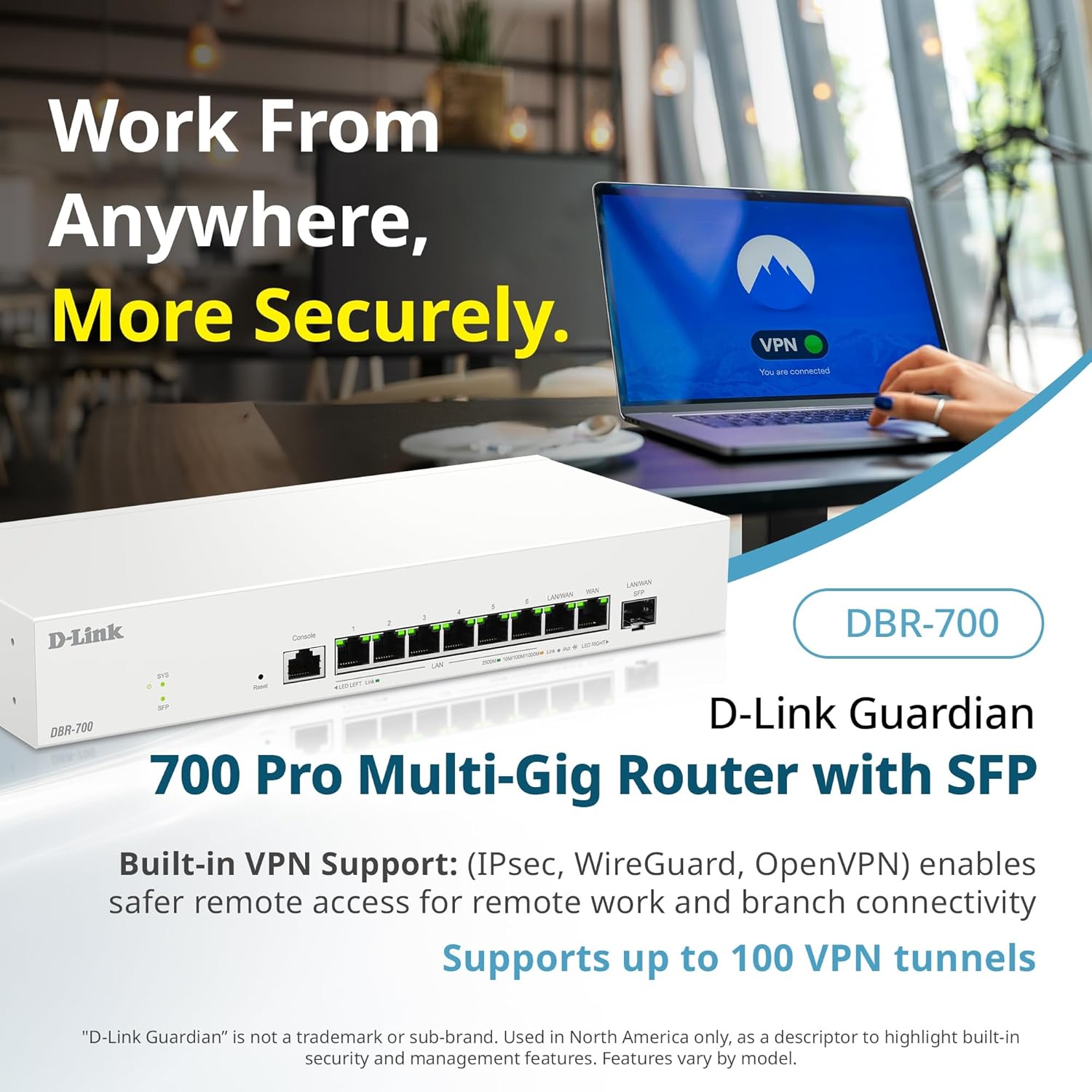
Image: A laptop displaying a 'VPN Connected' status, with the DBR-700 router in the foreground, illustrating secure remote access.
6.3. Centralized Access Point Management
The DBR-700 can discover and manage up to 15 D-Link Guardian Wi-Fi 6 Smart Access Points (DBR-X3000-AP, sold separately) from a single intuitive dashboard. This simplifies Wi-Fi network deployment and management.

Image: A tablet showing the D-Link Wi-Fi management dashboard, demonstrating centralized control over D-Link Guardian Access Points, with the DBR-700 router and a DBR-X3000-AP in the background.
6.4. Guest Wi-Fi Management
Set up and manage guest Wi-Fi networks with a Captive Portal. This allows for branded sign-in pages for guests while keeping business systems separate and secure. Configuration and management are done from the router dashboard.

Image: A smartphone screen showing a customizable guest Wi-Fi login portal, highlighting the DBR-700's ability to manage and customize guest networks.
7. නඩත්තු කිරීම
7.1. ස්ථිරාංග යාවත්කාලීන කිරීම්
Regularly check for and install firmware updates to ensure optimal performance, security, and access to new features. Firmware updates can typically be found on the D-Link support webඔබේ නිශ්චිත ආකෘතිය සඳහා අඩවිය.
7.2. කර්මාන්තශාලා යළි පිහිටුවීම
If you encounter persistent issues or wish to clear all configurations, you can perform a factory reset. To do this, locate the Reset button on the front panel. With the router powered on, use a paperclip or similar pointed object to press and hold the Reset button for approximately 5-10 seconds until the SYS LED blinks. Release the button, and the router will restart with factory default settings.
8. දෝශ නිරාකරණය
This section addresses common issues you might encounter with your DBR-700 router.
8.1. අන්තර්ජාල සම්බන්ධතාවයක් නොමැත
- කේබල් පරීක්ෂා කරන්න: සියලුම ඊතර්නෙට් කේබල් නිවැරදි වරායන් (WAN, LAN) වෙත ආරක්ෂිතව සම්බන්ධ කර ඇති බවට වග බලා ගන්න.
- මොඩමයේ තත්ත්වය: Verify that your internet service provider's modem is working correctly and has an active internet connection.
- WAN වින්යාසය: රවුටරයට ලොග් වන්න web interface and verify that the WAN settings (e.g., IP address, DNS) are correctly configured according to your ISP's requirements.
- උපාංග නැවත ආරම්භ කරන්න: Power cycle your modem, then the router, and then your connected devices.
8.2. ප්රවේශ විය නොහැක Web අතුරු මුහුණත
- IP ලිපිනය: Ensure your computer is configured to obtain an IP address automatically (DHCP) or has a static IP address within the router's subnet.
- රවුටර IP: Double-check the router's default IP address. It might be printed on a label on the router itself or in the Quick Installation Guide.
- ෆයර්වෝල්/ප්රති-වයිරස: ඔබගේ පරිගණකයේ ප්රවේශය අවහිර කළ හැකි ඕනෑම ෆයර්වෝල් හෝ ප්රති-වයිරස මෘදුකාංගයක් තාවකාලිකව අක්රිය කරන්න.
- බ්රව්සර් හැඹිලිය: ඔබේ ඉවත් කරන්න web බ්රවුසරයේ හැඹිලිය සහ කුකීස් ඉවත් කරන්න, නැතහොත් වෙනත් බ්රවුසරයක් උත්සාහ කරන්න.
8.3. Slow Network Speeds
- කේබල් ගුණාත්මකභාවය: Ensure you are using high-quality Ethernet cables (Cat5e or Cat6) for multi-gig connections.
- උපාංග ගැළපුම: Verify that connected devices and network adapters support 2.5GbE speeds.
- ISP වේගය: Confirm your internet service plan provides the expected speeds.
- රථවාහන කළමනාකරණය: Check router settings for any Quality of Service (QoS) or bandwidth limits that might be affecting performance.
9. තාක්ෂණික පිරිවිතර
| විශේෂාංගය | පිරිවිතර |
|---|---|
| වෙළඳ නාමය | D-Link |
| ආදර්ශ අංකය | DBR-700 |
| WAN වරාය | 1x 2.5GbE WAN, 1x 2.5GbE/1GbE SFP (configurable as WAN) |
| LAN වරාය | 6x 2.5GbE LAN, 1x 2.5GbE (configurable as LAN) |
| VPN සහාය | IPSec, WireGuard, OpenVPN (up to 100 tunnels) |
| AP කළමනාකරණය | Manages up to 15 D-Link Guardian Wi-Fi 6 Smart Access Points |
| ආරක්ෂක විශේෂාංග | SPI Firewall, WPA3 encryption, VLANs |
| මානයන් (LxWxH) | අඟල් 11.02 x 1.73 x 4.96 |
| අයිතමයේ බර | රාත්තල් 2 කි |
| වෙළුමtage | Volts 120 (AC) |
| වර්ණය | සුදු |
10. වගකීම් සහ සහාය
For detailed warranty information, technical support, and additional resources, please visit the official D-Link website. You can find product registration, FAQs, firmware downloads, and contact information for customer service.
D-Link Official Webඅඩවිය: www.dlink.com
Please have your product model number (DBR-700) and serial number ready when contacting support.