
Ordtop GS400 Ultra
Ordtop GS400 Ultra Wireless Gaming Headset User Manual
Model: GS400 Ultra
වෙළඳ නාමය: ඕර්ඩ්ටොප්
හැඳින්වීම
This manual provides detailed instructions for the setup, operation, and maintenance of your Ordtop GS400 Ultra Wireless Gaming Headset. Please read this manual thoroughly before using the product to ensure proper functionality and longevity.
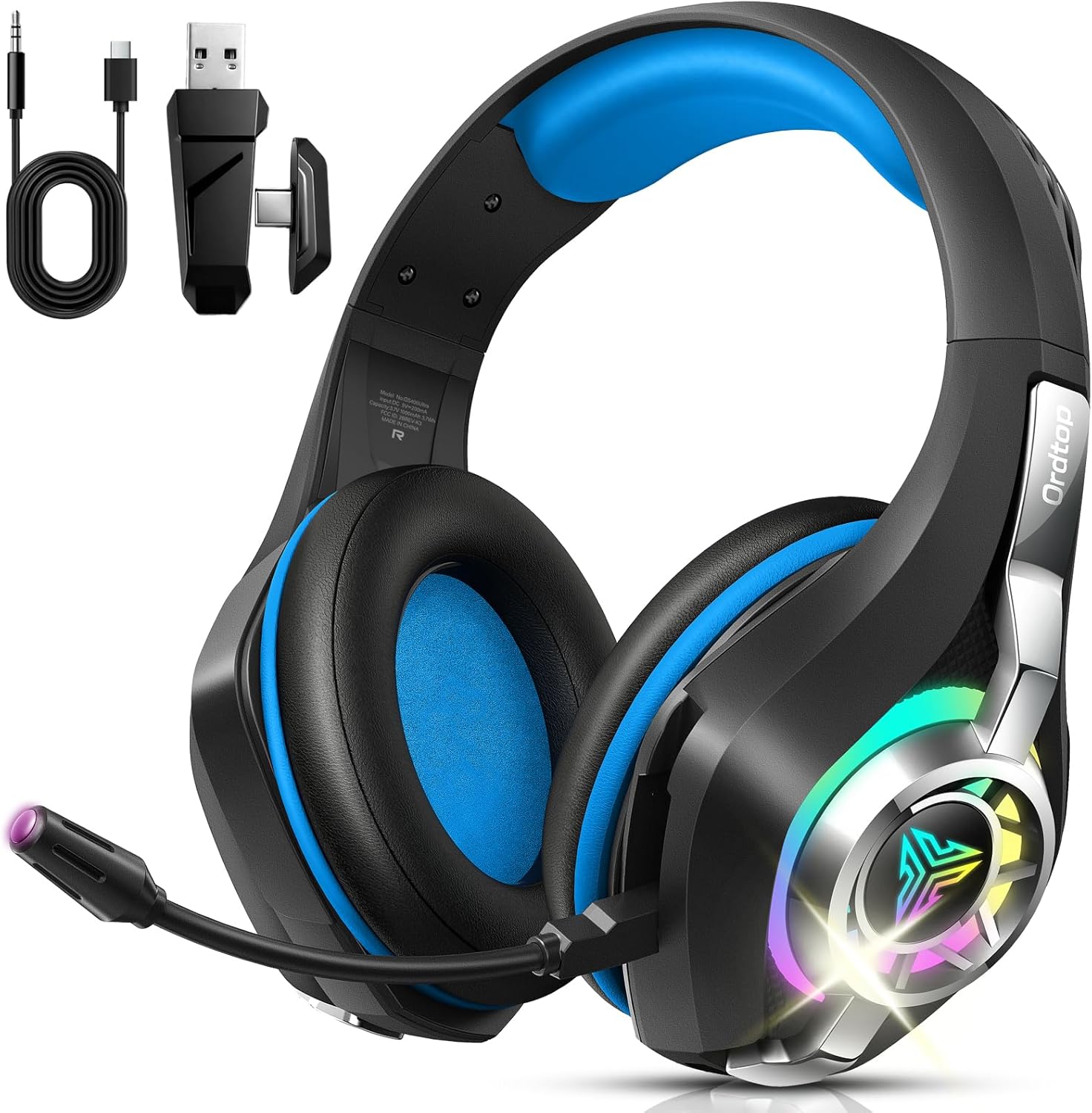
Image: The Ordtop GS400 Ultra Wireless Gaming Headset, showcasing its design and included accessories like the USB dongle and charging cable.
පැකේජයේ අන්තර්ගතය
සියලුම අයිතම පැකේජයේ ඇති බව තහවුරු කරගන්න:
- බ්ලූටූත් ක්රීඩා හෙඩ්ෆෝන්
- USB & Type-C Plug (2.4GHz wireless dongle)
- 3.5mm ශ්රව්ය කේබල්
- Type-C ආරෝපණ කේබලය
- පරිශීලක අත්පොත (මෙම ලේඛනය)
සැකසුම සහ සම්බන්ධතාවය
The Ordtop GS400 Ultra headset offers multiple connection options for various devices.
1. හෙඩ්සෙට් එක ආරෝපණය කිරීම
Before first use, fully charge the headset. Connect the Type-C charging cable to the headset's charging port and to a USB power source. A full charge takes approximately 2 hours.
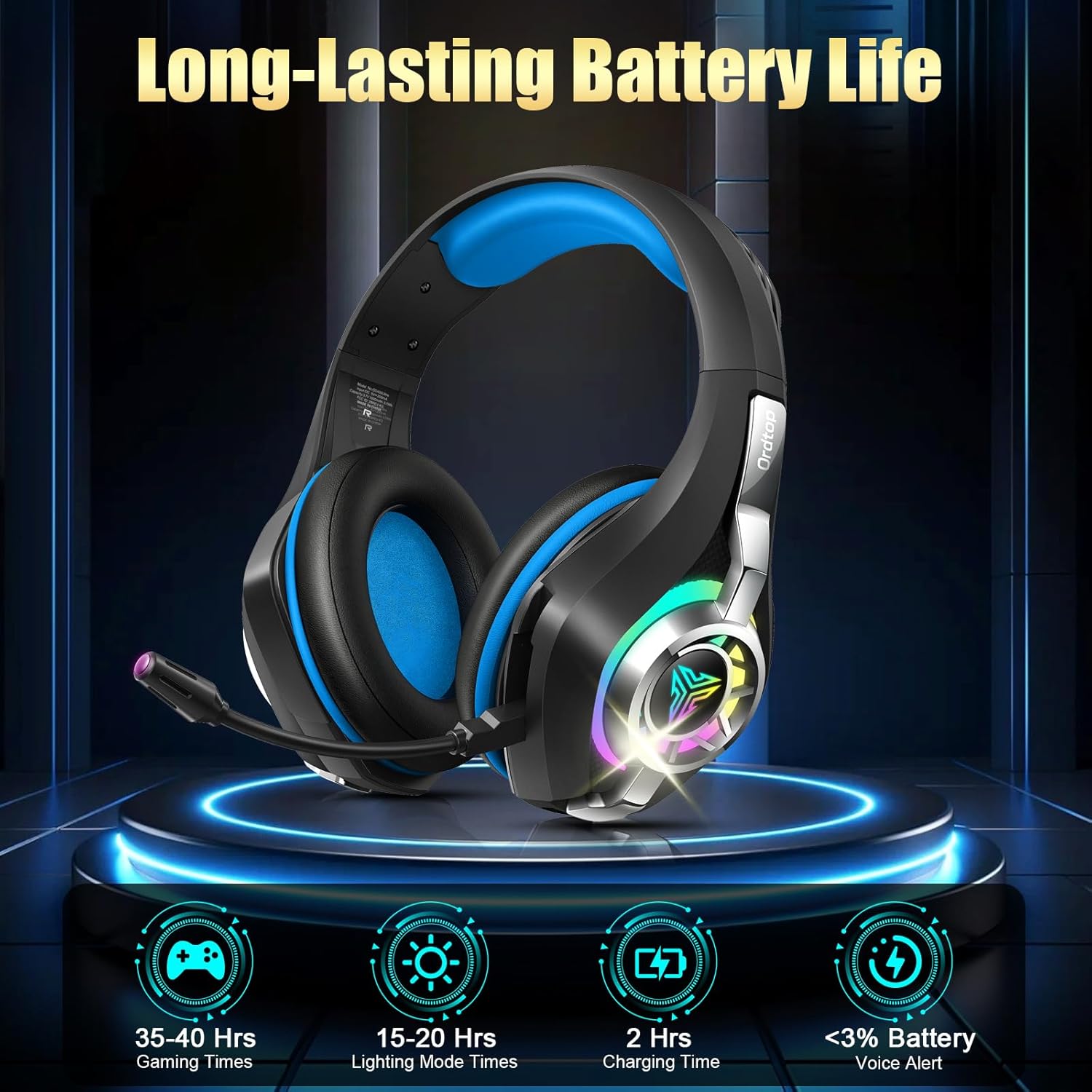
Image: Battery life information, indicating 35-40 hours of gaming time, 15-20 hours with RGB lighting, and a 2-hour charging time.
2. සම්බන්ධතා මාතයන්
The headset supports 2.4GHz wireless, Bluetooth, and 3.5mm wired connections.
2.1. 2.4GHz Wireless Mode (for PC, Mac, PS4, PS5, Laptop)
- හෙඩ්සෙට් එක ක්රියා විරහිත කර ඇති බවට සහතික වන්න.
- Insert the USB & Type-C plug (dongle) into an available USB port on your device (PC, Mac, PS4, PS5, Laptop).
- Press and hold the Power button and Volume+ button on the headset simultaneously for 6 seconds to initiate pairing.
- හෙඩ්සෙට් එක ඩොන්ගල් එකට ස්වයංක්රීයව සම්බන්ධ වෙනවා.
- To switch to 2.4GHz mode from another mode, use the dedicated slider on the earcup.
Image: A visual representation of the headset's multi-platform wireless support, detailing compatibility for 2.4GHz mode (PC, Mac, PS4, PS5, Laptop, Xbox Line-in) and Bluetooth mode (PC, Mac, Tablets, Mobile Phone, Switch).

Image: The USB and Type-C plug (dongle) demonstrating its compatibility with different devices such as PS4, PS5, PC, Mac, Laptops, phones, tablets, and Nintendo Switch.
2.2. Bluetooth Mode (for PC, Mac, Tablets, Mobile Phone, Switch)
- හෙඩ්සෙට් එක ක්රියාත්මක වන බවට සහතික වන්න.
- Slide the dedicated switch on the earcup to Bluetooth mode.
- On your device, enable Bluetooth and search for "GS400 Ultra" (or similar).
- යුගල කිරීමට හෙඩ්සෙට් එක තෝරන්න.
- Note: Microphone functionality is not supported in Bluetooth mode for Nintendo Switch. Bluetooth is not compatible with PS5 or PS4.
2.3. 3.5mm රැහැන් සම්බන්ධතාවය
For devices supporting a 3.5mm audio jack, connect the included 3.5mm audio cable to the headset and your device. This mode does not require battery power.
මෙහෙයුම් උපදෙස්
1. පාලනය කරයිview
All essential controls are located on the earcup for easy access.

Image: Detailed diagram illustrating the location and function of controls on the headset earcup, including Volume +, Play/Pause, Power On/Off, Volume -, Mic Mute, 2.4GHz/Bluetooth mode switch, and Type-C port for charging or 3.5mm wired connection.
- බලය සක්රිය / අක්රිය: තත්පර 2ක් සඳහා දිගු ඔබන්න.
- වෙළුම +: Single click to increase volume.
- වෙළුම -: Single click to decrease volume.
- වාදනය/විරාමය: Single click.
- පිළිතුරු / විසන්ධි කරන්න / ඇමතුම ප්රතික්ෂේප කරන්න: Single click to answer/hang up, long press to reject.
- මයික් නිශ්ශබ්ද කිරීම: Double click the Volume - button.
- RGB ආලෝකකරණය: Double-tap to switch RGB lighting on or off.
- මාදිලියේ ස්විචය: Use the dedicated slider to switch between 2.4GHz Wireless Mode and Bluetooth Mode.
2. මයික්රෆෝන භාවිතය
The external microphone features Environmental Noise Cancellation (ENC) technology to reduce background noise during communication.

Image: A visual comparison demonstrating the effectiveness of the ENC Noise Cancelling Mic, showing clearer voice transmission and environmental sound details after activation.
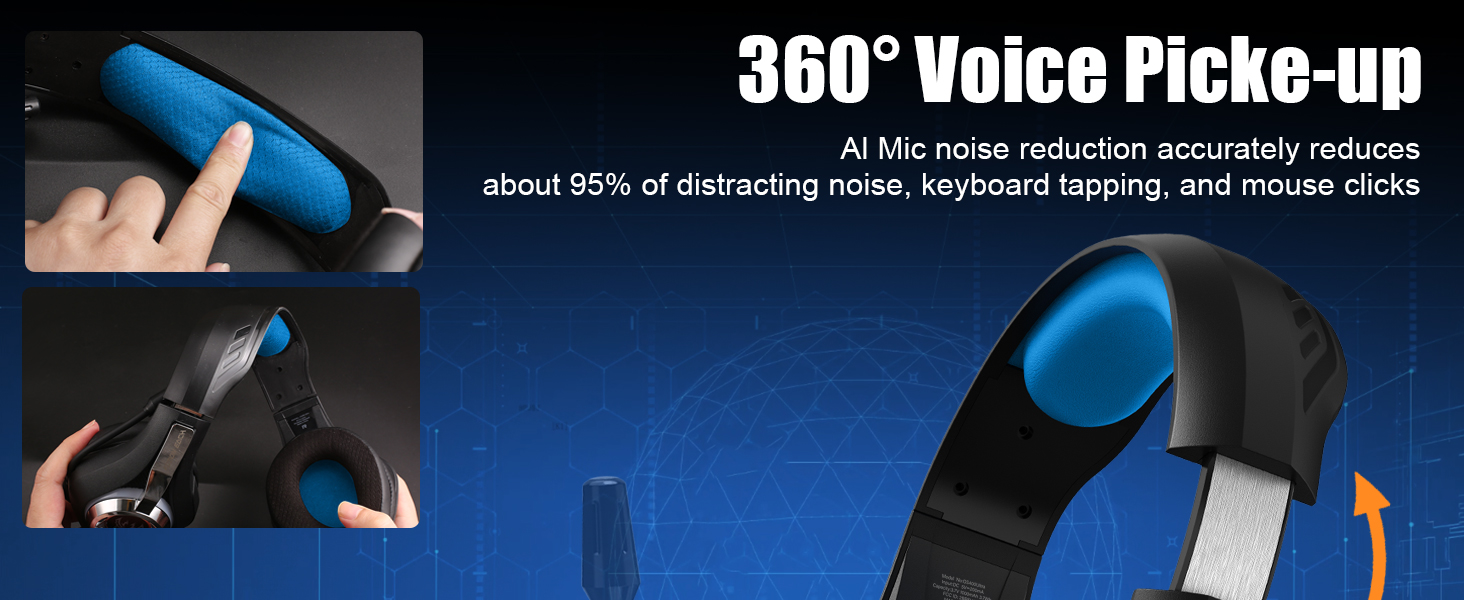
Image: Illustration of the microphone's 360-degree voice pickup capability and its adjustable design, highlighting AI noise reduction for clear communication.
3. ශ්රව්ය අත්දැකීම්
The headset is equipped with 40mm dynamic drivers and supports virtual 7.1 surround sound for an immersive audio experience.
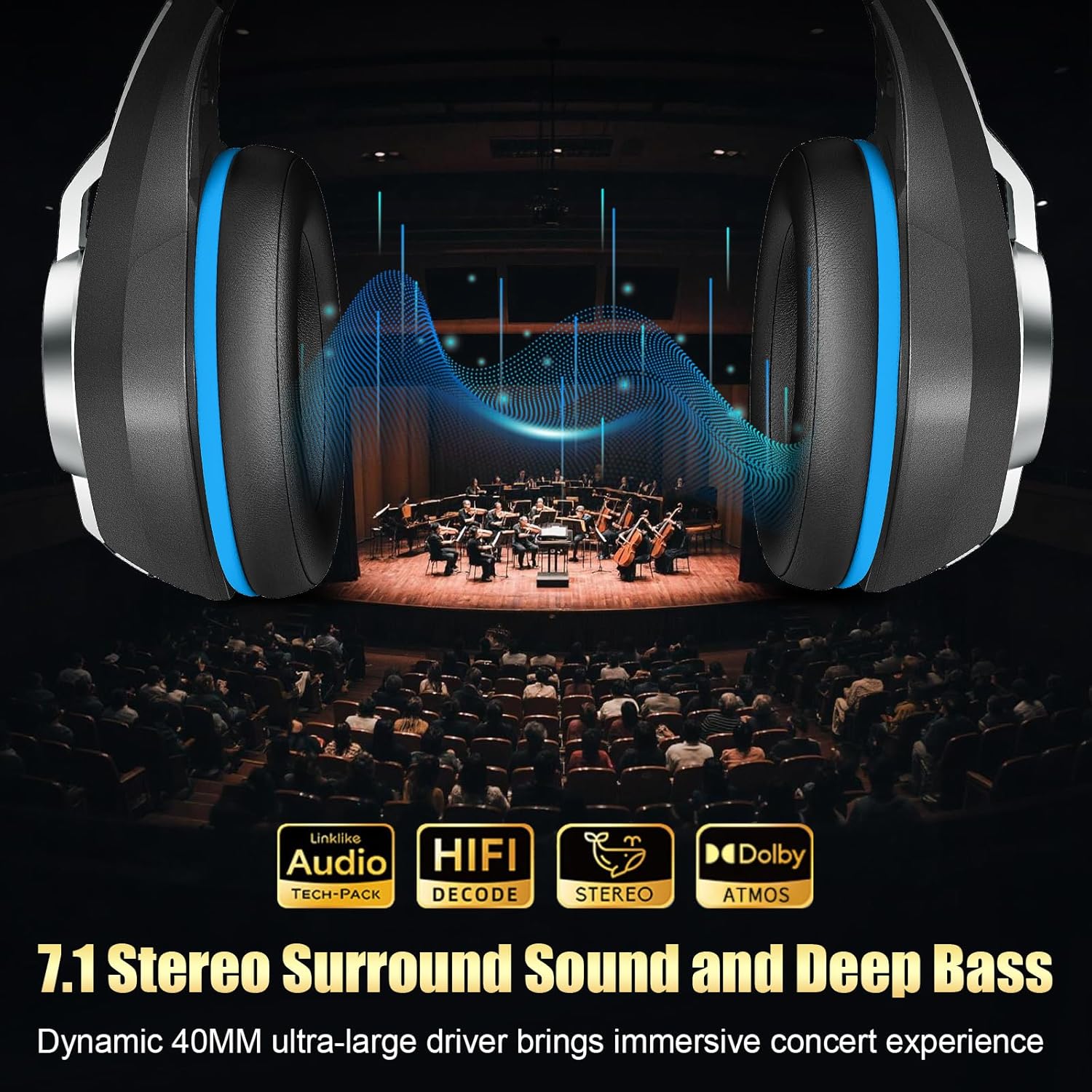
Image: The headset with a graphic overlay illustrating 7.1 Stereo Surround Sound and Deep Bass, emphasizing the dynamic 40mm drivers for an immersive audio experience.
නඩත්තු කිරීම
- මෘදු, වියළි රෙද්දකින් හෙඩ්සෙට් එක නිතිපතා පිරිසිදු කරන්න.
- හෙඩ්සෙට් එක අධික උෂ්ණත්වයන්ට, ආර්ද්රතාවයට හෝ සෘජු හිරු එළියට නිරාවරණය කිරීමෙන් වළකින්න.
- Do not attempt to disassemble the headset, as this may void the warranty and cause damage.
- භාවිතයේ නොමැති විට හෙඩ්සෙට් එක සිසිල් වියළි ස්ථානයක ගබඩා කරන්න.
දෝෂගවේෂණය
| ගැටලුව | විය හැකි හේතුව | විසඳුම |
|---|---|---|
| හෙඩ්සෙට් එකෙන් ශබ්දයක් නැහැ | Headset not powered on, low battery, incorrect connection mode, device volume too low. | Ensure headset is charged and powered on. Verify correct connection mode (2.4GHz, Bluetooth, or wired). Check device volume settings. Re-pair if using wireless modes. |
| මයික්රෆෝනය ක්රියා නොකරයි | Microphone muted, incorrect input device selected on computer/console, Bluetooth mode on Switch. | Double click Volume - to unmute mic. Check audio input settings on your device. Note that mic is not supported on Switch in Bluetooth mode. |
| Connection unstable or laggy | Interference, distance from dongle/device, low battery. | Ensure headset is within range (up to 55 ft for 2.4GHz, 17 meters for Bluetooth). Minimize obstacles. Charge headset. Re-pair the connection. |
| RGB ආලෝකය ක්රියා නොකරයි | RGB feature turned off, low battery. | Double-tap to toggle RGB lighting. Charge headset (RGB lighting consumes more battery). |
පිරිවිතර
| මාදිලියේ නම | GS400 Ultra |
| සම්බන්ධතා තාක්ෂණය | 2.4GHz රැහැන් රහිත, බ්ලූටූත්, 3.5mm රැහැන් සහිත |
| රැහැන් රහිත සන්නිවේදනය | බ්ලූටූත් |
| ශ්රව්ය ධාවක ප්රමාණය | 40mm ගතික ධාවක |
| ශ්රව්ය ගුප්ත විද්යාව | 20 Milliseconds (under 2.4GHz) |
| බ්ලූටූත් පරාසය | මීටර් 17 දක්වා |
| 2.4GHz Wireless Range | අඩි 55 දක්වා |
| ශබ්ද පාලන විශේෂාංග | පාරිසරික ශබ්ද අවලංගු කිරීමේ (ENC) මයික්රෆෝනය |
| Battery Life (Gaming) | 35-40 Hours (without RGB) |
| Battery Life (RGB On) | 15-20 පැය |
| ආරෝපණ කාලය | ආසන්න වශයෙන් පැය 2 යි |
| බර | ග්රෑම් 276 (අවුන්ස 9.7ක් පමණ) |
| ද්රව්ය | Polyurethane (PU) earcups |
| ගැළපෙන උපාංග | PS5, PS4, PC, Nintendo Switch, Xbox (Line-in mode), Laptop, Tablet, iPad, Mobile Phone |
වගකීම් සහ සහාය
For warranty information and technical support, please refer to the official Ordtop webවෙබ් අඩවියට හෝ ඔවුන්ගේ පාරිභෝගික සේවය අමතන්න. වගකීම් හිමිකම් සඳහා ඔබේ මිලදී ගැනීමේ රිසිට්පත තබා ගන්න.
නිල වෙළඳ නාම ගබඩාව: Ordtop Store on Amazon