
1. හැඳින්වීම
The ACECONN Sword Pro+ is a high-performance streaming smart TV box designed to deliver an immersive entertainment experience. Running on the Android 11 operating system, it supports 4K Ultra HD resolution at 60 frames per second with HDR10+ for crystal-clear visuals. Equipped with dual-band Wi-Fi (2.4G/5G) and 2GB RAM with 16GB storage, it ensures fast and stable streaming. The included voice remote with backlight offers convenient control. This manual provides essential information for setting up, operating, and maintaining your device.
2. පැකේජ අන්තර්ගතය
පහත ලැයිස්තුගත කර ඇති සියලුම අයිතම ඔබේ පැකේජයට ඇතුළත් කර ඇති බව තහවුරු කරගන්න:
- SWORD Pro+ රූපවාහිනී පෙට්ටිය ×1
- දුරස්ථ පාලනය × 1
- HDMI කේබල් × 1
- බල ඇඩැප්ටරය × 1
- පරිශීලක අත්පොත × 1
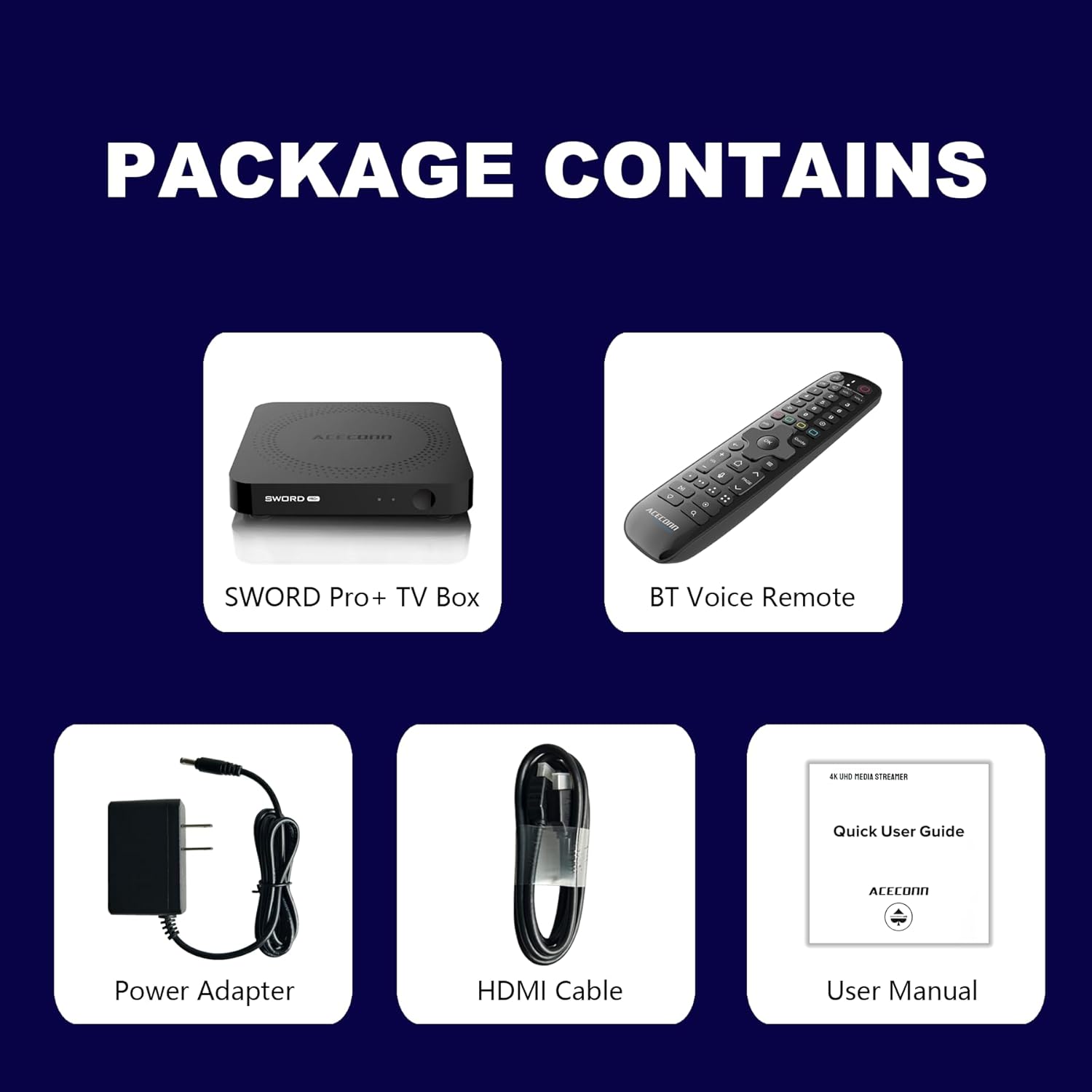
Figure 2.1: Package Contents. This image displays the SWORD Pro+ TV Box, BT Voice Remote, Power Adapter, HDMI Cable, and a Quick User Guide (User Manual).
3. නිෂ්පාදන අවසන්view
3.1 උපාංග පිරිසැලසුම

රූපය 3.1: ඉදිරිපස සහ පසුපස Views of the SWORD Pro+ TV Box. The front features an IR receiver and power indicator. The side includes USB 2.0, USB 3.0, and a MicroSD card slot. The rear panel provides AV, Ethernet, HDMI, Optical audio, DC power input, and a 'Find Remote' button.
3.2 මානයන්
The ACECONN Sword Pro+ TV Box has compact dimensions for easy placement.
- දිග: අඟල් 4.4 (සෙ.මී. 11)
- පළල: අඟල් 4.4 (සෙ.මී. 11)
- උස: අඟල් 0.8 (සෙ.මී. 2)

Figure 3.2: Device Dimensions. This image illustrates the length, width, and height of the SWORD Pro+ TV Box.
4. Remote Control Description
The included Bluetooth voice remote control features a backlight for ease of use in various lighting conditions. Familiarize yourself with the buttons and their functions:

Figure 4.1: Remote Control Layout. This diagram labels all buttons on the remote, including TV Power On/Off, STB Power On/Off, OK key for TV, TV Source, Number Keys, Mouse, Options, Color Keys, Information, Open TV Guide, Navigation (Up/Down/Left/Right), Confirm/Select, Exit, Menu, Home, Volume +/-, Page Up/Down, Channel Up/Down, Voice Assistant, Hot Keys, Play/Pause, Record, Setup Favorite, and Search.
- රූපවාහිනියේ බලය සක්රිය/අක්රිය: Controls your television's power.
- STB බලය සක්රිය/අක්රිය: Controls the TV Box power.
- OK key for TV / TV Source: Selects options or changes TV input.
- අංක යතුරු (0-9): අංක සෘජුවම ඇතුළත් කිරීම සඳහා.
- මූසිකය: Activates/deactivates mouse pointer mode.
- විකල්ප: යෙදුම් තුළ අමතර විකල්ප වෙත ප්රවේශ වේ.
- Color Keys: යෙදුම අනුව ක්රියාකාරීත්වය වෙනස් වේ.
- තොරතුරු: වත්මන් අන්තර්ගතය පිළිබඳ තොරතුරු පෙන්වයි.
- මාර්ගෝපදේශය: රූපවාහිනී වැඩසටහන් මාර්ගෝපදේශය විවෘත කරයි.
- Navigation (Up/Down/Left/Right): කර්සරය හෝ තේරීම ගෙන යයි.
- OK (Center): තේරීම තහවුරු කරයි.
- පිටවීම: Returns to the previous screen or exits an application.
- මෙනුව: Opens the context menu.
- මුල් පිටුව: ප්රධාන මුල් තිරයට නැවත පැමිණේ.
- වෙළුම +/-: ශ්රව්ය පරිමාව සීරුමාරු කරයි.
- පිටුව ඉහළ/පහළ: පිටු හරහා අනුචලනය කරයි.
- හ oice සහකාර: Activates voice control for commands and search.
- වාදනය/විරාමය: මාධ්ය නැවත ධාවනය පාලනය කරයි.
- වාර්තාව: Initiates recording (if supported by application/service).
- ප්රියතමය සකසන්න: Configures favorite channels or apps.
- සොයන්න: සෙවුම් කාර්යය විවෘත කරයි.
5. සැකසුම් මාර්ගෝපදේශය
Follow these steps to set up your ACECONN Sword Pro+ TV Box:
- රූපවාහිනියට සම්බන්ධ වන්න: Connect one end of the HDMI cable to the HDMI port on the TV Box and the other end to an available HDMI input on your television. Note the HDMI input number (e.g., HDMI 1, HDMI 2).
- බලයට සම්බන්ධ කරන්න: Plug the power adapter into the DC IN port on the TV Box, then plug the adapter into a wall outlet. The device should power on automatically, or you may need to press the power button on the remote.
- රූපවාහිනී ආදානය තෝරන්න: Turn on your television and use its remote control to select the correct HDMI input source that the TV Box is connected to. You should see the ACECONN boot logo on your screen.
- ජාල සම්බන්ධතාවය:
- Wifi: Once the initial setup screen appears, navigate to the network settings. Select your Wi-Fi network from the list, enter the password, and connect. The device supports dual-band Wi-Fi (2.4G & 5G) for optimal performance.
- ඊතර්නෙට්: For a wired connection, connect an Ethernet cable from your router to the Ethernet port on the TV Box. The device will automatically detect and connect to the wired network.
- මූලික පද්ධති සැකසුම: Follow the on-screen prompts to complete the initial setup, which may include language selection, time zone, and Google account login.
- Remote Control Pairing (if necessary): If the remote control is not responsive, ensure batteries are installed correctly. For Bluetooth remotes, you may need to pair it in the device's Bluetooth settings. Refer to the remote control section for specific pairing instructions if provided on-screen.

Figure 5.1: Dual-Band WiFi. The SWORD Pro+ supports both 2.4G and 5G WiFi for faster and more stable internet connectivity.
6. මෙහෙයුම් උපදෙස්
6.1 මූලික සංචාලනය
Use the directional pad (Up, Down, Left, Right) and the OK button on your remote control to navigate through the Android TV interface. The Home button will always return you to the main screen.
6.2 හඬ පාලනය භාවිතා කිරීම
Press the Voice Assistant button on your remote control to activate the voice input feature. Speak clearly into the remote to search for content, open applications, or issue commands.

Figure 6.1: Smart Voice Control. This image demonstrates the voice control feature, allowing users to operate the device with spoken commands.
6.3 යෙදුම් වෙත ප්රවේශ වීම
The TV Box comes with pre-installed applications, including the TVONAIR3 Streaming App. You can access more applications through the ACECONN exclusive app store or the Google Play Store. Navigate to the 'Apps' section on the home screen to view සහ ඔබගේ ස්ථාපිත යෙදුම් කළමනාකරණය කරන්න.
6.4 4K HDR Streaming
To enjoy 4K HDR content, ensure your television supports 4K resolution and HDR10+. Connect the TV Box to an HDMI 2.1 port on your TV for optimal performance. Content quality will also depend on your internet speed and the streaming service's offerings.
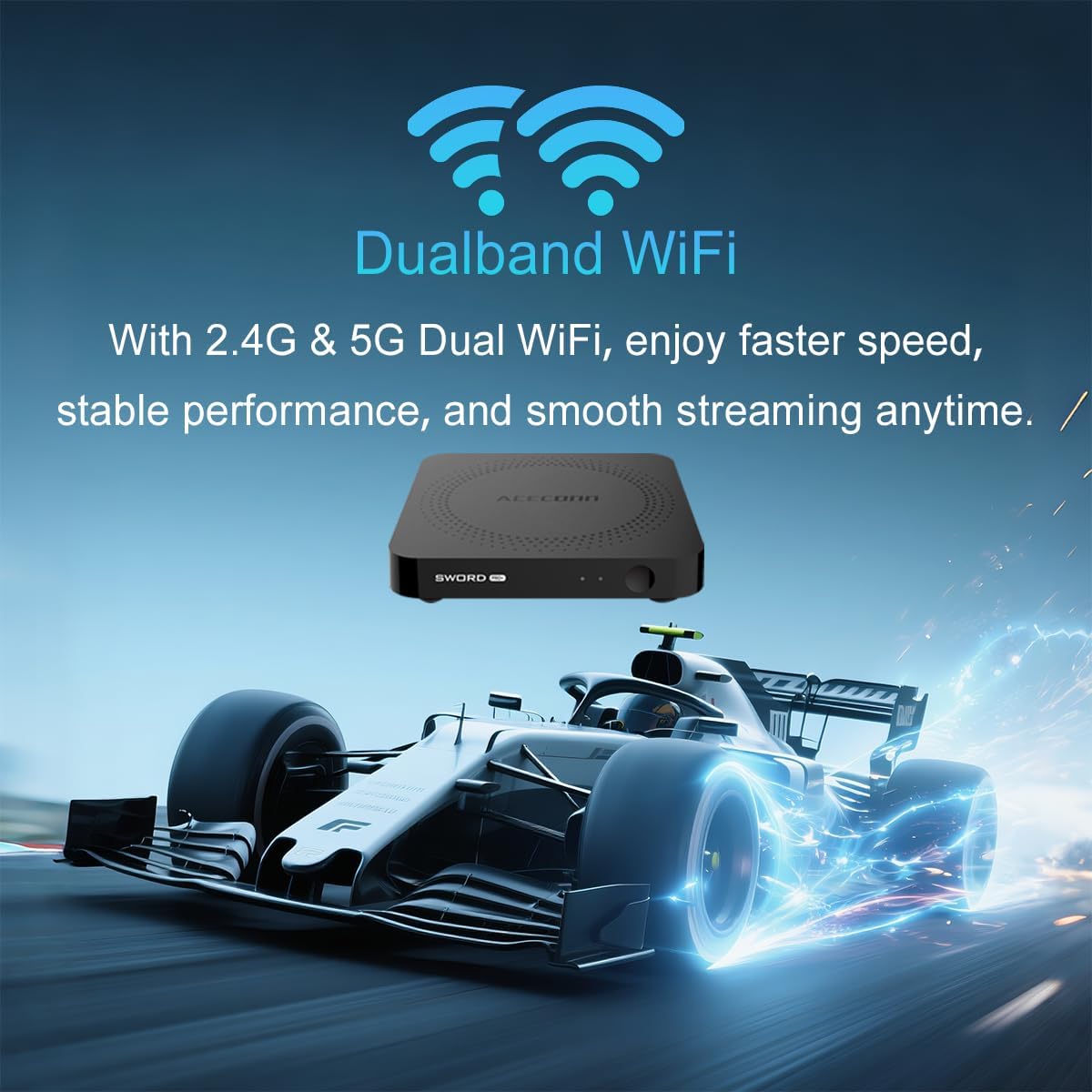
Figure 6.2: 4K HDR Support. The device supports 4K video streaming up to 3840x2160 at 60Hz, Dynamic HDR with frame-by-frame precision, and AV1 format decoding.
6.5 System Updates (OTA)
The ACECONN Sword Pro+ supports Over-The-Air (OTA) updates for both the system and applications. It is recommended to keep your device updated to ensure optimal performance and access to the latest features and security enhancements. You can check for updates in the device's settings menu.
7. නඩත්තු කිරීම
Proper maintenance ensures the longevity and optimal performance of your TV Box:
- පිරිසිදු කිරීම: උපාංගයේ බාහිර පෙනුම පිරිසිදු කිරීම සඳහා මෘදු වියළි රෙද්දක් භාවිතා කරන්න. දියර පිරිසිදු කරන්නන් හෝ උල්ෙල්ඛ ද්රව්ය භාවිතා කිරීමෙන් වළකින්න.
- වාතාශ්රය: Ensure the TV Box is placed in a well-ventilated area. Do not cover ventilation openings or place the device in an enclosed space that could restrict airflow.
- මෘදුකාංග යාවත්කාලීන: Regularly check for and install system and application updates to benefit from performance improvements and security patches.
- පාරිසරික තත්ත්වයන්: උපාංගය අධික උෂ්ණත්වයන්ට, සෘජු හිරු එළියට, අධික ආර්ද්රතාවයට හෝ දූවිලි සහිත පරිසරයන්ට නිරාවරණය වීමෙන් වළකින්න.
- බල චක්රය: If the device becomes unresponsive, disconnect the power adapter for a few seconds and then reconnect it to perform a power cycle.
8. දෝශ නිරාකරණය
If you encounter issues with your ACECONN Sword Pro+, refer to the following common problems and solutions:
| ගැටලුව | විය හැකි හේතුව | විසඳුම |
|---|---|---|
| උපාංගය බලගන්වන්නේ නැත. | බල ඇඩැප්ටරය සම්බන්ධ වී නැත හෝ දෝෂ සහිතයි. | බල ඇඩැප්ටරය උපාංගයට සහ ක්රියාකාරී බල අලෙවිසැලකට ආරක්ෂිතව සම්බන්ධ කර ඇති බවට වග බලා ගන්න. වෙනත් අලෙවිසැලක් උත්සාහ කරන්න. |
| No signal on TV screen. | වැරදි HDMI ආදානය තෝරාගෙන ඇත හෝ ලිහිල් HDMI කේබලයක්. | Verify the HDMI cable is securely connected to both the TV Box and the TV. Select the correct HDMI input on your TV using your TV's remote. |
| දුරස්ථ පාලකය ක්රියා නොකරයි. | Low batteries, remote not paired, or IR sensor blocked. | Replace batteries. Ensure the remote is paired via Bluetooth (check device settings). Ensure no obstructions between remote and TV Box. |
| Buffering or slow streaming. | Weak Wi-Fi signal, slow internet speed, or network congestion. | Move the TV Box closer to your Wi-Fi router or use an Ethernet cable for a wired connection. Restart your router. Check your internet service provider's speed. |
| යෙදුම් බිඳ වැටීම හෝ කැටි වීම. | App specific issue, low memory, or outdated app. | Clear the cache of the problematic app (Settings > Apps). Update the app from the Play Store. Restart the TV Box. |
9. පිරිවිතර
Detailed technical specifications for the ACECONN Sword Pro+ TV Box:
- මාදිලියේ නම: SWORD PRO+
- මෙහෙයුම් පද්ධතිය: Android 11
- සකසනය: ක්වාඩ්-කෝර් ARM කෝටෙක්ස්-A35 CPU
- GPU: G31TM MP2 GPU, OpenGL ES 3.2, Vulkan 1.1, OpenCL 2.0
- RAM: 2GB DDR3
- අභ්යන්තර ගබඩාව: 16GB eMMC
- වීඩියෝ ප්රතිදානය: Up to 4Kx2K@60fps
- HDR සහාය: HDR10+/HLG
- වීඩියෝ විකේතනය: AV1, HEVC/H.265
- සම්බන්ධතාවය:
- Dual-band Wi-Fi (2.4G/5G)
- බ්ලූටූත්
- ඊතර්නෙට්
- වරාය: HDMI 2.1, USB 2.0, USB 3.0, MicroSD Card Slot, AV, Optical, DC IN
- මානයන්: 4.4 x 4.4 x 0.8 අඟල් (11 x 11 x 2 cm)
- බර: රාත්තල් 1.1 (දළ වශයෙන් කිලෝග්රෑම් 0.5)
- සහාය දක්වන අන්තර්ජාල සේවා: Browser, Netflix, Skype, YouTube (and others via app stores)
- පාලක වර්ගය: දුරස්ථ පාලක, හඬ පාලනය

Figure 9.1: Key Features and Specifications. This image provides a visual summary of the device's capabilities, including Android 11, 4K 60fps, AV1 codec, 2GB DDR3 RAM, 16GB storage, HDMI 2.1, and the included smart Universal BT Remote with voice command and backlight.
10. වගකීම් සහ සහාය
For warranty information, please refer to the documentation included with your purchase or visit the official ACECONN website. For technical support, product inquiries, or service, please contact ACECONN customer support through their official channels.