
හැඳින්වීම
This manual provides detailed instructions for the GOWENIC Wireless Keyboard, model GOWENICryt20kq5je. This compact 61-key keyboard offers versatile connectivity options including 2.4G wireless, Bluetooth, and USB wired modes, designed for various computing environments.
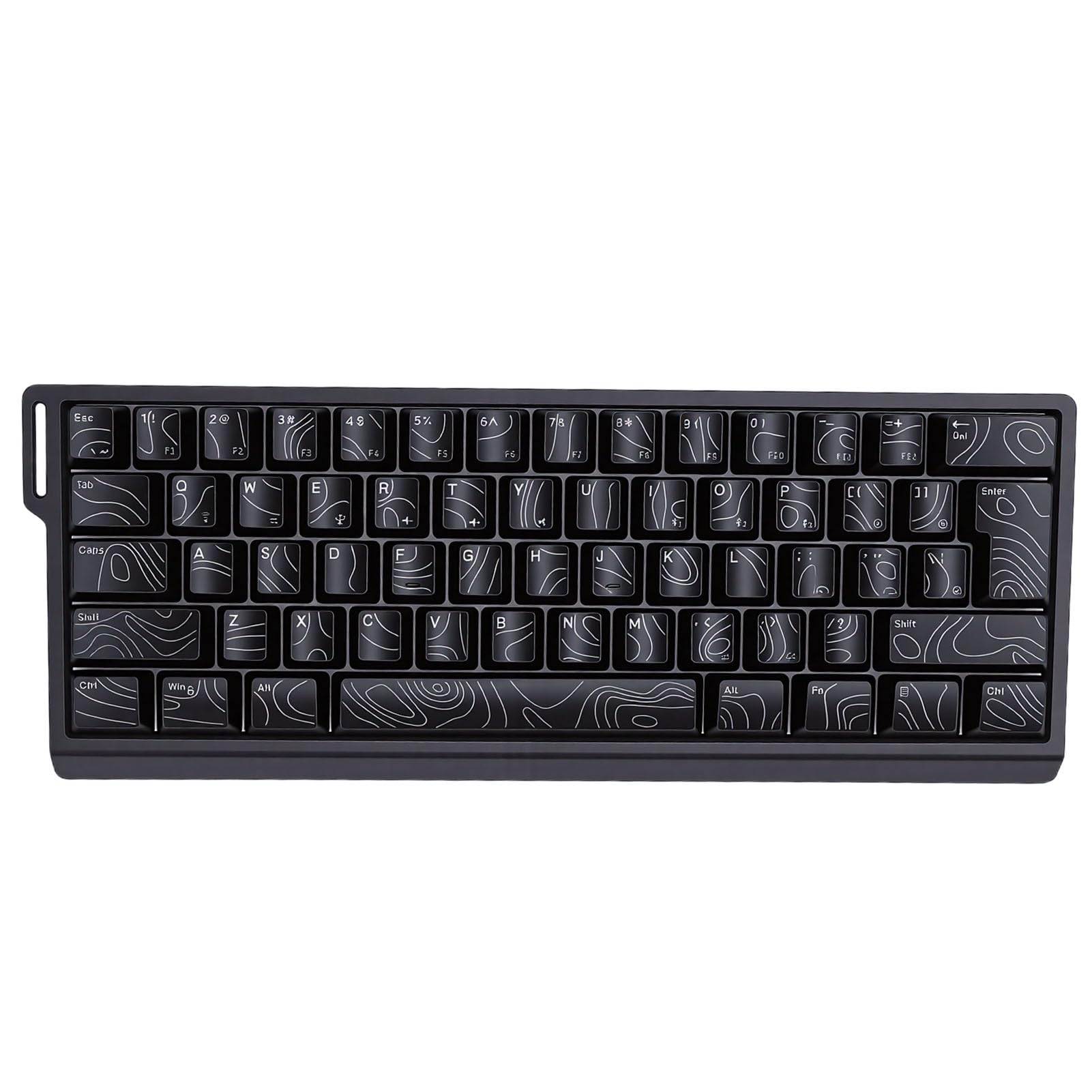
Image: GOWENIC Wireless Keyboard demonstrating its tri-mode connection capability with multiple devices like a laptop, desktop, and tablet.
පැකේජයේ අන්තර්ගතය
පහත ලැයිස්තුගත කර ඇති සියලුම අයිතම ඔබේ පැකේජයට ඇතුළත් කර ඇති බව කරුණාකර සත්යාපනය කරන්න:
- 1 x GOWENIC Wireless Keyboard
- 1 x USB Receiver (for 2.4G wireless connection)
- 1 x USB Cable (for wired connection and charging)
- 1 x පරිශීලක අත්පොත
- 1 x Ribbon (Lanyard)

Image: The GOWENIC Wireless Keyboard displayed with its USB cable, USB receiver, and ribbon lanyard.
පිරිවිතර
| මාදිලියේ නම | GOWENICryt20kq5je |
| යතුරු | යතුරු 61 |
| සම්බන්ධතාවය | 2.4G රැහැන් රහිත, බ්ලූටූත්, USB රැහැන් සහිත |
| ද්රව්ය | ABS |
| බැටරි | Built-in 2000mAh Li-Ion Polymer Battery |
| යතුරු පෙරළීම | 25-Key Anti-ghosting |
| ගැළපුම | PC (98SE, Me, 2000, XP, VISTA, Win 7, Win10), OS X systems |
| යතුරුපුවරු විස්තරය | යාන්ත්රික |

Image: Diagram illustrating the internal structure of the keyboard, including ABS keycaps, positioning plate, silicone conductive film, light-emitting board, and ABS bottom shell.
සැකසුම් උපදෙස්
The GOWENIC Wireless Keyboard supports three connection modes: 2.4G wireless, Bluetooth, and USB wired. Choose the mode that best suits your device and needs.
1. USB රැහැන් සම්බන්ධතාවය
- Connect the provided USB cable to the keyboard's USB port.
- USB කේබලයේ අනෙක් කෙළවර ඔබේ පරිගණකයේ තිබෙන USB පෝට් එකකට සම්බන්ධ කරන්න.
- The keyboard will be automatically recognized and ready for use. This mode also charges the keyboard's internal battery.
2. 2.4G රැහැන් රහිත සම්බන්ධතාවය
- පැකේජයට ඇතුළත් කර ඇති USB ග්රාහකය සොයා ගන්න.
- USB ග්රාහකය ඔබේ පරිගණකයේ තිබෙන USB පෝට් එකකට සම්බන්ධ කරන්න.
- Ensure the keyboard is powered on and in 2.4G wireless mode (refer to keyboard's mode switch, if present, or combination keys for mode selection).
- යතුරු පුවරුව ස්වයංක්රීයව සම්බන්ධ විය යුතුය.
3. බ්ලූටූත් සම්බන්ධතාවය
- Ensure the keyboard is powered on and in Bluetooth pairing mode (refer to keyboard's mode switch or combination keys for Bluetooth mode selection and pairing initiation).
- On your device (PC, laptop, tablet, etc.), enable Bluetooth and search for new devices.
- Select "GOWENIC Keyboard" or a similar name from the list of available devices to pair.
- යුගල කිරීමේ ක්රියාවලිය සම්පූර්ණ කිරීමට ඕනෑම තිරයේ විමසීම් අනුගමනය කරන්න.

Image: The GOWENIC Wireless Keyboard positioned on a desk, highlighting its 60% compact layout and portability, suitable for various setups.
මෙහෙයුම් උපදෙස්
Once connected, the GOWENIC Wireless Keyboard functions as a standard keyboard. Below are some key operational aspects:
ප්රධාන කාර්යයන්
- සම්මත ටයිප් කිරීම: Use the keys for text input as you would with any conventional keyboard.
- කාර්ය යතුරු: Due to the 60% compact layout, some function keys (F1-F12) and navigation keys may be accessed via a combination with the Fn key. Refer to the keycap legends for specific combinations.
- 25-යතුරු ප්රති-භූත: This feature ensures that up to 25 keys can be pressed simultaneously without input conflicts, providing accurate and responsive input, especially beneficial for gaming and fast typing.
- Ergonomic Keycaps: The contoured keycap design is intended to provide a comfortable typing experience, fitting the natural curve of your fingertips.
යතුරු පුවරුව ආරෝපණය කිරීම
The keyboard is equipped with a built-in rechargeable battery. To charge:
- Connect the provided USB cable to the keyboard's charging port.
- අනෙක් කෙළවර USB බල ප්රභවයකට සම්බන්ධ කරන්න (උදා: පරිගණක USB පෝට් එක, USB බිත්ති ඇඩැප්ටරය).
- An indicator light on the keyboard will typically show charging status and turn off or change color when fully charged.

රූපය: සවිස්තරාත්මක view of the keyboard's keycaps, highlighting the clear and transparent characters and contoured design for improved readability and comfort.
නඩත්තු කිරීම
Proper maintenance ensures the longevity and optimal performance of your GOWENIC Wireless Keyboard.
- පිරිසිදු කිරීම: යතුරු පුවරුවේ මතුපිට පිස දැමීමට මෘදු වියළි රෙද්දක් භාවිතා කරන්න. මුරණ්ඩු අපිරිසිදුකම සඳහා, තරමක් dampරෙදි කැබැල්ල වතුරෙන් හෝ මෘදු, උල්ෙල්ඛ නොවන පිරිසිදුකාරකයකින් පිස දමන්න. අධික තෙතමනය වළක්වා ගන්න.
- දූවිලි ඉවත් කිරීම: යතුරු කැප් අතර ඇති දූවිලි හා සුන්බුන් ඉවත් කිරීමට සම්පීඩිත වාතය භාවිතා කරන්න.
- ගබඩා: දීර්ඝ කාලයක් භාවිතයේ නොමැති විට, යතුරු පුවරුව සෘජු හිරු එළියෙන් සහ අධික උෂ්ණත්වයන්ගෙන් ඈත්ව සිසිල් වියළි ස්ථානයක ගබඩා කරන්න.
- බැටරි සත්කාර: To preserve battery life, avoid fully discharging the keyboard frequently. Charge it regularly, especially if it will be stored for a long time.
දෝෂගවේෂණය
If you encounter issues with your GOWENIC Wireless Keyboard, refer to the following common solutions:
යතුරුපුවරුව ප්රතිචාර නොදක්වයි
- බලය පරීක්ෂා කරන්න: Ensure the keyboard is powered on and has sufficient battery charge. Connect it via USB cable to charge.
- සම්බන්ධතා මාදිලිය: Verify that the keyboard is in the correct connection mode (2.4G, Bluetooth, or Wired) for your device.
- USB Receiver (2.4G): For 2.4G mode, ensure the USB receiver is securely plugged into a working USB port on your computer. Try a different USB port.
- බ්ලූටූත් යුගලනය: For Bluetooth mode, ensure the keyboard is properly paired with your device. If not, unpair and re-pair the keyboard. Ensure Bluetooth is enabled on your device.
- රැහැන්ගත සම්බන්ධතාවය: If using wired mode, ensure the USB cable is firmly connected to both the keyboard and the computer. Try a different USB cable if available.
යතුරු නිවැරදිව ක්රියා නොකරයි.
- පිරිසිදු යතුරු: Remove any debris or dust that might be stuck under the keycaps using compressed air.
- මෘදුකාංග ගැටළු: Restart your computer to rule out any temporary software glitches.
- වෙනත් උපාංගයක පරීක්ෂා කරන්න: If possible, test the keyboard on another computer or device to determine if the issue is with the keyboard or the original device.
වගකීම් සහ සහාය
The GOWENIC Wireless Keyboard (Model: GOWENICryt20kq5je) comes with a manufacturer warranty for 90 days from the date of purchase.
For technical support, warranty claims, or further assistance, please refer to the contact information provided with your purchase documentation or visit the official GOWENIC webඅඩවිය. සහාය අමතන්නේ නම් කරුණාකර ඔබේ මාදිලි අංකය සහ මිලදී ගැනීමේ විස්තර සූදානම් කර තබා ගන්න.