1. හැඳින්වීම
This manual provides comprehensive instructions for the installation, operation, and maintenance of the Fingertec TA100C Multimedia Fingerprint Time Attendance System. The TA100C is a biometric terminal designed to accurately record employee time and attendance using fingerprint verification. This system offers an efficient alternative to traditional punch card or other card-based time tracking methods, significantly reducing instances of "buddy-punching" and enhancing human resource management accuracy.
The Fingertec TA100C is equipped with a color multimedia display and advanced algorithms to improve speed and accuracy in fingerprint recognition. It supports a combination of fingerprint and password verification for user convenience.
2 ආරක්ෂිත තොරතුරු
උපාංගය ක්රියාත්මක කිරීමට පෙර කරුණාකර සියලු ආරක්ෂක උපදෙස් කියවා තේරුම් ගන්න. මෙම උපදෙස් අනුගමනය කිරීමට අපොහොසත් වීමෙන් උපාංගයට හානි සිදු විය හැකිය හෝ පුද්ගලික තුවාල සිදුවිය හැකිය.
- උපාංගය ජලය, තෙතමනය හෝ අධික උෂ්ණත්වයන්ට නිරාවරණය නොකරන්න.
- Ensure the power supply used is compatible with the device's specifications.
- උපාංගය සෘජු හිරු එළියේ හෝ තාප ප්රභවයන් අසල තැබීමෙන් වළකින්න.
- උපාංගය ඔබම විවෘත කිරීමට හෝ අලුත්වැඩියා කිරීමට උත්සාහ නොකරන්න. සියලුම සේවා සුදුසුකම් ලත් පුද්ගලයින් වෙත යොමු කරන්න.
- Keep the fingerprint sensor clean and free from dust or debris.
3. පැකේජ අන්තර්ගතය
ස්ථාපනය සමඟ ඉදිරියට යාමට පෙර සියලුම අයිතම පැකේජයේ ඇති බව තහවුරු කර ගන්න:
- Fingertec TA100C Time Attendance Terminal
- බල ඇඩැප්ටරය
- සවි කිරීමේ දෘඩාංග (ඉස්කුරුප්පු, බිත්ති ප්ලග්)
- TCMS V2 Software CD
- User Manual (this document or similar printed guide)
- Connectivity Cables (e.g., Ethernet cable, RS232/RS485 cable - may vary by package)
4. උපාංගය අවසන්view
The Fingertec TA100C features a user-friendly interface with a color display, a numeric keypad, and a dedicated fingerprint sensor.

රූපය 4.1: ඉදිරිපස view of the Fingertec TA100C device, showing the color screen, keypad, and fingerprint sensor.
ප්රධාන සංරචක:
- වර්ණ බහුමාධ්ය සංදර්ශකය: Provides a graphical user interface for navigation and status updates.
- සංඛ්යාත්මක යතුරු පුවරුව: Used for entering user IDs, passwords, and navigating menus. Includes M/OK (Menu/OK) and ESC (Escape) buttons.
- ඇඟිලි සලකුණු සංවේදකය: The primary biometric input for user identification and verification.
- සන්නිවේදන වරායන්: Located on the back or side, these ports facilitate connectivity via TCP/IP, RS232, and RS485.
- USB Port: For data transfer using a USB flash drive (PenDrive option on screen).
5. පිහිටුවීම
5.1 භෞතික ස්ථාපනය
- ස්ථානයක් තෝරන්න: Select a secure, indoor location away from direct sunlight, extreme temperatures, and moisture. Ensure sufficient space for users to comfortably access the device.
- සවි කිරීම: Use the provided mounting hardware to securely attach the device to a wall at an appropriate height. The device dimensions are approximately 9 x 8 x 3 inches and it weighs 3 pounds.
- බල සම්බන්ධතාවය: Connect the power adapter to the device's power input and then plug it into a standard electrical outlet.
5.2 මූලික වින්යාසය
- බල ගැන්වීම: Once connected to power, the device will automatically power on.
- දිනය සහ වේලාව සැකසීම්: Navigate through the on-screen menu (using the keypad and M/OK button) to set the correct date and time. This is crucial for accurate attendance records.
- Network Configuration (TCP/IP): If connecting via network, access the 'Comm' menu to configure IP address, subnet mask, and gateway settings. Refer to your network administrator for specific details.
- Administrator Enrollment: Enroll at least one administrator fingerprint and password. This administrator will have access to all device settings and user management functions.
6. මෙහෙයුම
6.1 පරිශීලක ලියාපදිංචිය
නව පරිශීලකයෙකු ඇතුළත් කිරීමට:
- Access the 'User' menu as an administrator.
- Select 'New User' or 'Enroll User'.
- අනන්ය පරිශීලක හැඳුනුම්පතක් ඇතුළත් කරන්න.
- Follow the on-screen prompts to place the user's finger on the sensor multiple times for accurate fingerprint registration.
- Optionally, set a password for the user.
- Save the user's information. The device supports up to 2800 fingerprint templates.
6.2 Recording Attendance
For daily attendance recording:
- Users approach the device.
- ඇඟිලි සලකුණු සංවේදකය මත ලියාපදිංචි ඇඟිල්ලක් තබන්න.
- The device will verify the fingerprint and record the time. A confirmation message will appear on the screen.
- Alternatively, users can enter their User ID and password using the keypad.
The device can store up to 120,000 transactions.
7. Software Integration (TCMS V2)
The Fingertec TA100C integrates with the TCMS V2 (Time Control Management System) software for efficient data management, reporting, and payroll integration.

Figure 7.1: TCMS V2 Software User Manual, providing detailed instructions for software usage.
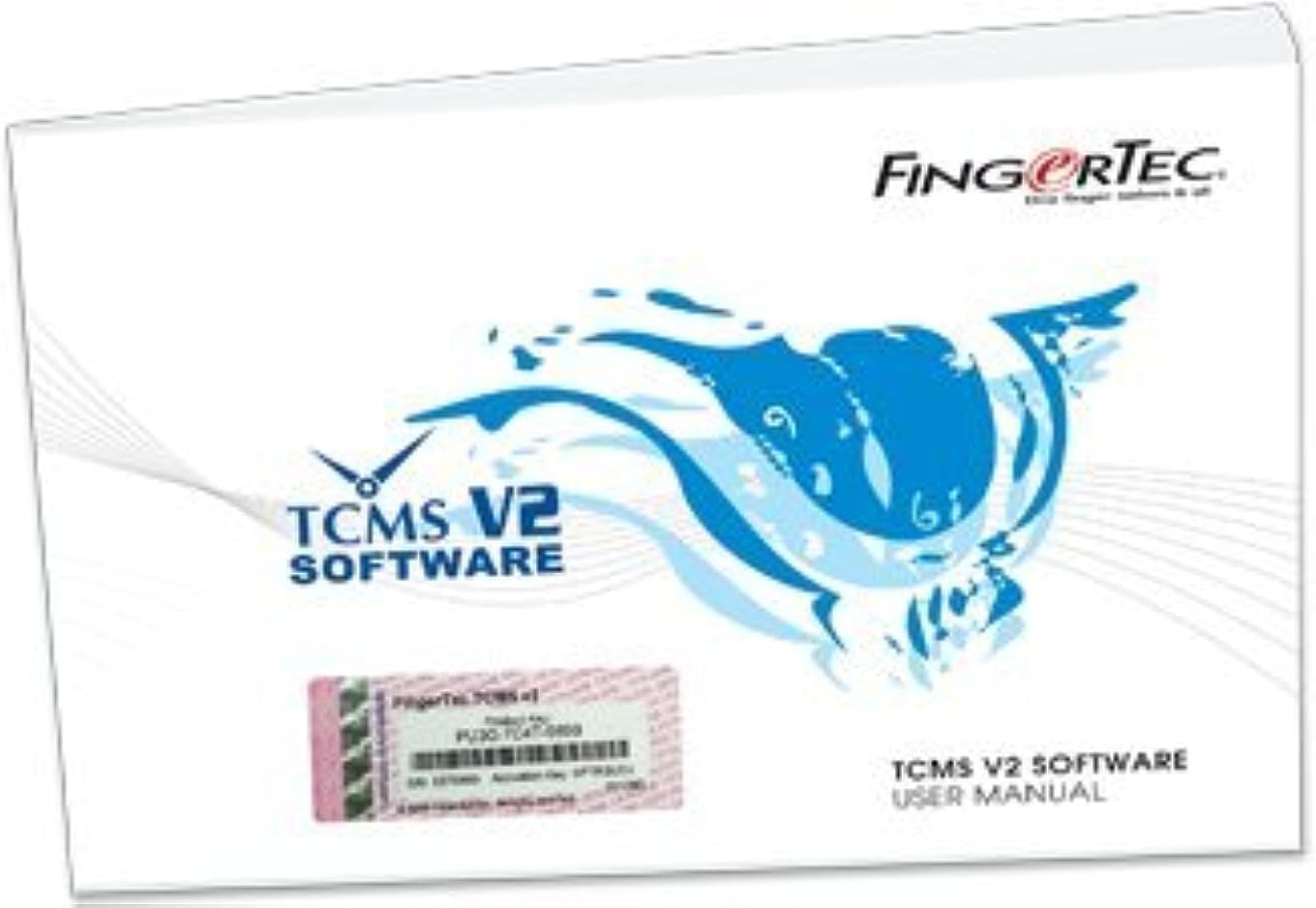
Figure 7.2: Fingertec Made Easy DVD, which typically includes the TCMS V2 software and video guides for installation and operation.
7.1 Installing TCMS V2 Software
- Insert the TCMS V2 Software CD into your computer's optical drive.
- Follow the on-screen instructions to install the software. Refer to the TCMS V2 Software User Manual for detailed installation steps.
7.2 දත්ත හුවමාරුව
Data can be transferred from the TA100C to the TCMS V2 software via:
- Network (TCP/IP): If the device is connected to your network, the software can directly communicate with the terminal to download attendance logs and upload user data.
- Serial Port (RS232/RS485): For direct connection to a PC using serial cables.
- USB Flash Drive (PenDrive): Data can be exported from the device to a USB drive and then imported into the TCMS V2 software.
7.3 Reporting and Management
The TCMS V2 software allows you to:
- පරිශීලක ප්රෝ කළමනාකරණය කරන්නfiles, including fingerprint templates and access rights.
- Generate various attendance reports (e.g., daily, weekly, monthly, tardiness, overtime).
- Export data for payroll processing.
- Configure work shifts and schedules.
8. නඩත්තු කිරීම
8.1 උපාංගය පිරිසිදු කිරීම
- බාහිර: Wipe the device's exterior with a soft, dry cloth. Do not use abrasive cleaners or solvents.
- ඇඟිලි සලකුණු සංවේදකය: Gently clean the fingerprint sensor surface with a lint-free cloth. If necessary, slightly dampen the cloth with isopropyl alcohol, then wipe dry immediately. Ensure no liquid enters the device.
8.2 දත්ත උපස්ථය
Regularly back up attendance data and user information from the TA100C to the TCMS V2 software and then back up the software's database. This prevents data loss in case of device malfunction or power outages.
9. දෝශ නිරාකරණය
This section addresses common issues you might encounter with the Fingertec TA100C.
| ගැටලුව | විය හැකි හේතුව | විසඳුම |
|---|---|---|
| උපාංගය බලගන්වන්නේ නැත. | No power supply, faulty adapter, or power outlet issue. | Check power cable connection. Ensure the power adapter is working and the outlet has power. |
| ඇඟිලි සලකුණ හඳුනා නොගන්නා ලදී. | Finger not placed correctly, sensor is dirty, or fingerprint not properly enrolled. | Ensure finger is clean and dry, and placed flat on the sensor. Clean the sensor. Re-enroll the fingerprint if issues persist. |
| Cannot connect to PC/Software. | Network configuration error, incorrect cable, or software settings. | Verify network settings (IP address, subnet). Check cable connections. Ensure TCMS V2 software communication settings match the device. |
| Data transfer fails via USB. | Faulty USB drive, incorrect file format, or insufficient storage. | Try a different USB drive. Ensure the USB drive is formatted correctly (FAT32). Check device for available storage. |
10. පිරිවිතර
| විශේෂාංගය | විස්තර |
|---|---|
| ආකෘතිය | TA100C |
| Fingerprint Templates Capacity | 2800 |
| ගනුදෙනු ලොග් ධාරිතාව | 120,000 |
| Verification Modes | Fingerprint, Password, Fingerprint + Password |
| සම්බන්ධතාවය | TCP/IP, RS232, RS485, USB Host |
| ප්රදර්ශනය කරන්න | Color Multimedia Display |
| නිෂ්පාදන මානයන් | 9 x 8 x 3 අඟල් (ආසන්න වශයෙන්) |
| අයිතමයේ බර | රාත්තල් 3 (ආසන්න වශයෙන්) |
| නිෂ්පාදකයා | Fingertec |
| පළමු දිනය තිබේ | 3 ජූනි 2010 |
11. වගකීම් සහ සහාය
For warranty information, technical support, or service inquiries, please contact your authorized Fingertec dealer or visit the official Fingertec webවෙබ් අඩවිය. වගකීම් හිමිකම් සඳහා මිලදී ගැනීමේ සාක්ෂියක් ලෙස ඔබේ මිලදී ගැනීමේ රිසිට්පත තබා ගන්න.


