හැඳින්වීම
This manual provides detailed instructions for the safe and efficient use of your Motorola Defy XT535 smartphone. Please read this manual thoroughly before operating your device to ensure proper functionality and to prevent damage.
සැලසුම
පැකේජයේ අන්තර්ගතය
ඔබේ පැකේජයේ පහත අයිතම අඩංගු බව තහවුරු කරන්න:
- Motorola Defy XT535 Phone
- චාජර්
- පරිශීලක අත්පොත (මෙම ලේඛනය)
Identifying Phone Components
Familiarize yourself with the key components of your Motorola Defy XT535.
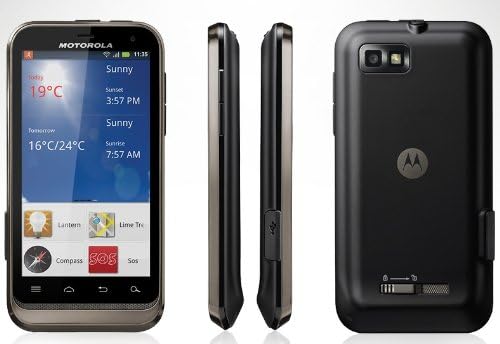
රූපය: Motorola Defy XT535 showing front, side, and back views. This image helps identify the location of the display, buttons, ports, and camera.
- ඉදිරිපස: 3.7-inch touchscreen display, front camera, earpiece.
- දකුණු පැත්ත: Volume buttons, power/lock button.
- වම් පැත්ත: මයික්රෝ USB පෝට් එක.
- ඉහළ: 3.5mm හෙඩ්ෆෝන් ජැක්.
- ආපසු: 5MP camera, LED flash, speaker, battery cover.
Installing the SIM Card and Battery
- දුරකථනය ක්රියා විරහිත කර ඇති බව සහතික කර ගන්න.
- Remove the back cover by gently prying it from the notch located at the bottom or side of the phone.
- If the battery is already installed, remove it by lifting it from the bottom edge.
- Insert the SIM card into the SIM card slot with the gold contacts facing down and the cut corner aligned correctly. Push until it clicks into place.
- Insert the microSD card (optional) into its designated slot, ensuring proper orientation.
- Insert the battery, aligning the gold contacts on the battery with the contacts in the phone. Press down gently until it is secure.
- Replace the back cover, pressing firmly around the edges until it snaps into place.
බැටරිය ආරෝපණය කිරීම
පළමු භාවිතයට පෙර, දුරකථනයේ බැටරිය සම්පූර්ණයෙන්ම ආරෝපණය කරන්න.
- Connect the charger to the micro USB port on the phone.
- චාජරය බල පිටවන ස්ථානයකට සම්බන්ධ කරන්න.
- ආරෝපණ දර්ශකය තිරය මත දිස්වනු ඇත.
- සම්පුර්ණයෙන්ම ආරෝපණය වූ පසු, චාජරය විසන්ධි කරන්න.
බල ගැන්වීම සහ අක්රිය කිරීම
- බල ගැන්වීමට: Motorola ලාංඡනය දිස්වන තුරු බල බොත්තම ඔබාගෙන සිටින්න.
- බලය අක්රිය කිරීමට: Press and hold the Power button until the phone options menu appears. Select "Power off" and confirm.
මෙහෙයුම් උපදෙස්
මූලික සංචාලනය
Your Motorola Defy XT535 features a capacitive touchscreen for interaction.
- තට්ටු කරන්න: Touch the screen once to open applications, select items, or press buttons.
- ස්පර්ශ කර අල්ලාගෙන සිටින්න: Touch and hold an item to access context-sensitive menus or move items.
- ස්වයිප්: Drag your finger across the screen to scroll through lists or switch between home screen panels.
- පින්ච්: විශාලනය කිරීමට හෝ පිටතට යාමට ඇඟිලි දෙකක් භාවිතා කරන්න web pages, photos, and maps.

රූපය: ඉදිරිපස view of the Motorola Defy XT535 displaying the home screen with various icons and widgets. This illustrates the primary user interface.
ඇමතුම් ලබා ගැනීම සහ ලබා ගැනීම
- ඇමතුමක් ගැනීමට: Tap the Phone icon, enter the number using the dial pad, and tap the Call button.
- ඇමතුමකට පිළිතුරු දීමට: When the phone rings, swipe the green phone icon to the right.
- To Decline a Call: Swipe the red phone icon to the left.
පණිවිඩ යැවීම සහ ලැබීම
- පණිවිඩයක් යැවීමට: Tap the Messaging icon, then tap "New message". Enter the recipient's number or select from contacts, type your message, and tap Send.
- පණිවිඩයක් කියවීමට: Tap the Messaging icon. Unread messages will be highlighted.
Wi-Fi වෙත සම්බන්ධ වෙමින්
- වෙත යන්න සැකසීම් > රැහැන් රහිත සහ ජාල > Wi-Fi සැකසුම්.
- Turn Wi-Fi on. The phone will scan for available networks.
- Tap on the desired network. If it is secured, enter the password and tap Connect.
කැමරාව භාවිතා කිරීම
- Tap the Camera icon to open the camera application.
- තිරය භාවිතා කරමින් ඔබේ ඡායාරූපය රාමු කරන්න viewසොයන්නා.
- ඡායාරූපයක් ගැනීමට ෂටර් බොත්තම තට්ටු කරන්න.
- To switch to video mode, tap the video icon. Tap the Record button to start/stop recording.
නඩත්තු කිරීම
ඔබේ උපාංගය පිරිසිදු කිරීම
- දුරකථනයේ තිරය සහ ශරීරය පිරිසිදු කිරීමට මෘදු, ලින්ට් රහිත රෙද්දක් භාවිතා කරන්න.
- උල්ෙල්ඛ පිරිසිදු කරන්නන්, ද්රාවක හෝ එයරොසෝල් ඉසින භාවිතා කිරීමෙන් වළකින්න.
- Do not expose the phone to excessive moisture while cleaning.
බැටරි සත්කාර
- අධික උෂ්ණත්වයන් බැටරි ආයු කාලයට බලපෑ හැකි බැවින් ඒවායින් වළකින්න.
- Do not leave the phone connected to the charger for extended periods after it is fully charged.
- බැටරිය ඉවත් කළ හැකි නම්, එය නිසි ලෙස සවි කර ඇති බවට වග බලා ගන්න.
මෘදුකාංග යාවත්කාලීන
Periodically check for software updates to ensure optimal performance and security.
- වෙත යන්න සැකසීම් > දුරකථනය ගැන > පද්ධති යාවත්කාලීන.
- පවතින යාවත්කාලීන කිරීම් පරීක්ෂා කර ස්ථාපනය කිරීමට තිරයේ ඇති උපදෙස් අනුගමනය කරන්න.
දෝෂගවේෂණය
පොදු ගැටළු සහ විසඳුම්
- දුරකථනය ක්රියාත්මක නොවේ: බැටරිය ආරෝපණය කර ඇති බවට වග බලා ගන්න. චාජරය සම්බන්ධ කර බලය ක්රියාත්මක කිරීමට උත්සාහ කිරීමට පෙර මිනිත්තු කිහිපයක් රැඳී සිටින්න.
- Phone freezing or unresponsive: Perform a soft reset by pressing and holding the Power button for about 10-15 seconds until the phone restarts. If this does not work, remove and reinsert the battery (if applicable), then power on.
- Poor signal or no network: Check if the SIM card is correctly inserted. Move to an area with better network coverage. Restart the phone.
- Wi-Fi සම්බන්ධතා ගැටළු: Ensure Wi-Fi is enabled on the phone and the router is working. Try forgetting the network and reconnecting.
- බැටරිය ඉක්මනින් බැස යයි: Reduce screen brightness, close unused applications, turn off Wi-Fi/Bluetooth/GPS when not in use.
කර්මාන්තශාලා යළි පිහිටුවීම
A factory reset will erase all data from your phone's internal storage, including app data, photos, and settings. Back up important data before proceeding.
- වෙත යන්න සැකසීම් > පෞද්ගලිකත්වය > කර්මාන්තශාලා දත්ත යළි පිහිටුවීම.
- තට්ටු කරන්න දුරකථනය නැවත සකසන්න.
- තට්ටු කිරීමෙන් තහවුරු කරන්න සියල්ල මකන්න.
පිරිවිතර
| ආකෘතිය | Motorola Defy XT535 |
| මෙහෙයුම් පද්ධතිය | Android 2.3 (Gingerbread) |
| ප්රදර්ශනය කරන්න | අඟල් 3.7 ක ධාරිත්රක ස්පර්ශ තිරය |
| විභේදනය | 480 x 854 පික්සල |
| පසුපස කැමරාව | LED ෆ්ලෑෂ් සහිත 5 MP |
| ඉදිරිපස කැමරාව | ඔව් |
| අභ්යන්තර ගබඩාව | 2 GB |
| සම්බන්ධතාවය | Wi-Fi, Bluetooth, GPS, 2G Cellular (GSM) |
| මානයන් | ආසන්න වශයෙන් 6.7 x 5.1 x 1.8 අඟල් (පැකේජ මානයන්) |
| බර | ආසන්න වශයෙන් 12 අවුන්ස |
වගකීම් සහ සහාය
For detailed warranty information, please refer to the separate warranty booklet included with your product or visit the official Motorola support website. For technical assistance or further inquiries, please contact Motorola customer support.
මෝටරෝලා සහාය: www.motorola.com/us/support


