1. හැඳින්වීම
This manual provides essential instructions for the safe and efficient use of your Epson L110 Colour Inkjet Printer. The Epson L110 is designed for personal and work projects, offering efficient performance with low running costs. It features a compact design and an integrated ink tank system.
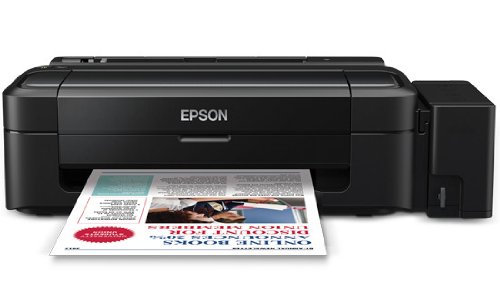
රූපය 1: ඉදිරිපස view of the Epson L110 Colour Inkjet Printer.
2. පිහිටුවීම
2.1 ඇසිරීම
Carefully remove the printer from its packaging. Ensure all protective tapes and packing materials are removed from the printer's exterior and interior. Retain the packaging for future transport or storage.
2.2 බල සම්බන්ධතාවය
- මුද්රණ යන්ත්රයේ බල ආදානයට විදුලි රැහැන සම්බන්ධ කරන්න.
- විදුලි රැහැනේ අනෙක් කෙළවර බිම්ගත විදුලි අලෙවිසැලකට සම්බන්ධ කරන්න.
- Do not power on the printer until ink tanks are filled.
2.3 තීන්ත ටැංකි පිරවීම
The Epson L110 features an integrated ink tank system. Use only genuine Epson ink bottles for optimal performance and to prevent damage.
- මුද්රණ යන්ත්රයේ පැත්තේ ඇති තීන්ත ටැංකි ඒකක කවරය විවෘත කරන්න.
- Uncap the ink bottle for the corresponding color (Cyan, Magenta, Yellow, Black).
- Carefully pour the ink into the correct tank, aligning the bottle nozzle with the tank's filling port. The "Fast Ink Top-Up Technology" is designed for mess-free refills.
- Fill each tank to the upper line.
- Close the ink tank unit cover securely.
Figure 2: Illustration of filling the ink tanks. Ensure correct color matching.
2.4 ධාවක ස්ථාපනය
After filling the ink tanks, connect the printer to your computer using a USB cable. Install the printer drivers from the provided CD-ROM or download the latest drivers from the official Epson support webඅඩවිය. ස්ථාපනය සම්පූර්ණ කිරීම සඳහා තිරයේ ඇති උපදෙස් අනුගමනය කරන්න.
3. මුද්රණ යන්ත්රය ක්රියාත්මක කිරීම
3.1 කඩදාසි පැටවීම
- කඩදාසි ආධාරකය විවෘත කර දිගුව එළියට ගන්න.
- Fan the edges of the paper stack to separate the sheets.
- Load paper into the sheet feeder with the print side facing up.
- Adjust the edge guide to the width of your paper. The maximum input sheet capacity is 50 sheets.
Figure 3: Proper paper loading into the input tray.
3.2 මූලික මුද්රණය
- මුද්රණ යන්ත්රය ක්රියාත්මක කර ඔබේ පරිගණකයට සම්බන්ධ කර ඇති බවට වග බලා ගන්න.
- ඔබේ පරිගණකයේ මුද්රණය කිරීමට අවශ්ය ලේඛනය හෝ රූපය විවෘත කරන්න.
- යෙදුමේ මෙනුවෙන් "මුද්රණය කරන්න" තෝරන්න (උදා., File > මුද්රණය කරන්න).
- In the print dialog box, select "Epson L110" as your printer.
- කඩදාසි ප්රමාණය, මුද්රණ ගුණාත්මකභාවය සහ පිටපත් ගණන වැනි මුද්රණ සැකසුම් සකසන්න.
- මුද්රණ ක්රියාවලිය ආරම්භ කිරීමට "මුද්රණය කරන්න" ක්ලික් කරන්න.
The Epson L110 offers a print speed of up to 27 pages per minute (ppm) for black prints and 15 ppm for color prints. It produces high-resolution prints of 5760 x 1440 dpi.
4. නඩත්තු කිරීම
4.1 තීන්ත නැවත පිරවීම
Monitor ink levels regularly. When an ink tank is low, refill it promptly using genuine Epson ink bottles. A single ink bottle provides a high page yield of up to 4000 prints (black) and 6500 prints (color).
වැදගත්: When transporting the printer, ensure the choke valve is locked to prevent messy leaks and ink wastage.
4.2 මුද්රණ හිස පිරිසිදු කිරීම
If print quality declines (e.g., missing lines, faded colors), perform a print head cleaning. This can typically be done through the printer utility software on your computer. Refer to the software's help section for detailed steps.
4.3 සාමාන්ය පිරිසිදු කිරීම
මුද්රණ යන්ත්රයේ බාහිර පෙනුම මෘදු, d රෙදි කඩකින් පිස දමන්න.amp cloth. Do not use abrasive cleaners or solvents. Keep the paper path clear of dust and debris.
5. දෝශ නිරාකරණය
- මුද්රණ යන්ත්රය ප්රතිචාර නොදක්වයි:
- බල සම්බන්ධතාවය පරීක්ෂා කර මුද්රණ යන්ත්රය ක්රියාත්මක කර ඇති බව සහතික කර ගන්න.
- Verify the USB cable connection between the printer and computer.
- මුද්රණ යන්ත්රය සහ පරිගණකය යන දෙකම නැවත ආරම්භ කරන්න.
- මුද්රණ යන්ත්ර ධාවක නිවැරදිව ස්ථාපනය කර ඇති බවට වග බලා ගන්න.
- දුර්වල මුද්රණ ගුණාත්මකභාවය:
- තීන්ත මට්ටම් පරීක්ෂා කර අවශ්ය නම් නැවත පුරවන්න.
- මුද්රණ ශීර්ෂ පිරිසිදු කිරීමක් සිදු කරන්න.
- අවහිර වූ තුණ්ඩ හඳුනා ගැනීම සඳහා තුණ්ඩ පරීක්ෂාවක් සිදු කරන්න.
- ඔබේ මුද්රණ සැකසුම් සඳහා සුදුසු කඩදාසි භාවිතා කරන බවට වග බලා ගන්න.
- කඩදාසි ජෑම්:
- මුද්රණ යන්ත්රය ක්රියා විරහිත කර එය විසන්ධි කරන්න.
- ආදාන තැටියෙන්, ප්රතිදාන තැටියෙන් හෝ මුද්රණ යන්ත්රය ඇතුළත සිරවී ඇති ඕනෑම කඩදාසියක් ප්රවේශමෙන් ඉවත් කරන්න.
- කඩදාසි නිවැරදිව පටවා ඇති බවත් රැලි වැටී නොමැති බවත් සහතික කර ගන්න හෝ curlසංස්.
වැඩිදුර සහාය සඳහා, Epson සහාය වෙත යොමු වන්න. webවෙබ් අඩවිය හෝ පාරිභෝගික සේවාව අමතන්න.
6. පිරිවිතර
| විශේෂාංගය | පිරිවිතර |
|---|---|
| මාදිලියේ නම | L110 |
| මුද්රණ තාක්ෂණය | Inkjet |
| මුද්රක ප්රතිදානය | වර්ණය |
| උපරිම වර්ණ මුද්රණ විභේදනය | 5760 x 1440 dpi |
| උපරිම කළු සහ සුදු මුද්රණ විභේදනය | 5760 x 1440 dpi |
| උපරිම මුද්රණ වේගය ඒකවර්ණ | 27 ppm |
| උපරිම මුද්රණ වේගය (වර්ණ) | 15 ppm |
| තීන්ත වර්ණය | Cyan, Black, Magenta, Yellow |
| පිටු අස්වැන්න (කළු) | පිටු 4000 දක්වා |
| පිටු අස්වැන්න (වර්ණය) | පිටු 6500 දක්වා |
| සම්බන්ධතා තාක්ෂණය | USB |
| උපරිම ආදාන පත්ර ධාරිතාව | 50 |
| සහාය දක්වන මාධ්ය ප්රමාණයන් | A4, A5, A6, A7, A8, A9, B5, B6, B7, B8, B9, C5, C6, C7 |
| නිෂ්පාදන මානයන් (LxWxH) | 47.2 x 22.2 x 13 සෙ.මී |
| අයිතමයේ බර | කිලෝ ග්රෑම් 2.7 කි |
| බලශක්ති පරිභෝජනය | උපරිම වොට් 10 යි |
7. වගකීම් සහ සහාය
The Epson L110 Colour Inkjet Printer comes with an Epson Warranty, providing peace of mind. For specific warranty terms and conditions, please refer to the warranty card included with your product or visit the official Epson support webඅඩවිය.
For technical support, driver downloads, FAQs, and service center locations, please visit the official Epson support website or contact Epson customer service directly.


