1. හැඳින්වීම
The HUION A3 LED Light Tracing Pad is a versatile tool designed for various creative and technical applications. Its slim profile and advanced LED technology provide a uniformly illuminated surface, making it suitable for tasks such as animation, drawing, calligraphy, and more. This manual provides essential information for the proper setup, operation, and maintenance of your device.

Figure 1: HUION A3 LED Light Tracing Pad displaying an illustration.
Key features of the HUION A3 LED Light Tracing Pad include:
- AC බලයෙන් ක්රියාත්මක වේ: Ensures stable and bright illumination with a brightness of 730.80 cd/m2 and 84.5% uniformity.
- වෙනස් කළ හැකි දීප්තිය: Features a touch switch for stepless brightness adjustment and a memory function that recalls your last used brightness setting.
- Ultra-slim Design: With a thickness of only 7.33mm, it is lightweight and portable.
- Eyesight-Protected Technology: Designed to minimize eye strain during extended use.
- බහුකාර්ය යෙදුම්: Ideal for animation, cartooning, tattoo tracing, sewing, quilting, fabric design, photography, X-ray film viewing, and calligraphy.

Figure 7: Diverse applications for the HUION A3 LED Light Tracing Pad.
2. පිහිටුවීම
Follow these steps to set up your HUION A3 LED Light Tracing Pad:
- උපාංගය ඉවත් කරන්න: Carefully remove the light tracing pad and all accessories from its packaging. Ensure all components listed in the package contents are present.
- ස්ථාවර මතුපිටක් මත තබන්න: Position the light tracing pad on a flat, stable, and clean surface.
- බල ඇඩැප්ටරය සම්බන්ධ කරන්න: Insert the DC adapter cable into the power port on the side of the light tracing pad. Then, plug the AC power adapter into a standard electrical outlet.
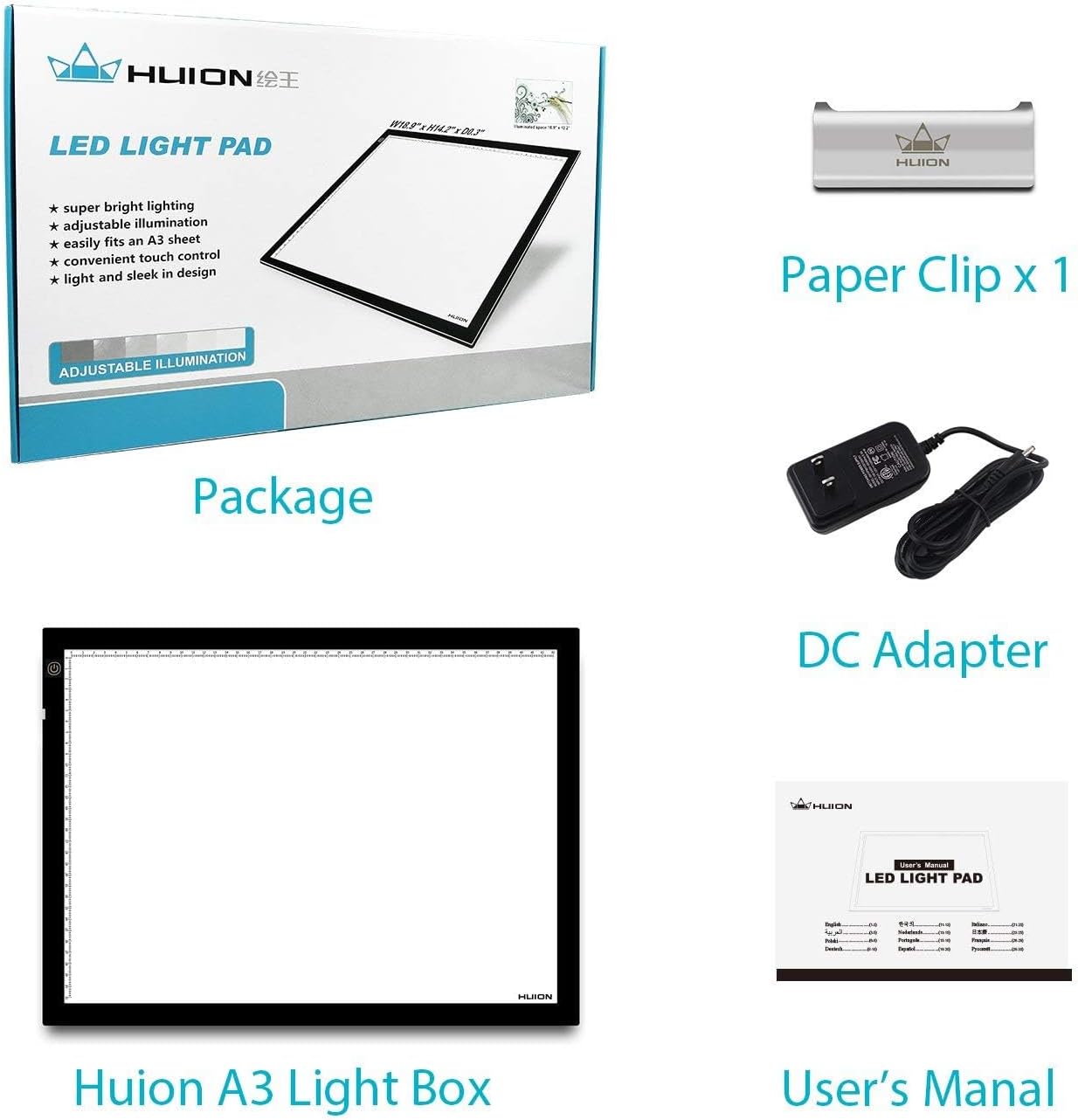
Figure 2: Included items: HUION A3 Light Box, Paper Clip, DC Adapter, and User's Manual.
The light pad is designed for immediate use upon power connection. No assembly is required.
3. මෙහෙයුම් උපදෙස්
The HUION A3 LED Light Tracing Pad features a simple touch-sensitive control for power and brightness adjustment.
- බලය සක්රිය / අක්රිය: After connecting the power adapter, gently touch the power button located on the surface of the light pad to turn it on. Touch it again to turn it off.
- දීප්තිය සකස් කිරීම: To adjust the brightness, press and hold the power button. The light intensity will gradually increase or decrease. Release the button when you reach your desired brightness level. The device will automatically remember your last brightness setting for future use.

Figure 3: Stepless adjustable brightness control via touch switch.
The illuminated surface is designed to be perfectly even, providing clear visibility for tracing and viewing various materials.

රූපය 4: අවසන්view of key features including scale design and eyesight protection.
4. නඩත්තු කිරීම
Proper care and maintenance will ensure the longevity and optimal performance of your HUION A3 LED Light Tracing Pad.
- මතුපිට පිරිසිදු කිරීම: මෘදු, වියලි හෝ තරමක් d භාවිතා කරන්නamp cloth to clean the acrylic work surface. Avoid abrasive cleaners, solvents, or harsh chemicals, as these can damage the surface.
- ගබඩා: When not in use, store the light pad in a clean, dry place, away from direct sunlight and extreme temperatures.
- හැසිරවීම: Handle the light pad with care to prevent scratches or damage to the acrylic surface and internal components. Avoid placing heavy objects on the pad.
- විදුලි රැහැන්: Ensure the power cord is not bent sharply or placed under heavy objects to prevent damage.
5. දෝශ නිරාකරණය
If you encounter issues with your HUION A3 LED Light Tracing Pad, refer to the following common problems and solutions:
| ගැටලුව | විය හැකි හේතුව | විසඳුම |
|---|---|---|
| Light pad does not turn on. |
|
|
| දීප්තිය ගැලපීම ක්රියා නොකරයි. |
|
|
| Uneven illumination. |
|
|
6. පිරිවිතර
Detailed technical specifications for the HUION A3 LED Light Tracing Pad:
| විශේෂාංගය | විස්තර |
|---|---|
| මාදිලියේ නම | A3 |
| මානයන් (L x W x H) | 479mm x 361mm x 7mm (18.86" x 14.21" x 0.27") |
| ක්රියාකාරී ප්රදේශය | 310mm x 430mm (12.20" x 16.92") |
| Work Surface Material | ඇක්රිලික් පැනල් |
| ආලෝක ප්රභවයේ වර්ගය | LED (ආලෝක විමෝචක දියෝඩ) |
| දීප්තිය | 730.80 cd/m2 |
| Illuminate Uniformity | 84.5% |
| වැඩ කරන වෙළුමtage | DC12V |
| බලශක්ති ප්රභවය | AC Powered (Input: DC 12V, Output: AC 110V-220V) |
| ශුද්ධ බර | 2.3 KG (රාත්තල් 5.04) |
| අයිතමයේ ඝණකම | අඟල් 0.27 |
| පරිමාණ ප්රමාණය | ඔව් |
| UPC | 519670708005 |

Figure 5: Dimensions and power input details of the A3 Light Pad.

Figure 6: Size comparison of HUION light pads, highlighting the A3 model's dimensions.
7. වගකීම් සහ සහාය
වගකීම් තොරතුරු: The HUION A3 LED Light Tracing Pad comes with a one-year warranty from the date of purchase. This warranty covers manufacturing defects and malfunctions under normal use. Please retain your proof of purchase for warranty claims.
නිෂ්පාදකයා: ShenZhen Huion Animation Technology Co., LTD
For technical support, warranty claims, or any inquiries regarding your product, please contact HUION customer service through their official channels. Refer to the contact information provided in the original product packaging or on the official HUION webඅඩවිය.


