හැඳින්වීම
ස්තූතියි, උදව් කළාටasing the QUMOX L165U 2.4GHz Wireless Gamepad. This high-quality game controller is designed for use with PC and Android devices, offering a reliable 2.4GHz wireless connection for an enhanced gaming experience. Please read this manual carefully to ensure proper setup and operation of your new gamepad.

Figure 1: QUMOX L165U Gamepad with included USB adapter and OTG connection kit.
පැකේජයේ අන්තර්ගතය
ඔබගේ පැකේජයේ සියලුම අයිතම ඇති බවට වග බලා ගන්න:
- 1x QUMOX L165U Gamepad
- 1x 2.4GHz USB Wireless Adapter
- 1x OTG Connection Kit (Micro USB to USB-A adapter)
සැලසුම
1. බැටරි ස්ථාපනය
The QUMOX L165U Gamepad is powered by 2 AAA batteries (not included). To install the batteries:
- ගේම් පෑඩ් පිටුපස බැටරි මැදිරිය සොයා ගන්න.
- ස්ලයිඩයෙන් බැටරි කවරය විවෘත කරන්න.
- නිවැරදි ධ්රැවීයතාව (+/-) සහතික කරමින් AAA බැටරි 2ක් ඇතුළු කරන්න.
- බැටරි කවරය ආරක්ෂිතව වසා දමන්න.

Figure 2: Open battery compartment for AAA battery installation.
2. පරිගණකයකට සම්බන්ධ වීම
- Plug the 2.4GHz USB Wireless Adapter into an available USB port on your PC.
- Turn on the gamepad by pressing the 'START' button. The gamepad will automatically attempt to connect.
- The PC should recognize the gamepad and install necessary drivers automatically.
- If the gamepad does not connect, press the 'MODE' button on the gamepad to cycle through connection modes until it is recognized by your PC.
3. Connecting to an Android Device (with OTG support)
- Connect the OTG Connection Kit to your Android device's Micro USB port.
- Plug the 2.4GHz USB Wireless Adapter into the USB-A end of the OTG Connection Kit.
- Turn on the gamepad by pressing the 'START' button. The gamepad will automatically attempt to connect.
- Your Android device should recognize the gamepad.
- If the gamepad does not connect, press the 'MODE' button on the gamepad to cycle through connection modes until it is recognized by your Android device.
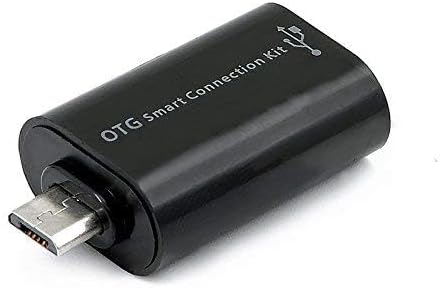
Figure 3: OTG Connection Kit for Android device connectivity.
මෙහෙයුම් උපදෙස්
Once connected, your QUMOX L165U Gamepad is ready for use. The layout is standard for most game controllers.
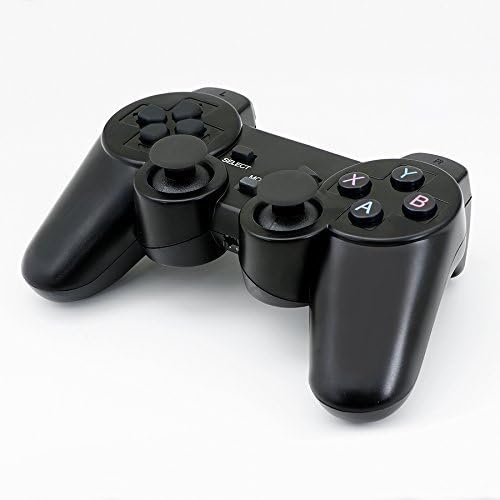
රූපය 4: ඉහළ view of the QUMOX L165U Gamepad, highlighting button layout.
- දිශානුගත පෑඩ් (ඩී-පෑඩ්): නිවැරදි දිශානුගත ආදානය සඳහා.
- ඇනලොග් ජොයිස්ටික්ස්: Two analog sticks for 360-degree movement and camera control.
- ක්රියා බොත්තම් (A, B, X, Y): ක්රීඩාව තුළ විධාන සඳහා සම්මත ක්රියා බොත්තම්.
- උරහිස් බොත්තම් (L1, R1) සහ ප්රේරක (L2, R2): Located on the top of the gamepad for additional actions.
- SELECT/BACK Button: Typically used for menu navigation or specific in-game functions.
- ආරම්භක බොත්තම: Used to pause games or confirm selections.
- මාදිලි බොත්තම: Cycles through different operating modes (e.g., Android, PC) if automatic detection fails.
වීඩියෝ නිරූපණය
වීඩියෝව 1: විකුණුම්කරුවෙකු විසින් සපයන ලදview of a 2-pack wireless controller, demonstrating its features and compatibility. While showing a similar product, it illustrates general wireless controller usage and setup.
නඩත්තු කිරීම
- පිරිසිදු කිරීම: Use a soft, dry cloth to clean the gamepad. Avoid using harsh chemicals or abrasive materials.
- ගබඩා: ගේම් පෑඩ් එක සෘජු හිරු එළියෙන් සහ අධික උෂ්ණත්වයන්ගෙන් ඈත්ව සිසිල් වියළි ස්ථානයක ගබඩා කරන්න.
- බැටරි සත්කාර: කාන්දු වීම වැළැක්වීම සඳහා ගේම් පෑඩ් දිගු කාලයක් භාවිතා නොකරන්නේ නම් බැටරි ඉවත් කරන්න.
දෝෂගවේෂණය
| ගැටලුව | විය හැකි හේතුව | විසඳුම |
|---|---|---|
| ගේම් පෑඩ් සම්බන්ධ නොවේ. | Low batteries, incorrect mode, adapter not properly inserted. | Replace batteries. Press the 'MODE' button to cycle through modes. Ensure USB adapter is fully inserted into PC or OTG adapter. |
| බොත්තම් හෝ ජොයිස්ටික් ප්රතිචාර නොදක්වයි. | Connection issue, game incompatibility, physical damage. | Reconnect the gamepad. Check game settings for controller support. If issue persists, contact support. |
| Android device does not recognize gamepad. | Android device lacks OTG support, OTG adapter issue. | Verify your Android device supports OTG. Ensure OTG adapter is functioning correctly. |
පිරිවිතර
| විශේෂාංගය | විස්තර |
|---|---|
| ආදර්ශ අංකය | L165U |
| සම්බන්ධතා තාක්ෂණය | 2.4GHz Wireless (via USB Adapter) |
| ගැළපෙන උපාංග | PC, Android (with OTG support) |
| බලශක්ති ප්රභවය | 2x AAA බැටරි |
| අයිතමයේ බර | අවුන්ස 5.3 කි |
| පැකේජ මානයන් | අඟල් 8.07 x 5.63 x 2.95 |
| වර්ණය | කළු |
වගකීම් සහ සහාය
For warranty information or technical support, please refer to the contact details provided with your purchase or visit the official QUMOX webවෙබ් අඩවිය. ඕනෑම වගකීම් හිමිකම් සඳහා ඔබේ මිලදී ගැනීමේ සාක්ෂි තබා ගන්න.