1. හැඳින්වීම
This manual provides detailed instructions for the installation, operation, and maintenance of your Zebronics H61 Motherboard. Please read this manual thoroughly before proceeding with installation to ensure proper setup and functionality.
The Zebronics H61 Motherboard is designed to support Intel LGA 1155 socket processors (i7/i5/i3/Pentium/Celeron series) and DDR3 dual-channel memory. It features an Intel H61 chipset, providing a stable and efficient platform for your computing needs.
2 ආරක්ෂිත තොරතුරු
- Always disconnect the power supply before installing or removing any components.
- Handle the motherboard by its edges to avoid electrostatic discharge (ESD) damage. Use an anti-static wrist strap if available.
- අධික උනුසුම් වීම වැළැක්වීම සඳහා ඔබේ පරිගණක කවරය තුළ නිසි වාතාශ්රයක් ඇති බවට වග බලා ගන්න.
- මවු පුවරුව තෙතමනයට හෝ අධික උෂ්ණත්වයකට නිරාවරණය නොකරන්න.
- Refer to the component manufacturer's manuals for specific installation instructions for your CPU, RAM, and other peripherals.
3. පැකේජ අන්තර්ගතය
සියලුම අයිතම පැකේජයේ ඇති බව තහවුරු කරගන්න:
- Zebronics H61 Motherboard
- I / O පලිහ
- SATA Data Cable(s)
- Driver CD (for operating systems that do not automatically install drivers)
- පරිශීලක අත්පොත (මෙම ලේඛනය)
4. පිරිවිතර
| විශේෂාංගය | විස්තරය |
|---|---|
| ආකෘතිය | H61 |
| චිප්සෙට් | ඉන්ටෙල් H61 එක්ස්ප්රස් |
| CPU සොකට් | LGA 1155 |
| අනුකූල සකසනයන් | Intel i7/i5/i3/Pentium/Celeron processors (2nd and 3rd Generation) |
| මතක තව් | 2 x DDR3 Dual-channel slots |
| මතක සහාය | DDR3 1066/1333/1600MHz, up to 16GB |
| ග්රැෆික් අතුරුමුහුණත | 1 x PCI-Express x16 slot |
| පුළුල් කිරීමේ කට්ට | 1 x PCI එක්ස්ප්රස් x1 ස්ලොට් එක |
| ගබඩා කිරීම | 4 x SATA II ports |
| LAN | Realtek 8106E 10/100 Mbps Ethernet |
| ශ්රව්ය උපකරණ | 6-Channel HD Audio Codec onboard (5.1 surround sound support) |
| පසුපස I/O වරායන් | 1 x HDMI, 1 x VGA, 6 x USB 2.0, 1 x RJ45, 1 x 3-in-1 Audio Jacks (Line-in, Line-out, Mic-in), PS/2 (Keyboard/Mouse) |
| ආකෘති සාධකය | ATX |
| මානයන් | 25 x 20 x 3 සෙ.මී |
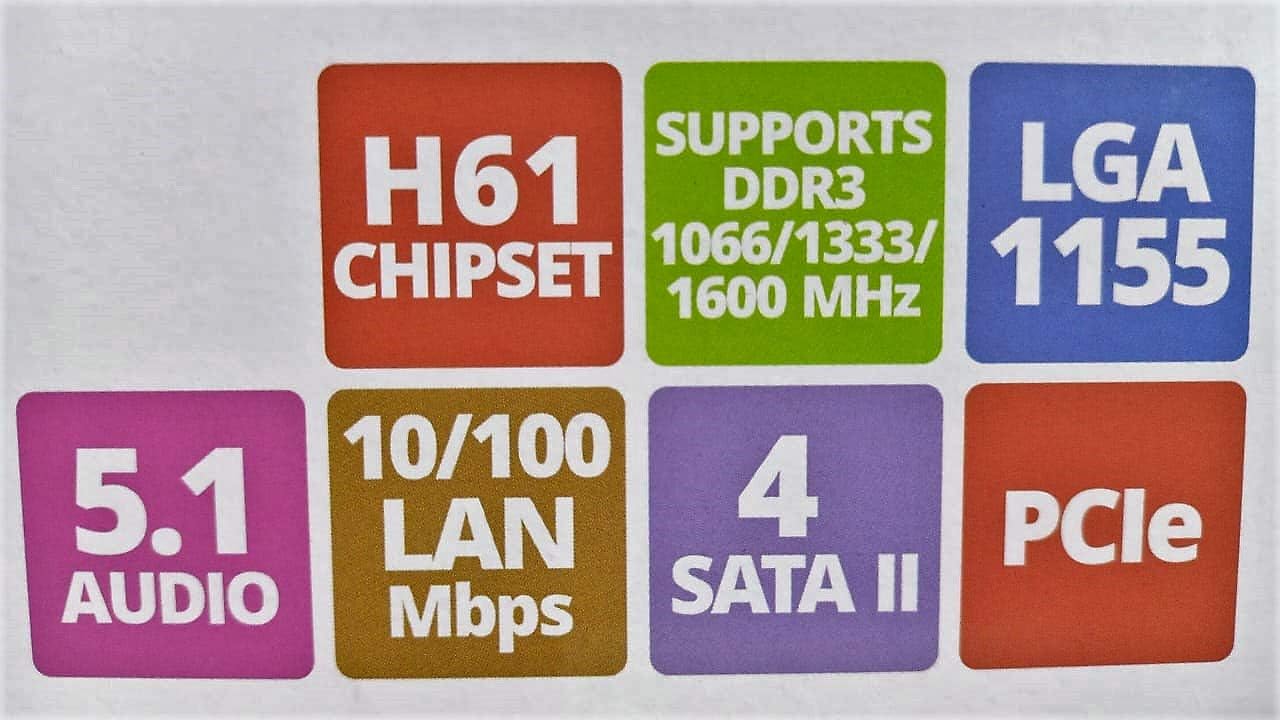
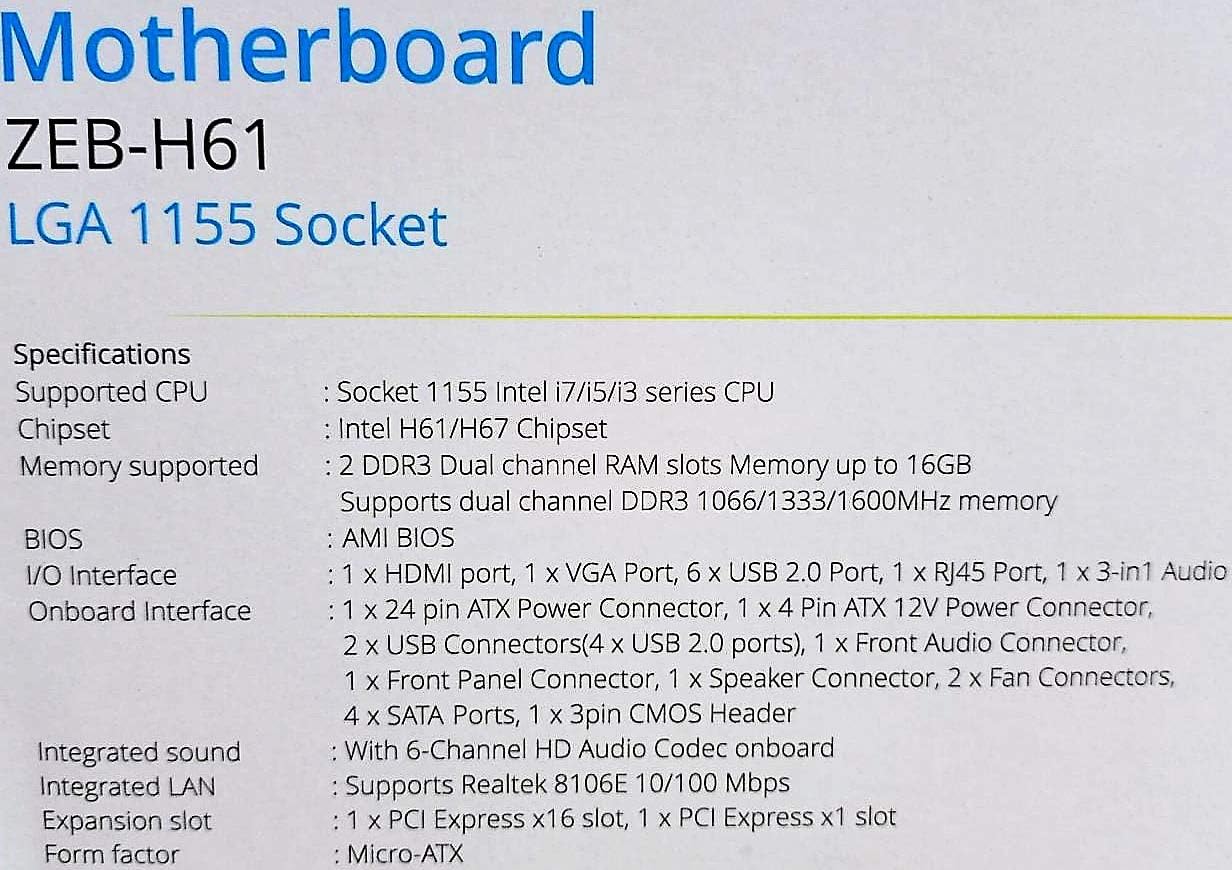
Image: Detailed specifications of the Zebronics H61 Motherboard, including chipset, CPU socket, memory support, and I/O interfaces.

Image: Visual representation of key features such as H61 Chipset, DDR3 support, LGA 1155 socket, 5.1 Audio, 10/100 LAN, 4 SATA II ports, and PCIe.
5. පිහිටුවීම සහ ස්ථාපනය
5.1 මවු පුවරුවේ පිරිසැලසුම
රූපය: ඉහළ-පහළ view of the Zebronics H61 Motherboard, showing the CPU socket, RAM slots, PCIe slot, and various headers.

Image: Another top-down perspective of the Zebronics H61 Motherboard, highlighting component placement.
5.2 පසුපස I/O පැනලය

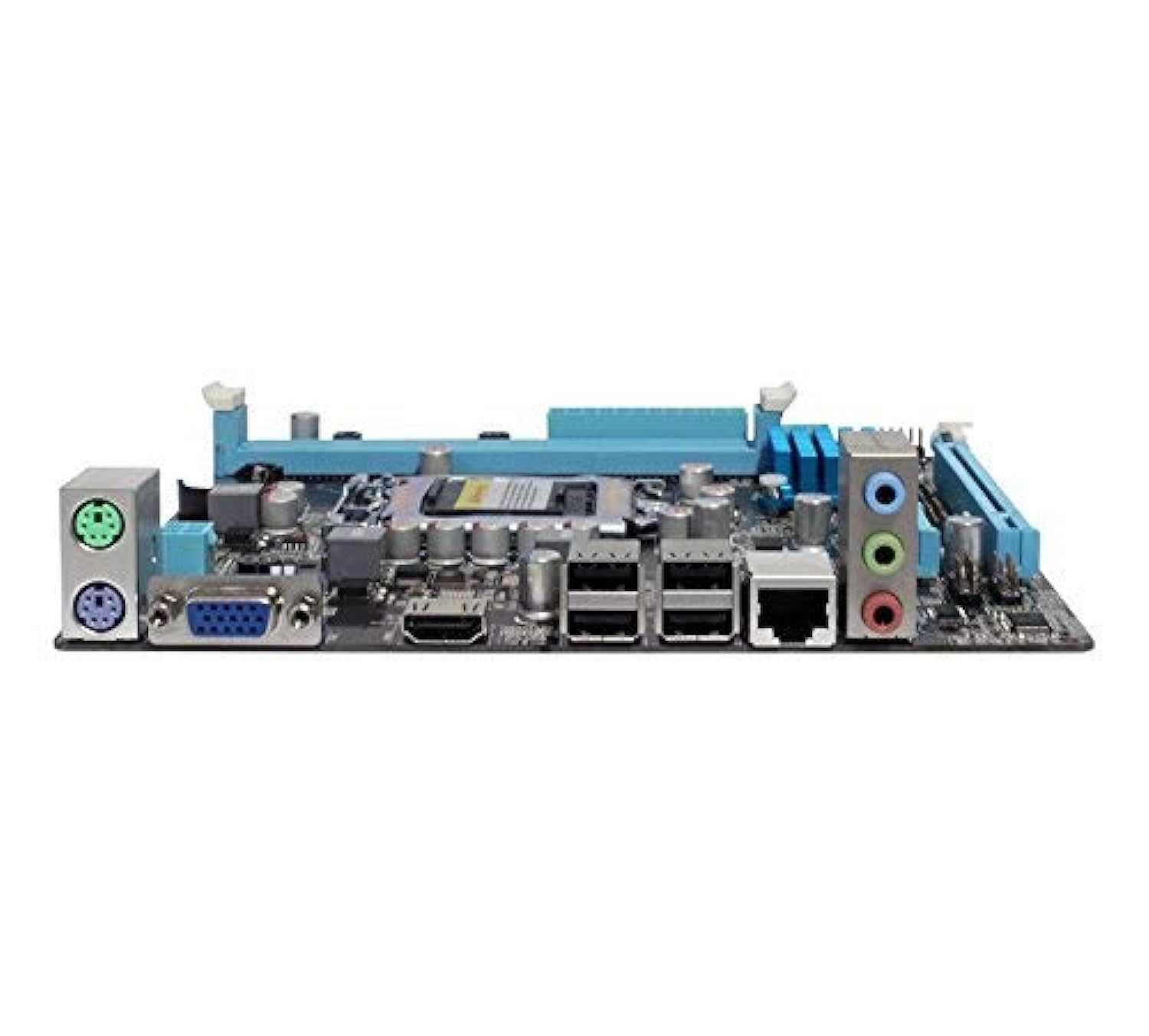
Image: Rear I/O panel of the Zebronics H61 Motherboard, displaying ports for PS/2 keyboard/mouse, VGA, HDMI, USB 2.0, LAN, and audio jacks.
රූපය: සමීප එකක් view of the rear I/O ports, detailing the VGA, HDMI, USB, LAN, and audio connections.
5.3 Component Installation Steps
- CPU ස්ථාපනය කරන්න:
- CPU සොකට් ලීවරය විවෘත කරන්න.
- Carefully align the CPU with the socket, ensuring the golden triangle on the CPU matches the mark on the socket.
- බලෙන් තද නොකර CPU එක සොකට් එකට මෘදු ලෙස තබන්න.
- CPU එක සුරක්ෂිත කිරීමට ලීවරය වසා දමන්න.
- තාප පේස්ට් ආලේප කර නිෂ්පාදකයාගේ උපදෙස් අනුව CPU සිසිලකය ස්ථාපනය කරන්න.
- RAM ස්ථාපනය කරන්න:
- DDR3 මතක කොටස් දෙකෙහිම ක්ලිප් විවෘත කරන්න.
- මතක මොඩියුලය තව්ව සමඟ පෙළගස්වන්න, මොඩියුලයේ ඇති නොච් එක තව්වෙහි යතුරට ගැලපෙන බව සහතික කර ගන්න.
- ක්ලිප් නිසි තැනට වැටෙන තුරු මතක මොඩියුලයේ කෙළවර දෙකෙහිම තදින් ඔබන්න.
- ග්රැෆික් කාඩ්පත ස්ථාපනය කරන්න (විකල්ප):
- Locate the PCI-Express x16 slot.
- ඔබේ පරිගණක කවරයෙන් අනුරූප විස්තාරණ තව් කවරය ඉවත් කරන්න.
- Align the graphics card with the slot and press down firmly until it is seated correctly.
- PC නඩුවට ඉස්කුරුප්පු ඇණ සමඟ කාඩ්පත සුරක්ෂිත කරන්න.
- ගබඩා උපාංග සම්බන්ධ කරන්න:
- Connect SATA data cables from the motherboard's SATA ports to your hard drives or SSDs.
- Ensure power cables from the power supply are connected to these devices.
- බල සැපයුම සම්බන්ධ කරන්න:
- ඔබගේ බල සැපයුමේ සිට මවු පුවරුවට 24-pin ATX බල සම්බන්ධකය සම්බන්ධ කරන්න.
- Connect the 4-pin ATX 12V power connector (CPU power) to the motherboard.
- ඉදිරිපස පැනල ශීර්ෂ සම්බන්ධ කරන්න:
- Connect the power switch, reset switch, HDD LED, and power LED cables from your PC case to the corresponding pins on the motherboard's front panel header. Refer to the motherboard diagram for pin assignments.
- Connect front USB and audio headers.
6. මෙහෙයුම් උපදෙස්
6.1 පළමු ආරම්භය සහ BIOS සැකසුම
- සියලුම සංරචක එකලස් කිරීමෙන් පසු, ඔබේ මොනිටරය, යතුරුපුවරුව සහ මූසිකය සම්බන්ධ කරන්න.
- ඔබේ පරිගණකය සක්රිය කරන්න.
- නම් කරන ලද යතුර ඔබන්න (සාමාන්යයෙන් DEL or F2) repeatedly during startup to enter the BIOS/UEFI setup utility.
- In the BIOS, verify that all installed components (CPU, RAM, storage) are detected correctly.
- ඔබේ මෙහෙයුම් පද්ධතිය USB ධාවකයකින් හෝ දෘශ්ය ධාවකයකින් ස්ථාපනය කිරීමට ඇරඹුම් අනුපිළිවෙල වින්යාස කරන්න.
- වෙනස්කම් සුරකිමින් BIOS වෙතින් පිටවන්න. පද්ධතිය නැවත ආරම්භ වේ.
6.2 ධාවක ස්ථාපනය
After installing your operating system, install the necessary drivers for optimal performance. Drivers can be found on the included driver CD or downloaded from the official Zebronics webඅඩවිය.
- චිප්සෙට් ධාවක
- Graphics Drivers (if using integrated graphics or a dedicated GPU)
- LAN ධාවක
- ශ්රව්ය ධාවකයන්
- USB Drivers (if applicable)
7. නඩත්තු කිරීම
- එය පිරිසිදුව තබා ගන්න: Regularly clean dust from inside your PC case, especially from fans and heatsinks, to ensure proper airflow and prevent overheating. Use compressed air.
- BIOS යාවත්කාලීන කිරීම්: Check the Zebronics website periodically for BIOS updates. BIOS updates can improve system stability, compatibility, and performance. Follow update instructions carefully.
- ධාවක යාවත්කාලීන: Keep your drivers updated to ensure compatibility and optimal performance with your operating system and applications.
- CMOS බැටරි: The motherboard uses a CR2032 battery to retain BIOS settings. If your system frequently loses time or BIOS settings, the battery may need replacement.
8. දෝශ නිරාකරණය
- No Power / System Does Not Boot:
- Ensure all power cables (24-pin ATX, 4-pin ATX 12V) are securely connected to the motherboard.
- Check if the power supply unit (PSU) is switched on and functioning.
- Verify front panel power switch connection.
- Try reseating RAM modules and the graphics card.
- මොනිටරයේ සංදර්ශකය නොමැත:
- Ensure the monitor is connected to the correct video output (either integrated graphics on the motherboard or dedicated graphics card).
- Check monitor power and input selection.
- Reseat the graphics card (if installed) and RAM modules.
- පද්ධති අස්ථාවරත්වය / බිඳ වැටීම්:
- CPU සහ GPU උෂ්ණත්වයන් පරීක්ෂා කරන්න. අධික ලෙස රත් වීම අස්ථාවරත්වයට හේතු විය හැක.
- Ensure RAM modules are properly seated and compatible. Test with one RAM stick if multiple are installed.
- ධාවක සහ BIOS නවතම අනුවාද වලට යාවත්කාලීන කරන්න.
- දෝෂ සහිත RAM පරීක්ෂා කිරීමට මතක රෝග විනිශ්චය මෙවලම් ක්රියාත්මක කරන්න.
- CMOS Battery Issue (Loss of Time/Settings):
- If the system loses time or BIOS settings after being powered off, the CMOS battery (CR2032) may need replacement.
- To reset CMOS: Disconnect power, remove the CMOS battery, short the battery socket's positive and negative terminals for 30 seconds, then reinsert the battery.
9. වගකීම් සහ සහාය
වගකීම් තොරතුරු සහ තාක්ෂණික සහාය සඳහා, කරුණාකර නිල Zebronics වෙත යොමු වන්න. webවෙබ් අඩවියට හෝ ඔවුන්ගේ පාරිභෝගික සේවා දෙපාර්තමේන්තුවට සම්බන්ධ වන්න. වගකීම් හිමිකම් සඳහා මිලදී ගැනීමේ සාක්ෂියක් ලෙස ඔබේ මිලදී ගැනීමේ රිසිට්පත තබා ගන්න.
සෙබ්රොනික්ස් නිල Webඅඩවිය: www.zebronics.com


