1. හැඳින්වීම
The HP Ultra-Slim Z4000 Wireless Optical Mouse is designed for portability and comfort, offering reliable 2.4 GHz wireless connectivity. Its sleek, low-profile design and ergonomic shape provide a natural fit for your hand, making it an ideal accessory for notebooks and tablets. This manual provides detailed instructions for the setup, operation, and maintenance of your mouse.

Figure 1: HP Z4000 Wireless Mouse, demonstrating its slim and stylish design alongside a keyboard.
2. පිහිටුවීම
2.1 පැකේජයේ අන්තර්ගතය
ඔබ ආරම්භ කිරීමට පෙර, සියලුම අයිතම පැකේජයේ ඇති බවට වග බලා ගන්න:
- HP Z4000 Wireless Mouse
- 2.4GHz Micro Receiver (USB dongle)
- 1 AA බැටරි
- ඉක්මන් ආරම්භක පෝස්ටරය
- නිෂ්පාදන නිවේදන
- වගකීම් කාඩ්පත
2.2 බැටරි ස්ථාපනය
- මූසිකයේ යටි පැත්තේ බැටරි මැදිරිය සොයා ගන්න.
- බැටරි කවරය විවෘත කරන්න.
- නිවැරදි ධ්රැවීයතාව (+/-) සහතික කරමින්, සපයා ඇති AA බැටරිය ඇතුළු කරන්න.
- බැටරි කවරය ආරක්ෂිතව වසා දමන්න.

Figure 2: Underside of the mouse, showing the battery compartment (under the main cover), CONNECT button, and ON/OFF switch.
2.3 ග්රාහකයා සම්බන්ධ කිරීම
- Locate the 2.4GHz Micro Receiver (USB dongle). This may be stored inside the mouse's battery compartment or included separately.
- Insert the USB receiver into an available USB port on your computer or tablet.
- යටි පැත්තේ පිහිටා ඇති ON/OFF ස්විචය භාවිතයෙන් මූසිකය ක්රියාත්මක කරන්න.
- ඔබේ පරිගණකය අවශ්ය ධාවක ස්වයංක්රීයව හඳුනාගෙන ස්ථාපනය කළ යුතුය. මූසිකය භාවිතයට සූදානම්.
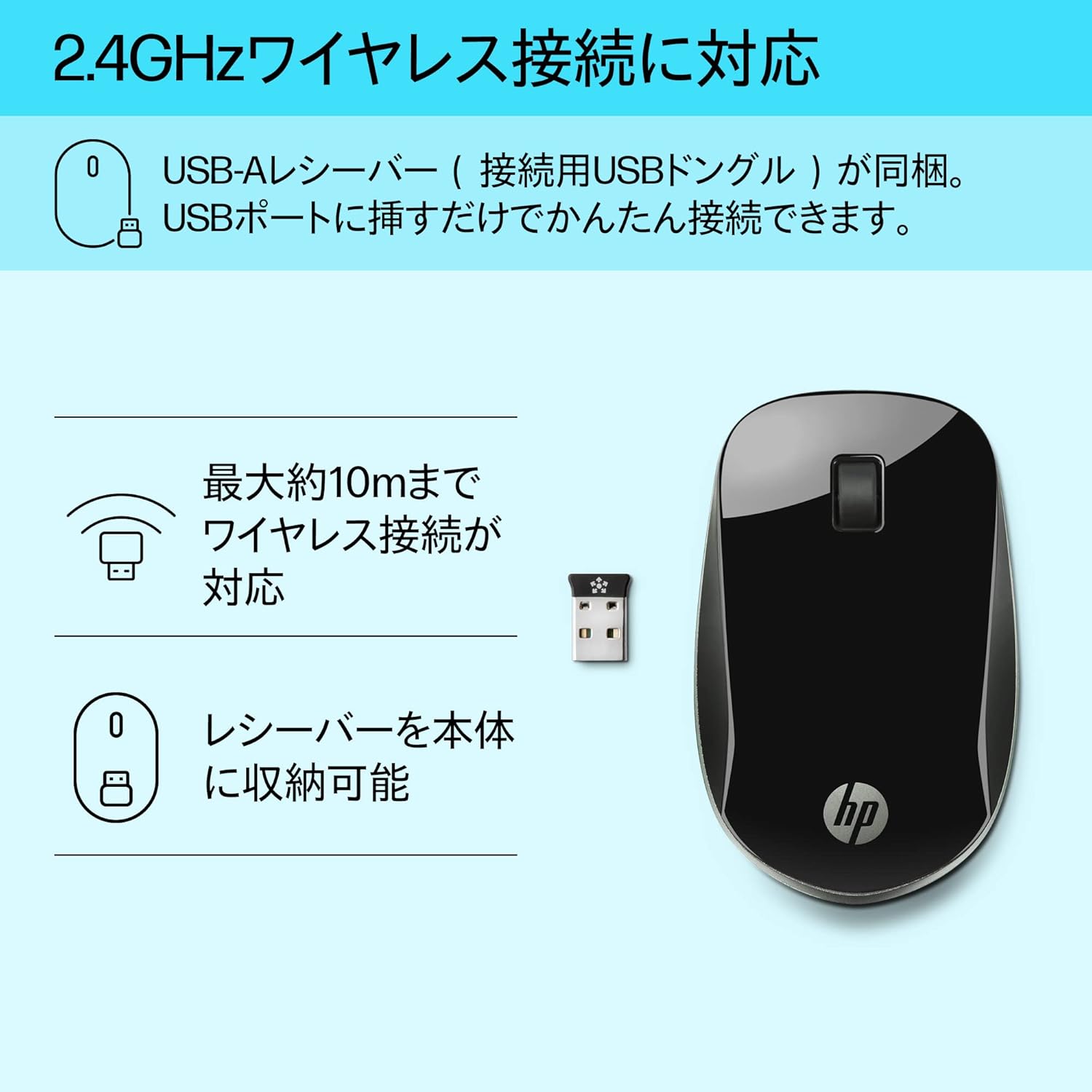
Figure 3: The HP Z4000 mouse and its 2.4GHz USB receiver, demonstrating the simple plug-and-play connection.
3. මූසිකය ක්රියාත්මක කිරීම
The HP Z4000 mouse features a standard three-button layout and a scroll wheel for intuitive navigation.
3.1 මූලික කාර්යයන්
- වම් ක්ලික් කරන්න: අයිතම තේරීම, විවෘත කිරීම සඳහා ප්රාථමික බොත්තම files, සහ විධාන ක්රියාත්මක කිරීම.
- දකුණු ක්ලික් කරන්න: සන්දර්භ මෙනු සහ අමතර විකල්ප වෙත ප්රවේශ වීම සඳහා ද්විතියික බොත්තම.
- අනුචලන රෝදය: Roll up or down to navigate through documents and web pages. The scroll wheel is also clickable for middle-click functionality (if supported by your operating system/application).

රූපය 4: ඉහළ view of the mouse, indicating the left click, right click, and rubber scroll wheel for easy operation.
3.2 කාර්යක්ෂමතා විද්යාව සහ නිර්මාණය
The mouse features an arch-shaped, symmetrical design that comfortably fits both left and right hands. Its ultra-slim profile (less than 2.6 cm in height) promotes a natural hand and wrist position, reducing strain during extended use.
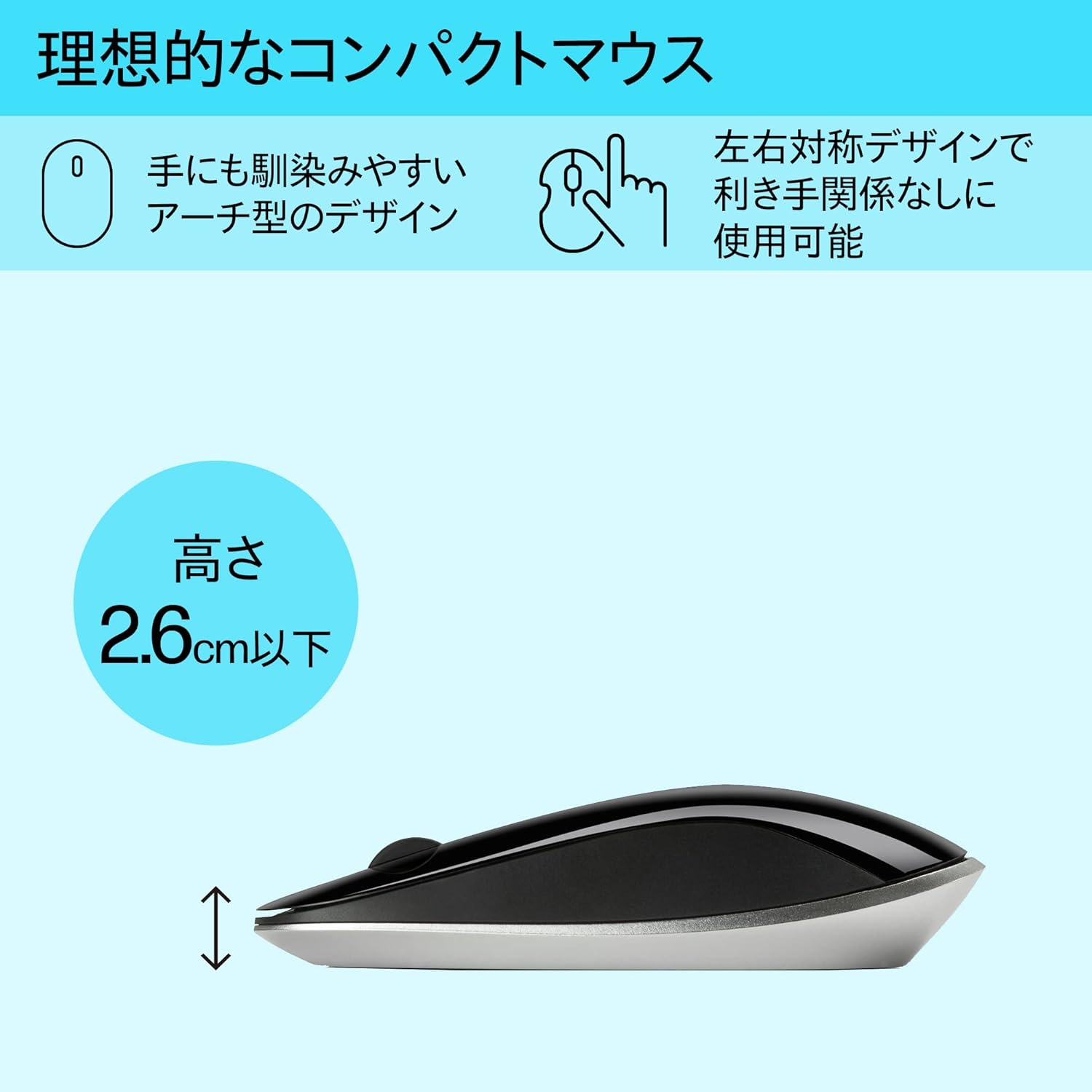
Figure 5: The ergonomic arch design and slim profile (under 2.6cm) of the HP Z4000 mouse, designed for comfortable use.
4. නඩත්තු කිරීම
4.1 මූසිකය පිරිසිදු කිරීම
- පිරිසිදු කිරීමට පෙර මූසිකය ක්රියා විරහිත කර ඇති බවට වග බලා ගන්න.
- මෘදු, ලින්ට් රහිත රෙද්දක් සැහැල්ලුවෙන් භාවිතා කරන්නampජලය හෝ මෘදු පිරිසිදු කිරීමේ ද්රාවණයකින් නිමවා ඇත.
- මූසිකයේ මතුපිට මෘදු ලෙස පිස දමන්න. අධික තෙතමනයෙන් වළකින්න.
- උල්ෙල්ඛ පිරිසිදු කරන්නන් හෝ ද්රාවණ භාවිතා නොකරන්න.
4.2 බැටරි ප්රතිස්ථාපනය
The mouse uses one AA battery, with an average battery life of 12 months. When the mouse performance degrades or it stops responding, it's time to replace the battery.
- Turn off the mouse using the ON/OFF switch.
- මූසිකයේ යටි පැත්තේ බැටරි මැදිරි කවරය විවෘත කරන්න.
- පැරණි AA බැටරිය ඉවත් කරන්න.
- නිවැරදි ධ්රැවීයතාව නිරීක්ෂණය කරමින් නව AA බැටරියක් ඇතුළු කරන්න.
- බැටරි කවරය වසා දමන්න.
- Turn the mouse back on.
5. දෝශ නිරාකරණය
5.1 මූසිකය ප්රතිචාර නොදක්වයි
- බලය පරීක්ෂා කරන්න: මූසිකය සක්රිය කර ඇති බවට වග බලා ගන්න.
- බැටරිය පරීක්ෂා කරන්න: Replace the AA battery if it is low or depleted.
- චෙක්පත් ලබන්නා: USB ග්රාහකය ඔබේ පරිගණකයේ ක්රියාකාරී USB පෝට් එකකට ආරක්ෂිතව සම්බන්ධ කර ඇති බවට වග බලා ගන්න. වෙනත් USB පෝට් එකක් උත්සාහ කරන්න.
- සම්බන්ධතාවය නැවත ස්ථාපිත කරන්න: If your mouse has a "CONNECT" button (refer to Figure 2), press it and then press the connect button on the receiver (if applicable, or simply re-insert the receiver).
- දුර: Ensure the mouse is within the 10-meter (30ft) operating range of the receiver.
5.2 Erratic Cursor Movement
- මතුපිට: පිරිසිදු, පරාවර්තක නොවන සහ ඒකාකාර මතුපිටක් මත මූසිකය භාවිතා කරන්න. වීදුරු හෝ අධික පරාවර්තක මතුපිට වළක්වා ගන්න.
- සංවේදක පිරිසිදුකම: Check the optical sensor on the underside of the mouse for any dust or debris and clean it gently with a soft cloth.
- බාධා කිරීම්: Move the mouse away from other wireless devices that might cause interference.
6. පිරිවිතර
| විශේෂාංගය | විස්තර |
|---|---|
| වෙළඳ නාමය | HP |
| ආදර්ශ අංකය | H5N61AA |
| සම්බන්ධතාවය | 2.4 GHz රැහැන් රහිත (USB ග්රාහකය) |
| චලනය හඳුනාගැනීම | ඔප්ටිකල් |
| බොත්තම් ගණන | 3 (වම, දකුණ, අනුචලන රෝද ක්ලික් කිරීම) |
| මානයන් (LxWxH) | 10.1 x 2.5 x 6.4 සෙ.මී. (ආසන්න වශයෙන් 4 x 1 x 2.5 අඟල්) |
| බර | ග්රෑම් 231 (ආසන්න වශයෙන් අවුන්ස 8.1) |
| වර්ණය | කළු |
| බැටරි වර්ගය | 1 x AA බැටරි (ඇතුළත්) |
| සාමාන්ය බැටරි ආයු කාලය | මාස 12 |
| අනුකූල මෙහෙයුම් පද්ධති | ලිනක්ස්, වින්ඩෝස් 7, වින්ඩෝස් එක්ස්පී (සහ නවතම අනුවාද) |
7. වගකීම් සහ සහාය
The HP Ultra-Slim Z4000 Wireless Optical Mouse comes with a වසර 1ක නිෂ්පාදකයාගේ වගකීම මිලදී ගත් දින සිට.
For warranty claims, technical support, or further assistance, please refer to the contact information provided in your product's warranty card or visit the official HP support webඅඩවිය:
වගකීම් වලංගු කිරීම සඳහා කරුණාකර ඔබගේ මිලදී ගැනීමේ සාක්ෂි තබා ගන්න.