1. හැඳින්වීම
This manual provides detailed instructions for the operation and maintenance of your EVISTR 32GB Digital Voice Recorder, Model L157. Please read this manual thoroughly before using the device to ensure proper functionality and to maximize its features.
2. නිෂ්පාදන ලක්ෂණ
- Upgraded Recording Quality: Dynamic noise cancellation microphone for 1536kpbs crystal clear audio.
- පහසුයි File මාරු: Supports MP3 (128kpbs, 64kpbs) / WAV (1536kpbs) recording quality. Simple transfer to computer via USB cable.
- Simple & Powerful Operation: One-button recording (Rec) and saving (Stop). Features A-B repeat, fast forward, and rewind during playback.
- Voice Activated Recording (AVR): Records only when voice is detected, reducing blank space.
- Auto Record Function: Schedule automatic recording at specific times.
- පහසුයි File කළමනාකරණය: Recordings include time stamps for easy organization.
- MP3 ප්ලේයර් ක්රියාකාරීත්වය: Supports MP3/WAV/FLAC/APE/OGG/WMA formats for music playback.
- සංයුක්ත සහ සැහැල්ලු නිර්මාණය: Portable and comfortable to hold.

Image: The EVISTR Digital Voice Recorder showcasing its 1536Kbps CPM recording capability, indicating high-quality audio capture with a professional audio chip.
3. පැකේජ අන්තර්ගතය
සියලුම අයිතම පවතින බව සහතික කර ගැනීමට කරුණාකර පැකේජය ප්රවේශමෙන් පරීක්ෂා කරන්න:
- 1 x EVISTR Digital Voice Recorder (Model L157)
- 1 x USB කේබලය
- 1 x පරිශීලක අත්පොත

Image: Contents of the EVISTR Digital Voice Recorder package, showing the recorder, a braided USB cable, and the printed user manual, all neatly arranged next to the product box.
4. නිෂ්පාදන පිරිසැලසුම සහ පාලනයන්
Familiarize yourself with the buttons and ports on your EVISTR Digital Voice Recorder:
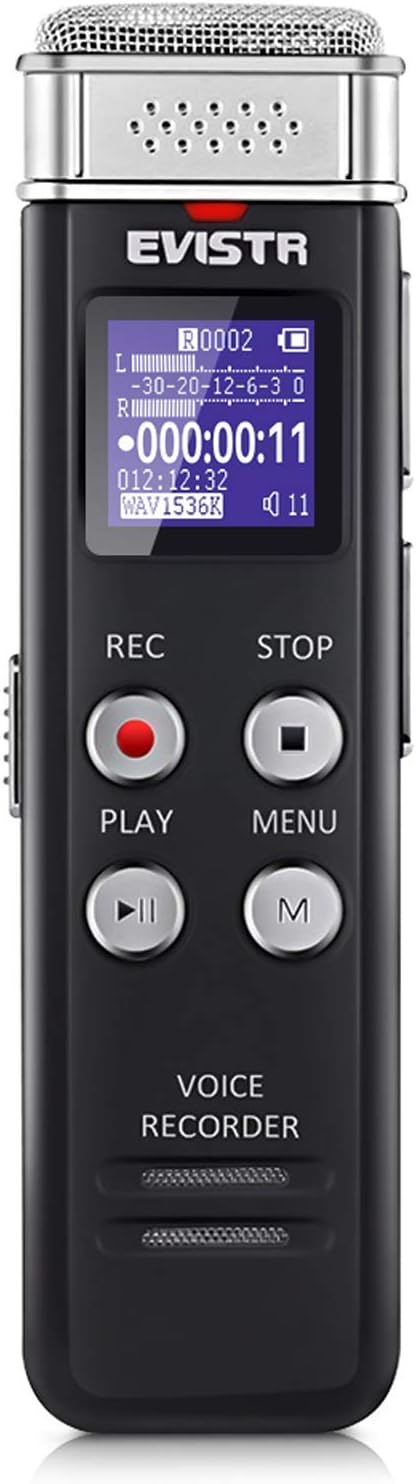
රූපය: ඉදිරිපස view of the EVISTR Digital Voice Recorder, displaying its metallic microphone grille, LCD screen, and control buttons including REC, STOP, PLAY, MENU, and M (Mode).
- මයික්රෆෝනය: Located at the top for audio input.
- LCD සංදර්ශකය: Shows recording status, time, battery, and menu options.
- REC Button (Red Circle): පටිගත කිරීම ආරම්භ කිරීමට ඔබන්න.
- STOP Button (Square): Press to stop recording and save the file.
- PLAY Button (Triangle): Press to play back recordings or music.
- මෙනු බොත්තම: උපාංග සැකසුම් සහ විකල්ප වෙත ප්රවේශ වේ.
- M බොත්තම: Used for mode selection or specific functions within menus.
- ශබ්ද බොත්තම් (+/-): පසුධාවන ශබ්දය සීරුමාරු කරන්න.
- USB Port: පරිගණකයක් ආරෝපණය කිරීම සහ සම්බන්ධ කිරීම සඳහා.
- හෙඩ්ෆෝන් ජැක්: පුද්ගලික සවන්දීම සඳහා.
- බල ස්විචය (සක්රිය/අක්රිය): Located on the side to power the device on or off.
5. මූලික සැකසුම
5.1 උපාංගය ආරෝපණය කිරීම
Before first use, fully charge the voice recorder. Connect the supplied USB cable to the device's USB port and the other end to a computer's USB port or a USB wall adapter (not included). The battery indicator on the display will show charging status. A full charge typically takes a few hours.

Image: The EVISTR Digital Voice Recorder connected to a laptop via its USB cable, illustrating the process for charging the device and transferring files.
5.2 බල ගැන්වීම සක්රිය / අක්රිය කිරීම
- බල ගැන්වීමට: Slide the Power switch to the "ON" position. The display will light up.
- බලය අක්රිය කිරීමට: Slide the Power switch to the "OFF" position. The device will shut down.
5.3 දිනය සහ වේලාව සැකසීම
නිවැරදි දිනය සහ වේලාවamps are crucial for file management. Refer to the on-screen menu options to set the current date and time. Typically, this is found under the 'Settings' or 'System' menu.
6. මෙහෙයුම් උපදෙස්
6.1 මූලික පටිගත කිරීම
- උපාංගය බලගන්වා ඇති බව සහතික කර ගන්න.
- ඔබන්න REC button (red circle) to start recording. The recording indicator will appear on the screen.
- පටිගත කිරීම නැවැත්වීමට සහ සුරැකීමට file, ඔබන්න නවත්වන්න button (square). The file will be saved automatically with a time stamp.

Image: A hand demonstrating the simple operation of the EVISTR Digital Voice Recorder, showing a finger pressing the 'REC' button to initiate recording and the 'STOP' button to save.
6.2 නැවත ධාවනය
- From the main screen, navigate to the desired recording using the navigation buttons.
- ඔබන්න සෙල්ලම් කරන්න button (triangle) to start playback.
- Use the Volume buttons (+/-) to adjust the sound level.
- During playback, you can use the fast forward/rewind functions (often by holding volume buttons or dedicated navigation buttons).
- ඔබන්න නවත්වන්න button to pause or stop playback.
6.3 Voice Activated Recording (AVR)
The AVR function allows the recorder to start recording automatically when sound is detected and pause when silence occurs, saving memory space.
- Access the device's MENU.
- Navigate to 'Recording Settings' or 'AVR Mode'.
- Enable the AVR function and set the sensitivity level if available.
- Once enabled, press REC to start recording in AVR mode. The device will only record when sound is present.

Image: The EVISTR Digital Voice Recorder illustrating its Voice Activated Recording feature, showing how it captures only talking and reduces silence, with a visual representation of sound waves and recording time.
6.4 ස්වයංක්රීය වාර්තාව
This feature allows you to schedule recordings to start and stop automatically at predefined times.
- Go to the MENU and find 'Auto Record' or 'Timer Record' settings.
- Set the desired start time, end time, and frequency (e.g., once, daily, weekdays).
- Ensure the device has sufficient battery life or is connected to power if scheduling long recordings.
6.5 MP3 Player Functionality
The device can also function as an MP3 player. Transfer music files (MP3/WAV/FLAC/APE/OGG/WMA) to the device's non-recording folders via USB connection.
- උපාංගය ඔබේ පරිගණකයට සම්බන්ධ කරන්න.
- සංගීතය ඇදගෙන යන්න files into a folder other than the 'RECORD' folder (e.g., 'MUSIC' folder if present, or create one).
- ආරක්ෂිතව විසන්ධි කරන්න.
- On the device, navigate to the music folder and select a track to play using the සෙල්ලම් කරන්න බොත්තම.
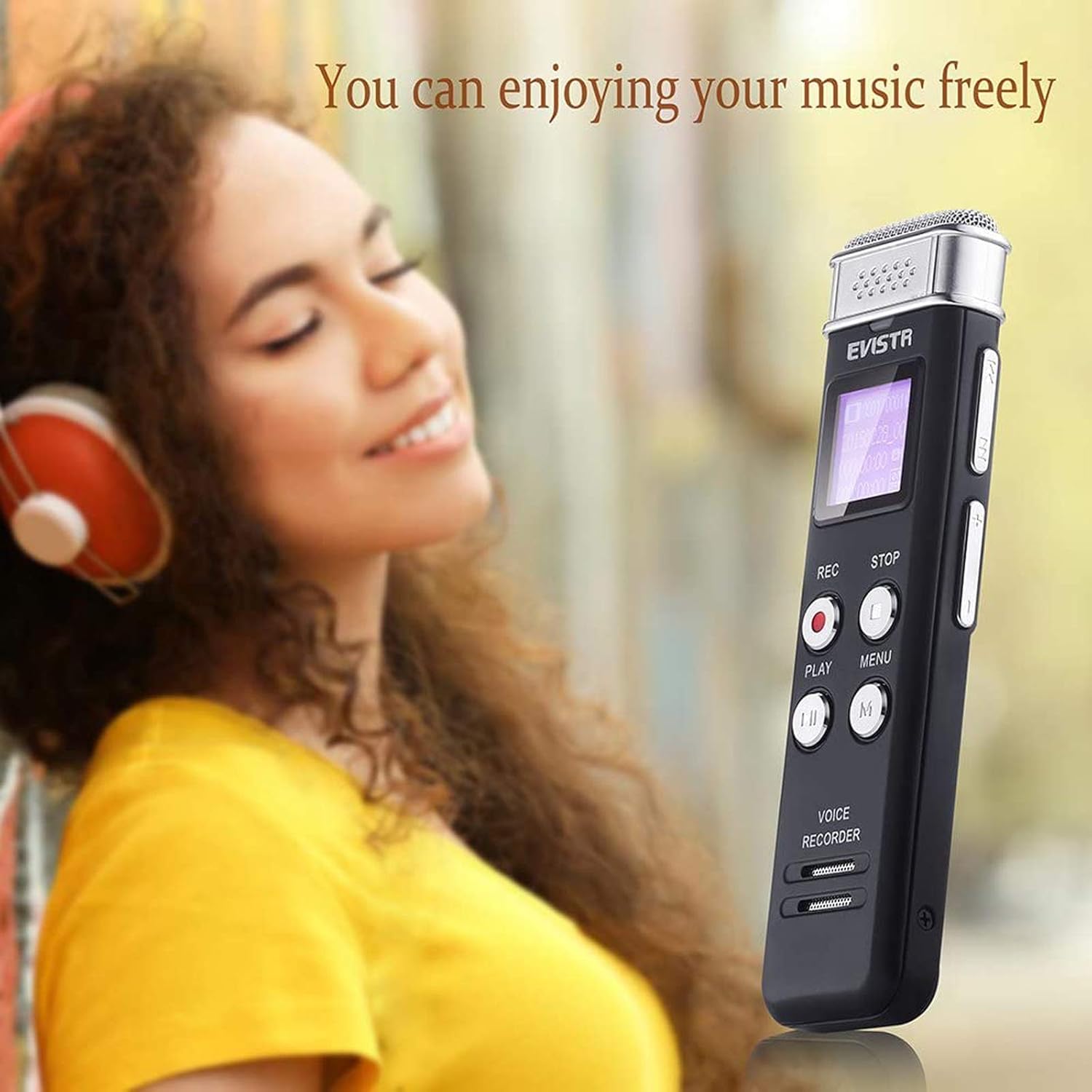
Image: A person wearing headphones and smiling, holding the EVISTR Digital Voice Recorder, demonstrating its capability to play music.
7. පරිගණකයකට සම්බන්ධ වීම
To transfer recordings or music files, connect the recorder to your computer using the provided USB cable.
- Connect the small end of the USB cable to the recorder's USB port.
- Connect the standard USB end to an available USB port on your computer.
- The recorder will appear as a removable disk drive (e.g., "EVISTR" or "Removable Disk") on your computer.
- Open the drive to access your recorded files (typically in a folder named 'RECORD' or similar).
- You can copy, paste, delete, or move fileඅවශ්ය පරිදි.
- Always safely eject the device from your computer before disconnecting the USB cable to prevent data corruption.
Image: The EVISTR Digital Voice Recorder connected to a laptop via its USB cable, illustrating the process for charging the device and transferring files.
8. පිරිවිතර
| විශේෂාංගය | විස්තර |
|---|---|
| වෙළඳ නාමය | EVISTR |
| ආකෘතිය | L157 |
| මතක ගබඩා ධාරිතාව | 32 GB |
| පටිගත කිරීමේ ගුණාත්මකභාවය | 1536kpbs (WAV), 128kpbs/64kpbs (MP3) |
| ඩිජිටල් පටිගත කිරීමේ කාලය | පැය 28 යි |
| මයික්රෆෝන ආකෘති සාධකය | බිල්ට්-ඉන් |
| මයික්රෆෝන මෙහෙයුම් ආකාරය | ශබ්දය අවලංගු කිරීම |
| හෙඩ්ෆෝන් ජැක් | මිලිමීටර් 3.5 කි |
| දෘඩාංග අතුරුමුහුණත | USB |
| බැටරි | 1 ලිතියම් පොලිමර් බැටරි (ඇතුළත්) |
| අයිතමයේ බර | අවුන්ස 5.9 (කිලෝග්රෑම් 0.17) |
| පැකේජ මානයන් | අඟල් 5.08 x 4.09 x 1.02 |
9. දෝශ නිරාකරණය
| ගැටලුව | විය හැකි හේතුව / විසඳුම |
|---|---|
| උපාංගය බලගන්වන්නේ නැත. | Battery is depleted. Charge the device fully. Ensure the power switch is in the "ON" position. |
| පටිගත කළ නොහැක. | Memory is full. Delete old files to free up space. Battery is low. Charge the device. Device might be in playback mode; ensure it's ready for recording. |
| Poor recording quality / Static noise. | Microphone is obstructed. Ensure no objects are covering the microphone. Recording distance is too far or too close. Adjust distance. High background noise. Try recording in a quieter environment. Check recording settings (e.g., bit rate). |
| පරිගණකයට සම්බන්ධ විය නොහැක. | USB cable is faulty. Try a different USB cable. USB port on computer is faulty. Try a different USB port. Device is not powered on. Ensure the device is on when connecting. Drivers might be needed (usually plug-and-play, but check manufacturer webගැටළු පවතී නම් අඩවිය). |
| Playback has no sound. | Volume is too low. Increase volume using the +/- buttons. Headphones are not properly connected or faulty. Try re-inserting headphones or using a different pair. Built-in speaker might be disabled in settings. |
| උපාංගය කැටි වේ හෝ ප්රතිචාර නොදක්වයි. | Perform a soft reset by sliding the power switch to OFF, waiting a few seconds, then sliding it back to ON. If issues persist, contact customer support. |
10. වගකීම් සහ සහාය
EVISTR products are designed for reliability and performance. This product comes with an මාස 18ක වගකීමක් නිෂ්පාදන දෝෂ ආවරණය කරමින්, මිලදී ගත් දින සිට.

Image: A golden shield emblem with a red ribbon stating "18 MONTHS WARRANTY", symbolizing the product's warranty period.
පාරිභෝගික සහාය:
For technical assistance, warranty claims, or any questions regarding your EVISTR Digital Voice Recorder, please contact our customer support team. Refer to the contact information provided on the product packaging or the official EVISTR webඅඩවිය.
Note: Please retain your proof of purchase for warranty service.


