1. හැඳින්වීම
This manual provides essential instructions for setting up, operating, and maintaining your Epson EcoTank L3156 Wi-Fi All-in-One Printer. This compact 3-in-1 device offers printing, scanning, and copying functionalities, along with Wi-Fi Direct connectivity for convenient mobile printing. The EcoTank system utilizes high-capacity ink tanks designed for efficient and mess-free refilling.
2. නිෂ්පාදන අවසන්view
The Epson EcoTank L3156 is designed for home and small office use, featuring an integrated ink tank system that eliminates the need for traditional cartridges. Its compact design and front-facing ink tanks allow for easy monitoring of ink levels and simplified refilling.
ප්රධාන ලක්ෂණ:
- 3-in-1 ක්රියාකාරීත්වය: Print, Scan, and Copy.
- Wi-Fi and Wi-Fi Direct: Enables wireless printing from computers and mobile devices.
- කාට්රිජ්-නිදහස් මුද්රණය: Utilizes high-capacity ink tanks for reduced running costs.
- Enhanced Ink Filling System: Designed to minimize spills and ensure correct color filling.
- මායිම් රහිත ඡායාරූප මුද්රණය: Supports 10x15cm borderless photo prints.
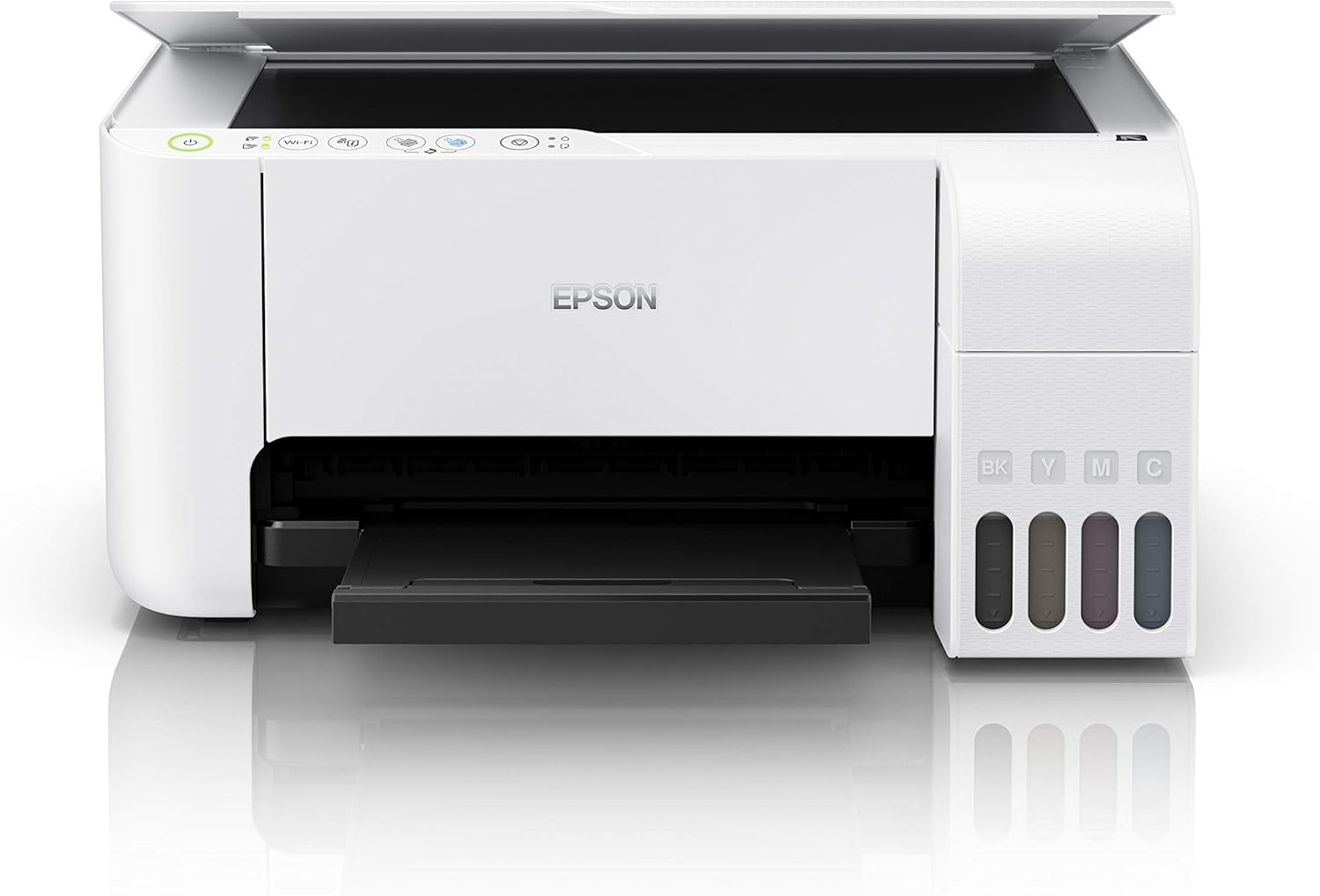
රූපය 2.1: ඉදිරිපස view of the Epson EcoTank L3156 printer, showing the control panel and output tray.

රූපය 2.2: කෝණික view of the printer, highlighting the paper input tray and ink tanks.
3. සැකසුම් උපදෙස්
3.1 මුද්රණ යන්ත්රය ඉවත් කිරීම
- මුද්රණ යන්ත්රය එහි ඇසුරුම් වලින් ඉවත් කරන්න.
- මුද්රණ යන්ත්රයේ බාහිර හා අභ්යන්තර කොටස් වලින් සියලුම ආරක්ෂිත පටි සහ ඇසුරුම් ද්රව්ය ඉවත් කරන්න.
- මුද්රණ යන්ත්රය ස්ථාවර, පැතලි මතුපිටක් මත තබන්න.
3.2 තීන්ත ටැංකි පිරවීම
The EcoTank L3156 features an innovative ink filling system designed to prevent incorrect color filling and spills.
- මුද්රණ යන්ත්රයේ පැත්තේ ඇති තීන්ත ටැංකි ඒකක කවරය විවෘත කරන්න.
- Open the cap for the black ink tank (BK).
- Uncap the black ink bottle and insert it into the filling port. The ink will automatically start filling. Do not squeeze the bottle.
- Once the tank is full, the ink flow will stop. Remove the bottle and recap the ink tank.
- Repeat the process for the Cyan (C), Magenta (M), and Yellow (Y) ink tanks.
- තීන්ත ටැංකි ඒකක කවරය වසා දමන්න.
3.3 බල සම්බන්ධතාවය
- විදුලි රැහැන මුද්රණ යන්ත්රයට සම්බන්ධ කර පසුව විදුලි අලෙවිසැලකට සම්බන්ධ කරන්න.
- මුද්රණ යන්ත්රය ක්රියාත්මක කිරීමට බල බොත්තම ඔබන්න.
3.4 මෘදුකාංග ස්ථාපනය
- Insert the provided software CD into your computer's CD/DVD drive. If your computer does not have a CD/DVD drive, download the latest drivers and software from the official Epson support webඅඩවිය.
- මුද්රණ යන්ත්ර ධාවක සහ උපයෝගිතා මෘදුකාංග ස්ථාපනය කිරීමට තිරයේ ඇති උපදෙස් අනුගමනය කරන්න.
3.5 Wi-Fi සැකසුම
The printer supports both Wi-Fi and Wi-Fi Direct connectivity.
3.5.1 Standard Wi-Fi Connection (via Router)
- Ensure your wireless router is turned on.
- On the printer's control panel, press and hold the Wi-Fi button until the Wi-Fi indicator starts flashing.
- Follow the instructions in the printer's software utility on your computer to connect the printer to your wireless network. You may need to enter your network password (SSID).
3.5.2 Wi-Fi Direct Connection (Direct to Device)
- On the printer's control panel, press the Wi-Fi Direct button. The Wi-Fi Direct indicator will light up.
- On your mobile device or computer, go to your Wi-Fi settings and select the printer's Wi-Fi Direct network (e.g., DIRECT-xx-EpsonL3156).
- Enter the password displayed on the printer's control panel or in the network status sheet.
4. මෙහෙයුම් උපදෙස්
4.1 කඩදාසි පැටවීම
- කඩදාසි ආධාරකය විවෘත කර දිගුව එළියට ගන්න.
- දාර මාර්ගෝපදේශ ඒවායේ පිටතම ස්ථාන කරා ලිස්සා යන්න.
- Load paper print-side up against the right edge guide.
- Slide the left edge guide against the paper, but not too tightly.
4.2 පරිගණකයකින් මුද්රණය කිරීම
- ඔබේ පරිගණකයේ මුද්රණය කිරීමට අවශ්ය ලේඛනය හෝ රූපය විවෘත කරන්න.
- තෝරන්න මුද්රණය කරන්න යෙදුමේ මෙනුවෙන් (උදා., File > මුද්රණය කරන්න).
- ඔබේ Epson EcoTank L3156 මුද්රණ යන්ත්රය තෝරන්න.
- Adjust print settings such as paper size, type, orientation, and quality as needed.
- ක්ලික් කරන්න මුද්රණය කරන්න.

රූපය 4.1: The Epson EcoTank L3156 printer in operation, delivering a printed document.
4.3 Printing from a Mobile Device (Epson iPrint App)
- Download and install the Epson iPrint app from your device's app store.
- Ensure your mobile device is connected to the same Wi-Fi network as the printer, or directly to the printer via Wi-Fi Direct.
- Open the Epson iPrint app and select your printer.
- Choose the document or photo you want to print from within the app.
- Adjust settings and tap මුද්රණය කරන්න.
4.4 ලේඛන පරිලෝකනය කිරීම
- ස්කෑනර් පියන ඔසවන්න.
- ස්කෑනර් වීදුරුව මත ලේඛනය මුහුණට පහළට තබා, කෙළවරේ සලකුණ සමඟ එය පෙළගස්වන්න.
- ස්කෑනර් පියන මෘදු ලෙස වසා දමන්න.
- On your computer, open the Epson Scan utility or use the Epson iPrint app on your mobile device.
- Select scan settings (e.g., document type, resolution, destination).
- ක්ලික් කරන්න ස්කෑන් කරන්න.
4.5 ලේඛන පිටපත් කිරීම
- ලේඛනය ස්කෑනර් වීදුරුව මත මුහුණට පහළට තබන්න.
- ස්කෑනර් පියන වසා දමන්න.
- On the printer's control panel, press the Black & White copy button for a monochrome copy, or the Color copy button for a color copy.
- බහු පිටපත් සෑදීමට, අපේක්ෂිත පිටපත් ගණන සඳහා අදාළ පිටපත් බොත්තම කිහිප වතාවක් ඔබන්න.
5. නඩත්තු කිරීම
5.1 තීන්ත නැවත පිරවීම
When an ink tank level is low, refill it using genuine Epson ink bottles. Refer to section 3.2 for detailed ink filling instructions.
5.2 මුද්රණ හිස පිරිසිදු කිරීම
If print quality declines (e.g., missing lines, faded prints), perform a print head cleaning using the printer utility software on your computer. This process clears clogged nozzles.
5.3 Print Head Alignment
If prints appear blurry or misaligned, perform a print head alignment using the printer utility software. This adjusts the print head position for optimal quality.
5.4 ස්කෑනර් වීදුරුව පිරිසිදු කිරීම
To ensure clear scans, regularly clean the scanner glass with a soft, lint-free cloth moistened with a mild glass cleaner. Avoid abrasive materials.
6. දෝශ නිරාකරණය
6.1 මුද්රණ යන්ත්රය ප්රතිචාර නොදක්වයි
- Check if the printer is powered on and connected to the computer or network.
- Ensure there are no error messages on the printer's control panel.
- මුද්රණ යන්ත්රය සහ ඔබේ පරිගණකය/ජංගම උපාංගය නැවත ආරම්භ කරන්න.
- ඔබගේ යෙදුමේ මුද්රණ සංවාදයේ නිවැරදි මුද්රණ යන්ත්රය තෝරාගෙන ඇති බව තහවුරු කරන්න.
6.2 දුර්වල මුද්රණ ගුණාත්මකභාවය
- තීන්ත මට්ටම් පරීක්ෂා කර අඩු ටැංකි නැවත පුරවන්න.
- Perform a print head cleaning (refer to section 5.2).
- Perform a print head alignment (refer to section 5.3).
- ඔබේ මුද්රණ කාර්යය සඳහා සුදුසු කඩදාසි සැකසුම් භාවිතා කරන බවට වග බලා ගන්න.
6.3 Wi-Fi සම්බන්ධතා ගැටළු
- Ensure your router is functioning correctly and within range.
- Re-enter your Wi-Fi network password if prompted.
- Restart your router, printer, and connecting device.
- If using Wi-Fi Direct, ensure the printer's Wi-Fi Direct mode is active.
7. පිරිවිතර
| විශේෂාංගය | පිරිවිතර |
|---|---|
| මාදිලියේ නම | L3156 |
| කාර්යයන් | මුද්රණය කරන්න, පරිලෝකනය කරන්න, පිටපත් කරන්න |
| මුද්රණ තාක්ෂණය | Inkjet (Micro Piezo printhead) |
| සම්බන්ධතාවය | Wi-Fi, Wi-Fi සෘජු, USB 2.0 |
| උපරිම මාධ්ය ප්රමාණය | 4 x 6 inch (Photo), A4 (Document) |
| උපරිම ආදාන පත්ර ධාරිතාව | තහඩු 200 ක් |
| ස්කෑනර් වර්ගය | පැතලි ඇඳ |
| උපරිම වර්ණ මුද්රණ විභේදනය | 600 x 600 dpi |
| ද්විත්ව ඒක පාර්ශවීය මුද්රණය | අත්පොත |
| නිෂ්පාදන මානයන් (W x D x H) | 34.7 x 34.7 x 17.9 සෙ.මී |
| අයිතමයේ බර | කිලෝ ග්රෑම් 3.9 යි |
| බලශක්ති ප්රභවය | AC 100-240V, 50/60Hz |
8. වගකීම් සහ සහාය
A one-year limited warranty is provided as standard with your Epson EcoTank L3156 printer. Promotional warranties may offer extended coverage; please refer to your purchase documentation or the official Epson website for the latest warranty offers and terms and conditions.
තාක්ෂණික සහාය, ධාවක බාගැනීම් සහ අමතර සම්පත් සඳහා, කරුණාකර නිල Epson සහාය වෙත පිවිසෙන්න. webවෙබ් අඩවියට පිවිසෙන්න හෝ Epson පාරිභෝගික සේවාව අමතන්න.


