1. හැඳින්වීම
The Poly TC8 is an intuitive touch interface designed to provide easy access to Poly video conferencing solutions. This device features an 8-inch high-resolution touch display, ensuring that all control options are clear and readily accessible. It is compatible with the Poly Studio X family and Poly G7500 systems.
A single Ethernet cable provides both power and data connectivity, simplifying installation and reducing cable clutter in your meeting space. The TC8 enhances collaboration by offering a streamlined experience for initiating, joining, and sharing content during meetings.
2. විශේෂාංග
- සුමට නිර්මාණය: Equipped with an 8-inch high-resolution touch display for clear and accessible control options.
- Power Over Ethernet (PoE): Utilizes a single cable for both power and data transmission, minimizing cable management.
- One-Touch Meeting Join: Features an integrated calendar for quick identification and connection to scheduled meetings.
- වැඩිදියුණු කළ සහයෝගීතාව: An intuitive interface allows for personalized experiences, contributing to more productive meetings.
- ගැළපුම: Fully compatible with Poly Studio X family and Poly G7500 video conferencing systems.
3. පිහිටුවීම
Follow these steps to set up your Poly TC8 Touch Controller:
- උපාංගය ඉවත් කරන්න: Carefully remove the TC8 from its packaging.
- Position the Controller: Place the TC8 on a stable, flat surface in your meeting room, ensuring it is within easy reach of participants.
- ඊතර්නෙට් කේබලය සම්බන්ධ කරන්න: Locate the Ethernet port on the back of the TC8. Connect a standard Ethernet cable from a PoE-enabled network switch or injector to this port. This single connection provides both power and network connectivity to the device.

රූපය 3.1: පසුපස view of the Poly TC8, highlighting the Ethernet port for power and data.
- බල ගැන්වීම: Once the Ethernet cable is connected, the TC8 will automatically power on. Allow a few moments for the device to boot up.
- ආරම්භක වින්යාසය: Follow the on-screen prompts to complete the initial setup, including network settings and pairing with your Poly video conferencing system (Studio X or G7500). Refer to your Poly video system's manual for specific pairing instructions.
4. මෙහෙයුම් උපදෙස්
The Poly TC8 provides an intuitive touch interface for managing your video conferences.
4.1. අතුරු මුහුණත සැරිසැරීම
The 8-inch high-resolution display presents clear options for meeting control. The main screen typically displays your meeting calendar, allowing for quick access to scheduled events.
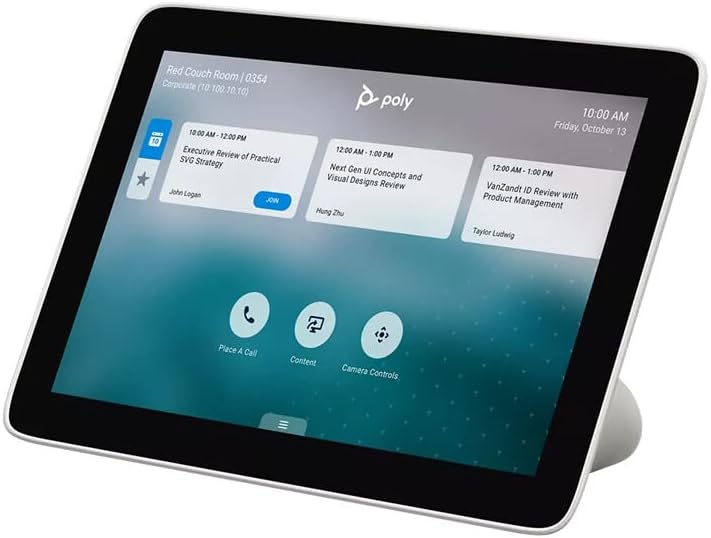
Figure 4.1: Poly TC8 display showing meeting schedule and control options.
4.2. Joining a Meeting
If your calendar is integrated, scheduled meetings will appear on the display. To join a meeting:
- Tap on the desired meeting entry from the calendar list.
- ඔබන්න එක්වන්න button that appears on the screen.
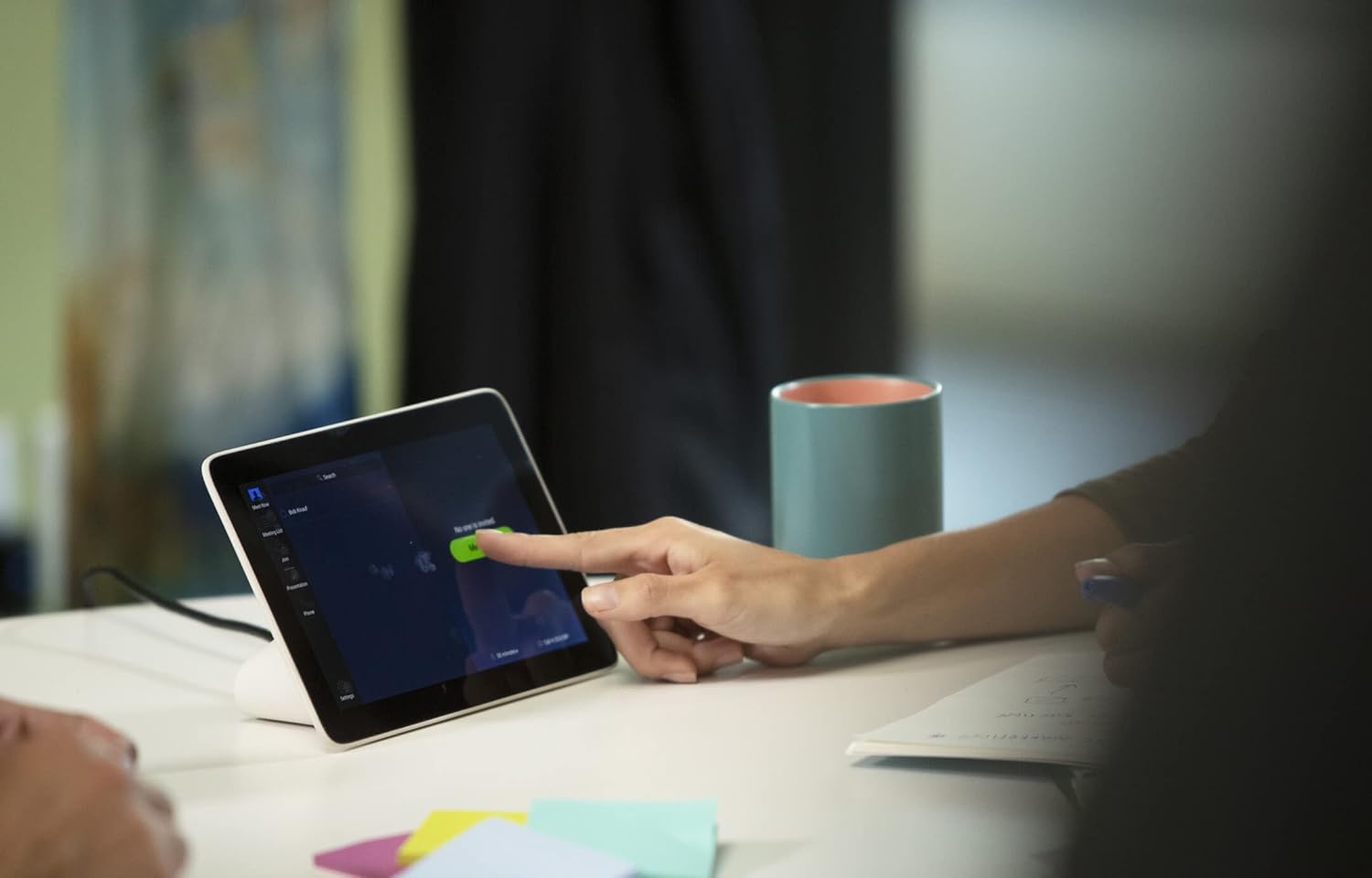
Figure 4.2: User interacting with the TC8 to join a meeting.
4.3. ඇමතුමක් ලබා ගැනීම
To initiate a new call:
- තට්ටු කරන්න Place A Call icon on the main screen.
- Enter the contact or meeting ID using the on-screen keypad.
- Press the call button to connect.
4.4. Sharing Content
To share content during a meeting:
- තට්ටු කරන්න අන්තර්ගතය icon on the main screen or during an active call.
- Follow the on-screen instructions to select your content source (e.g., connected laptop, wireless sharing).
4.5. කැමරා පාලන
To adjust camera settings:
- තට්ටු කරන්න කැමරා පාලන නිරූපකය.
- Use the on-screen controls to pan, tilt, zoom, or select camera presets for your Poly video system.
5. නඩත්තු කිරීම
To ensure optimal performance and longevity of your Poly TC8 Touch Controller, follow these maintenance guidelines:
- තිරය පිරිසිදු කිරීම: මෘදු, ලින්ට් රහිත රෙද්දක් භාවිතා කරන්න, තරමක් dampened with water or a screen-safe cleaning solution, to gently wipe the touch display. Avoid abrasive materials or harsh chemicals.
- සී පිරිසිදු කිරීමasing: උපාංගය පිස දමන්න casinමෘදු වියළි රෙද්දකින් පිස දමන්න. දියර පිරිසිදු කරන්නන් උපාංගය මත කෙලින්ම භාවිතා නොකරන්න.
- පාරිසරික තත්ත්වයන්: Operate the device within recommended temperature and humidity ranges. Avoid exposing it to direct sunlight, excessive heat, or moisture.
- මෘදුකාංග යාවත්කාලීන: Periodically check for and install software updates provided by Poly to ensure the device has the latest features and security enhancements.
6. දෝශ නිරාකරණය
If you encounter issues with your Poly TC8, consider the following troubleshooting steps:
- උපාංගය ක්රියාත්මක නොවේ: Ensure the Ethernet cable is securely connected to both the TC8 and a PoE-enabled network port. Verify that the PoE source is active.
- ජාල සම්බන්ධතාවයක් නොමැත: Check the Ethernet cable for damage. Confirm that the network port is active and configured correctly. Restart your network switch if necessary.
- ස්පර්ශ තිරය ප්රතිචාර නොදක්වයි: Try restarting the device by disconnecting and reconnecting the Ethernet cable. If the issue persists, ensure the screen is clean and free of debris.
- Cannot Connect to Video System: Verify that the TC8 is properly paired with your Poly Studio X or G7500 system. Check network settings on both devices to ensure they are on the same network and can communicate.
- මෘදුකාංග දෝෂ: If the interface behaves unexpectedly, a device restart often resolves temporary software issues. Ensure the device firmware is up to date.
For persistent issues, consult the Poly support webඅඩවියට පිවිසෙන්න හෝ ඔබේ IT පරිපාලක අමතන්න.
7. පිරිවිතර
| ආදර්ශ අංකය | 2200-30760-001 |
| නිෂ්පාදන මානයන් | අඟල් 8.07 x 4.84 x 3.11 |
| අයිතමයේ බර | රාත්තල් 1.8 කි |
| සංදර්ශක තාක්ෂණය | LCD |
| තිර ප්රමාණය | අඟල් 8 |
| සංදර්ශක විභේදනය | 1280x800 |
| විභේදනය | XGA Wide |
| දර්ශන අනුපාතය | 16:10 |
| තිර මතුපිට විස්තරය | දිලිසෙන |
| සම්බන්ධතා තාක්ෂණය | ඊතර්නෙට් (PoE) |
| විශේෂ ලක්ෂණ | ස්පර්ශ තිරය |
| මානව අතුරු මුහුණත් ආදානය | ස්පර්ශ තිරය |
| වර්ණය | කළු |
| නිෂ්පාදකයා | පොලි |
| පළමු දිනය තිබේ | 17 ජනවාරි 2020 |
8. වගකීම් සහ සහාය
For detailed warranty information and technical support, please visit the official Poly website or contact your authorized Poly reseller. Product registration may be required to activate your warranty.
Online resources, including FAQs, documentation, and software downloads, are available on the Poly support portal to assist with any queries or issues you may encounter.


