1. හැඳින්වීම
Welcome to the user manual for your Orbic Journey V Verizon Postpaid 4G LTE Flip Phone. This guide provides essential information on setting up, operating, maintaining, and troubleshooting your device. The Orbic Journey V is a compact and reliable flip phone designed for clear communication and essential smart features, running on the KaiOS operating system and supporting 4G LTE connectivity.
Please read this manual thoroughly to ensure proper use and to maximize the performance and longevity of your phone.
2. පිහිටුවීම
2.1. පෙට්ටි ඉවත් කිරීම සහ පැකේජ අන්තර්ගතය
Upon opening your Orbic Journey V package, verify that all components are present:
- Orbic Journey V Flip Phone
- නැවත ආරෝපණය කළ හැකි ලිතියම් අයන බැටරි
- චාජර්
2.2. බැටරි ස්ථාපනය
- Locate the battery cover on the back of the phone.
- Gently pry open the battery cover using the designated notch.
- Align the battery's gold contacts with the terminals inside the battery compartment.
- බැටරිය නිසි තැනට ක්ලික් වන තුරු තදින් ඔබන්න.
- Replace the battery cover, ensuring it is securely latched.
2.3. සිම් කාඩ් පත ස්ථාපනය කිරීම
Your Orbic Journey V requires a Nano-SIM card for cellular service. Ensure the phone is powered off before inserting or removing the SIM card.
- Remove the battery cover and the battery as described in Section 2.2.
- Locate the SIM card slot, typically near the battery compartment.
- Insert the Nano-SIM card into the slot with the gold contacts facing down and the notched corner aligned with the slot's guide.
- SIM කාඩ්පත නිසි තැනට අගුළු වැටෙන තුරු මෘදු ලෙස තල්ලු කරන්න.
- බැටරිය සහ බැටරි කවරය නැවත ස්ථාපනය කරන්න.
2.4. මූලික බලය සක්රිය කිරීම සහ ආරෝපණය කිරීම
To power on your phone for the first time, press and hold the Power/End Call button until the screen illuminates. It is recommended to fully charge the phone before first use.
- චාජරය දුරකථනයේ ආරෝපණ තොටට සම්බන්ධ කරන්න.
- චාජරය සම්මත විදුලි අලෙවිසැලකට සම්බන්ධ කරන්න.
- ආරෝපණ දර්ශකය තිරය මත දිස්වනු ඇත.
- සම්පුර්ණයෙන්ම ආරෝපණය වූ පසු, චාජරය විසන්ධි කරන්න.
3. ඔබගේ දුරකථනය ක්රියාත්මක කිරීම
3.1. Phone Layout and Keys
Familiarize yourself with the physical components and buttons of your Orbic Journey V.
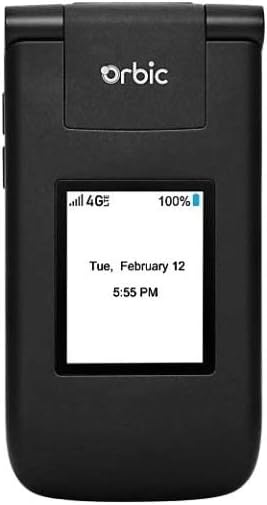
රූපය 3.1: ඉදිරිපස view of the Orbic Journey V, closed. The external display shows signal strength, battery level, and the current time and date.

Figure 3.2: Orbic Journey V in open position, revealing the main screen and the full alphanumeric keypad with navigation buttons.

රූපය 3.3: පසුපස view of the Orbic Journey V, highlighting the main camera lens and the Verizon branding.
- බාහිර සංදර්ශකය: Shows time, date, notifications, and caller ID when the phone is closed.
- අභ්යන්තර සංදර්ශකය: Main screen for navigating menus, viewing content, and interacting with applications.
- Navigation Key (D-Pad): මෙනු හරහා ගමන් කිරීමට සහ විකල්ප තේරීමට භාවිතා කරයි.
- Center Select Key: තේරීම් තහවුරු කරයි.
- Call/Send Key: ඇමතුම් ආරම්භ කර ලැබෙන ඇමතුම්වලට පිළිතුරු දෙයි.
- ඇමතුම/බල යතුර අවසන් කරන්න: Ends calls, returns to the home screen, and powers the phone on/off.
- ආපසු/හිස් යතුර: Returns to the previous screen or deletes characters.
- වෙළුම් යතුරු: Adjusts call volume, media volume, and ringer volume.
- කැමරා යතුර: කැමරා ක්රියාකාරිත්වයට ඉක්මන් ප්රවේශය.
3.2. මූලික සංචාලනය
The Orbic Journey V operates on KaiOS. Use the Navigation Key to scroll through menu options and the Center Select Key to open applications or confirm actions.
- From the home screen, press the Navigation Key (up, down, left, right) to access shortcuts or navigate the main menu.
- Press the Center Select Key to open the main application menu.
- Press the Back/Clear key to go back to the previous screen.
3.3. ඇමතුම් ලබා ගැනීම සහ ලබා ගැනීම
- ඇමතුමක් ගැනීමට: Enter the phone number using the keypad and press the Call/Send key. Alternatively, navigate to Contacts, select a contact, and press the Call/Send key.
- ඇමතුමකට පිළිතුරු දීමට: When the phone rings, press the Call/Send key.
- ඇමතුමක් අවසන් කිරීමට: Press the End Call/Power key.
3.4. පණිවිඩ යැවීම සහ ලැබීම
- පණිවිඩයක් යැවීමට: From the main menu, select 'Messages'. Choose 'New Message', enter the recipient's number or select from contacts, type your message using the keypad, and press 'Send'.
- To Receive a Message: New messages will typically display a notification on the screen. Navigate to the 'Messages' application to view ඔබගේ එන ලිපි.
3.5. කැමරා භාවිතය
The Orbic Journey V is equipped with front and rear cameras. The rear camera is located on the upper-right back of the phone.
- To Open Camera: Press the dedicated Camera key or navigate to the 'Camera' application from the main menu.
- ඡායාරූපයක් ගැනීමට: Frame your shot on the screen and press the Center Select key to capture the image.
- Viewing ඡායාරූප: Access your photos through the 'Gallery' application.
3.6. Connectivity (Bluetooth, Wi-Fi)
Your phone supports Bluetooth and Wi-Fi for wireless connectivity.
- බ්ලූටූත්: Go to 'Settings' > 'Network & Connectivity' > 'Bluetooth'. Turn Bluetooth on, and the phone will search for available devices. Select a device to pair.
- Wifi: Go to 'Settings' > 'Network & Connectivity' > 'Wi-Fi'. Turn Wi-Fi on, select an available network, and enter the password if required.
4. නඩත්තු කිරීම
4.1. ඔබගේ දුරකථනය පිරිසිදු කිරීම
To keep your phone in optimal condition, clean it regularly:
- තිරය සහ ශරීරය පිසදැමීමට මෘදු, ලින්ට් රහිත රෙද්දක් භාවිතා කරන්න.
- සැර රසායනික ද්රව්ය, උල්ෙල්ඛ පිරිසිදු කරන්නන් හෝ එයරොසෝල් ඉසින භාවිතා කිරීමෙන් වළකින්න.
- Ensure the phone is powered off and unplugged before cleaning.
4.2. බැටරි රැකවරණය
නිසි බැටරි සත්කාරය එහි ආයු කාලය දීර්ඝ කළ හැකිය:
- අධික උෂ්ණත්වයෙන් වළකින්න.
- දුරකථනය පිරුණු පසු අධික කාලයක් ආරෝපණය කර තබන්න එපා.
- දුරකථනය දිගු කාලයක් භාවිතා නොකරන්නේ නම්, එය අර්ධ ආරෝපණයක් (50% පමණ) සමඟ ගබඩා කරන්න.
4.3. මෘදුකාංග යාවත්කාලීන
Regular software updates provide new features, security enhancements, and bug fixes.
- ඔබගේ දුරකථනය Wi-Fi වෙත සම්බන්ධ කරන්න.
- Go to 'Settings' > 'Device' > 'Software Update'.
- පවතින යාවත්කාලීන කිරීම් පරීක්ෂා කර ස්ථාපනය කිරීමට තිරයේ ඇති විමසීම් අනුගමනය කරන්න.
5. දෝශ නිරාකරණය
This section addresses common issues you might encounter with your Orbic Journey V.
5.1. Phone Not Turning On
- Ensure the battery is correctly installed and charged. Connect the charger and wait a few minutes before attempting to power on.
- Try removing and reinserting the battery, then attempt to power on again.
5.2. Poor Call Quality or No Signal
- Check your location for network coverage. Move to an area with better signal.
- ඔබගේ SIM කාඩ්පත නිසියාකාරව ඇතුළත් කර ඇති බවට වග බලා ගන්න.
- දුරකථනය නැවත ආරම්භ කරන්න.
- Verify that your account with Verizon is active and in good standing.
5.3. බැටරිය ඉක්මනින් බැස යාම
- පසුබිමේ ධාවනය වන භාවිතයට නොගත් යෙදුම් වසා දමන්න.
- තිරයේ දීප්තිය අඩු කරන්න.
- භාවිතයේ නොමැති විට Wi-Fi, බ්ලූටූත් හෝ GPS අක්රිය කරන්න.
- Check for and install any available software updates, as these often include battery optimizations.
5.4. Software or Navigation Issues
- If the phone is unresponsive, try a soft reset by removing and reinserting the battery.
- Ensure the phone's software is up to date.
- ගැටළු දිගටම පවතින්නේ නම්, කර්මාන්තශාලා යළි පිහිටුවීමක් සලකා බලන්න (සටහන: මෙය දුරකථනයේ ඇති සියලු දත්ත මකා දමයි. පළමුව වැදගත් තොරතුරු උපස්ථ කරන්න.). Navigate to 'Settings' > 'Device' > 'Reset Phone'.
6. පිරිවිතර
| විශේෂාංගය | විස්තර |
|---|---|
| මාදිලියේ නම | Orbic Journey V |
| වෙළඳ නාමය | කක්ෂීය |
| ASIN | B08971YYM1 |
| මෙහෙයුම් පද්ධතිය | KaiOS |
| රැහැන් රහිත වාහකය | වෙරිසොන් |
| සෛලීය තාක්ෂණය | LTE |
| සම්බන්ධතා තාක්ෂණය | බ්ලූටූත්, වයි-ෆයි |
| ආකෘති සාධකය | පෙරළන්න |
| වර්ණය | කළු |
| තිර ප්රමාණය | 5.8 inches (Standing screen display size) |
| විභේදනය | 1520 x 720 |
| කැමරා විශේෂාංග | ඉදිරිපස පසුපස |
| ඕඩියෝ ජැක් | හෙඩ්ෆෝන් ජැක් නැත |
| බැටරි | 1 Lithium Ion බැටරි (ඇතුළත්) |
| අයිතමයේ බර | අවුන්ස 12.8 කි |
| පැකේජ මානයන් | අඟල් 5 x 3 x 3 |
| පළමු දිනය තිබේ | 26 මැයි 2020 |
7. වගකීම් සහ සහාය
For warranty information and technical support regarding your Orbic Journey V phone, please refer to the documentation provided with your purchase or contact Orbic directly. You can also visit the official Orbic webආධාරක සම්පත් සඳහා අඩවිය.
For service-related inquiries, please contact your wireless carrier, Verizon.
- නිෂ්පාදකයා: කක්ෂීය
- රැහැන් රහිත වාහකය: වෙරිසොන්


