1. හැඳින්වීම
This manual provides comprehensive instructions for setting up, operating, and maintaining your Microsoft Surface Go 2 tablet. The Surface Go 2 is a versatile 10.5-inch touch-screen device, powered by an Intel Pentium processor, 8GB of RAM, and a 128GB SSD, running Windows 10. It is designed for portability and efficiency, suitable for various tasks from productivity to entertainment.
2. සංරචක සහ තොට
Familiarize yourself with the physical components and connection ports of your Surface Go 2.
2.1 උපාංගය අවසන්view
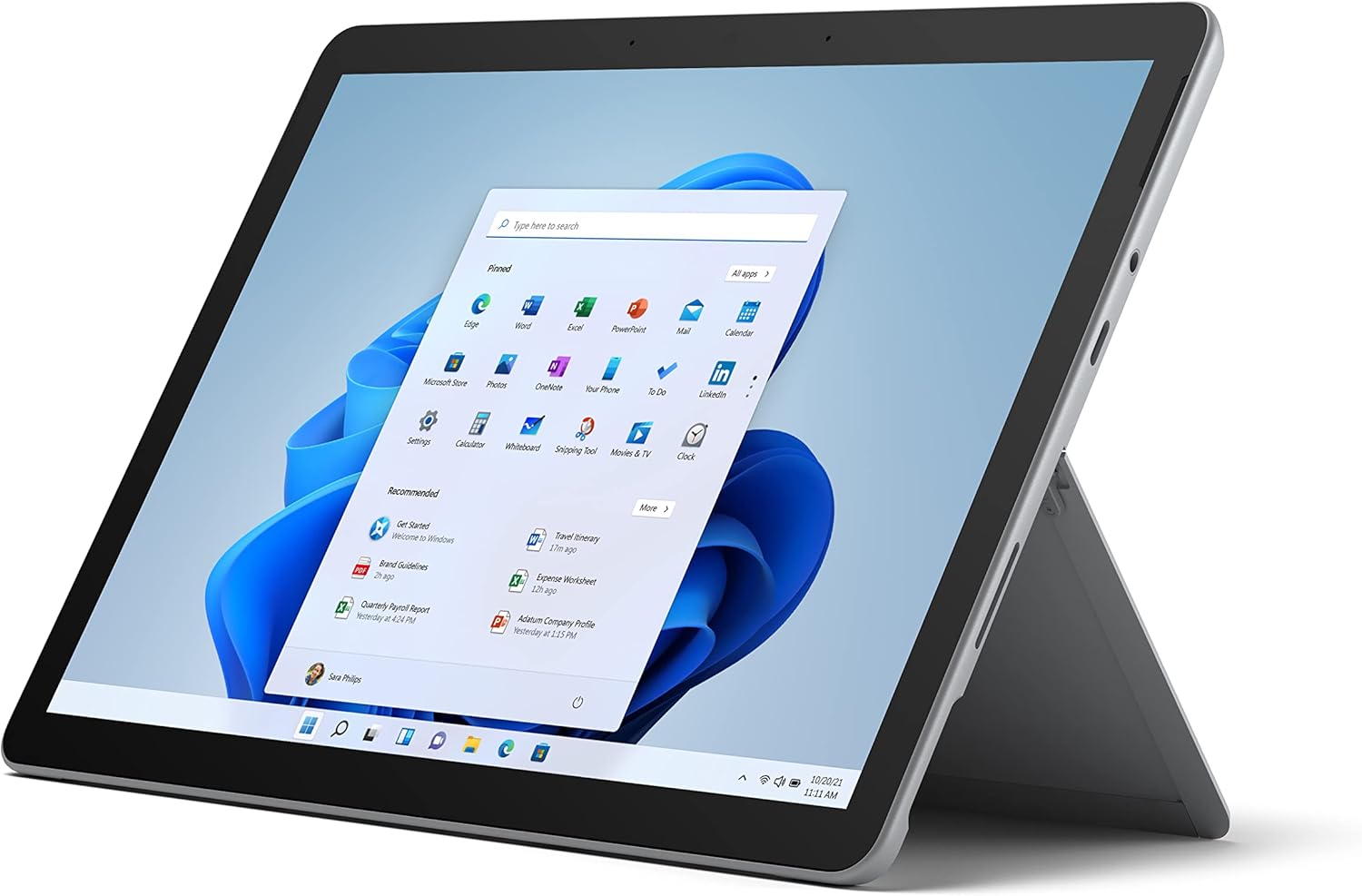
Figure 2.1: Microsoft Surface Go 2 tablet in landscape orientation, showcasing the Windows desktop interface.
2.2 Side Ports and Buttons
- USB Type-C Port: For data transfer, video output, and charging.
- 3.5 mm Headphone Jack: හෙඩ්ෆෝන් හෝ බාහිර ශ්රව්ය උපාංග සම්බන්ධ කිරීම සඳහා.
- මතුපිට සම්බන්ධක වරාය: Magnetic port for charging and connecting to Surface Dock (sold separately).
- MicroSD කාඩ් කියවනය: For expanding storage with a microSD card.
- වෙළුම් බොත්තම්: To adjust audio volume.
- බල බොත්තම: උපාංගය සක්රිය/අක්රිය කිරීමට හෝ එය නිද්රාවට පත් කිරීමට.

රූපය 2.2: පැති වෘත්තිකයෙක්file of the Surface Go 2, illustrating the various ports and buttons along its edge.
2.3 Integrated Kickstand
The Surface Go 2 features an integrated kickstand on the back, allowing for multiple viewing angles. This enables comfortable use in various modes, such as tablet, laptop (with Type Cover), or studio mode.

Figure 2.3: The Surface Go 2 with its Type Cover keyboard attached and the kickstand deployed, demonstrating its laptop-like configuration.
3. මූලික සැකසුම
Follow these steps to set up your Surface Go 2 for the first time.
3.1 බලගැන්වීම සහ මූලික වින්යාසය
- උපාංගය ආරෝපණය කරන්න: Connect the included power adapter to the Surface Connect port on your device and plug it into a power outlet.
- බල ගැන්වීම: Press and hold the power button located on the top edge of the device until the Microsoft logo appears on the screen.
- තිරයේ ඇති විමසීම් අනුගමනය කරන්න: The device will guide you through selecting your region, language, and connecting to a Wi-Fi network.
- Microsoft Account Setup: Sign in with an existing Microsoft account or create a new one. This is essential for accessing Microsoft services and applications.
- රහස්යතා සැකසීම්: Review and adjust your privacy settings as prompted.
- වින්ඩෝස් හෙලෝ: Set up facial recognition for faster and more secure sign-in (optional).
4. මෙහෙයුම් උපදෙස්
The Surface Go 2 offers flexible interaction methods.
4.1 ස්පර්ශ තිර සංචාලනය
The 10.5-inch PixelSense display supports 10-point multi-touch. You can navigate Windows 10 using gestures similar to a smartphone or tablet:
- තට්ටු කරන්න: අයිතම තෝරන්න හෝ යෙදුම් විවෘත කරන්න.
- ස්වයිප්: අන්තර්ගතය හරහා අනුචලනය කරන්න හෝ තිර අතර සංචාලනය කරන්න.
- විශාලනය කිරීමට පින්ච් කරන්න: Enlarge or reduce content size.
- ඔබාගෙන සිටින්න: Access context menus (right-click equivalent).
4.2 Using the Type Cover Keyboard (Sold Separately)
Attach the Type Cover keyboard to transform your Surface Go 2 into a laptop. The keyboard connects magnetically to the bottom edge of the tablet.
- ඇමුණුම: Align the Type Cover with the magnetic connector at the bottom of the Surface Go 2 until it snaps into place.
- ටයිප් කිරීම: Use the physical keys for efficient text input.
- ධාවන පථය: The integrated trackpad allows for precise cursor control and multi-touch gestures.

Figure 4.1: The Surface Go 2 tablet separated from its Type Cover keyboard, illustrating the modular design.
4.3 Using the Surface Pen (Sold Separately)
The Surface Pen (sold separately) enhances creativity and productivity, allowing for natural writing and drawing directly on the screen.

Figure 4.2: The Surface Go 2 tablet displayed with a compatible Surface Pen, highlighting its digital inking capabilities.
5. නඩත්තු කිරීම
Proper care ensures the longevity and performance of your Surface Go 2.
- තිරය පිරිසිදු කිරීම: මෘදු, ලින්ට් රහිත රෙදි තරමක් භාවිතා කරන්න dampened with water or an approved screen cleaner. Avoid harsh chemicals.
- උපාංගයේ ශරීරය පිරිසිදු කිරීම: මෘදු වියළි රෙද්දකින් පිටත පිස දමන්න.
- මෘදුකාංග යාවත්කාලීන: ප්රශස්ත කාර්ය සාධනය සහ ආරක්ෂාව සහතික කිරීම සඳහා නිතිපතා වින්ඩෝස් යාවත්කාලීන කිරීම් පරීක්ෂා කර ස්ථාපනය කරන්න. වෙත යන්න සැකසීම් > යාවත්කාලීන කිරීම සහ ආරක්ෂාව > වින්ඩෝස් යාවත්කාලීන කිරීම.
- බැටරි සත්කාර: To maximize battery lifespan, avoid extreme temperatures and try to keep the battery charge between 20% and 80% when possible.
- ගබඩා කළමනාකරණය: කාලානුරූපව තාවකාලිකව ඉවත් කරන්න files and unnecessary data to free up storage space. Go to සැකසීම් > පද්ධතිය > ගබඩා කිරීම.
6. දෝශ නිරාකරණය
පොදු ගැටළු සහ ඒවාට විසඳුම්.
- උපාංගය ක්රියාත්මක නොවේ: Ensure the device is charged. Connect the power adapter and wait a few minutes before attempting to power on again.
- ස්පර්ශ තිරය ප්රතිචාර නොදක්වයි: Restart the device. If the issue persists, check for pending Windows updates or consider a system restore.
- Wi-Fi සම්බන්ධතා ගැටළු: Verify your Wi-Fi network is active. Restart your router and the Surface Go 2. Check Wi-Fi settings on the device.
- මන්දගාමී කාර්ය සාධනය: අනවශ්ය යෙදුම් වසා දමන්න. ඉහළ සම්පත් ප්රමාණයක් පරිභෝජනය කරන පසුබිම් ක්රියාවලීන් සඳහා පරීක්ෂා කරන්න (කාර්ය කළමනාකරු). ප්රමාණවත් නිදහස් ගබඩා ඉඩක් සහතික කරන්න.
- බැටරිය ඉක්මනින් සිඳී යාම: Adjust screen brightness, disable unnecessary background apps, and ensure all software is up to date.
7. පිරිවිතර
| විශේෂාංගය | විස්තර |
|---|---|
| ප්රදර්ශනය කරන්න | 10.5" PixelSense 10-Point Touch Display |
| විභේදනය | 1920 x 1280 (216 ppi) |
| ප්රොසෙසරය | 1.6 GHz Intel Pentium 4425Y Dual-Core Processor |
| RAM | 8GB |
| ගබඩා කිරීම | 128GB SSD |
| ග්රැෆික්ස් | Integrated Intel HD Graphics 615 |
| රැහැන් රහිත | Wi-Fi 5 (802.11ac) | Bluetooth 4.1 |
| කැමරා | 8MP Rear Camera | 5MP Front Camera |
| වරායන් | USB Type-C, 3.5 mm Headphone Jack, Surface Connect, MicroSD Card Reader |
| බැටරි ආයු කාලය | පැය 9 දක්වා (සාමාන්ය භාවිතය) |
| මෙහෙයුම් පද්ධතිය | වින්ඩෝස් 10 |
| බර | රාත්තල් 1.15 (ආසන්න වශයෙන්) |
| මානයන් | අඟල් 6.8 x 9.64 x 0.32 |
8. වගකීම් සහ සහාය
This Microsoft Surface Go 2 is a renewed product. Renewed products are eligible for replacement or refund under the Amazon Renewed Guarantee if you are not satisfied with your purchase. For specific terms and conditions, please refer to the Amazon Renewed program details.
For further technical support or inquiries, please visit the official Microsoft Surface support webවෙබ් අඩවිය හෝ ඔවුන්ගේ පාරිභෝගික සේවාව අමතන්න.


