1. හැඳින්වීම
The MoesGo WiFi RF IR Universal Remote Controller is a smart home device designed to centralize control of your infrared (IR) and radio frequency (RF) appliances. It allows you to manage various devices such as TVs, air conditioners, fans, RF lights, and electric curtains through a single mobile application, and integrates with voice assistants like Amazon Alexa and Google Home.
This device connects to your home's 2.4GHz Wi-Fi network, enabling remote control from anywhere with an internet connection. It eliminates the need for multiple physical remote controls by consolidating their functions into a smart hub.
2. පැකේජ අන්තර්ගතය
- MoesGo WiFi RF IR Universal Remote Controller
- USB Power Cable (Micro USB)
- පරිශීලක අත්පොත
3. නිෂ්පාදන අවසන්view

Figure 3.1: MoesGo Universal Remote Controller and its retail packaging, highlighting key features like Timer-Schedule, Voice Control, Device Share, and App Control.
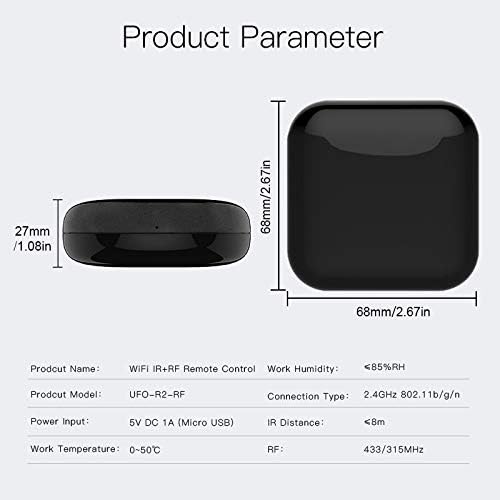
Figure 3.2: Diagram illustrating the physical dimensions of the MoesGo Universal Remote Controller (68mm x 68mm x 27mm) and basic product parameters.
The device features a compact, square design with a glossy black finish. It is powered via a Micro USB port. Its internal components allow for both Infrared (IR) and Radio Frequency (RF) signal transmission, enabling control over a wide range of home appliances.
4. සැකසුම් මාර්ගෝපදේශය
4.1 උපාංගය බලගැන්වීම
- Connect the provided USB power cable to the Micro USB port on the MoesGo Universal Remote Controller.
- Plug the other end of the USB cable into a 5V DC 1A power adapter (not included) and then into a wall outlet.
- The device will power on, and an indicator light will typically flash, indicating it is ready for network pairing.
4.2 යෙදුම් බාගත කිරීම සහ ස්ථාපනය කිරීම
The MoesGo Universal Remote Controller operates with the Tuya Smart or Smart Life application. Ensure your smartphone is connected to a 2.4GHz Wi-Fi network before proceeding.
- Scan the QR code provided in the quick start guide or search for "Tuya Smart" or "Smart Life" in your mobile app store (App Store for iOS, Google Play Store for Android).
- යෙදුම බාගත කර ස්ථාපනය කරන්න.
- Register a new account or log in with an existing one.
4.3 Device Pairing with Wi-Fi
- Tuya Smart හෝ Smart Life යෙදුම විවෘත කරන්න.
- " තට්ටු කරන්න+" icon in the top right corner to add a device.
- Select "Universal Remote Control" or "IR/RF Remote Control" from the device list under "Others" or "Controller".
- Follow the on-screen instructions to confirm the indicator light is flashing rapidly. If not, reset the device according to the app's instructions (often by holding a button for a few seconds).
- Enter your 2.4GHz Wi-Fi network name (SSID) and password.
- The app will begin connecting the device. Once connected, the indicator light will stop flashing and remain solid.
- Rename the device for easy identification (e.g., "Living Room Remote").
4.4 Adding IR and RF Devices

Figure 4.1: Screenshot of the mobile application interface, demonstrating the selection between adding an IR Remote or an RF Remote, with various appliance categories listed.
After successfully adding the universal remote, you can begin adding your home appliances.
- In the app, select your newly added universal remote.
- Tap "Add Remote" or a similar option. You will typically see options for "IR Remote" and "RF Remote".
- For IR Devices (e.g., TV, Air Conditioner, DVD Player):
- Select the type of appliance (e.g., TV, Air Conditioner).
- The app may offer a database of pre-programmed remote codes. Try these first.
- If a code works, confirm it. If not, select the "DIY" or "Learn" function.
- Point your original IR remote at the MoesGo device (within 8 meters) and press the desired button. The app will prompt you to press buttons one by one to learn their functions.
- For RF Devices (e.g., RF Light, Electric Curtain, RF Fan):
- Select the type of RF appliance.
- Choose the "Learn" or "DIY" mode.
- Press the button on your original RF remote. The MoesGo device will attempt to capture the RF signal (315MHz or 433MHz).
- Test the learned function to ensure it works correctly.

Figure 4.2: Visual representation of the MoesGo Universal Remote Controller's capability to control a wide array of devices, including STB, TV, DVD Player, Air Conditioner, RF Fan (IR), and Audio Equipment, Electric Roller Blind, Electric Curtain, RF Light, RF Light Switch (RF), with integration for Amazon Alexa and Google Home.
5. උපාංගය ක්රියාත්මක කිරීම
5.1 Controlling Devices via App
Once your appliances are added, you can control them directly from the Tuya Smart or Smart Life app. The app provides a virtual remote interface for each added device.

Figure 5.1: A smartphone displaying the smart home application, illustrating how it can remotely control various appliances such as TVs, air conditioners, and audio systems through the MoesGo Universal Remote Controller.
- Open the app and select the universal remote.
- Choose the specific appliance you wish to control (e.g., "Living Room TV").
- Use the virtual buttons on the screen to operate the appliance (e.g., power on/off, change channel, adjust volume, set AC temperature).
5.2 හඬ පාලන ඒකාබද්ධ කිරීම
The MoesGo Universal Remote Controller is compatible with Amazon Alexa and Google Home, allowing for convenient voice control of your connected appliances.

රූපය 5.2: උදාamples of voice commands: "Alexa, turn on the TV" for IR control, and "Google Home, turn on the light" for RF control, demonstrating seamless integration with smart speakers.
- ගිණුම් සම්බන්ධ කරන්න: In your Alexa or Google Home app, search for the "Tuya Smart" or "Smart Life" skill/service and link your account.
- උපාංග සොයා ගන්න: Once linked, ask your voice assistant to "Discover devices" or manually initiate device discovery in the app.
- හඬ විධාන: You can now use voice commands to control your appliances. Examples:
- "Alexa, turn on the TV."
- "Hey Google, set the air conditioner to 24 degrees."
- "Alexa, turn off the living room fan."
5.3 දුරස්ථ පාලක ක්රියාකාරීත්වය

Figure 5.3: Illustration showing the ability to control home appliances, such as an air conditioner, remotely via a mobile phone application, even when outside the home.
As the device is Wi-Fi enabled, you can control your appliances from anywhere with an internet connection using the Tuya Smart or Smart Life app on your smartphone. This allows you to pre-cool your home before arriving or turn off forgotten devices.
6. නඩත්තු කිරීම
- මෘදු වියළි රෙද්දකින් පිස දැමීමෙන් උපාංගය පිරිසිදුව තබා ගන්න.
- Avoid exposing the device to direct sunlight, high temperatures, or excessive humidity.
- Do not disassemble or attempt to repair the device yourself. Refer to qualified service personnel for any issues.
- Ensure the device is placed in a central location within the room, with an unobstructed line of sight to IR-controlled appliances for optimal performance.
7. දෝශ නිරාකරණය
- උපාංගය Wi-Fi වෙත සම්බන්ධ නොවේ:
- ඔබගේ Wi-Fi ජාලය 2.4GHz බව සහතික කර ගන්න. උපාංගය 5GHz ජාල සඳහා සහය නොදක්වයි.
- Wi-Fi මුරපදය නිවැරදි බව තහවුරු කරන්න.
- Place the device closer to your Wi-Fi router.
- Check if the indicator light is flashing rapidly for pairing mode. If not, reset the device.
- Ensure your router's security is WPA2.
- IR control not working:
- Ensure there is a clear line of sight between the MoesGo device and the IR appliance.
- The IR distance is typically less than 8 meters. Ensure the device is within range.
- Re-learn the IR commands if the pre-programmed codes do not work.
- Check if the original remote's batteries are working when learning commands.
- RF control not working:
- Ensure the RF frequency of your appliance (315MHz or 433MHz) is supported by the MoesGo device.
- Re-learn the RF commands. Some RF remotes may require specific learning procedures (e.g., pressing a button multiple times).
- RF signals can be affected by obstacles, though less so than IR. Ensure the device is not heavily obstructed.
- හඬ පාලනය ප්රතිචාර නොදක්වයි:
- Verify that your Tuya Smart/Smart Life account is correctly linked to Alexa or Google Home.
- Ensure devices are discovered in your voice assistant app.
- Use the exact names you assigned to your devices in the Tuya Smart/Smart Life app.
- ඔබගේ අන්තර්ජාල සම්බන්ධතාවය පරීක්ෂා කරන්න.
8. පිරිවිතර
| පරාමිතිය | වටිනාකම |
|---|---|
| නිෂ්පාදන නම | WiFi IR+RF දුරස්ථ පාලකය |
| නිෂ්පාදන ආකෘතිය | UFO-R2-RF (B08MWL41MH_CA NARF) |
| බල ආදානය | 5V DC 1A (ක්ෂුද්ර USB) |
| වැඩ උෂ්ණත්වය | 0-50°C (32-122°F) |
| වැඩ ආර්ද්රතාවය | <85% RH |
| සම්බන්ධතා වර්ගය | 2.4GHz 802.11b/g/n Wi-Fi |
| IR දුර | <8m (Line of Sight) |
| RF සංඛ්යාතය | 433/315MHz |
| නිෂ්පාදන මානයන් | 2.67 x 2.67 x 1.08 අඟල් (68 x 68 x 27 මි.මී.) |
| අයිතමයේ බර | අවුන්ස 3.84 කි |
| උපරිම සහාය දක්වන උපාංග ගණන | 12 (as per product specifications, though app may support more virtual remotes) |
| ගැළපෙන උපාංග | Air Conditioner, Fan, Television, and other IR/RF appliances |
9. සහාය සහ වගකීම්
For detailed instructions, advanced features, or further assistance, please refer to the official user guide provided by MoesGo.
නිල පරිශීලක මාර්ගෝපදේශය (PDF) බාගන්න
Information regarding product warranty is typically provided with your purchase documentation or can be found on the official MoesGo webවෙබ් අඩවිය. වගකීම් හිමිකම් සඳහා කරුණාකර ඔබේ මිලදී ගැනීමේ සාක්ෂි තබා ගන්න.


