හැඳින්වීම
Welcome to your Keychron K12 60% Mechanical Keyboard. This manual provides comprehensive instructions for setting up, operating, and maintaining your keyboard. The Keychron K12 is designed for versatility and performance, offering both Bluetooth wireless and USB wired connectivity, compatibility with Mac and Windows operating systems, and durable Keychron Mechanical Blue Switches within an aluminum frame.
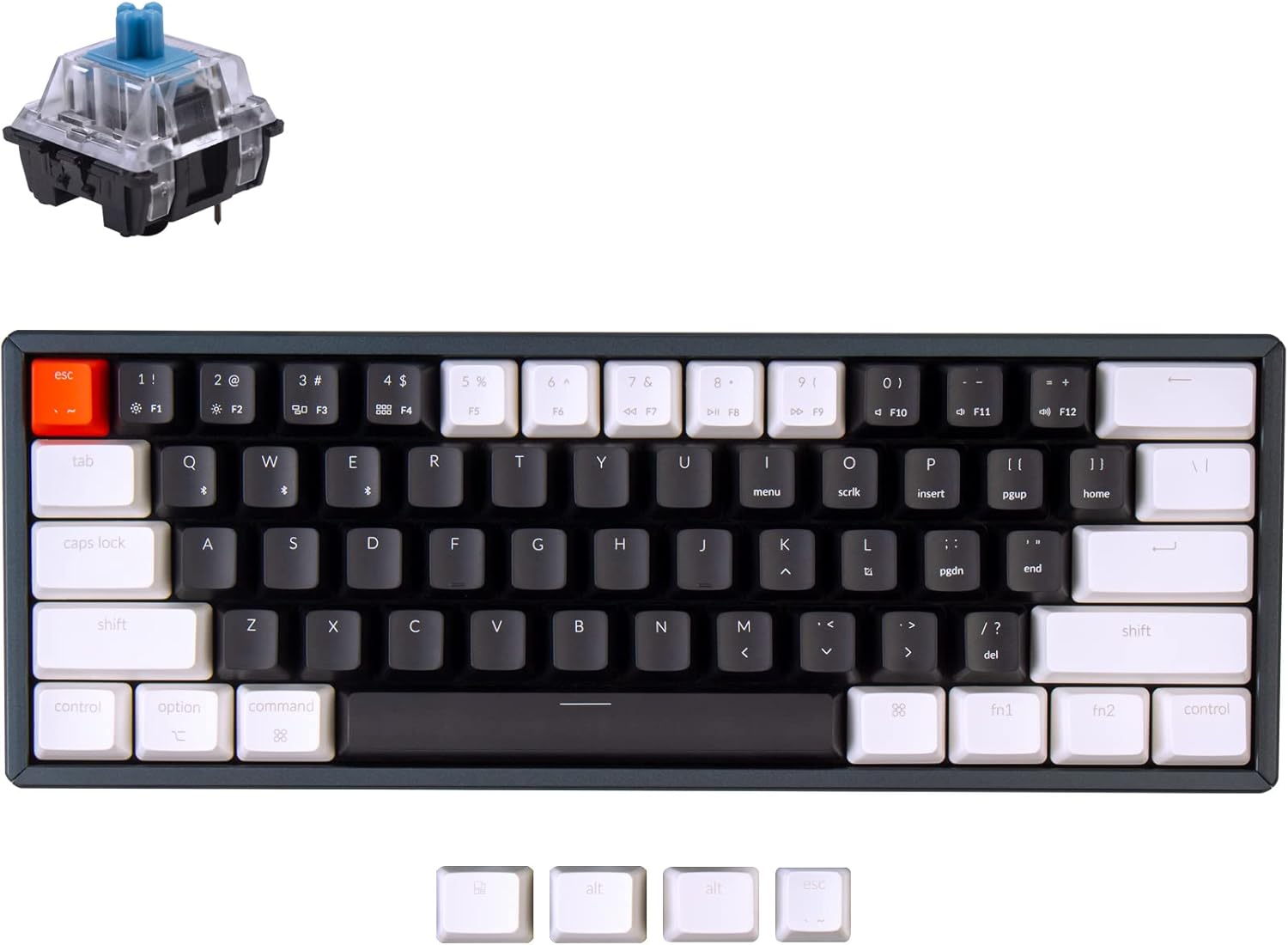
උඩිස් වැඩකි view of the Keychron K12 60% mechanical keyboard, showcasing its compact layout and the distinct blue mechanical switch.
පැකේජයේ අන්තර්ගතය
කරුණාකර ඔබගේ පැකේජයේ සියලුම අයිතම ඇති බව තහවුරු කරගන්න:
- Keychron K12 Mechanical Keyboard
- USB Type-C කේබලය
- Keycaps for Windows and macOS
- පරිශීලක අත්පොත
සැලසුම
1. Operating System Switch
Locate the OS toggle switch on the side of the keyboard. Slide it to the appropriate position for your device:
- Mac/iOS: For Apple devices.
- Windows/Android: For Windows or Android devices.
2. Connection Mode Switch
Locate the connection mode toggle switch on the side of the keyboard.

අතුරු වෘත්තිකයෙක්file of the Keychron K12 keyboard, clearly showing the USB Type-C port, the Mac/Windows operating system toggle switch, and the Bluetooth/Off/Cable connection mode toggle switch.
වයර් ප්රකාරය
- Slide the connection mode switch to "Cable".
- Connect the provided USB Type-C cable to the keyboard and your computer.
බ්ලූටූත් රැහැන් රහිත මාදිලිය
- Slide the connection mode switch to "BT".
- Ensure Bluetooth is enabled on your device (computer, smartphone, or tablet).
- ඔබන්න එෆ්එන් + 1 (හෝ එෆ්එන් + 2, එෆ්එන් + 3) for 4 seconds until the corresponding key starts flashing rapidly. This indicates the keyboard is in pairing mode.
- On your device, search for "Keychron K12" in the Bluetooth settings and select it to connect.
- Once successfully connected, the key will stop flashing.
- To switch between up to three paired devices, briefly press එෆ්එන් + 1, එෆ්එන් + 2, හෝ එෆ්එන් + 3.

A partial view of the Keychron K12 keyboard, highlighting its ability to connect to up to three devices, including Mac and Windows systems.
3. සකස් කළ හැකි පාද
The Keychron K12 features two-level adjustable feet on the underside. Flip them out to achieve your preferred ergonomic typing angle for enhanced comfort during extended use.

පැත්තක් view of the Keychron K12 keyboard with its adjustable feet extended, demonstrating the ergonomic 9-degree typing angle.
මෙහෙයුම් උපදෙස්
Function Keys and Multimedia Controls
Due to its compact 60% layout, the Keychron K12 utilizes the Fn key in combination with other keys to access standard function keys (F1-F12) and multimedia controls. Refer to the keycap legends for specific functions. For example, එෆ්එන් + 1 හරහා එෆ්එන් + 3 are used for Bluetooth device switching.
බැටරි කළමනාකරණය
The keyboard is equipped with a built-in 4000mAh Lithium Polymer battery for wireless operation.
- අයකිරීම: Connect the USB Type-C cable to the keyboard and a power source (e.g., computer USB port or USB wall adapter). The charging indicator light will illuminate to show charging status.
- බැටරි ආයු කාලය: The 4000mAh battery provides extended usage time in wireless mode.

A close-up of the Keychron K12 keyboard with text overlay indicating its 4000mAh battery capacity.
ප්රධාන ලක්ෂණ
The Keychron K12 keyboard offers a range of features designed for productivity and user experience:
- සංයුක්ත 60% පිරිසැලසුම: Features 61 keys, maximizing desk space while retaining essential functionality.
- ද්විත්ව සම්බන්ධතාවය: Seamlessly switch between Bluetooth 5.1 wireless and USB Type-C wired modes.
- බහු උපාංග සහාය: Connects with up to 3 devices and allows easy switching between them.
- මෙහෙයුම් පද්ධති අනුකූලතාව: Fully compatible with Mac, Windows, Android, and iOS devices.
- Keychron Mechanical Blue Switches: Provides a tactile and clicky typing experience with a durable lifespan of up to 50 million keystrokes.
- ඇලුමිනියම් රාමුව: Ensures robust build quality and stability.
- Ergonomic Design: Includes two-level adjustable feet for comfortable typing angles.
- දිගු කල් පවතින බැටරි: Equipped with a 4000mAh battery for extended wireless usage.

An infographic summarizing the main features of the Keychron K12 keyboard, including its compact 60% layout, dual connectivity, operating system compatibility, mechanical switches, and ergonomic adjustable feet.
පිරිවිතර
| විශේෂාංගය | පිරිවිතර |
|---|---|
| ආකෘතිය | K12L2 |
| පිරිසැලසුම | 60% (යතුරු 61) |
| සම්බන්ධතාවය | බ්ලූටූත් 5.1, USB වර්ගය-C |
| ස්විචයන් | Keychron Mechanical Blue Switch |
| මෙහෙයුම් බලකාය | 60±10gf |
| පෙර ගමන් | 2 ± 0.4 මි.මී |
| ගමන් දුර | 4 ± 0.4 මි.මී |
| හැසිරීම | ක්ලික් කරන්න |
| ශබ්ද මට්ටම | ක්ලික් කරන්න |
| ආයු කාලය | යතුරු එබීම් මිලියන 50ක් දක්වා |
| බැටරි | 4000mAh ලිතියම් පොලිමර් |
| රාමු ද්රව්ය | ඇලුමිනියම් |
| අයිතමයේ බර | රාත්තල් 2.23 කි |
| ගැළපෙන OS | Mac, Windows, Android, iOS |

A detailed graphic outlining the specifications of the Keychron Mechanical Blue Switch, including operating force, pre-travel, travel distance, behavior, sound level, and lifespan.
දෝෂගවේෂණය
If you encounter issues with your Keychron K12 keyboard, please refer to the following common troubleshooting steps:
- යතුරුපුවරුව බ්ලූටූත් හරහා සම්බන්ධ නොවේ:
- Ensure the keyboard's connection mode switch is set to "BT".
- Verify the keyboard is in pairing mode (the selected Fn + 1/2/3 key is flashing rapidly).
- Check that Bluetooth is enabled on your host device.
- Try removing "Keychron K12" from your device's Bluetooth list and re-pairing.
- යතුරුපුවරු බැටරිය ප්රමාණවත් ලෙස ආරෝපණය වී ඇති බවට වග බලා ගන්න.
- Keys not responding in wired mode:
- Ensure the keyboard's connection mode switch is set to "Cable".
- Check the USB Type-C cable connection at both the keyboard and your computer.
- Try using a different USB port on your computer or a different USB Type-C cable.
- Incorrect key functions (Mac/Windows):
- Verify that the OS toggle switch on the side of the keyboard is set to the correct operating system (Mac/iOS or Windows/Android).
- බැටරි ආරෝපණය නොවේ:
- Ensure the USB Type-C cable is properly connected to both the keyboard and the power source.
- Try using a different USB port or a different power adapter.
නඩත්තු කිරීම
Proper maintenance will help extend the lifespan of your Keychron K12 keyboard:
- පිරිසිදු කිරීම:
- Use a soft, dry, lint-free cloth to gently wipe the keyboard surface.
- For deeper cleaning, carefully remove the keycaps (using a keycap puller if available) and use compressed air to clear dust and debris from between the switches.
- Avoid using liquid cleaners directly on the switches or electronic components.
- ගබඩා:
- Store the keyboard in a cool, dry place away from direct sunlight, excessive heat, or extreme cold.
- Protect the keyboard from spills and impacts.
වගකීම් සහ සහාය
For detailed warranty information, technical support, and frequently asked questions, please visit the official Keychron webඅඩවිය (www.keychron.com) or contact your authorized retailer. Please retain your proof of purchase for any warranty claims.


