1. හැඳින්වීම
The KuWFi AC1200 Dual Band Wireless USB Adapter provides high-speed Wi-Fi connectivity for your desktop or laptop PC. This adapter supports both 2.4GHz and 5GHz frequency bands, offering flexible and reliable wireless performance. Its compact design ensures portability and ease of use.

Image 1.1: The KuWFi AC1200 adapter highlighting its dual-band capabilities with speeds of 867Mbps on 5GHz and 300Mbps on 2.4GHz.
2. නිෂ්පාදන ලක්ෂණ
- ද්විත්ව කලාප සම්බන්ධතාවය: Supports 2.4GHz (up to 300Mbps) and 5GHz (up to 867Mbps) for a combined speed of up to 1200Mbps.
- අධිවේගී කාර්ය සාධනය: Ideal for online gaming, HD video streaming, and large file මාරුවීම්.
- පුළුල් අනුකූලතාව: Compatible with Windows 10 (32/64bit), Windows 8, and Windows 7 operating systems.
- Driver-Free Installation: Plug-and-play functionality for Windows 10 (32/64bit) systems.
- උසස් ආරක්ෂාව: Supports WEP, WPA-PSK, WPA2-PSK, and WPA/WPA2 64/128bit encryption protocols.
- Mini & Portable Design: Compact size for easy carrying and convenient use.
- AP Mode Support: Can function as a Wi-Fi hotspot (SimulationAP).

Image 2.1: Key features of the KuWFi AC1200 adapter, including its compact size and AP mode capability.

Image 2.2: The adapter's mini size, making it highly portable.
3. පද්ධති අවශ්යතා
- Operating System: Windows 10 (32/64bit), Windows 8, Windows 7
- Available USB Port (USB 2.0 or higher recommended)
- CD-ROM drive (for driver installation on Windows 7/8, not required for Windows 10)
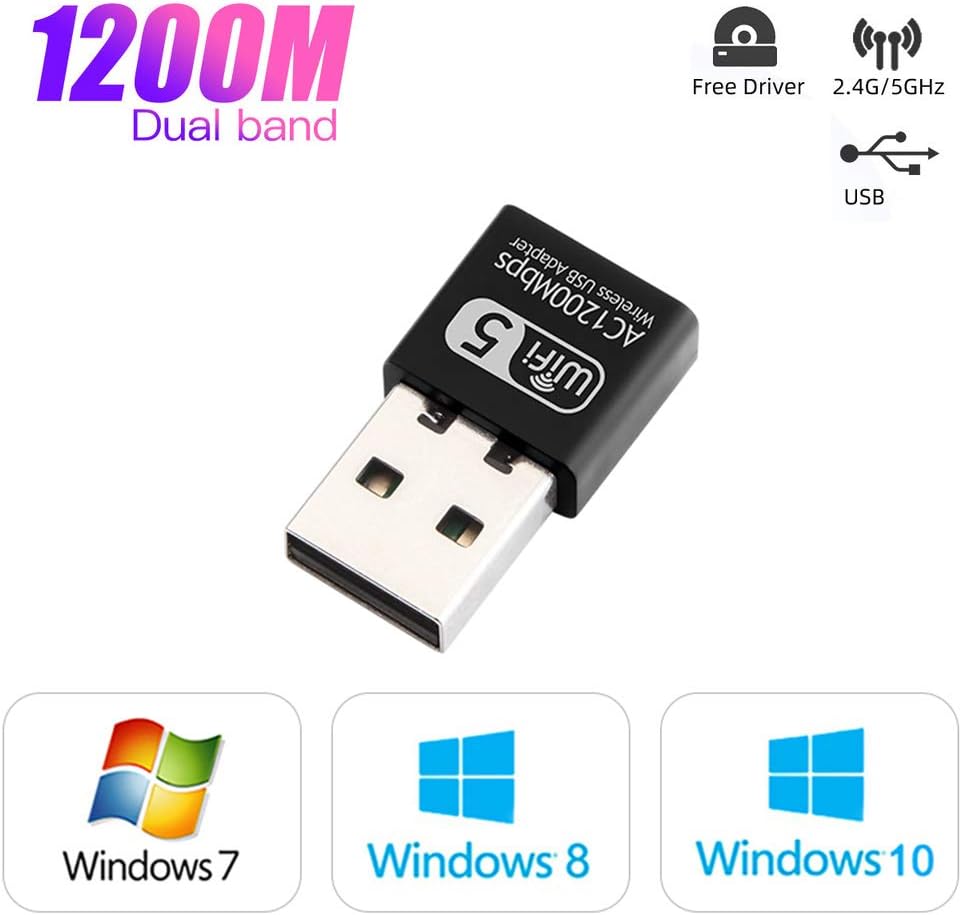
Image 3.1: Operating system compatibility and driver-free support for Windows 10.
4. පැකේජ අන්තර්ගතය
- 1 x KuWFi AC1200 Dual Band Wireless USB Adapter
- 1 x Driver CD (for Windows 7/8)
5. ස්ථාපන මාර්ගෝපදේශය
Step 1: Insert the USB Adapter
Carefully insert the KuWFi AC1200 Wireless USB Adapter into an available USB port on your desktop or laptop computer.

Image 5.1: Inserting the USB adapter into a computer's USB port.
පියවර 2: ධාවක ස්ථාපනය
For Windows 10 (32/64bit): The adapter is designed for plug-and-play functionality. The system should automatically detect and install the necessary drivers. If not, proceed with the CD driver installation steps.
Windows 7/8 සඳහා:
- සපයන ලද ධාවක සංයුක්ත තැටිය ඔබේ පරිගණකයේ CD-ROM ධාවකයට ඇතුළු කරන්න.
- Open 'My Computer' or 'This PC'.
- Double-click on the CD Driver icon to open it.
- Locate and double-click the setup or install file.
- ධාවක ස්ථාපනය සම්පූර්ණ කිරීම සඳහා තිරයේ ඇති උපදෙස් අනුගමනය කරන්න.

Image 5.2: Visual guide for installing drivers from the CD.
Step 3: Connect to a Wi-Fi Network
Once the drivers are installed, your computer will detect available Wi-Fi networks. Select your desired network and enter the password to connect.
6. මෙහෙයුම් උපදෙස්
ද්විත්ව බෑන්ඩ් මෙහෙයුම
The KuWFi AC1200 adapter supports both 2.4GHz and 5GHz Wi-Fi bands. You can choose the band that best suits your needs:
- 2.4GHz කලාපය: Offers wider coverage and better penetration through walls, suitable for general internet browsing and tasks that do not require very high speeds.
- 5GHz කලාපය: Provides faster speeds and less interference, ideal for online gaming, HD video streaming, and large file downloads. This band typically has a shorter range.
Your computer's Wi-Fi settings will display available networks. Networks operating on the 5GHz band often have '5G' or '5GHz' in their name (e.g., 'MyWiFi_5G'). Select the appropriate network based on your requirements.
AP Mode (Soft AP)
The adapter can function as a Wi-Fi hotspot (Soft AP) if your computer has an internet connection via Ethernet. This allows other devices to connect to your computer's internet through the adapter. Refer to your operating system's network settings for instructions on enabling mobile hotspot or Soft AP functionality.
7. නඩත්තු කිරීම
- ඇඩැප්ටරය පිරිසිදුව හා දූවිලි වලින් තොරව තබා ගන්න.
- ඇඩැප්ටරය අධික උෂ්ණත්වයකට හෝ ආර්ද්රතාවයට නිරාවරණය කිරීමෙන් වළකින්න.
- Do not shake or plug/unplug the adapter excessively to prevent damage to the USB port or the adapter itself.
- භාවිතයේ නොමැති විට ඇඩැප්ටරය ආරක්ෂිත ස්ථානයක ගබඩා කරන්න.
8. දෝශ නිරාකරණය
No Wi-Fi Networks Detected
- ඇඩැප්ටරය USB පෝට් එකකට ආරක්ෂිතව සම්බන්ධ කර ඇති බවට වග බලා ගන්න.
- Verify that the drivers are correctly installed. Check Device Manager (Windows) for any yellow exclamation marks next to the network adapter.
- ඔබේ පරිගණකය නැවත ආරම්භ කරන්න.
- ඇඩැප්ටරය වෙනත් USB පෝට් එකකට සම්බන්ධ කිරීමට උත්සාහ කරන්න.
මන්දගාමී සම්බන්ධතා වේගය
- Ensure you are connected to the 5GHz band if your router supports it and you are within range.
- Reduce the distance between your computer and the Wi-Fi router.
- Minimize obstacles (walls, large metal objects) between the adapter and the router.
- Check for other devices causing interference (e.g., microwaves, cordless phones).
- ඔබගේ රවුටරයේ ස්ථිරාංග යාවත්කාලීන කරන්න.
සම්බන්ධතාවය නිතර අඩු වේ
- Ensure the adapter is not loose in the USB port.
- Check for driver updates from the manufacturer's webවෙබ් අඩවිය තිබේ නම්.
- Adjust the position of your computer or router to improve signal strength.
- Disable power-saving features for the USB port or network adapter in your computer's settings.
9. පිරිවිතර
| ආකෘතිය | AC1200 |
| දෘඩාංග අතුරුමුහුණත | USB |
| දත්ත හුවමාරු අනුපාතය | 1200 Mbps දක්වා (5GHz මත 867 Mbps, 2.4GHz මත 300 Mbps) |
| සංඛ්යාත පටි | 2.4GHz, 5GHz |
| ගැළපෙන උපාංග | ඩෙස්ක්ටොප්, ලැප්ටොප් |
| මෙහෙයුම් පද්ධති | Windows 10 (32/64bit), Windows 8, Windows 7 |
| සංකේතන සහාය | WEP, WPA-PSK, WPA2-PSK, WPA/WPA2 64/128bit |
| අයිතමයේ බර | අවුන්ස 0.634 (ආසන්න වශයෙන් ග්රෑම් 18) |
| පැකේජ මානයන් | අඟල් 3.78 x 3.35 x 0.47 |