1. හැඳින්වීම
This manual provides detailed instructions for setting up, operating, maintaining, and troubleshooting your Mercusys MR30G AC1200 Wireless Dual Band WiFi Gigabit Router. Please read this guide thoroughly to ensure proper installation and optimal performance of your device.
2. නිෂ්පාදන අවසන්view
2.1 ප්රධාන ලක්ෂණ
- AC1200 Dual Band WiFi: Delivers combined speeds of up to 1.2 Gbps (300 Mbps on 2.4 GHz and 867 Mbps on 5 GHz) for fast, reliable connections.
- Gigabit Wired Speeds: Equipped with full gigabit ports (1 WAN, 2 LAN) for high-speed wired connections to PCs, IPTVs, and game consoles.
- MU-MIMO තාක්ෂණය: Communicates with multiple devices simultaneously, improving network efficiency and speed for connected devices.
- High-Gain Antennas with Beamforming: Four external 5 dBi antennas and Beamforming technology provide targeted, stable, and extended wireless coverage.
- Powerful Signal Ampජීවිතාරක්ෂක: Strengthens signal transmissions and accelerates signal capture for improved range and full-signal strength throughout your home.
- බහු මෙහෙයුම් ආකාර: Supports Router, Access Point, and Range Extender modes.
- WPS ක්රියාකාරීත්වය: ආරක්ෂිත රැහැන් රහිත සම්බන්ධතා සැකසුම සරල කරයි.
2.2 පැකේජයේ අන්තර්ගතය
The Mercusys MR30G package typically includes:
- Mercusys MR30G AC1200 Wireless Dual Band WiFi Gigabit Router
- බල ඇඩැප්ටරය
- ඊතර්නෙට් කේබලය
- ඉක්මන් ස්ථාපන මාර්ගෝපදේශය

Image 1: Mercusys MR30G AC1200 Wireless Dual Band WiFi Gigabit Router with its retail packaging.

රූපය 2: කෝණික ඉදිරිපස view of the Mercusys MR30G router, highlighting its four external antennas.
3. සැකසුම් මාර්ගෝපදේශය
Follow these steps for a simple and quick setup of your Mercusys MR30G router.
3.1 දෘඪාංග සම්බන්ධතාවය
- විදුලිය විසන්ධි කිරීම: Disconnect the power from your modem (if applicable).
- WAN තොට සම්බන්ධ කරන්න: Connect the Ethernet cable from your modem's LAN port to the blue WAN port on your MR30G router.
- LAN තොට සම්බන්ධ කරන්න (විකල්ප): For wired devices, connect an Ethernet cable from your computer or other network devices to one of the yellow LAN ports on the MR30G router.
- බල ගැන්වීම: Connect the power adapter to the router and plug it into a power outlet. Wait for the router to fully boot up (the LED indicator should turn solid green).
- මොඩමය ක්රියාත්මක කරන්න: Reconnect power to your modem.
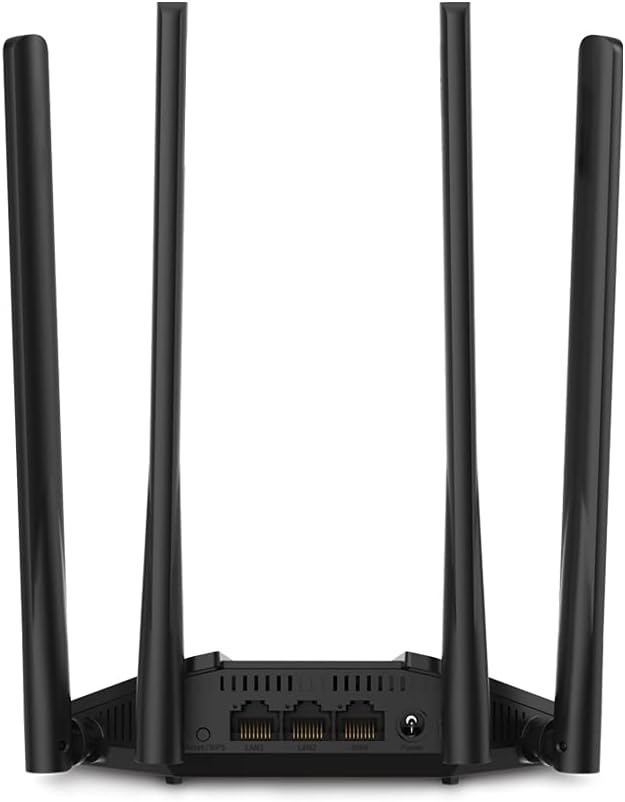
රූපය 3: පසුපස view of the Mercusys MR30G router, showing the WAN port (blue), LAN ports (yellow), power input, and reset button.
3.2 මූලික වින්යාසය
- රවුටරයට සම්බන්ධ කරන්න: Connect your computer or mobile device to the router's default Wi-Fi network (SSID and password are usually printed on a label on the bottom of the router) or via an Ethernet cable to a LAN port.
- ප්රවේශය Web අතුරු මුහුණත: a විවෘත කරන්න web බ්රවුසරය විවෘත කර පෙරනිමි ප්රවේශ ලිපිනය ඇතුළත් කරන්න (උදා.,
mwlogin.netor192.168.1.1) ලිපින තීරුව තුළට. - පිවිසුම් මුරපදය සාදන්න: Follow the on-screen instructions to create a strong login password for the router's management interface.
- ඉක්මන් සැකසුම ක්රියාත්මක කරන්න: The Quick Setup wizard will guide you through configuring your internet connection type, Wi-Fi network name (SSID), and password.
- සැකසුම් සුරකින්න: විමසන්නේ නම් සැකසුම් යොදවා රවුටරය නැවත ආරම්භ කරන්න.
4. මෙහෙයුම් උපදෙස්
4.1 ද්විත්ව කලාප ක්රියාකාරිත්වය
The MR30G operates on two frequency bands:
- 2.4 GHz කලාපය: Provides wider coverage and better wall penetration, suitable for general internet browsing, email, and devices further from the router.
- 5 GHz කලාපය: Offers faster speeds and lower interference, ideal for bandwidth-intensive tasks like HD video streaming, online gaming, and large file මාරුවීම්.
You can connect your devices to either band based on your needs. The router may also offer a Smart Connect feature to automatically assign devices to the optimal band.
4.2 උසස් විශේෂාංග
රවුටරයට ප්රවේශ වන්න web management interface to configure advanced settings:
- ආගන්තුක ජාලය: ඔබේ ප්රධාන ජාලයේ ආරක්ෂාව සහතික කිරීම සඳහා අමුත්තන් සඳහා වෙනම Wi-Fi ජාලයක් සාදන්න.
- ප්රවේශ ස්ථාන ප්රකාරය: Convert your router into an access point to extend your existing wired network with Wi-Fi capabilities.
- IPv6 සහාය: Utilize the latest internet protocol for enhanced network efficiency and future compatibility.
- WPS (Wi-Fi ආරක්ෂිත සැකසුම): Press the WPS button on the router and your WPS-enabled device to quickly establish a secure wireless connection without entering a password.
- මාපිය පාලන: Manage and restrict internet access for specific devices.
- QoS (සේවාවේ ගුණාත්මකභාවය): Prioritize network traffic for certain applications or devices to ensure smooth performance.
5. නඩත්තු කිරීම
නිතිපතා නඩත්තු කිරීම ඔබේ රවුටරයේ ආයු කාලය සහ ප්රශස්ත ක්රියාකාරිත්වය සහතික කිරීමට උපකාරී වේ.
- ස්ථිරාංග යාවත්කාලීන කිරීම්: Periodically check the Mercusys official webස්ථිරාංග යාවත්කාලීන කිරීම් සඳහා අඩවිය. ස්ථිරාංග යාවත්කාලීන කිරීම කාර්ය සාධනය වැඩි දියුණු කිරීමට, නව විශේෂාංග එකතු කිරීමට සහ ආරක්ෂක දුර්වලතා නිවැරදි කිරීමට හැකිය.
- නිතිපතා නැවත ආරම්භ කිරීම: සති කිහිපයකට වරක් ඔබේ රවුටරය නැවත ආරම්භ කිරීමෙන් එහි මතකය ඉවත් කර සුළු ජාල ගැටළු විසඳා ගත හැකිය. බල ඇඩැප්ටරය විසන්ධි කර, තත්පර 10ක් රැඳී සිට, එය නැවත පේනුගත කරන්න.
- ප්රශස්ත ස්ථානගත කිරීම: රවුටරය බාධා, විශාල ලෝහ වස්තූන් සහ විද්යුත් චුම්භක බාධා නිකුත් කරන උපාංග (උදා: මයික්රෝවේව්, රැහැන් රහිත දුරකථන) වලින් ඈත්ව මධ්යම ස්ථානයක තබන්න.
- පිරිසිදු කිරීම: Keep the router clean and free from dust. Use a soft, dry cloth to wipe the exterior. Do not use liquid cleaners.
- ආරක්ෂාව: Regularly change your Wi-Fi password and router login password to strong, unique combinations.
6. දෝශ නිරාකරණය
If you encounter issues with your router, refer to the following common solutions.
6.1 අන්තර්ජාල ප්රවේශය නැත
- සම්බන්ධතා පරීක්ෂා කරන්න: සියලුම ඊතර්නෙට් කේබල් නිවැරදි වරායන් වෙත ආරක්ෂිතව සම්බන්ධ කර ඇති බවට වග බලා ගන්න (WAN සිට මොඩමය, LAN සිට උපාංග දක්වා).
- උපාංග නැවත ආරම්භ කරන්න: Power cycle your modem, then your router, and then your connected devices.
- WAN LED පරීක්ෂා කරන්න: Verify that the WAN LED on the router is lit, indicating an active internet connection.
- අන්තර්ජාල සේවා සපයන්නාගේ තත්ත්වය: සේවාවක් නොමැති බව තහවුරු කර ගැනීමට ඔබේ අන්තර්ජාල සේවා සපයන්නා (ISP) අමතන්න හෝtagඔබේ ප්රදේශයේ.
- රවුටර් සැකසුම්: රවුටරයට ලොග් වන්න web interface and check your internet connection settings (e.g., WAN connection type, IP address).
6.2 මන්දගාමී Wi-Fi වේගය හෝ නිතර විසන්ධි වීම්
- රවුටර ස්ථානගත කිරීම: රවුටරය බාධක සහ ඇඟිලි ගැසීම් ප්රභවයන්ගෙන් ඈත් කර වඩාත් මධ්යම ස්ථානයකට ගෙන යන්න.
- නාලිකා මැදිහත්වීම: රවුටරය තුළ web interface, try changing the Wi-Fi channel for both 2.4 GHz and 5 GHz bands to a less congested one.
- සංගීත කණ්ඩායම තේරීම: For speed-critical devices, ensure they are connected to the 5 GHz band.
- ස්ථිරාංග යාවත්කාලීන කිරීම: ඔබගේ රවුටරයේ ස්ථිරාංග යාවත්කාලීන බව සහතික කර ගන්න.
- බොහෝ උපාංග: Reduce the number of active devices or bandwidth-intensive activities on your network.
6.3 රවුටර වෙත ප්රවේශ විය නොහැක Web අතුරු මුහුණත
- IP ලිපිනය සත්යාපනය කරන්න: Ensure you are using the correct access address (e.g.,
mwlogin.netor192.168.1.1). - සම්බන්ධතාවය පරීක්ෂා කරන්න: Make sure your device is connected to the router's network (either via Wi-Fi or Ethernet).
- බ්රව්සර් හැඹිලිය හිස් කරන්න: ඔබේ ඉවත් කරන්න web බ්රවුසරයේ හැඹිලිය සහ කුකීස් ඉවත් කරන්න, නැතහොත් වෙනත් බ්රවුසරයක් උත්සාහ කරන්න.
- රවුටරය නැවත සකසන්න: If all else fails, perform a factory reset by pressing and holding the reset button on the back of the router for about 5-10 seconds until the LEDs flash. සටහන: කර්මාන්තශාලා යළි පිහිටුවීමක් ඔබගේ සියලු අභිරුචි සැකසුම් මකා දමනු ඇති අතර, ඔබට රවුටරය නැවත වින්යාස කිරීමට අවශ්ය වනු ඇත.
7. පිරිවිතර
| විශේෂාංගය | විස්තරය |
|---|---|
| ආකෘතිය | MR30G |
| වෙළඳ නාමය | මර්කුසි |
| රැහැන් රහිත ප්රමිති | IEEE 802.11a/b/g/n/ac |
| දත්ත හුවමාරු අනුපාතය | AC1200 (2.4 GHz මත 300 Mbps, 5 GHz මත 867 Mbps) |
| සංඛ්යාතය | 2.4 GHz & 5 GHz (Dual Band) |
| ඇන්ටනා | 4x Fixed Omni-Directional Antennas |
| ඊතර්නෙට් වරාය | 1x ගිගාබිට් WAN තොට, 2x ගිගාබිට් LAN තොට |
| මානයන් (W x D x H) | 2.79 x 24.64 x 16.51 සෙ.මී |
| බර | 173 ග්රෑම් |
| බල ආදානය | වෝල්ට් 220 |
| විශේෂ ලක්ෂණ | MU-MIMO, Beamforming, WPS |
| ගැළපෙන උපාංග | Computers, smartphones, tablets, game consoles, streaming devices, printers, security cameras, smart thermostats, smart TVs |
8. වගකීම් සහ සහාය
For warranty information and technical support, please refer to the official Mercusys website or contact your local Mercusys support team. Keep your purchase receipt for warranty claims.
Mercusys Official Webඅඩවිය: www.mercusys.com


