1. හැඳින්වීම
This manual provides detailed instructions for the setup, operation, and maintenance of your Bytech BYMCWC101BLK PC Web Camera. Please read this manual thoroughly before using the product to ensure proper functionality and longevity.
2. පැකේජ අන්තර්ගතය
පහත ලැයිස්තුගත කර ඇති සියලුම අයිතම ඔබේ නිෂ්පාදන පැකේජයට ඇතුළත් කර ඇති බව තහවුරු කර ගන්න:
- Bytech BYMCWC101BLK PC Web කැමරාව
- පරිශීලක අත්පොත (මෙම ලේඛනය)
- ඒකාබද්ධ USB කේබලය
3. පිහිටුවීම
Follow these steps to set up your Bytech BYMCWC101BLK PC Web කැමරාව:
- ස්ථානගත කිරීම: ස්ථානගත කරන්න webcam on top of your computer monitor, laptop screen, or a flat surface. The adjustable clip allows for secure attachment.
- පරිගණකයට සම්බන්ධ කරන්න: ඒකාබද්ධ USB කේබලය සම්බන්ධ කරන්න webඔබේ පරිගණකයේ තිබෙන USB පෝට් එකකට cam කරන්න.
- ධාවක ස්ථාපනය: ද webcam is typically plug-and-play. Your operating system (Windows, macOS, Linux) should automatically detect and install the necessary drivers. Wait for the installation to complete.
- සත්යාපනය: තහවුරු කිරීමට වීඩියෝ සම්මන්ත්රණ යෙදුමක් (උදා: Zoom, Skype, Microsoft Teams) හෝ ඔබේ පරිගණකයේ කැමරා යෙදුම විවෘත කරන්න webcam හඳුනාගෙන වීඩියෝ පෙන්වයි.
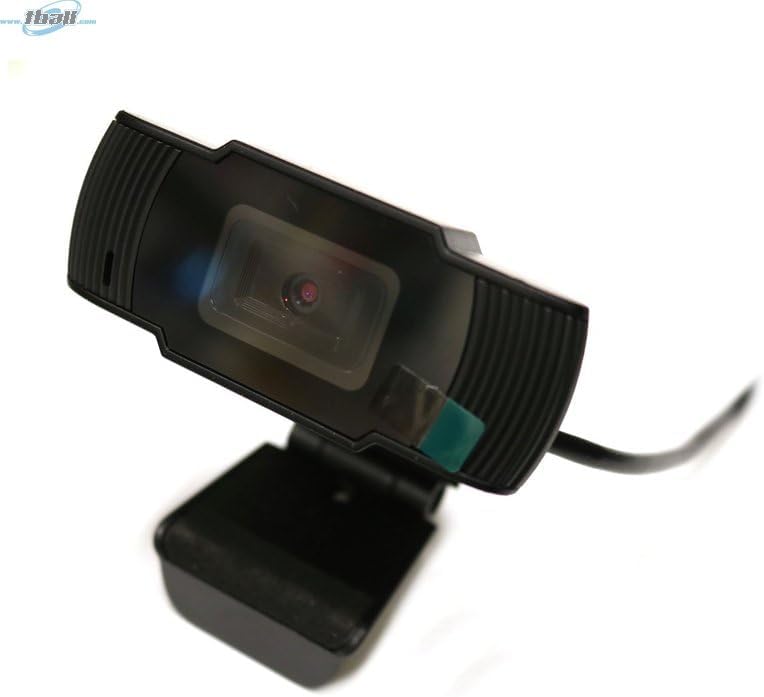
Image: The Bytech BYMCWC101BLK PC Web Camera securely mounted on top of a computer monitor, demonstrating its adjustable clip design.
4. මෙහෙයුම් උපදෙස්
Once installed, the Bytech BYMCWC101BLK PC Web Camera can be used with various applications:
- වීඩියෝ සම්මන්ත්රණ: Select the Bytech webcam as your video input device within your preferred video conferencing software (e.g., Zoom, Skype, Google Meet).
- ප්රවාහය: For live streaming platforms, configure the webcam as your primary video source in your streaming software (e.g., OBS Studio).
- පටිගත කිරීම: Use your computer's built-in camera application or third-party software to record video.
- අඩු ආලෝක කාර්ය සාධනය: ද webcam features BSI CMOS photo sensor technology and is designed to perform effectively in low-light conditions, providing clear video even with limited ambient lighting.
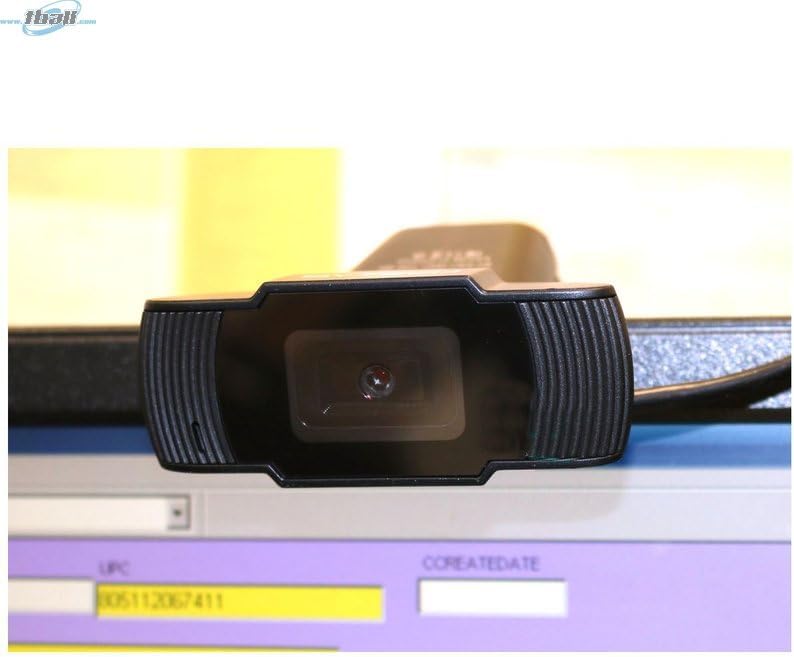
රූපය: සමීප ඡායාරූපයක් view of the Bytech BYMCWC101BLK PC Web Camera's lens, highlighting its design and integrated privacy cover (if applicable, otherwise just lens).
5. නඩත්තු කිරීම
To ensure optimal performance and extend the lifespan of your webකැමරාව:
- පිරිසිදු කිරීම: Gently wipe the lens with a soft, lint-free cloth. Avoid using harsh chemicals or abrasive materials.
- ගබඩා: භාවිතයේ නොමැති විට, ගබඩා කරන්න webcam in a clean, dry environment away from direct sunlight and extreme temperatures.
- කේබල් රැකවරණය: USB කේබලය අධික ලෙස නැමීම හෝ තද කිරීම නොකරන්න.
6. දෝශ නිරාකරණය
ඔබට ගැටළු ඇති වුවහොත් ඔබේ webcam, පහත දැක්වෙන පොදු ගැටළු සහ විසඳුම් වෙත යොමු වන්න:
- රූපයක්/වීඩියෝවක් නැත:
- USB කේබලය දෙකටම ආරක්ෂිතව සම්බන්ධ වී ඇති බවට වග බලා ගන්න. webcam සහ ඔබේ පරිගණකය.
- ප්ලග් කිරීමට උත්සාහ කරන්න webවෙනස් USB පෝට් එකකට කැම්.
- ඔබේ පරිගණකය නැවත ආරම්භ කරන්න.
- Check your application settings to ensure the Bytech webකැමරාව වීඩියෝ ආදාන උපාංගය ලෙස තෝරාගෙන ඇත.
- දුර්වල වීඩියෝ ගුණාත්මකභාවය:
- ඔබේ පරිසරය තුළ ප්රමාණවත් ආලෝකකරණයක් සහතික කර ගන්න.
- පිරිසිදු කරන්න webමෘදු රෙද්දකින් කැම් කාචය.
- Check your application's video settings for resolution and frame rate.
- Microphone Not Working (if applicable):
- බව තහවුරු කරන්න webcam's microphone is selected as the audio input device in your computer's sound settings and within your application.
- Ensure the microphone is not muted in your system or application.
7. පිරිවිතර
| විශේෂාංගය | විස්තර |
|---|---|
| මාදිලියේ නම | BYMCWC101BLK |
| වෙළඳ නාමය | බයිටෙක් |
| සම්බන්ධතා තාක්ෂණය | USB |
| ඡායාරූප සංවේදක තාක්ෂණය | BSI CMOS |
| වීඩියෝ ග්රහණ ආකෘතිය | MP4 |
| විශේෂ ලක්ෂණය | අඩු ආලෝකය |
| වර්ණය | කළු |
| අයිතමයේ බර | අවුන්ස 4.9 කි |
| පැකේජ මානයන් | අඟල් 7.76 x 4.65 x 2.44 |
8. වගකීම් සහ සහාය
For warranty information or technical support, please refer to the documentation included with your purchase or contact your retailer. Keep your proof of purchase for warranty claims.