1. හැඳින්වීම
This manual provides detailed instructions for the setup, operation, and maintenance of your CHERRY DW 9100 Slim Wireless Keyboard and Mouse Set. This rechargeable desktop set offers both 2.4 GHz wireless and Bluetooth connectivity, featuring a slim design and silent keystroke SX Scissor Mechanism for comfortable and efficient use in various environments.

Image 1.1: The CHERRY DW 9100 Slim Wireless Keyboard and Mouse Set, including the USB nano receiver.
2. පැකේජ අන්තර්ගතය
සියලුම සංරචක පවතින බව සහතික කර ගැනීම සඳහා කරුණාකර පෙට්ටිය ඉවත් කිරීමේදී පැකේජයේ අන්තර්ගතය පරීක්ෂා කරන්න:
- CHERRY DW 9100 Slim Wireless Keyboard
- CHERRY DW 9100 Slim Wireless Mouse
- USB නැනෝ ලබන්නා
- USB-C ආරෝපණ කේබලය
- පරිශීලක අත්පොත (මෙම ලේඛනය)
3. පිහිටුවීම
3.1 උපාංග ආරෝපණය කිරීම
යතුරුපුවරුව සහ මූසිකය යන දෙකම නැවත ආරෝපණය කළ හැකි ලිතියම් බැටරි වලින් සමන්විත වේ.
- Connect the supplied USB-C charging cable to the USB-C port on the keyboard and mouse.
- Connect the other end of the cable to a powered USB port (e.g., computer, USB wall adapter).
- The status LED on each device will indicate the charging status. A full charge is indicated when the LED changes color or turns off (refer to Section 4.3 for LED indicators).
3.2 Connecting via 2.4 GHz Wireless
For a stable and fast wireless connection, use the included USB nano receiver.
- Locate the USB nano receiver.
- Plug the USB nano receiver into an available USB port on your computer.
- On both the keyboard and mouse, locate the connectivity switch. Set the switch to the 2.4 GHz position (often indicated by a receiver icon or "RF").
- The devices should automatically connect to your computer.
3.3 බ්ලූටූත් හරහා සම්බන්ධ කිරීම
The set supports Bluetooth connectivity for devices that have Bluetooth capabilities.
- On both the keyboard and mouse, locate the connectivity switch. Set the switch to the බ්ලූටූත් position (often indicated by a Bluetooth icon).
- On your computer or device, open the Bluetooth settings.
- Initiate the pairing process on your device. The keyboard and mouse should appear in the list of discoverable devices (e.g., "CHERRY DW 9100 Keyboard", "CHERRY DW 9100 Mouse").
- Select each device to pair them. Follow any on-screen prompts, such as entering a pairing code for the keyboard.
සටහන: The keyboard and mouse can be paired with multiple Bluetooth devices. Use the connectivity switch to toggle between paired devices or 2.4 GHz mode.
4. මෙහෙයුම් උපදෙස්
4.1 යතුරුපුවරු කාර්යයන්
The CHERRY DW 9100 Slim Keyboard features a full-size layout with an SX Scissor Mechanism for silent and precise keystrokes.
- සම්මත යතුරු: සියලුම සම්මත අක්ෂරාංක සහ සංකේත යතුරු අපේක්ෂා කළ පරිදි ක්රියා කරයි.
- ශ්රිත යතුරු (F1-F12): These keys may have secondary functions (e.g., media control, volume, brightness) accessible by pressing the Fn key simultaneously. Refer to your operating system's settings for specific function key behavior.
- සංඛ්යාත්මක යතුරු පුවරුව: Provides dedicated number entry.

රූපය 4.1: පැති ප්රෝfile of the CHERRY DW 9100 Slim Keyboard, highlighting its thin design.

Image 4.2: Visual representation of the CHERRY SX Scissor Mechanism, responsible for silent and precise keystrokes.
4.2 මූසික කාර්යයන්
The CHERRY DW 9100 Slim Mouse features 6 buttons and a scroll wheel for versatile navigation.
- වම්/දකුණු ක්ලික් කරන්න: සම්මත මූසික බොත්තම්.
- අනුචලන රෝදය: For vertical scrolling and as a middle click button.
- පැති බොත්තම්: සාමාන්යයෙන් ඉදිරි/පසුපස සංචාලනය සඳහා භාවිතා වේ web බ්රව්සර්.
- DPI ස්විචය: A button, usually near the scroll wheel, allows adjustment of the mouse's sensitivity (DPI - Dots Per Inch). Pressing this button cycles through different DPI settings, indicated by the mouse's status LED.

රූපය 4.3: ඉහළට view of the CHERRY DW 9100 Slim Mouse, showing the left/right click buttons, scroll wheel, and DPI switch.
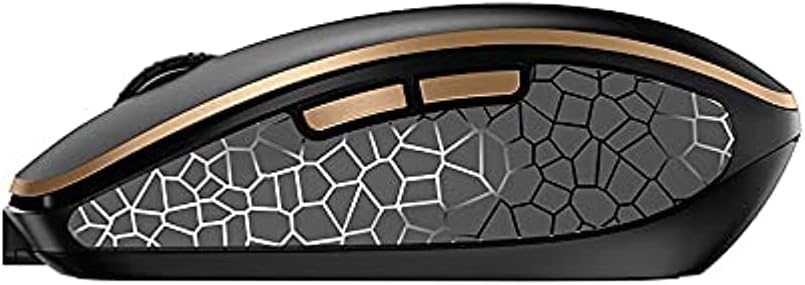
රූපය 4.4: පැත්ත view of the CHERRY DW 9100 Slim Mouse, illustrating the ergonomic design and side buttons.
4.3 තත්ත්ව LED
Both the keyboard and mouse feature status LEDs to provide information on battery level, charging status, and mouse resolution.
- අඩු බැටරි: The LED will flash or illuminate in a specific color (e.g., red) when the battery level is low, indicating that charging is required.
- අයකිරීම: The LED will illuminate while charging and typically change color or turn off when fully charged.
- Mouse Resolution (DPI): When adjusting the DPI, the mouse LED may briefly flash to indicate the current setting.
5. නඩත්තු කිරීම
5.1 පිරිසිදු කිරීම
To maintain the performance and appearance of your devices:
- පිරිසිදු කිරීමට පෙර ඔබේ පරිගණකයෙන් උපාංග විසන්ධි කරන්න.
- මෘදු, ලින්ට් රහිත රෙදි තරමක් භාවිතා කරන්න dampජලය හෝ මෘදු පිරිසිදු කිරීමේ ද්රාවණයකින් නිමවා ඇත.
- රළු රසායනික ද්රව්ය, උල්ෙල්ඛ පිරිසිදු කරන්නන් හෝ ද්රාවක භාවිතා කිරීමෙන් වළකින්න, මන්ද මේවා මතුපිටට හානි කළ හැකිය.
- යතුරුපුවරුව සඳහා, යතුරු අතර ඇති දූවිලි හා සුන්බුන් ඉවත් කිරීමට සම්පීඩිත වාතය භාවිතා කරන්න.
5.2 බැටරි සත්කාර
The integrated lithium batteries are designed for long-term use.
- Recharge the devices when the low battery indicator appears.
- Avoid fully discharging the batteries frequently to prolong their lifespan.
- If storing the devices for an extended period, charge them to approximately 50% before storage.
6. දෝශ නිරාකරණය
If you encounter issues with your CHERRY DW 9100 Slim set, refer to the following common solutions:
6.1 සම්බන්ධතා ගැටළු
- No Connection (2.4 GHz):
- Ensure the USB nano receiver is securely plugged into a working USB port.
- Verify the keyboard and mouse connectivity switches are set to the 2.4 GHz තනතුර.
- ග්රාහකය වෙනත් USB පෝට් එකකට සම්බන්ධ කිරීමට උත්සාහ කරන්න.
- Ensure the devices are sufficiently charged.
- සම්බන්ධතාවයක් නැත (බ්ලූටූත්):
- Ensure the keyboard and mouse connectivity switches are set to the බ්ලූටූත් තනතුර.
- Confirm Bluetooth is enabled on your computer/device.
- Remove previous pairings from your device's Bluetooth settings and attempt to re-pair.
- Ensure the devices are sufficiently charged.
6.2 බලය සහ ආරෝපණ ගැටළු
- ආරෝපණය නොවන උපාංග:
- Check that the USB-C charging cable is properly connected to both the device and the power source.
- Try a different USB-C cable or a different USB power source.
- බල ප්රභවය සක්රිය බව සහතික කර ගන්න.
- කෙටි බැටරි ආයු කාලය:
- Ensure devices are fully charged before use.
- Battery life can vary based on usage patterns.
6.3 Mouse Tracking Issues
- Inaccurate or No Tracking:
- මූසික සංවේදකය පිරිසිදු හා සුන්බුන් වලින් තොර බවට වග බලා ගන්න.
- Use the mouse on a suitable surface (e.g., mouse pad). Highly reflective or transparent surfaces may cause issues.
- Adjust the DPI setting using the DPI switch on the mouse.
7. පිරිවිතර
| විශේෂාංගය | විස්තර |
|---|---|
| ආදර්ශ අංකය | JD-9100US-2 |
| නිෂ්පාදන මානයන් | අඟල් 17.32 x 5.12 x 0.59 |
| අයිතමයේ බර | රාත්තල් 2.35 කි |
| බැටරි | Rechargeable Lithium (USB-C) |
| සම්බන්ධතා තාක්ෂණය | Bluetooth, 2.4 GHz Radio Frequency (USB) |
| විශේෂ ලක්ෂණය | Rechargeable, Silent Keystroke (SX Scissor Mechanism) |
| ගැළපෙන උපාංග | පුද්ගලික පරිගණකය |
| නිෂ්පාදකයා | චෙරි |
Note on Batteries: The product description indicates USB-C rechargeable lithium batteries. The specification "1 AA batteries required. (included)" in the source data appears to be a discrepancy. Please rely on the USB-C rechargeable feature for this model.
8. වගකීම් සහ සහාය
CHERRY products are manufactured to high-quality standards. For detailed warranty information, including terms and conditions, please refer to the official CHERRY webවෙබ් අඩවිය හෝ ඔබේ නිෂ්පාදනය සමඟ ඇතුළත් වගකීම් කාඩ්පත.
For technical support, troubleshooting assistance beyond this manual, or to inquire about replacement parts, please visit the official CHERRY support portal or contact their customer service directly.
- Official CHERRY Webඅඩවිය: www.cherry.de/en/ (or regional equivalent)
- පාරිභෝගික සහාය: වෙත යොමු කරන්න webසම්බන්ධතා විස්තර සඳහා අඩවිය.


