1. හැඳින්වීම
The AIYIMA DAC A6 is a high-fidelity Digital-to-Analog Converter (DAC) designed to enhance your audio experience. It features advanced decoding capabilities, multiple input options, and Bluetooth 5.0 for wireless audio streaming. This manual provides detailed instructions for setting up and operating your DAC A6.
2 ප්රධාන ලක්ෂණ
- DSD512 32bit/768kHz USB Decoding: Supports high-resolution audio formats up to DSD512 and PCM 32bit/768kHz.
- ESS SABRE ES9038Q2M HiFi Decoding: Utilizes a high-performance ESS SABRE DAC chip for exceptional sound quality and low total harmonic distortion (THD).
- XMOS XU208 USB Interface: Features the XMOS second-generation XU208 chip with a custom driver for Windows 7 and higher, ensuring optimal high-resolution audio support, including DSD Native.
- Bluetooth 5.0 with HD Transmission: Equipped with a CSR8675 Bluetooth chip, supporting LDAC, AAC, SBC, aptX, aptX-LL, and aptX-HD audio codecs for high-quality wireless streaming.
- Multiple Digital Audio Inputs: Offers versatile connectivity with Bluetooth, PC-USB, Coaxial, and Optical inputs.
3. පැකේජ අන්තර්ගතය
කරුණාකර පහත අයිතම සඳහා කොටුව සලකුණු කරන්න:
- AIYIMA DAC A6 Unit
- දුරස්ථ පාලනය x 1
- බල ඇඩැප්ටරය (DC 12V)
- USB කේබලය
- බ්ලූටූත් ඇන්ටනාව
- පරිශීලක අත්පොත (මෙම ලේඛනය)
4. නිෂ්පාදන අවසන්view
4.1 ඉදිරිපස පුවරුව

Image: Front panel of the AIYIMA DAC A6, showing the OLED display, volume knob, power/mode button, and IR receiver.
- බලය / ප්රකාර බොත්තම: Press to power on/off, short press to switch input modes.
- OLED සංදර්ශකය: වත්මන් ආදානය පෙන්වයි, sampling rate, and volume level.
- වෙළුම් බොත්තම: පරිමාව සීරුමාරු කිරීමට කරකවන්න.
- IR ලබන්නා: දුරස්ථ පාලක සංඥා සඳහා.
4.2 පසුපස පුවරුව

Image: Rear panel of the AIYIMA DAC A6, showing DC 12V power input, RCA L/R outputs, Coaxial input, Optical input, PC-USB input, and RF antenna connector.
- DC 12V ආදානය: සපයන ලද බල ඇඩැප්ටරය සම්බන්ධ කරන්න.
- RCA L/R Output: an වෙත සම්බන්ධ කරන්න amplifier හෝ ක්රියාකාරී කථිකයන්.
- කෝක්ෂික ආදානය: ඩිජිටල් ශ්රව්ය ආදානය.
- දෘශ්ය ආදානය: ඩිජිටල් ශ්රව්ය ආදානය.
- PC-USB ආදානය: Connect to a computer for USB audio.
- RF ඇන්ටනාව: Connect the Bluetooth antenna for wireless reception.
4.3 දුරස්ථ පාලනය
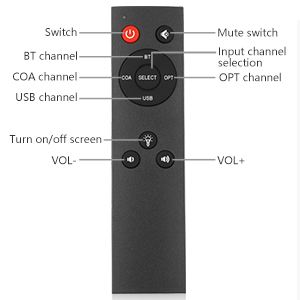
Image: Layout of the AIYIMA DAC A6 remote control, showing buttons for power, mute, input selection (BT, COA, OPT, USB), screen on/off, and volume up/down.
- මාරු කරන්න: බලය සක්රිය / අක්රිය.
- නිශ්ශබ්ද කරන්න: ශ්රව්ය නිහඬ කරන්න/නිහඬ කරන්න.
- ආදාන නාලිකා තේරීම: Buttons for BT, COA, OPT, USB.
- Turn on/off screen: Toggles the OLED display.
- VOL +/-: පරිමාව සකසයි.
5. සැකසුම් උපදෙස්
- බ්ලූටූත් ඇන්ටනාව සම්බන්ධ කරන්න: සපයා ඇති බ්ලූටූත් ඇන්ටනාව පසුපස පුවරුවේ ඇති RF සම්බන්ධකයට ඉස්කුරුප්පු කරන්න.
- ශ්රව්ය ප්රතිදානය සම්බන්ධ කරන්න:
- For active speakers: Connect the RCA L/R OUTPUT of the DAC A6 directly to your active speakers using RCA cables.
- For passive speakers with an amplifier: Connect the RCA L/R OUTPUT of the DAC A6 to the input of your amplifier. Then, connect your passive speakers to the amplifier ගේ ප්රතිදානය.

Image: Diagram illustrating connection options for the DAC A6 to active speakers or an amplifier with passive speakers.
- ශ්රව්ය ආදානය සම්බන්ධ කරන්න: Choose one of the following input methods:
- PC-USB: Connect a USB cable from your computer to the PC-USB input on the DAC A6.
- සමකාලීන: Connect a coaxial cable from your audio source to the COAX input.
- ඔප්ටිකල්: Connect an optical cable from your audio source to the OPT input.
- බ්ලූටූත්: Ensure the Bluetooth antenna is connected.
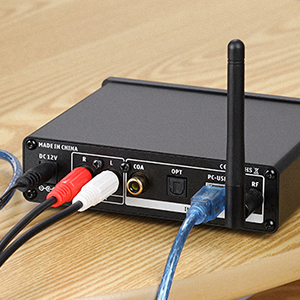
Image: Close-up of the PC-USB input on the DAC A6, showing a USB cable connected.
- සම්බන්ධක බලය: Connect the DC 12V power adapter to the DAC A6 and then plug it into a power outlet.
5.1 PC-USB Driver Installation (Windows)
For Windows 7 or higher, a custom driver is required for optimal performance, especially for DSD Native playback. Please visit the AIYIMA official website to download the latest driver for the DAC A6.
6. මෙහෙයුම් උපදෙස්
- බලය සක්රිය / අක්රිය: Press the Power/Mode button on the front panel or the "Switch" button on the remote control.
- ආදාන ප්රකාරය තෝරන්න:
- Short press the Power/Mode button on the front panel to cycle through inputs (Bluetooth, PC-USB, Coaxial, Optical).
- Alternatively, use the dedicated input buttons (BT, COA, OPT, USB) on the remote control.
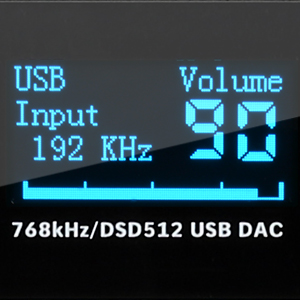
Image: Close-up of the power/mode button on the DAC A6.
- පරිමාව සකසන්න: Rotate the volume knob on the front panel or use the VOL+/- buttons on the remote control. The OLED display will show the current volume level.

Image: Close-up of the OLED display showing "USB Input 192 KHz Volume 90".
- බ්ලූටූත් යුගලනය:
- Select Bluetooth input mode on the DAC A6. The OLED display will indicate "BT Input".
- On your mobile device, search for Bluetooth devices and select "BT HIFI AUDIO" to pair.
- Once connected, you can stream audio wirelessly to the DAC A6.

Image: A smartphone displaying Bluetooth settings, showing "BT HIFI AUDIO" as a discoverable device, next to the DAC A6.
- OLED Display Control: Use the "Turn on/off screen" button on the remote to toggle the OLED display.
6.1 Setting TV Optical/Coaxial Output
If there is no audio output when connecting your TV via optical or coaxial, you may need to adjust your TV's audio settings.
- Navigate to your TV's "System Settings" or press the remote control's [Settings] key.
- Find "Sound" or "Audio Output" settings and select "Optical Fiber" or "Coaxial Output".
- After setting, if there is still sound from the TV's internal speakers, adjust the TV volume to 0 using the TV remote control.
- Note: Some TVs may automatically disable internal speakers when external speakers are detected, resulting in no sound from the TV itself.
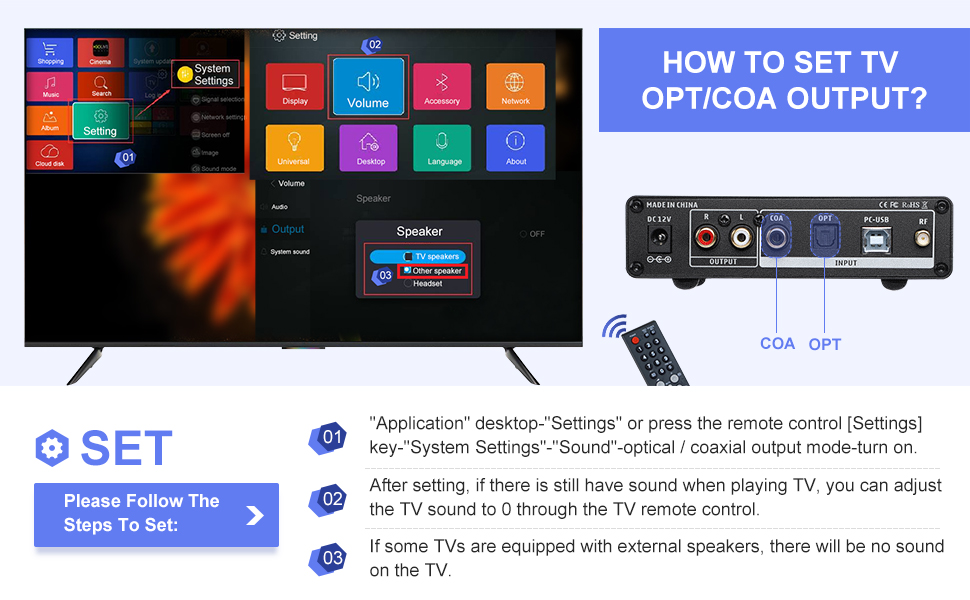
Image: A visual guide showing TV menu navigation to adjust sound output settings for optical/coaxial connections.
6.2 වීඩියෝ නිරූපණය
Video: An official product video demonstrating the AIYIMA DAC A6 Decoder Receiver in use, showcasing its connectivity and audio playback.
7. පිරිවිතර
| විශේෂාංගය | පිරිවිතර |
|---|---|
| වෙළඳ නාමය | අයිමිමා |
| ආදර්ශ අංකය | DAC-A6 |
| උපරිම සැපයුම් වෙළුමtage | වෝල්ට් 12 |
| අතුරු මුහුණත වර්ගය | Coaxial, USB, Optical, Bluetooth |
| නාලිකා ගණන | 2 |
| නිෂ්පාදන මානයන් | 5.24"ලීටර් x 4.92"වොට් |
| අයිතමයේ බර | රාත්තල් 1.54 කි |
| PC-USB Sampලිං අනුපාතය | 32bit/768kHz, DSD512 |
| බ්ලූටූත් සහාය | APT-X HD, APT-X LL, LDAC, AAC, SBC |
| සංඛ්යාත ප්රතිචාරය | 10Hz-40kHz (±3db) |
| විකෘතිය | ≤0.0006% |
රූපය: පසුපස view of the DAC A6 with dimensions and a table of key specifications including input types, output, Bluetooth support, frequency response, distortion, net weight, PC-USB sampling rate, and working voltage.
8. දෝශ නිරාකරණය
- ශබ්ද ප්රතිදානය නැත:
- සියලුම කේබල් ආරක්ෂිතව සම්බන්ධ කර ඇති බවට සහතික වන්න.
- Verify the correct input mode is selected on the DAC A6.
- Check the volume levels on both the DAC A6 and your connected ampලයිෆයර් / ස්පීකර්.
- If using TV optical/coaxial, ensure the TV's audio output settings are correctly configured (see "Setting TV Optical/Coaxial Output" section).
- For PC-USB, confirm the driver is installed and the DAC A6 is selected as the audio output device in your computer's sound settings.
- Intermittent Audio or Noise (PC-USB):
- Ensure the PC-USB driver is correctly installed and up to date, especially for Windows 11.
- වෙනත් USB පෝට් එකක් හෝ USB කේබලයක් උත්සාහ කරන්න.
- Minimize other USB devices connected to the computer.
- බ්ලූටූත් සම්බන්ධතා ගැටළු:
- Ensure the Bluetooth antenna is securely attached.
- Verify the DAC A6 is in Bluetooth input mode.
- Delete "BT HIFI AUDIO" from your device's paired list and try pairing again.
- Ensure your device is within range of the DAC A6.
- හම්මිං හෝ ඝෝෂාකාරී ශබ්දය:
- This can sometimes be caused by electromagnetic interference. Try repositioning the DAC A6 unit, its power cable, and audio cables away from other electronic devices or power sources.
- Consider using shielded audio cables.
- If using a linear power supply, ensure it is properly grounded and positioned.
9. වගකීම් සහ සහාය
AIYIMA products are designed for reliability and performance. For warranty information, technical support, or service inquiries, please refer to the official AIYIMA webවෙබ් අඩවියට පිවිසෙන්න හෝ ඔබේ ප්රාදේශීය අලෙවිකරු අමතන්න. මිලදී ගැනීමේ සාක්ෂියක් ලෙස ඔබේ මිලදී ගැනීමේ රිසිට්පත තබා ගන්න.
For further assistance, you may visit the AIYIMA store on Amazon: AIYIMA Store.