MJJC GL-C-002P GLEDOPTO Zigbee 3.0 Mini 5-in-1 RGBCCT LED Strip Controller User Manual
Model: GL-C-002P | Brand: MJJC
හැඳින්වීම
This manual provides detailed instructions for the installation, operation, and maintenance of your MJJC GL-C-002P GLEDOPTO Zigbee 3.0 Mini 5-in-1 RGBCCT LED Strip Controller. This device is designed to control various types of LED strip lights, offering versatile lighting options through smart home integration.
නිෂ්පාදනය අවසන්view
The GL-C-002P is an ultra-thin, compact LED controller utilizing Zigbee 3.0 protocol for smart home integration. It supports five different LED strip configurations: RGBCCT, RGBW, RGB, CCT, and Dimmer. Key features include:
- අතිශය තුනී නිර්මාණය: Compact dimensions (70x37x10mm) for discreet installation.
- 5-in-1 අනුකූලතාව: Works with Single Color, CCT, RGB, RGBW, and RGBCCT LED strip lights.
- සිග්බී 3.0 ප්රොටෝකෝලය: Ensures low power consumption, high stability, strong anti-interference ability, and enhanced security. Supports connection of over 50 devices.
- Smart Speaker Integration: Compatible with popular smart speakers for voice control of brightness and other functions.
- Zigbee Gateway Compatibility: Works with various Zigbee gateways (e.g., SmartThings, Tuya) for app control on Android/iOS devices.
- 2.4G RF Remote Control Support: Can be controlled directly with a 2.4G RF remote or wall switch without a Zigbee hub.
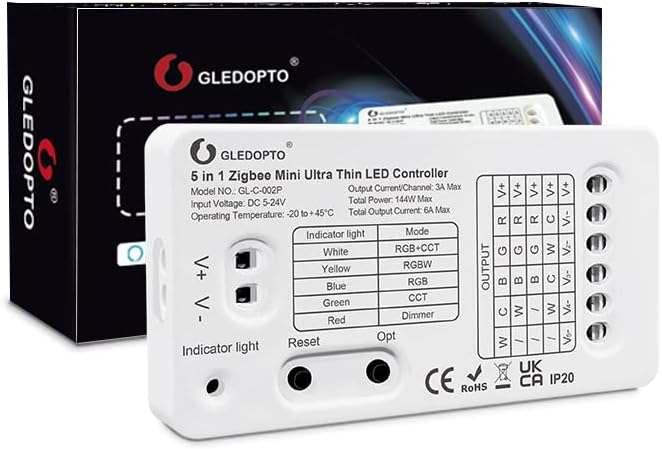
Image: The MJJC GL-C-002P Zigbee 3.0 Mini 5-in-1 RGBCCT LED Strip Controller, showcasing its compact design and connection terminals.
තාක්ෂණික පිරිවිතර
| පරාමිතිය | වටිනාකම |
|---|---|
| නිෂ්පාදන නම | Zigbee Ultra Thin Mini 5 in 1 LED Controller |
| ආදර්ශ අංකය | GL-C-002P |
| නිෂ්පාදන ප්රමාණය | 70 x 36 x 10 mm (අඟල් 2.76 x 1.46 x 0.39) |
| ආදාන වෙළුමtage | DC 5-24V |
| ආරක්ෂණ අනුපාතය | IP20 |
| සම්පූර්ණ බලය | 144W මැක්ස් |
| ප්රතිදාන ධාරාව/නාලිකාව | 3A උපරිම |
| සම්පූර්ණ නිමැවුම් ධාරාව | 6A උපරිම |
| මෙහෙයුම් උෂ්ණත්වය | -20 ° C සිට +45 ° C |
| ද්රව්ය | ප්ලාස්ටික් |
| ගෘහස්ථ / එළිමහන් භාවිතය | ගෘහස්ථ |
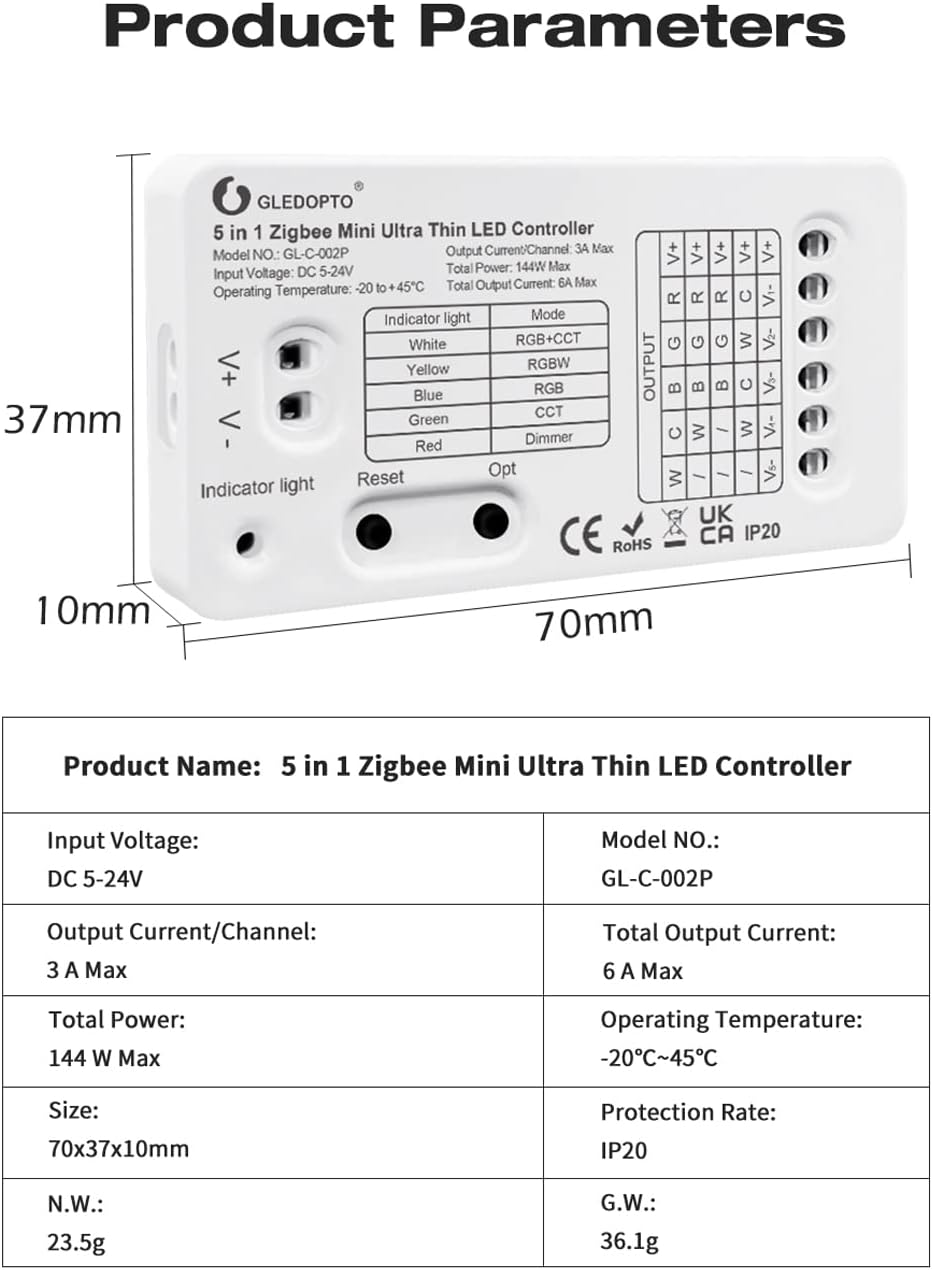
Image: Detailed product parameters including dimensions, input voltage, සහ ප්රතිදාන ධාරාව.
පැකේජයේ අන්තර්ගතය
- 1x MJJC GL-C-002P Zigbee Mini 5-in-1 LED Strip Controller
- 1x පරිශීලක අත්පොත (මෙම ලේඛනය)
- 1x 3cm Sticker
- 1x Wiring Tool
සැකසුම සහ ස්ථාපනය
Follow these steps to set up your LED strip controller:
1. Wiring the LED Strip
The controller supports various LED strip types. Ensure correct wiring based on your LED strip configuration (RGBCCT, RGBW, RGB, CCT, or Dimmer). The controller features a press-type design for wire connections.
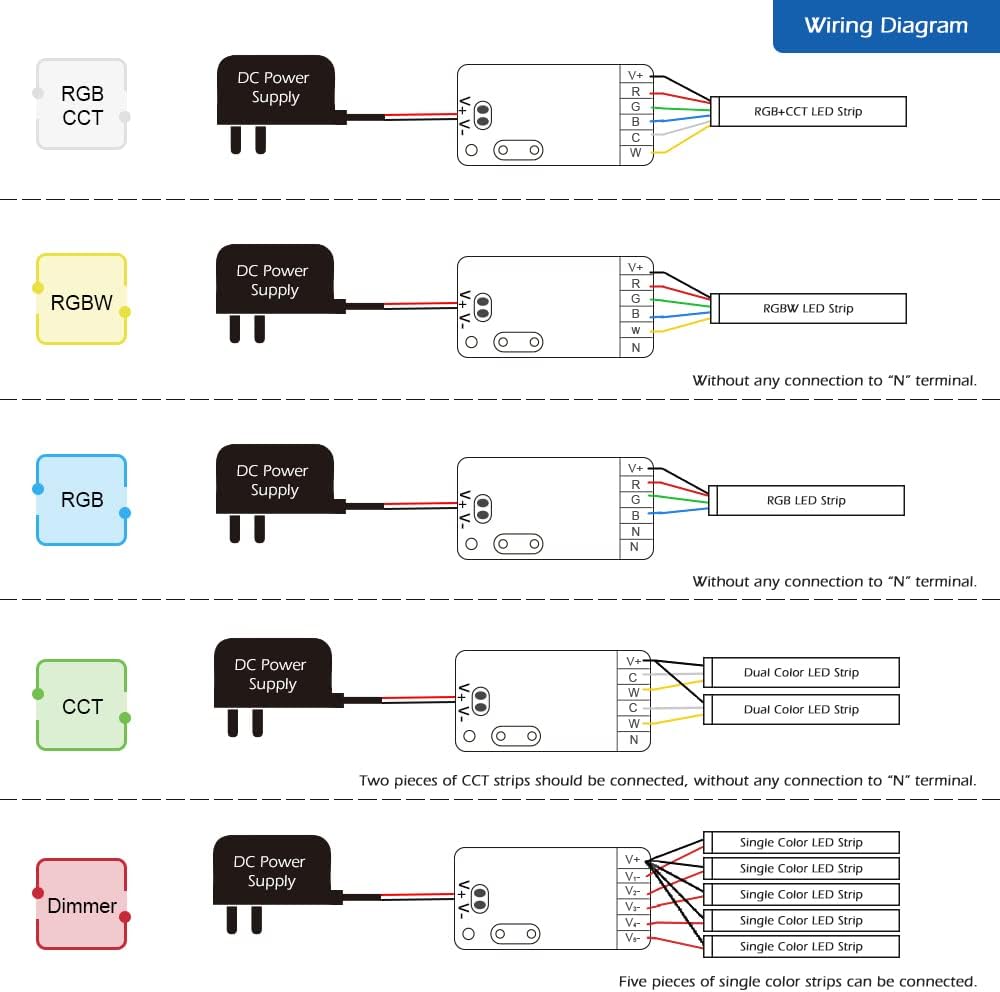
Image: Wiring diagrams illustrating connections for RGBCCT, RGBW, RGB, CCT, and Dimmer LED strips to the controller.
- RGBCCT: Connect R, G, B, CW, WW, and V+ terminals.
- RGBW: Connect R, G, B, W, and V+ terminals.
- RGB: Connect R, G, B, and V+ terminals.
- CCT (Dual Color): Connect C, W, and V+ terminals. Two CCT strips can be connected.
- Dimmer (Single Color): Connect V- and V+ terminals. Up to five single color strips can be connected.
සටහන: For RGBW, RGB, CCT, and Dimmer configurations, ensure no connection to the "N" terminal if present on your strip.
2. Powering the Light Source
Connect the LED strip, controller, and a compatible DC 5-24V power adapter. Plug the power adapter into an electrical outlet. The controller will automatically power up.
3. Setting Up the Zigbee Bridge (Gateway)
If using a Zigbee gateway (e.g., SmartThings, Tuya, Philips Hue), plug it into power and connect it to your Wi-Fi router using the provided network cable. Refer to your gateway's manual for initial setup.
4. Downloading the Gateway App
Download the corresponding app for your Zigbee gateway on your Android or iOS phone. Follow the app's instructions to start searching for new devices. This process may take some time. If the device is not found, try power cycling the controller (power off/on) or performing a reset.
5. Completing Setup and Control
Once the controller is detected and paired with your gateway, you can use the app to control the light color, color temperature, and brightness of your LED strips.

Image: Visual guide showing the four main steps for setup: powering the light source, setting up the bridge, downloading the gateway app, and controlling the lights.
Pairing with a 2.4G RF Remote Control
To pair the controller with a 2.4G RF remote control:
- පාලකය ක්රියාත්මක කර ඇති බවට වග බලා ගන්න.
- Immediately after powering on, press the "I" button on your 2.4G RF remote control.
- The LED strip will flash to indicate successful pairing.
Video: Demonstrates the setup and operation of the Mini Zigbee LED Strip Light Controller, including pairing and various control functions.
මෙහෙයුම් උපදෙස්
යෙදුම් පාලනය
Through your Zigbee gateway's mobile application, you can:
- වර්ණ ගැලපීම: Select from 16 million colors to create desired ambiance.
- දීප්තිය පාලනය: දීප්තිය 1% සිට 100% දක්වා සකසන්න.
- වර්ණ උෂ්ණත්ව ගැලපුම: Fine-tune white light from warm to cool. Color lamp beads automatically turn off for more accurate white light adjustment.
- සමූහගත කිරීම: Create rooms or groups to control multiple light strips simultaneously or individually.
- දර්ශන සැකසුම: Configure custom lighting scenes to match different moods or activities.

රූපය: උදාample of a smartphone application interface used to control LED strip lights, showing color and brightness selection.
හඬ පාලනය
The controller supports voice control via Amazon Alexa, Google Home, and HomeKit when connected through a compatible Zigbee hub. Use voice commands to turn lights on/off, adjust brightness, and change colors or color temperature.

Image: Illustration of voice control functionality with Amazon Echo Plus, demonstrating commands like "Alexa, turn on the light" or "Alexa, set to warm white."
මාදිලිය මාරු කිරීම
The controller has an "Opt" key for switching between different LED strip modes (RGBCCT, RGBW, RGB, CCT, Dimmer). Short press the "Opt" key once to cycle through the modes. The indicator light on the controller will change color to reflect the current mode:
- සුදු: RGBCCT
- කහ: RGBW
- නිල්: RGB
- කොළ: සීසීටී
- රතු: ඩිමර්
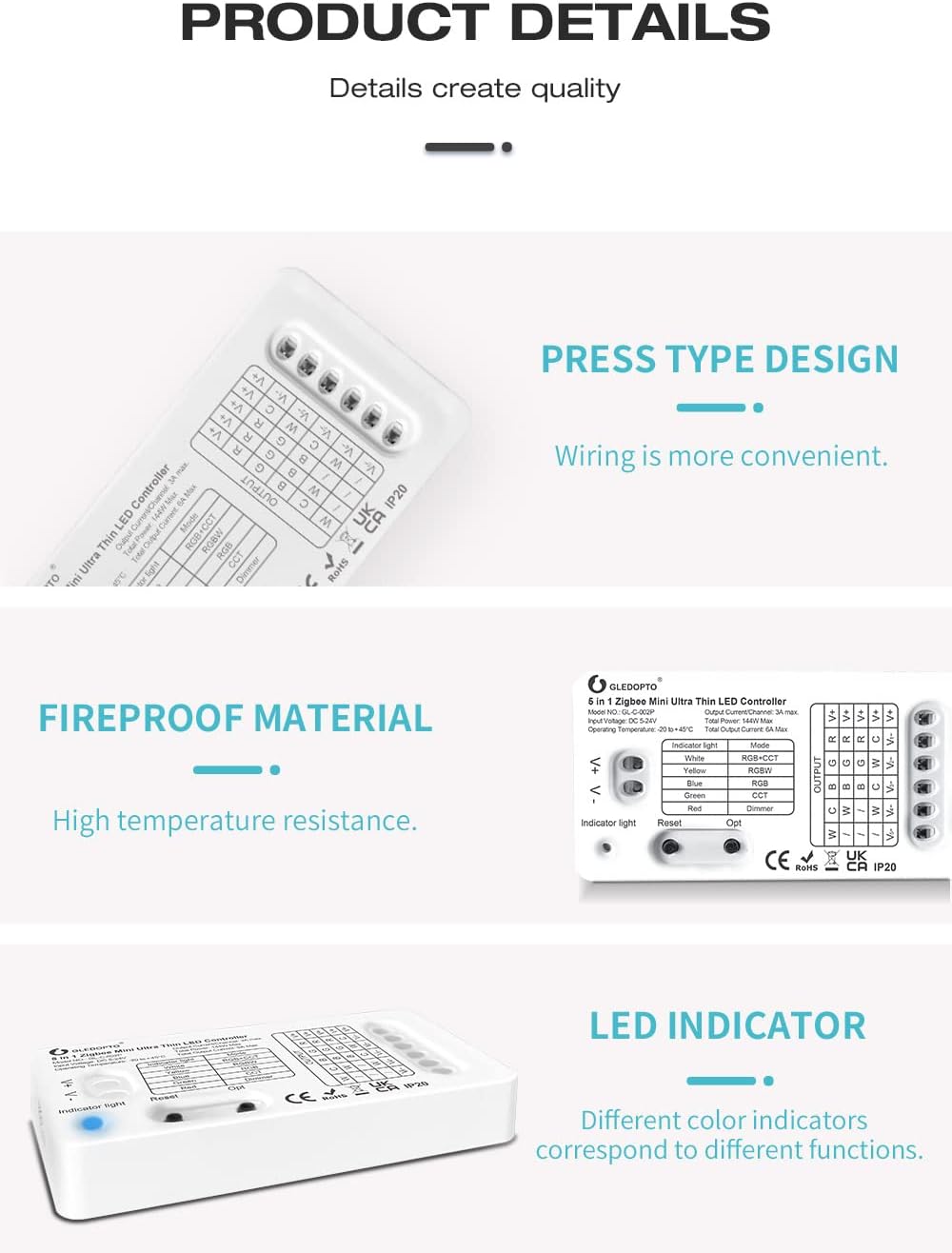
Image: Close-up of the controller highlighting the "Opt" button and the indicator light, with a table explaining indicator colors for different modes.
Frequency Settings for Noise Reduction
To reduce potential power supply noise, the controller allows adjustment of the output frequency. Press and hold the "Reset" button for five seconds to cycle through frequency options (600Hz, 800Hz, 1000Hz, 2000Hz, 4000Hz, 8000Hz). The LED strip will flash a specific number of times to indicate the selected frequency:
- 1 flash: 600Hz
- 2 flashes: 800Hz
- 3 flashes: 1000Hz
- 4 flashes: 2000Hz
- 5 flashes: 4000Hz
- 6 flashes: 8000Hz

Image: Diagram explaining the frequency setting options and their corresponding flashing times for noise reduction.
Power-On Status Memory
The device remembers its last on/off status. To set the default power-on status (on or off), press and hold the "Opt" button for five seconds. The light will flash to indicate successful setting. When power is restored, the device will revert to the saved status.
නඩත්තු කිරීම
- පිරිසිදු කිරීම: Use a dry, soft cloth to clean the controller. Do not use liquid cleaners or aerosols.
- පරිසරය: Ensure the controller is installed in a dry, indoor environment within the specified operating temperature range (-20°C to +45°C). Avoid exposure to direct sunlight, high humidity, or extreme temperatures.
- සම්බන්ධතා: සියලුම රැහැන් සම්බන්ධතා ආරක්ෂිත බව සහතික කිරීම සඳහා වරින් වර පරීක්ෂා කරන්න.
දෝෂගවේෂණය
- Issue: LED strip does not light up.
- Check if the power adapter is correctly connected and receiving power.
- Verify that the LED strip is correctly wired to the controller's output terminals.
- ආදාන පරිමාව සහතික කරන්නtage (DC 5-24V) matches the requirements of both the controller and the LED strip.
- Confirm the LED strip itself is functional.
- Issue: Controller not found by Zigbee gateway/app.
- Ensure the Zigbee gateway is powered on and connected to your network.
- Place the controller within range of the Zigbee gateway.
- Try power cycling the controller (unplug and replug power).
- Perform a factory reset on the controller (long press the "Reset" button for 5 seconds until the indicator light flashes).
- Ensure your gateway app is up to date.
- Issue: Power supply noise (e.g., coil whine).
- Adjust the output frequency of the controller by pressing and holding the "Reset" button for five seconds to cycle through frequency options (600Hz, 800Hz, 1000Hz, 2000Hz, 4000Hz, 8000Hz). Select the frequency that minimizes noise.
- Ensure your power supply is of good quality and compatible with the controller's requirements.
- Issue: Wire connections are loose or difficult.
- The controller uses a press-type terminal design. Ensure wires are fully inserted and secured. Use the provided wiring tool if necessary.
- For very thin wires, consider tinning the ends slightly with solder to provide more rigidity, but be careful not to make them too thick for the terminals.
වගකීම් සහ සහාය
For warranty information or technical support, please contact MJJC customer service through your retailer or the official MJJC webඅඩවිය. වගකීම් හිමිකම් සඳහා ඔබේ මිලදී ගැනීමේ රිසිට්පත තබා ගන්න.