1. හැඳින්වීම
This manual provides instructions for the proper setup, operation, and maintenance of your Lumens DC136 Portable USB Document Camera. Please read this manual thoroughly before using the device to ensure optimal performance and longevity.

Figure 1: Lumens DC136 Portable USB Document Camera with its flexible gooseneck fully extended, showcasing the camera head and base unit.
2 ආරක්ෂිත තොරතුරු
උපාංගයට හානි වීම හෝ ඔබටම තුවාල වීම වැළැක්වීම සඳහා පහත ආරක්ෂක පියවරයන් නිරීක්ෂණය කරන්න:
- උපාංගය ජලයට හෝ අධික තෙතමනයට නිරාවරණය නොකරන්න.
- තාප ප්රභවයන් අසල උපාංගය තැබීමෙන් වළකින්න.
- සම්බන්ධතාවය සඳහා සපයා ඇති USB කේබලය පමණක් භාවිතා කරන්න.
- උපාංගය ඔබම විසුරුවා හැරීමට හෝ අලුත්වැඩියා කිරීමට උත්සාහ නොකරන්න. සුදුසුකම් ලත් සේවා නිලධාරීන් අමතන්න.
- Keep the lens clean and free from dust.
3. පැකේජ අන්තර්ගතය
සියලුම අයිතම පැකේජයේ ඇති බව තහවුරු කරගන්න:
- Lumens DC136 Document Camera Unit
- USB 3.0 කේබලය
- ඉක්මන් ආරම්භක මාර්ගෝපදේශය (අදාළ නම්)
4. පිහිටුවීම
4.1 භෞතික සැකසුම
- උපාංගය ඉවත් කරන්න: Carefully remove the DC136 from its packaging.
- කැමරාව ස්ථානගත කරන්න: Place the document camera on a stable, flat surface. The flexible gooseneck allows for various positioning options.
- USB කේබලය සම්බන්ධ කරන්න: Insert one end of the supplied USB 3.0 cable into the USB port on the back of the DC136 base.
- පරිගණකයට සම්බන්ධ කරන්න: Connect the other end of the USB cable to an available USB 3.0 port on your computer. The device is plug-and-play and typically does not require additional drivers.
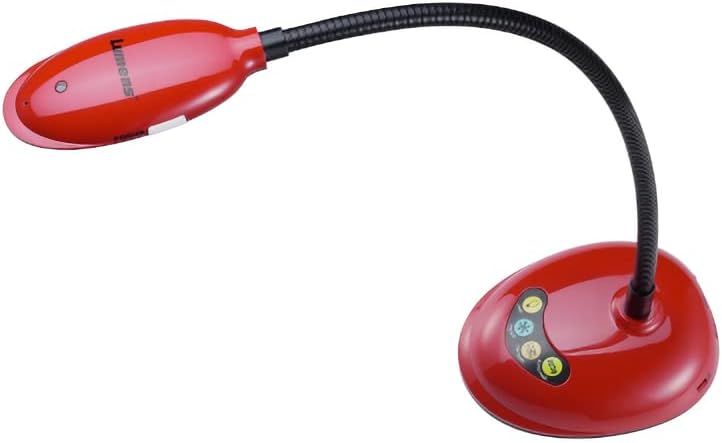
Figure 2: The Lumens DC136 Document Camera positioned with its gooseneck slightly bent, demonstrating its flexibility for various viewing කෝණ.

රූපය 3: සමීප රූපයක් view of the USB 3.0 port located on the rear of the Lumens DC136 document camera base, indicating the connection point.
4.2 මෘදුකාංග ස්ථාපනය (විකල්ප)
While the DC136 is a plug-and-play device, Lumens may offer proprietary software for enhanced features. Refer to the Lumens website for the latest software downloads and installation instructions.
5. මෙහෙයුම් උපදෙස්
5.1 බල ගැන්වීම සක්රිය / අක්රිය කිරීම
The DC136 powers on automatically when connected to a computer via USB. Disconnect the USB cable to power off the device.
5.2 Adjusting the Camera
- Gooseneck ගැලපීම: The flexible gooseneck allows you to position the camera head to capture documents, objects, or even use it as a webකැමරාව.
- ස්වයංක්රීය අවධානය: The camera features hands-free auto-focus. For optimal clarity, ensure the object is within the camera's focal range.
- LED එල්amp: සාදන ලද LED lamp provides additional illumination for objects.
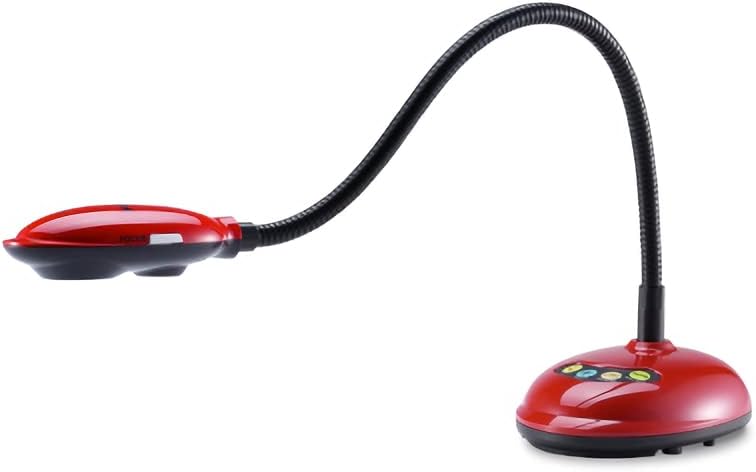
Figure 4: The Lumens DC136 Document Camera with its gooseneck folded into a compact position, illustrating its portability and storage convenience.
5.3 මෘදුකාංග සමඟ භාවිතා කිරීම
The DC136 is compatible with most video conferencing software, interactive whiteboards, and presentation applications that support USB cameras. Select "Lumens DC136" as your video input device within the software settings.
- රූප භ්රමණය: Use software controls to rotate the image 0°, 180°, flip, or mirror as needed.
- විශාලනය: Utilize the 16x digital zoom via software for closer inspection of details.
- වීඩියෝ/ශ්රව්ය පටිගත කිරීම: If supported by your software, you can record video and audio using the built-in microphone.
6. නඩත්තු කිරීම
- කාච පිරිසිදු කිරීම: Use a soft, lint-free cloth specifically designed for optical lenses to gently wipe the camera lens. Do not use abrasive cleaners.
- ශරීරය පිරිසිදු කිරීම: මෘදු වියළි රෙද්දකින් කැමරා ශරීරය පිස දමන්න. මුරණ්ඩු අපිරිසිදුකම සඳහා, තරමක් damp රෙදි භාවිතා කළ හැකි අතර, පසුව වියළි රෙද්දක් භාවිතා කළ හැකිය.
- ගබඩා: When not in use, store the camera in a clean, dry place, preferably in its original packaging or a protective case.
7. දෝශ නිරාකරණය
| ගැටලුව | විය හැකි හේතුව | විසඳුම |
|---|---|---|
| රූපයක් නොපෙන්වයි. | USB කේබලය නිසි ලෙස සම්බන්ධ වී නොමැත. මෘදුකාංගයේ වැරදි කැමරාවක් තෝරාගෙන ඇත. | Ensure USB cable is securely connected to both the camera and computer. Select "Lumens DC136" as the video input in your application. |
| රූපය බොඳයි. | Object out of focus range. කාච අපිරිසිදු ය. | Adjust the gooseneck to bring the object into focus. මෘදු, ලින්ට් රහිත රෙද්දකින් කැමරා කාචය පිරිසිදු කරන්න. |
| දුර්වල රූපයේ ගුණාත්මකභාවය. | ප්රමාණවත් ආලෝකකරණයක් නොමැත. මෘදුකාංග සැකසුම්. | Turn on the built-in LED lamp or add external lighting. Check resolution settings in your software; ensure 4K or 1080p is selected if supported. |
| පරිගණකය මඟින් උපාංගය හඳුනා නොගන්නා ලදී. | දෝෂ සහිත USB කේබලය හෝ පෝට් එක. Operating system issue. | වෙනත් USB පෝට් එකක් හෝ කේබලයක් උත්සාහ කරන්න. Restart your computer. Check device manager for driver status. |
8. පිරිවිතර
| විශේෂාංගය | විස්තර |
|---|---|
| සංවේදකය | 1/3" 13MP CMOS |
| මුළු පික්සල | 13.48M |
| ප්රතිදාන විභේදනය | 4K(2160p), 1600x1200, 1080p, 720p, XGA, 960x540, 640x480, 640x360 |
| රාමු අනුපාතය | 30fps for 2160p; 60fps for 1080p / 720p |
| මුළු විශාලනය | 16x |
| ඩිජිටල් විශාලනය | 16x (via Software) |
| Mechanical Zoom | 7x |
| Close-up Distance | 2.4" (මි.මී. 60) |
| Shooting Area Max | 16.8" x 12.6" (428 මි.මී. x 321 මි.මී.) |
| Lamp | LED |
| අත් වර්ගය | Joint-free Gooseneck |
| ප්රතිදාන අතුරුමුහුණත | USB 3.0 (USB2.0 සමඟ අනුකූල වේ) |
| පාලනය කරන්න | USB |
| බිල්ට් මයික්රෆෝනය | ඔව් |
| ස්වයංක්රීය නාදය | Yes, One Button for Optimization Image |
| නාභිගත ප්රකාරය | ස්වයංක්රීය / අත්පොත |
| රූප භ්රමණය | 0° / 180° / Flip / Mirror |
| Video / Audio Recording | Yes (via Software) |
| කැටි කිරීමේ කාර්යය | ඔව් |
| වෙසා කන්ද | ඔව්, 75 මි.මී. x 75 මි.මී. |
| ඇතුළත් උපාංග | USB 3.0 කේබලය |
| බලශක්ති පරිභෝජනය | 2.25W (උපරිම) |
| බර | රාත්තල් 2.65 |
| මානයන් (නැමුණු) | 4.2" x 11" x 5.4" |
| මානයන් (විවෘත) | 4.2" x 15" x 13.8" |
9. වගකීම් තොරතුරු
Lumens products typically come with a limited warranty. For detailed warranty terms and conditions, including duration and coverage, please refer to the warranty card included with your product or visit the official Lumens webවෙබ් අඩවිය. වගකීම් හිමිකම් සඳහා ඔබේ මිලදී ගැනීමේ සාක්ෂි තබා ගන්න.
10. පාරිභෝගික සහාය
If you encounter issues not covered in this manual or require further assistance, please contact Lumens customer support:
- Webඅඩවිය: නිල Lumens වෙත පිවිසෙන්න website for FAQs, software downloads, and support contact information.
- විද්යුත් තැපෑල/දුරකථන: Refer to the contact details provided on the Lumens webවෙබ් අඩවියේ හෝ ඔබේ නිෂ්පාදන ලියකියවිලිවල.


