1. හැඳින්වීම
Thank you for choosing the Vivitar Digital Clip-On Web Camera VWC107-BLK. This high-definition 1080P webcam is designed to enhance your virtual meetings, online classes, and video calls with clear video and audio. It features a built-in microphone, auto white balance, auto-focusing, and a versatile 360-degree rotating clamp for easy placement on laptops, LCD monitors, or desktops. This manual provides essential information for setting up, operating, and maintaining your webකැමරාව.
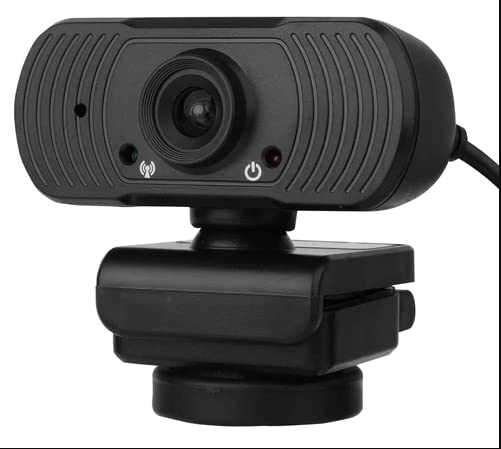
Image: The Vivitar Digital Clip-On Web Camera VWC107-BLK, showcasing its compact design and clip-on base.
2. පැකේජ අන්තර්ගතය
කරුණාකර ඔබගේ පැකේජයේ සියලුම අයිතම ඇති බවට වග බලා ගන්න:
- Vivitar Digital Clip-On Web Camera (VWC107-BLK)
3. නිෂ්පාදන ලක්ෂණ
- HD 1080P Video: Delivers clear and sharp video resolution.
- උසස් තත්ත්වයේ මයික්රෆෝනය: Integrated microphone with Right Sound Technology for clear audio capture.
- පුළුල් අනුකූලතාව: Works with Windows and Mac operating systems.
- බහුකාර්ය සවි කිරීම්: 360-degree rotating clamp design suitable for laptops, LCD monitors, and desktops.
- ස්වයංක්රීය ගැලපීම්: Features Auto White Balance and Auto-Focusing for optimal image quality.
- කල් පවතින කාච: Equipped with a 4-layer glass lens.
- Optimized for Communication: Ideal for Zoom, Microsoft Teams, Skype, and other virtual meeting platforms.
- Privacy Indicator: Light indicator shows when the camera is in use.
- ට්රයිපොඩ් කන්ද: Includes a tripod screw mount for additional placement options.
4. පිහිටුවීම
4.1 සම්බන්ධ කිරීම Webකැම්
- Unpack the Vivitar Digital Clip-On Web Camera from its packaging.
- Locate an available USB port on your computer (desktop or laptop).
- USB කේබලය සම්බන්ධ කරන්න webcam into the USB port on your computer.
- පරිගණකය ස්වයංක්රීයව අවශ්ය ධාවක හඳුනාගෙන ස්ථාපනය කළ යුතුය. මෙම ක්රියාවලියට මිනිත්තු කිහිපයක් ගතවනු ඇත.
- ස්ථාපනය කළ පසු, ද webcam will be ready for use with your preferred video conferencing software.
4.2 සවි කිරීම Webකැම්
- ලැප්ටොප්/LCD මොනිටර සඳහා: Open the clip base of the webcam. Place the webcam on top of your laptop screen or LCD monitor, ensuring the front lip rests securely on the screen and the back of the clip supports it from behind. Adjust the angle for optimal viewing.
- For Desktops: The clip base can also be folded to sit flat on a desk or other flat surface.
- ට්රයිපොඩ් සවි කිරීම: අවශ්ය නම්, අමුණන්න webcam to a compatible tripod using the integrated tripod screw mount on the bottom of the clip base.
- ද webcam features a 360-degree rotating base, allowing you to adjust the camera's direction without repositioning the entire unit.
5. මෙහෙයුම් උපදෙස්
5.1 වීඩියෝ සම්මන්ත්රණ මෘදුකාංග සමඟ භාවිතා කිරීම
- Open your preferred video conferencing application (e.g., Zoom, Microsoft Teams, Skype).
- Navigate to the application's settings or preferences menu, typically found under 'Audio & Video' or 'Devices'.
- Select the Vivitar VWC107-BLK as your primary camera and microphone device.
- Adjust any video or audio settings within the application as needed (e.g., resolution, volume).
- Begin your virtual meeting or video call. The webcam's light indicator will illuminate when the camera is active.
5.2 ආලෝක දර්ශකය
ද webcam is equipped with a light indicator. This light will illuminate when the camera is actively in use by an application, providing a visual cue for your privacy and operational status.
6. නඩත්තු කිරීම
- කාච පිරිසිදු කිරීම: Gently wipe the camera lens with a soft, lint-free cloth. For stubborn smudges, use a lens cleaning solution specifically designed for optical surfaces. Avoid abrasive materials or harsh chemicals.
- ශරීරය පිරිසිදු කිරීම: පිටත පිරිසිදු කිරීම සඳහා මෘදු වියළි රෙද්දක් භාවිතා කරන්න webcam. උපාංගය මත කෙලින්ම දියර පිරිසිදු කරන්නන් භාවිතා නොකරන්න.
- ගබඩා: භාවිතයේ නොමැති විට, ගබඩා කරන්න webඅධික උෂ්ණත්වයන්ගෙන් සහ සෘජු හිරු එළියෙන් ඈත්ව පිරිසිදු, වියළි ස්ථානයක කැමරාව තබන්න.
- කේබල් රැකවරණය: හානි වළක්වා ගැනීම සඳහා USB කේබලය අධික ලෙස නැමීමෙන් හෝ තද කිරීමෙන් වළකින්න.
7. දෝශ නිරාකරණය
| ගැටලුව | විසඳුම |
|---|---|
| Webපරිගණකයට කැමරාව අනාවරණය වී නොමැත. |
|
| යෙදුමේ වීඩියෝ හෝ කළු තිරයක් නොමැත. |
|
| ශ්රව්ය නැත හෝ දුර්වල ශ්රව්ය ගුණාත්මකභාවය. |
|
| රූපය බොඳ වී හෝ අවධානයෙන් තොරය. |
|
8. පිරිවිතර
| විශේෂාංගය | විස්තර |
|---|---|
| ආදර්ශ අංකය | VWC107-BLK |
| වීඩියෝ ග්රහණ විභේදනය | 1080p |
| ඡායාරූප සංවේදක තාක්ෂණය | CMOS |
| මයික්රෆෝනය | Built-in, High-Quality with Right Sound Technology |
| අවධානය යොමු කිරීමේ වර්ගය | Auto-Focusing |
| සුදු ශේෂය | ස්වයංක්රීය සුදු ශේෂය |
| කාච වර්ගය | 4-ස්ථර වීදුරු කාච |
| සවිකිරීමේ වර්ගය | Clip-on (360-degree rotating), Tripod Screw Mount |
| සම්බන්ධතාවය | USB (4.5 ft cable) |
| ගැළපුම | වින්ඩෝස්, මැක් |
| අයිතමයේ බර | අවුන්ස 6.1 කි |
| පැකේජ මානයන් | අඟල් 7.91 x 6.81 x 2.76 |
9. වගකීම් සහ සහාය
Vivitar products are designed for reliability and performance. For specific warranty information regarding your VWC107-BLK webcam, please refer to the warranty card included in your product packaging or visit the official Vivitar webඅඩවිය.
If you encounter any issues or require technical assistance, please contact Vivitar Customer Support through their official channels. Have your product model number (VWC107-BLK) and purchase information ready when contacting support.


