1. ඉවරයිview
The BIGTREETECH 5-inch HDMI Touch Screen Display is a versatile monitor designed for various applications, offering an 800x480 resolution with a 160° IPS viewing angle. It features 5-point capacitive touch functionality and includes audio output capabilities. This display is compatible with devices such as Raspberry Pi, Sovol-SV08 3D printers, and Windows PCs.

Figure 1: BIGTREETECH 5-inch HDMI Touch Screen Display
මෙම රූපයේ දැක්වෙන්නේ ඉදිරිපස කොටසයි view of the BIGTREETECH 5-inch HDMI Touch Screen Display, highlighting its compact design and touch interface.

රූපය 2: පළල Viewing Angle Demonstration
This image illustrates the 160-degree wide viewing angle of the IPS display, showing consistent image quality from various perspectives.
2. නිෂ්පාදන පිරිවිතර
| පරාමිතිය | වටිනාකම |
|---|---|
| නිෂ්පාදන මානය | 121 x 76 මි.මී |
| බල ආදානය | DC 5V |
| තර්කය වෙළුමtage | DC 3.3V |
| තිර ප්රමාණය | අඟල් 5 IPS සංදර්ශකය |
| තිර විභේදනය | 800x480 |
| තිරය Viewing කෝණය | 160° |
| ස්පර්ශ වර්ගය | Capacitive, 5-point touch |
| ශ්රව්ය ප්රතිදානය | 3.5mm earphone/speaker jack |
3. පැකේජ අන්තර්ගතය
පැකේජයට සාමාන්යයෙන් පහත අයිතම ඇතුළත් වේ:
- BIGTREETECH අඟල් 5 HDMI ස්පර්ශ තිර සංදර්ශකය
- HDMI කේබලය
- USB Cable (for touch and power)
- Mounting hardware (e.g., screws, standoffs, brackets)
4. පිහිටුවීම සහ ස්ථාපනය
4.1 Connecting to a Display Output Device (e.g., Raspberry Pi, Sovol-SV08, PC)
- Connect the display to your device using the provided HDMI cable. Ensure a secure connection.
- Connect the display to your device using the Type-C data cable. This cable provides power and enables touch functionality.
- For PC connections, the operating system will typically load the necessary drivers automatically. Once drivers are loaded, the touch device should be recognized.
- After connecting the HDMI cable, the LCD should display content within approximately 5 seconds.
Video 1: Hosyond 5-inch Touchscreen IPS Display Driver-Free Interface
This video demonstrates the physical connection of the 5-inch display to a Raspberry Pi board, including securing it with screws and connecting the DSI ribbon cable (if applicable, though the product description mentions HDMI and Type-C for this model). It shows the display booting up with the Raspberry Pi desktop and basic touch interaction.
Video 2: ELECROW 5-inch Raspberry Pi Screen 800x480 LCD Display Setup
This video illustrates the connection process of a 5-inch 800x480 LCD display to a Raspberry Pi, demonstrating how to connect the HDMI and USB cables for display and touch functionality. It also shows the display working with a Raspberry Pi operating system.
4.2 ශ්රව්ය ප්රතිදානය
To enable audio output, plug a 3.5mm earphone or speaker into the AUDIO interface located on the display.

Figure 3: Audio Output Interface
This image highlights the 3.5mm audio jack on the display, indicating where to connect external headphones or speakers for audio output.
5. මෙහෙයුම් උපදෙස්
5.1 දර්ශක පහන්
- D6 (Red Light): The power indicator. Lights up when the motherboard is powered on, indicating normal power supply.
- D7 (Green Light): The working status indicator. Flashes when the screen is operating normally.
5.2 තිරයේ දීප්තිය ගැලපීම
BIGTREETECH HDMI5 V1.0 දීප්තිය ගැලපීම සඳහා සහය දක්වයි:
- ඔබන්න Ks1 button දීප්තිය වැඩි කිරීමට.
- ඔබන්න Ks3 button දීප්තිය අඩු කිරීමට.

Figure 4: Brightness Adjustment Feature
This image visually represents the adjustable brightness feature of the display, showing a slider for control.
5.3 සංදර්ශක දිශාව ගැලපීම
The BIGTREETECH HDMI5 V1.0 supports horizontal display direction adjustment:
- ඔබන්න Ks2 button to adjust the display orientation horizontally.
5.4 ස්පර්ශ ක්රියාකාරීත්වය
The display features a 5-point capacitive touch screen, allowing for intuitive interaction with compatible operating systems.
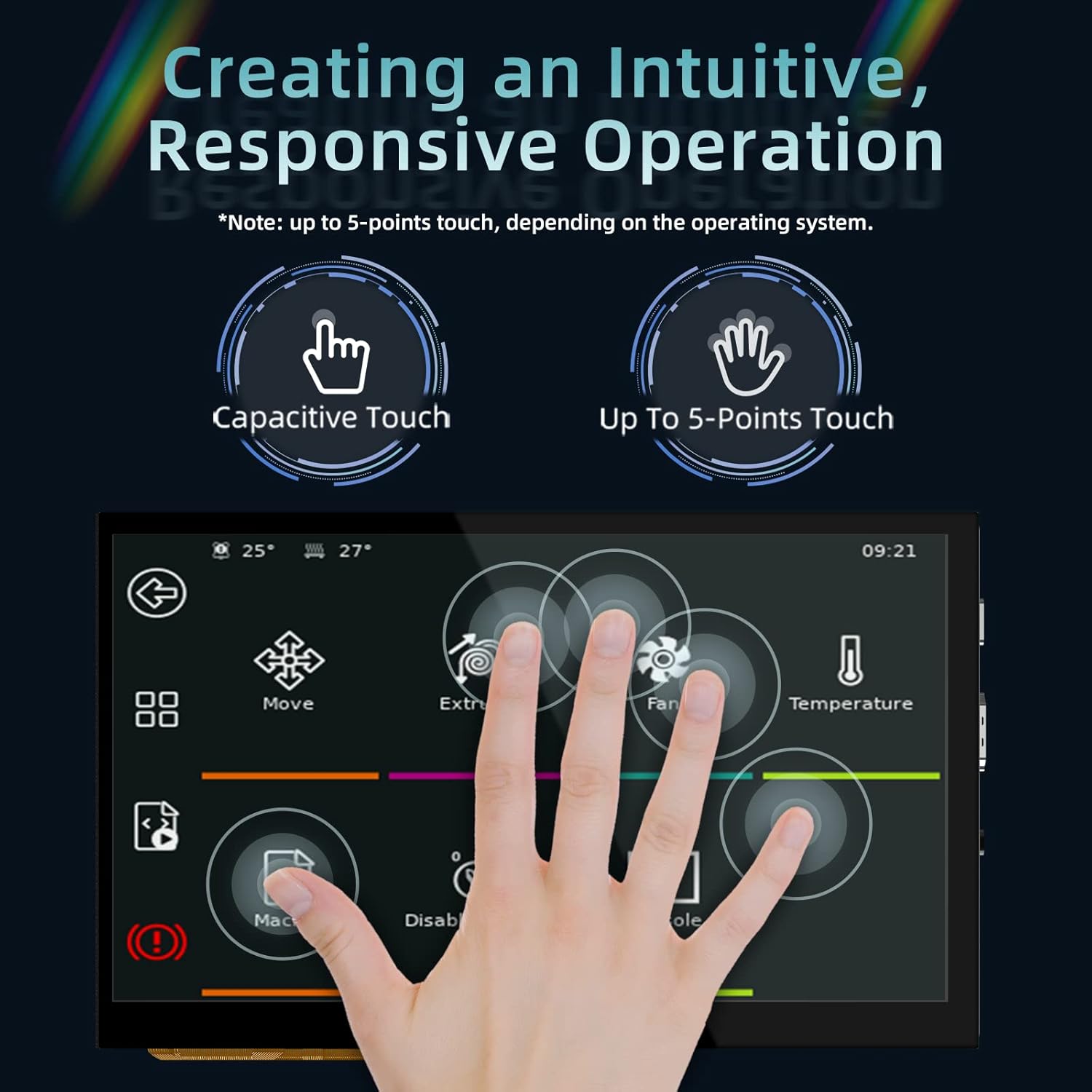
Figure 5: 5-Point Capacitive Touch
This image demonstrates the 5-point capacitive touch capability of the display, showing multiple finger touches recognized simultaneously.
Video 3: LESOWN 5-inch IPS Small HDMI LCD Screen Portable Monitor Usage
This video showcases the 5-inch display connected to a computer, demonstrating its use as a secondary screen and highlighting the touch functionality for navigating the operating system interface.
6. දෝශ නිරාකරණය
- සංදර්ශකය නැත: Ensure both the HDMI cable and the Type-C data cable are securely connected. Verify that the power indicator (D6 red light) is on.
- ස්පර්ශ ප්රතිචාරයක් නැත: For PC connections, confirm that the operating system has successfully loaded the touch screen drivers. Reconnect the Type-C data cable.
- Incorrect Display Orientation: Use the Ks2 button to adjust the display direction.
- අඳුරු සංදර්ශකය: Adjust the brightness using the Ks1 and Ks3 buttons.
7. නඩත්තු කිරීම
- මෘදු, ලින්ට් රහිත රෙද්දක් භාවිතයෙන් තිරය පිරිසිදුව තබා ගන්න. උල්ෙල්ඛ පිරිසිදු කරන්නන්ගෙන් වළකින්න.
- Protect the display from extreme temperatures and humidity.
- Avoid applying excessive force to the screen or connections.
8. වගකීම් සහ සහාය
For warranty information and technical support, please refer to the official BIGTREETECH webවෙබ් අඩවියට හෝ ඔවුන්ගේ පාරිභෝගික සේවයට සෘජුවම සම්බන්ධ වන්න. වගකීම් හිමිකම් සඳහා ඔබේ මිලදී ගැනීමේ රිසිට්පත තබා ගන්න.
නිල Webඅඩවිය: Amazon හි BIGTREETECH වෙළඳසැල