1. හැඳින්වීම
This manual provides essential information for the proper setup, operation, and maintenance of your Sharp 32FG6EA 32-inch HD Android TV. The Sharp 32FG6EA offers a wide range of connection options and features the Android TV operating system, providing a modern and intuitive television experience. It functions as an all-in-one entertainment hub, integrating Google Assistant for a smarter viewing experience. Users can quickly access entertainment, control smart devices, and obtain on-screen information using voice commands.
2 ආරක්ෂිත තොරතුරු
රූපවාහිනිය භාවිතා කිරීමට පෙර කරුණාකර සියලුම ආරක්ෂක උපදෙස් හොඳින් කියවන්න. අනාගත යොමුව සඳහා මෙම අත්පොත තබා ගන්න.
- බල සැපයුම: රූපවාහිනිය නිවැරදි වෝල්ටීයතාවයක් සහිත බල ප්රභවයකට සම්බන්ධ කර ඇති බවට වග බලා ගන්න.tage. විදුලි අලෙවිසැල් අධික ලෙස පටවන්න එපා.
- වාතාශ්රය: වාතාශ්රය විවරයන් අවහිර නොකරන්න. අධික උනුසුම් වීම වැළැක්වීම සඳහා නිසි වායු ප්රවාහය සඳහා රූපවාහිනිය වටා ප්රමාණවත් ඉඩක් ලබා දෙන්න.
- ජලය සහ තෙතමනය: Do not expose the TV to rain, moisture, or excessive humidity. Avoid placing objects filled with liquids on or near the TV.
- පිරිසිදු කිරීම: පිරිසිදු කිරීමට පෙර රූපවාහිනිය විසන්ධි කරන්න. මෘදු වියළි රෙද්දක් භාවිතා කරන්න. දියර පිරිසිදු කරන්නන් හෝ එයරොසෝල් ඉසින භාවිතා නොකරන්න.
- ස්ථානගත කිරීම: රූපවාහිනිය ස්ථාවර, සමතලා මතුපිටක් මත තබන්න. බිත්ති සවි කරන්නේ නම්, සවි කිරීම ආරක්ෂිතව ස්ථාපනය කර ඇති බවත් රූපවාහිනියේ බරට සහාය විය හැකි බවත් සහතික කර ගන්න.
- සේවා: රූපවාහිනිය ඔබම සේවා කිරීමට උත්සාහ නොකරන්න. සියලුම සේවා සුදුසුකම් ලත් සේවා නිලධාරීන් වෙත යොමු කරන්න.
3. පැකේජ අන්තර්ගතය
සියලුම අයිතම ඇසුරුම්වල ඇති බව තහවුරු කර ගන්න:
- Sharp 32FG6EA 32-inch HD Android TV
- දුරස්ථ පාලකය (AAA බැටරි 2ක් සමඟ)
- Stand Type Base
- උපදෙස් අත්පොත
- බල කේබලය
4. පිහිටුවීම
4.1 ඇසිරීම
Carefully remove the TV and all accessories from the packaging. Retain the packaging materials for future transport or servicing.
4.2 ස්ථාවරය සවි කිරීම
If you are not wall-mounting the TV, attach the included stand base:
- හානි වැළැක්වීම සඳහා රූපවාහිනී තිරය මෘදු, පැතලි මතුපිටක් මත තබන්න.
- රූපවාහිනියේ පතුලේ ඇති සවි කරන සිදුරු සමඟ ස්ථාවර පදනම පෙළගස්වන්න.
- සපයා ඇති ඉස්කුරුප්පු භාවිතයෙන් ස්ථාවරය සුරක්ෂිත කරන්න. ස්ථාවරය තදින් සවි කර ඇති බවට වග බලා ගන්න.
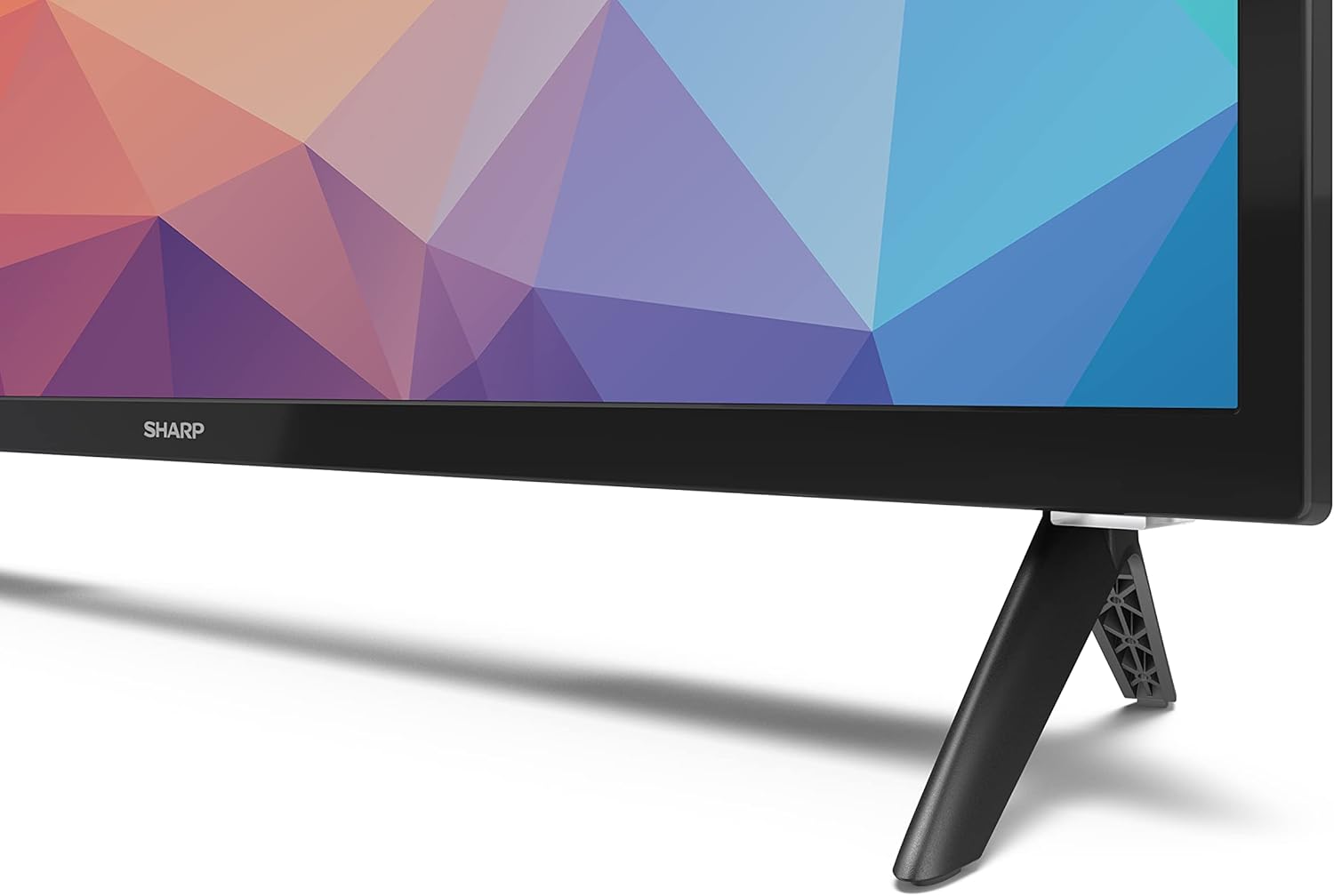
Image: Close-up of the TV stand attachment.
4.3 බිත්ති සවි කිරීම
The Sharp 32FG6EA supports VESA wall mounts with dimensions of 75 x 75 mm. Wall mount hardware is not included. Follow the instructions provided with your wall mount kit.
4.4 බාහිර උපාංග සම්බන්ධ කිරීම
ඔබේ රූපවාහිනියේ විවිධ උපාංග සම්බන්ධ කිරීම සඳහා බහු තොටුපළවල් ඇත:
- HDMI: Connect Blu-ray players, game consoles, or set-top boxes to the 2 HDMI ports.
- USB: Connect USB storage devices for media playback to the 2 USB ports.
- ඇන්ටෙනා/කේබල්: විකාශන නාලිකා සඳහා ඇන්ටෙනාවක් හෝ කේබල් රූපවාහිනී මූලාශ්රයක් සම්බන්ධ කරන්න.
- ඊතර්නෙට්: රැහැන්ගත අන්තර්ජාල සම්බන්ධතාවයක් සඳහා.
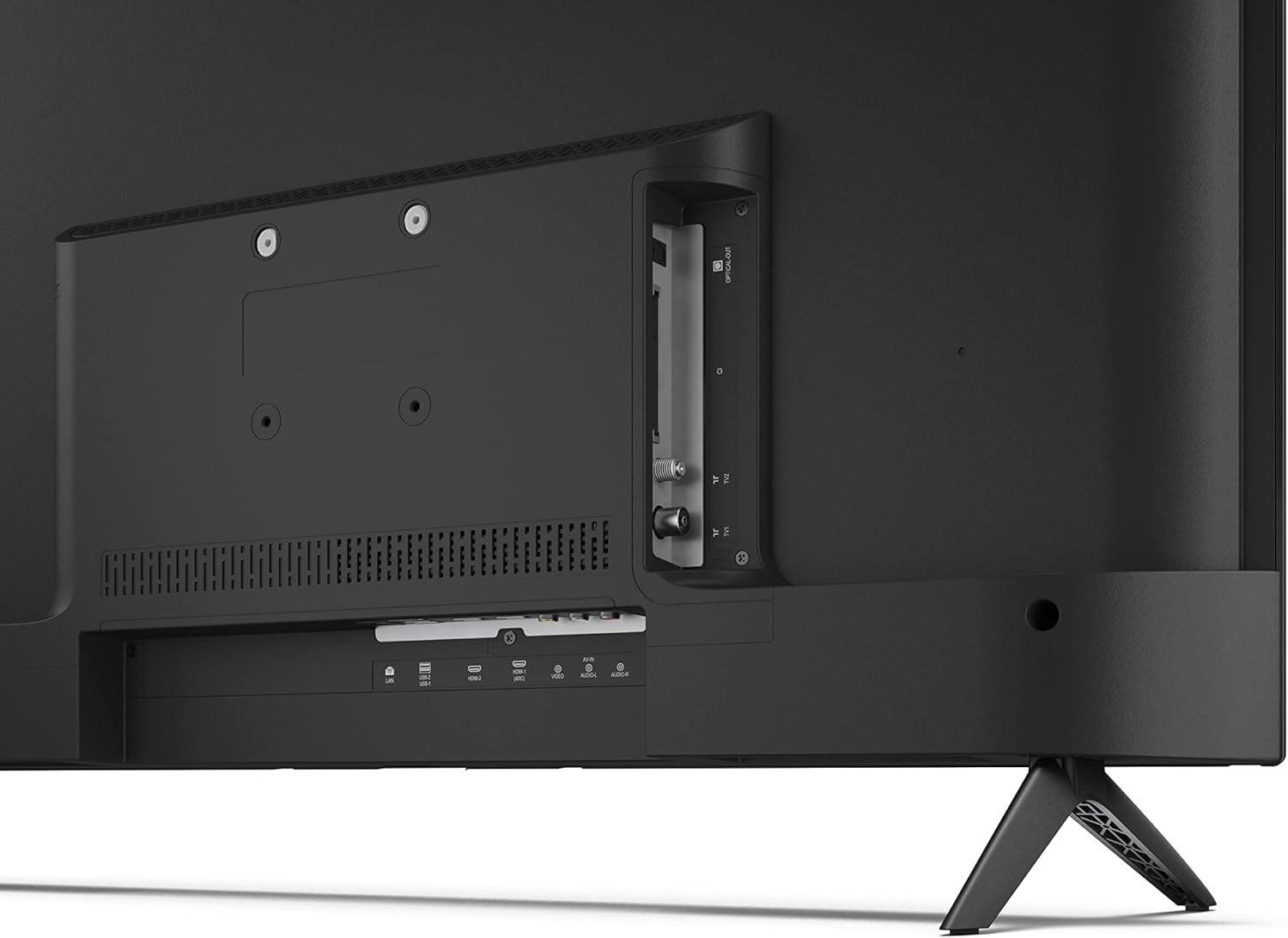
රූපය: පසුපස view සම්බන්ධතා වරායන් සහිත රූපවාහිනියේ.
4.5 බල සම්බන්ධතාවය
After connecting all necessary devices, plug the power cable into the TV and then into a wall outlet.
4.6 ආරම්භක සැකසුම් විශාරදයා
පළමු වරට බලය ක්රියාත්මක කළ විට, රූපවාහිනිය මූලික සැකසුම් ක්රියාවලියක් හරහා ඔබට මග පෙන්වනු ඇත. මෙයට ඇතුළත් වන්නේ:
- භාෂා තෝරා ගැනීම.
- ජාල සම්බන්ධතාවය (Wi-Fi හෝ ඊතර්නෙට්).
- Google account sign-in (required for full Android TV features).
- නාලිකා ස්කෑන් කිරීම.
5. ක්රියාත්මක වීම
5.1 දුරස්ථ පාලකය අවසන්view
The included remote control allows you to navigate the TV's features. Insert the 2 AAA batteries into the remote control before use.
- බල බොත්තම: රූපවාහිනිය ක්රියාත්මක හෝ අක්රිය කරයි.
- දිශානුගත පෑඩ් (D-Pad) සහ OK බොත්තම: මෙනු හරහා සංචාලනය කර තේරීම් තහවුරු කරන්න.
- පසුපස බොත්තම: පෙර තිරය වෙත නැවත පැමිණේ.
- මුල් පිටුව බොත්තම: Android TV මුල් තිරයට ප්රවේශ වේ.
- ශබ්දය වැඩි/පහළ: ශ්රව්ය පරිමාව සීරුමාරු කරයි.
- නාලිකාව ඉහළ/පහළ: රූපවාහිනී නාලිකා වෙනස් කරනවා.
- ගූගල් සහායක බොත්තම: හඬ පාලනය සක්රිය කරයි.
- යෙදුම් කෙටිමං බොත්තම්: Dedicated buttons for popular streaming services like Netflix, Prime Video, and YouTube.
5.2 Android TV Interface Navigation
The Android TV home screen provides access to your installed apps, recommended content, and settings. Use the directional pad on your remote to navigate through the interface.
5.3 ගූගල් සහකාර
Press the Google Assistant button on your remote and speak into the microphone to:
- ඒ සඳහා සොයන්න movies, shows, or information.
- ස්මාර්ට් නිවාස උපාංග පාලනය කරන්න.
- යෙදුම් විවෘත කරන්න.
- Adjust TV settings.
5.4 Chromecast බිල්ට්-ඉන්
The TV includes Chromecast built-in, allowing you to cast content from compatible apps on your smartphone, tablet, or computer directly to the TV screen.
5.5 බ්ලූටූත් සම්බන්ධතාවය
Connect Bluetooth devices such as headphones or speakers to your TV for a personalized audio experience. Navigate to the TV's settings menu to pair new Bluetooth devices.
5.6 ශ්රව්ය සැකසුම්
The TV supports Dolby Audio with 2 x 6 W RMS speakers. You can adjust audio settings, including sound modes and equalizer, through the TV's settings menu.
6. නඩත්තු කිරීම
6.1 රූපවාහිනිය පිරිසිදු කිරීම
To clean the TV screen and cabinet:
- බිත්ති පිටවන ස්ථානයෙන් විදුලි රැහැන විසන්ධි කරන්න.
- Use a soft, lint-free cloth to gently wipe the screen and surfaces.
- මුරණ්ඩු සලකුණු සඳහා, තරමක් dampen ජලය හෝ විශේෂිත තිර පිරිසිදු කරන්නෙකු සහිත රෙදි (තිරයට කෙලින්ම නොව රෙදි වලට යොදන්න).
- උල්ෙල්ඛ පිරිසිදු කරන්නන්, ඉටි හෝ ද්රාවක භාවිතා නොකරන්න.
6.2 මෘදුකාංග යාවත්කාලීන
Your Android TV may receive periodic software updates to improve performance and add new features. Ensure your TV is connected to the internet to receive these updates. You can check for updates manually in the TV's settings menu.
7. දෝශ නිරාකරණය
ඔබේ රූපවාහිනිය සමඟ ගැටළු ඇති වුවහොත්, පහත පොදු ගැටළු සහ විසඳුම් වෙත යොමු වන්න:
- බලය නැත: බල කේබලය රූපවාහිනියට සහ වැඩ කරන බිත්ති අලෙවිසැලකට ආරක්ෂිතව සම්බන්ධ කර ඇති බවට වග බලා ගන්න. වෙනත් අලෙවිසැලක් උත්සාහ කරන්න.
- පින්තූරයක්/ශබ්දයක් නැත: Check that the correct input source is selected. Verify all cables (HDMI, antenna) are properly connected.
- දුරස්ථ පාලකය ක්රියා නොකරයි: Check the batteries and ensure they are inserted correctly. Point the remote directly at the TV's IR sensor.
- දුර්වල පින්තූර ගුණාත්මකභාවය: Check antenna/cable connections. Adjust picture settings in the TV menu. For streaming content, ensure a stable internet connection.
- අන්තර්ජාල සම්බන්ධතාවයක් නොමැත: Verify Wi-Fi password or Ethernet cable connection. Restart your router and the TV.
- Apps Not Working: Ensure the TV's software is up to date. Try clearing the app's cache or reinstalling the app.
If problems persist, consult the Sharp support webවෙබ් අඩවිය හෝ පාරිභෝගික සේවාව අමතන්න.
8. පිරිවිතර
| විශේෂාංගය | පිරිවිතර |
|---|---|
| ආදර්ශ අංකය | 32FG6EA |
| වෙළඳ නාමය | තියුණු |
| තිර ප්රමාණය | අඟල් 32 (විකර්ණ 81 සෙ.මී.) |
| සංදර්ශක තාක්ෂණය | LED |
| විභේදනය | 720p (1366 x 768 පික්සල) |
| දර්ශන අනුපාතය | 16:9 |
| Refresh Rate | 50 Hz |
| මෙහෙයුම් පද්ධතිය | Android TV 11 |
| විශේෂ ලක්ෂණ | Android TV, Google Assistant, Chromecast built-in |
| ශ්රව්ය ප්රතිදානය | 2 x 6 W RMS, Dolby Audio |
| HDMI වරායන් | 2 |
| USB Ports | 2 |
| සම්බන්ධතාවය | Wi-Fi, බ්ලූටූත්, ඊතර්නෙට් |
| VESA වෝල් මවුන්ට් | 75 x 75 මි.මී |
| ස්ථාවරය සහිත මානයන් (W x H x D) | 731 x 486 x 177 මි.මී |
| ස්ථාවරය නොමැති මානයන් (W x H x D) | 731 x 433 x 68 මි.මී |
| නිෂ්පාදන මානයන් (D x W x H) | 16 x 73 x 46.4 cm (approximate, with stand) |
| බර | කිලෝ ග්රෑම් 3.9 කි |
| බලශක්ති කාර්යක්ෂමතා පන්තිය | E |

Image: TV dimensions diagram.

රූපය: බලශක්ති ලේබලය. වැඩි විස්තර සඳහා, පිවිසෙන්න EPREL දත්ත සමුදාය.
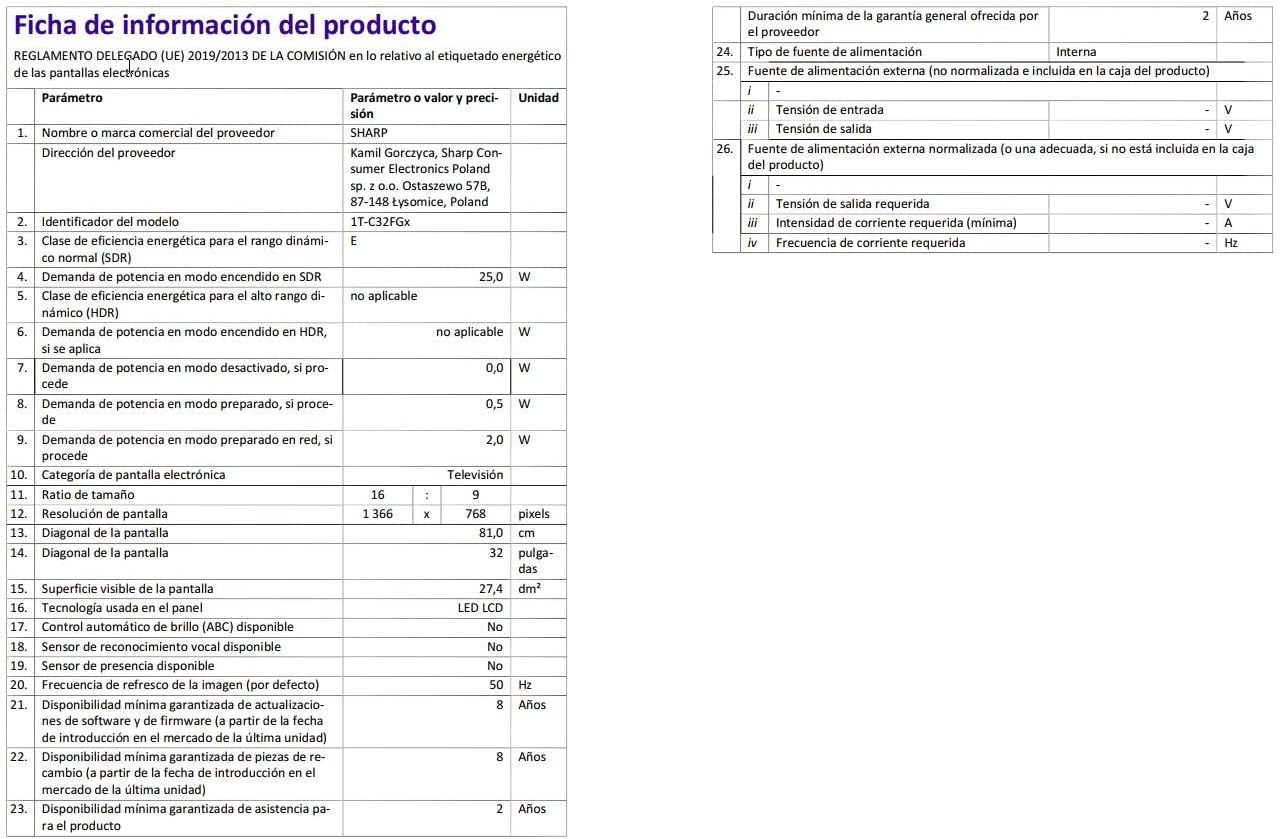
Image: Detailed product information sheet.
9. වගකීම් සහ සහාය
The Sharp 32FG6EA television comes with a minimum general warranty duration of 2 years from the provider.
For technical support, warranty claims, or further assistance, please refer to the contact information provided with your purchase documentation or visit the official Sharp support webඔබේ කලාපය සඳහා අඩවිය.


