1. හැඳින්වීම
This manual provides comprehensive instructions for the installation, operation, and maintenance of your Sungale 1300Mbps WiFi Wireless LAN Adapter. Please read this manual carefully before using the product to ensure proper functionality and to avoid any potential issues. Keep this manual for future reference.
2. නිෂ්පාදන අවසන්view
The Sungale 1300Mbps WiFi Wireless LAN Adapter is designed to provide high-speed wireless connectivity for your desktop or laptop computer. Featuring USB 3.0 connectivity and dual-band (2.4GHz/5GHz) support with 802.11ac standard, it offers fast and stable internet access for various applications.

Image 2.1: The Sungale 1300Mbps WiFi Wireless LAN Adapter, featuring a compact design with two external antennas for enhanced signal reception.
ප්රධාන ලක්ෂණ ඇතුළත් වේ:
- AC1300Mbps High-Speed: Offers speeds up to 400Mbps on 2.4GHz and 867Mbps on 5GHz.
- USB 3.0 අතුරුමුහුණත: USB 2.0 ට වඩා 10 ගුණයකින් වේගවත් දත්ත හුවමාරු වේගයක් සපයයි.
- ද්විත්ව කලාප සහාය: Operates on both 2.4GHz and 5GHz frequencies for flexible and stable connections.
- ඉහළ ලාභ ඇන්ටනා: Equipped with two 5dBi antennas for extended range and improved signal penetration.
- පුළුල් අනුකූලතාව: Supports Windows 11/10/8.1/8/7/XP/Vista and Mac OS X (10.9-10.14).

Image 2.2: A laptop connected to the Sungale WiFi adapter, illustrating its wireless connectivity capabilities with icons for 2.4G/5G, USB, and antennas.

රූපය 2.3: සමීප ඡායාරූපයක් view of the Sungale WiFi adapter connected to a laptop, emitting wireless signals, highlighting its role in establishing a network connection.
3. සැකසුම් උපදෙස්
Follow these steps to install your Sungale WiFi Wireless LAN Adapter:
- Insert the Driver CD: Insert the included compact disc into your computer's CD-ROM drive. If your computer does not have a CD-ROM drive, you may need to download the driver from the manufacturer's website (refer to the support section for more information).

Image 3.1: Visual guide for driver installation, showing the driver CD, the adapter being plugged into a USB port, and the network selection screen.
- ධාවකය ස්ථාපනය කරන්න: Follow the on-screen instructions to install the necessary drivers. For Windows 11/10, the adapter may be plug-and-play, meaning drivers might install automatically. However, manual installation via CD or download is recommended if automatic installation fails or for other operating systems.
- ඇඩැප්ටරය සම්බන්ධ කරන්න: Plug the USB WiFi adapter into an available USB 3.0 port on your desktop or laptop computer. Ensure the connection is secure.
- ජාලයකට සම්බන්ධ වන්න: Once the driver is installed and the adapter is connected, your computer should detect available Wi-Fi networks. Select your desired network from the list and enter the password if prompted.
The adapter supports a wide range of operating systems:

Image 3.2: An illustration of the adapter's broad compatibility, displaying icons for Windows, Mac, and Linux operating systems, alongside desktop, laptop, and mobile device types.
4. මෙහෙයුම් උපදෙස්
After successful installation, the adapter will function as your computer's primary wireless network interface. You can switch between 2.4GHz and 5GHz bands depending on your router's capabilities and network conditions.
- 2.4GHz කලාපය: Offers wider coverage and better penetration through obstacles like walls. Ideal for general web browsing, email, and tasks that do not require extremely high bandwidth. Max speed up to 400Mbps.
- 5GHz කලාපය: Provides faster speeds and less interference, suitable for online gaming, HD video streaming, and video calls. Max speed up to 867Mbps.

Image 4.1: A visual representation of the dual-band capabilities, detailing the advantages of 2.4GHz (wider range, better penetration) and 5GHz (higher speed, less interference) for different activities like streaming, gaming, and video conferencing.
The adapter supports two operational modes:
- Station Mode (Client/Receiver): The adapter connects to an existing Wi-Fi network (router) to provide internet access to your computer. This is the standard mode for most users.
- AP Mode (Access Point/Transmitter): The adapter can create a Wi-Fi hotspot, allowing other devices (e.g., smartphones, tablets) to connect to your computer's internet connection. This mode requires specific software configuration.
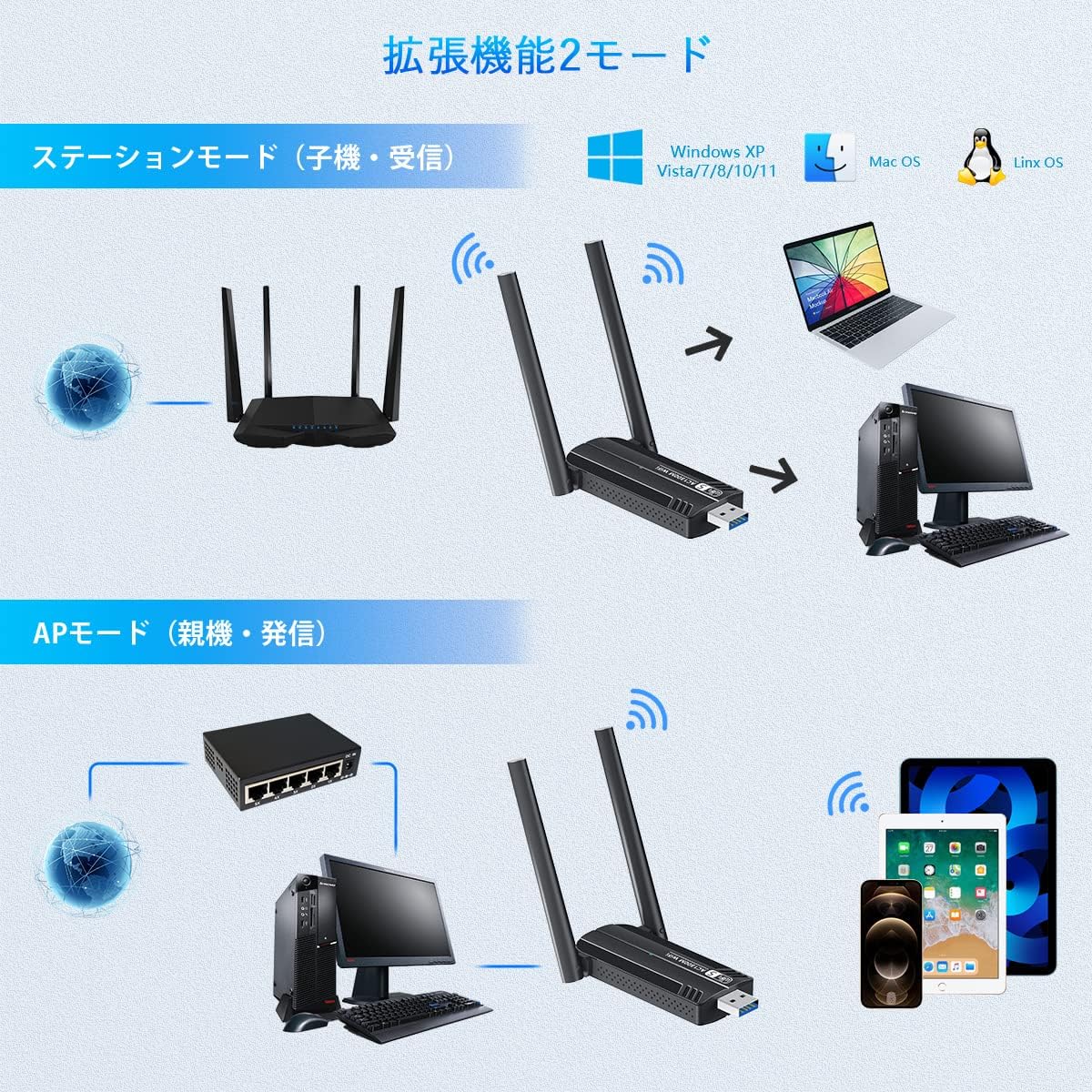
Image 4.2: A diagram explaining the two functional modes: Station Mode, where the adapter acts as a client connecting to a router, and AP Mode, where it functions as an access point for other devices.
5. නඩත්තු කිරීම
To ensure the longevity and optimal performance of your Sungale WiFi adapter, consider the following maintenance tips:
- ඇඩැප්ටරය පිරිසිදුව හා දූවිලි වලින් තොරව තබා ගන්න. පිරිසිදු කිරීම සඳහා මෘදු වියළි රෙද්දක් භාවිතා කරන්න.
- ඇඩැප්ටරය අධික උෂ්ණත්වයන්ට, ආර්ද්රතාවයට හෝ සෘජු හිරු එළියට නිරාවරණය කිරීමෙන් වළකින්න.
- ඇඩැප්ටරය ඔබම විසුරුවා හැරීමට හෝ අලුත්වැඩියා කිරීමට උත්සාහ නොකරන්න, මෙය වගකීම් අවලංගු කරයි.
- Ensure the antennas are not bent or damaged.
- Periodically check for updated drivers on the Sungale support webගැළපුම සහ කාර්ය සාධන වැඩිදියුණු කිරීම් සහතික කිරීම සඳහා අඩවිය.
6. දෝශ නිරාකරණය
If you encounter issues with your WiFi adapter, refer to the following troubleshooting steps:
- Wi-Fi සම්බන්ධතාවයක් නැත:
- ඇඩැප්ටරය USB පෝට් එකකට ආරක්ෂිතව සම්බන්ධ කර ඇති බවට වග බලා ගන්න.
- ධාවක නිවැරදිව ස්ථාපනය කර ඇති බව තහවුරු කරගන්න. අවශ්ය නම් නැවත ස්ථාපනය කරන්න.
- Check if your computer's Wi-Fi is enabled (if applicable).
- ඔබේ පරිගණකය සහ රවුටරය නැවත ආරම්භ කරන්න.
- මන්දගාමී සම්බන්ධතා වේගය:
- Ensure you are connected to the 5GHz band if your router supports it and you are within range.
- Move closer to your Wi-Fi router to improve signal strength.
- වෙනත් ඉලෙක්ට්රොනික උපාංගවලින් බාධා ඇත්දැයි පරීක්ෂා කරන්න.
- Update your adapter's drivers to the latest version.
- නිතර විසන්ධි කිරීම්:
- Ensure the adapter is not overheating.
- Check for driver conflicts or outdated drivers.
- ඇඩැප්ටරය වෙනත් USB පෝට් එකකට සම්බන්ධ කිරීමට උත්සාහ කරන්න.
- Adjust the antenna position for better signal stability.
- ධාවක ස්ථාපන ගැටළු:
- Ensure your operating system is supported.
- Disable any antivirus software temporarily during installation if it interferes.
- If using the CD, ensure the CD drive is functioning correctly.
- Download the latest drivers from the official Sungale support website if the CD is not working or unavailable.
7. පිරිවිතර
The following table details the technical specifications of the Sungale 1300Mbps WiFi Wireless LAN Adapter:
| විශේෂාංගය | පිරිවිතර |
|---|---|
| ආදර්ශ අංකය | SGE120535 |
| වෙළඳ නාමය | සුංගලේ |
| දත්ත හුවමාරු අනුපාතය | 1300 Mbps දක්වා (2.4GHz මත 400Mbps, 5GHz මත 867Mbps) |
| දත්ත සම්බන්ධක ප්රොටෝකෝලය | IEEE 802.11ac |
| දෘඩාංග අතුරුමුහුණත | USB 3.0 |
| ඇන්ටනාව | 2 x 5dBi External Antennas |
| වර්ණය | කළු |
| ගැළපෙන උපාංග | Desktop PC, Laptop |
| මෙහෙයුම් පද්ධති සහාය | Windows 11/10/8.1/8/7/XP/Vista, Mac OS X (10.9-10.14) |
| පැකේජ මානයන් | 11.9 x 9 x 1.9 සෙ.මී |
| බර | 40 ග්රෑම් |
8. වගකීම් සහ සහාය
For warranty information, please refer to the documentation included with your product or visit the official Sungale website. If you require technical assistance or have questions not covered in this manual, please contact Sungale customer support through their official channels.
වගකීම් හිමිකම් සඳහා කරුණාකර ඔබගේ මිලදී ගැනීමේ සාක්ෂි තබා ගන්න.


