1. හැඳින්වීම
Welcome to the Kinstone 10.1" 4G LTE Android Tablet user manual. This guide provides comprehensive instructions for setting up, operating, and maintaining your new tablet. Designed for both work and play, this tablet features an octa-core processor, 8GB RAM, 128GB internal storage (expandable up to 1TB), an 8000mAh battery, and dual SIM slots for enhanced connectivity.

රූපය 1.1: ඉදිරිපස සහ පසුපස view of the Kinstone 10.1" Android Tablet, showcasing එහි සිනිඳු නිර්මාණය සහ කැමරා මොඩියුලය.
2. නිෂ්පාදන අවසන්view
2.1 සංරචක සහ විශේෂාංග
Your Kinstone tablet is equipped with advanced features for a superior user experience. Key components include:
- සංදර්ශකය: 10.1-inch Full HD IPS screen with 1920x1200 resolution, 178° wide viewing angle, and low blue light technology for eye comfort.
- සකසනය: High-performance octa-core processor (hexa-core @2.0 GHz Cortex-A55 and dual-core @1.8 GHz Cortex-A75) with 2025 AI Chip.
- මතකය සහ ගබඩාව: 8GB RAM and 128GB internal storage, expandable up to 1TB via microSD card.
- කැමරා: 13MP rear camera and 5MP front camera.
- බැටරි: දිගු භාවිතය සඳහා 8000mAh බැටරිය.
- සම්බන්ධතාවය: 4G VoLTE dual SIM support, Bluetooth 5.0, 2.4/5G dual-band Wi-Fi.
- ශ්රව්ය: Dual speakers for stereo effect.
- වරාය: Type-C charging port, 3.5mm earphone jack.

රූපය 2.1: අවසන්view of the Android 12 OS features, highlighting efficiency, safety, entertainment, and display enhancements.

Figure 2.2: Visual summary of the Kinstone Android tablet's core features and specifications.
3. පිහිටුවීම
3.1 මූලික ආරෝපණය
Before first use, fully charge your tablet. Connect the provided Type-C charging cable to the tablet's charging port and the other end to the charger. Plug the charger into a power outlet. The charging indicator will show the charging status. A full charge typically takes approximately 2 hours.

Figure 3.1: Illustration of the tablet's long-lasting 8000mAh battery life, supporting various activities.
3.2 බල ගැන්වීම සක්රිය / අක්රිය කිරීම
- බල ගැන්වීමට: Press and hold the Power button until the Kinstone logo appears on the screen.
- බලය අක්රිය කිරීමට: බල විකල්ප මෙනුව දිස්වන තුරු බල බොත්තම ඔබාගෙන සිටින්න. "බලය අක්රිය කරන්න" තෝරා තහවුරු කරන්න.
- නැවත ආරම්භ කිරීමට: බල විකල්ප මෙනුවෙන්, "නැවත ආරම්භ කරන්න" තෝරන්න.
3.3 ආරම්භක සැකසුම් විශාරදයා
පළමු වරට බලගැන්වීමෙන් පසු, ටැබ්ලටය ඔබට මූලික සැකසුම් විශාරදයක් හරහා මඟ පෙන්වනු ඇත. තිරයේ ඇති විමසීම් අනුගමනය කරන්න:
- ඔබේ භාෂාව තෝරන්න.
- Wi-Fi ජාලයකට සම්බන්ධ කරන්න.
- Sign in with your Google account (or create one).
- Set up screen lock (PIN, pattern, password, or Face ID).
- Review සහ නියමයන් සහ කොන්දේසි පිළිගන්න.
4. මෙහෙයුම් උපදෙස්
4.1 Android අතුරුමුහුණත සැරිසැරීම
Your tablet runs on Android 12, offering an intuitive user interface. Common gestures include:
- තට්ටු කරන්න: අයිතමයක් තේරීමට හෝ යෙදුමක් විවෘත කිරීමට.
- ස්වයිප්: තිර හෝ ලැයිස්තු හරහා අනුචලනය කිරීමට.
- විශාලනය කිරීමට පින්ච් කරන්න: රූප විශාලනය කිරීමට හෝ අඩු කිරීමට සහ web පිටු.
- දිගු ඔබන්න: සන්දර්භීය මෙනු වෙත ප්රවේශ වීමට හෝ යෙදුම් අයිකන ගෙනයාමට.
4.2 යෙදුම් ස්ථාපනය කිරීම
Applications can be downloaded and installed from the Google Play Store. Ensure you are connected to the internet before downloading.
- විවෘත කරන්න Play Store යෙදුම.
- ඒ සඳහා සොයන්න අපේක්ෂිත යෙදුම.
- තට්ටු කරන්න ස්ථාපනය කරන්න සහ තිරයේ උපදෙස් අනුගමනය කරන්න.
4.3 මුහුණු හැඳුනුම්පත භාවිතා කිරීම
The tablet supports Face Recognition for unlocking. To set up Face ID:
- වෙත යන්න සැකසීම් > ආරක්ෂාව සහ පෞද්ගලිකත්වය > මුහුණෙන් අගුලු හැරීම.
- ඔබේ මුහුණ ලියාපදිංචි කිරීමට විමසීම් අනුගමනය කරන්න.

Figure 4.1: Display features, including Face Recognition for secure and fast unlocking.
5. සම්බන්ධතාවය
5.1 Wi-Fi සම්බන්ධතාවය
Connect to Wi-Fi for internet access:
- වෙත යන්න සැකසීම් > ජාලය සහ අන්තර්ජාලය > අන්තර්ජාලය.
- Wi-Fi සක්රිය කරන්න.
- ඔබට අවශ්ය ජාලය තෝරා අවශ්ය නම් මුරපදය ඇතුළත් කරන්න.

Figure 5.1: Connectivity options, including dual-band Wi-Fi for fast and stable connections.
5.2 බ්ලූටූත් යුගල කිරීම
Pair your tablet with Bluetooth devices like headphones or speakers:
- වෙත යන්න සැකසීම් > සම්බන්ධිත උපාංග > සම්බන්ධතා මනාප > බ්ලූටූත්.
- බ්ලූටූත් ක්රියාත්මක කරන්න.
- Select the device you wish to pair from the list of available devices.
5.3 4G LTE and Dual SIM
The tablet supports 4G VoLTE with dual SIM slots, allowing for simultaneous calls and browsing. You can use two SIM cards or one SIM card and one microSD card.
- ටැබ්ලටයේ පැත්තේ SIM කාඩ්පත් තැටිය සොයා ගන්න.
- තැටිය විවෘත කිරීමට සපයා ඇති SIM ඉජෙක්ටර් මෙවලම භාවිතා කරන්න.
- Insert your Nano-SIM cards and/or microSD card into the designated slots.
- Gently push the tray back into the tablet.

Figure 5.2: Dual card slot functionality for SIM cards and expandable storage.
6. කැමරා භාවිතය
Your tablet is equipped with a 13MP rear camera and a 5MP front camera for capturing photos and videos, and for video calls.
- විවෘත කරන්න කැමරාව මුල් තිරයෙන් හෝ යෙදුම් ලාච්චුවෙන් යෙදුම.
- කැමරා නිරූපකය භාවිතයෙන් ඉදිරිපස සහ පසුපස කැමරා අතර මාරු වන්න.
- ඡායාරූපයක් ගැනීමට ෂටර් බොත්තම හෝ වීඩියෝ පටිගත කිරීම ආරම්භ කිරීමට/නැවැත්වීමට පටිගත කිරීමේ බොත්තම තට්ටු කරන්න.
- Access various camera modes and settings within the app.
7. බැටරි කළමනාකරණය
The 8000mAh battery provides ampදෛනික භාවිතය සඳහා le බලය. බැටරි ආයු කාලය ප්රශස්ත කිරීම සඳහා:
- තිරයේ දීප්තිය අඩු කරන්න.
- Turn off Wi-Fi, Bluetooth, and 4G when not in use.
- පසුබිම් යෙදුම් වසන්න.
- බැටරි සුරැකුම් ප්රකාරය සක්රීය කරන්න සැකසීම් > බැටරි.
The tablet supports fast charging via its Type-C port.
8. ගබඩා කළමනාකරණය
Your tablet comes with 128GB of internal storage, which can be expanded up to 1TB using a microSD card.
- To check storage usage: Go to සැකසීම් > ගබඩා කිරීම.
- ඉඩ නිදහස් කිරීමට: අනවශ්ය දේ මකන්න fileභාවිතා කරන්න, භාවිත නොකළ යෙදුම් අස්ථාපනය කරන්න, නැතහොත් විශාල ඒවා ගෙන යන්න files microSD කාඩ්පතකට.

Figure 8.1: Visual representation of the tablet's generous storage capabilities.
9. නඩත්තු කිරීම
To ensure the longevity and optimal performance of your Kinstone tablet:
- Keep the tablet clean using a soft, lint-free cloth. Avoid harsh chemicals.
- Protect the screen with a screen protector (one is included).
- ටැබ්ලටය අධික උෂ්ණත්වයන්ට, සෘජු හිරු එළියට හෝ තෙතමනයට නිරාවරණය වීමෙන් වළකින්න.
- Regularly update the operating system and applications to the latest versions.
- Perform periodic backups of important data.
10. දෝශ නිරාකරණය
ඔබේ ටැබ්ලටය සමඟ ගැටලු ඇති වුවහොත්, පහත පොදු විසඳුම් වෙත යොමු වන්න:
| ගැටලුව | හැකි විසඳුම |
|---|---|
| ටැබ්ලටය ක්රියාත්මක නොවේ | බැටරිය ආරෝපණය කර ඇති බවට වග බලා ගන්න. නැවත ආරම්භ කිරීමට බල කිරීම සඳහා බල බොත්තම අවම වශයෙන් තත්පර 10-15 ක් ඔබාගෙන සිටින්න. |
| Wi-Fi සම්බන්ධතා ගැටළු | Restart your Wi-Fi router. Go to Settings > Network & internet > Internet, forget the network, and reconnect. Ensure the tablet is within range. |
| යෙදුම් කැටි වීම හෝ බිඳ වැටීම | Close the app and reopen it. Clear the app's cache (Settings > Apps > [App Name] > Storage & cache > Clear cache). Ensure the app is updated. |
| මන්දගාමී කාර්ය සාධනය | භාවිතයට නොගත් යෙදුම් වසන්න. හැඹිලිය සහ තාවකාලිකව හිස් කරන්න files. Check storage space and free up if necessary. Restart the tablet. |
| බැටරිය ඉක්මනින් බැස යයි | තිරයේ දීප්තිය අඩු කරන්න. භාවිතයේ නොමැති විට GPS, බ්ලූටූත් හෝ Wi-Fi වැනි අනවශ්ය විශේෂාංග අක්රිය කරන්න. බල කෑදර යෙදුම් හඳුනා ගැනීමට සැකසුම් තුළ බැටරි භාවිතය පරීක්ෂා කරන්න. |
If problems persist, contact Kinstone customer support for further assistance.
11. පිරිවිතර
Detailed technical specifications for your Kinstone tablet:
| විශේෂාංගය | පිරිවිතර |
|---|---|
| ආදර්ශ අංකය | KST102SA_ROW |
| මෙහෙයුම් පද්ධතිය | Android 12 |
| තිර ප්රමාණය | අඟල් 10.1 |
| තිර විභේදනය | පික්සල 1920x1200 |
| ප්රොසෙසරය | 2 GHz ඔක්ටා-කෝර් (යුනිසොක්) |
| RAM | 8 GB DDR4 SDRAM |
| අභ්යන්තර ගබඩාව | 128 GB (ෆ්ලෑෂ් මතකය) |
| පුළුල් කළ හැකි ගබඩාව | Up to 1 TB via MicroSD |
| ග්රැෆික් කොප්රොසෙසරය | Mali-G57 MP1 |
| රැහැන් රහිත වර්ගය | 802.11a, 802.11ac (2.4G/5G Dual-band Wi-Fi) |
| බ්ලූටූත් | 5.0 |
| පසුපස කැමරාව | 13 MP |
| ඉදිරිපස කැමරාව | 5 MP |
| බැටරි ධාරිතාව | 8000 mAh (ලිතියම් පොලිමර්) |
| සාමාන්ය බැටරි ආයු කාලය | පැය 8 යි |
| අයිතමයේ බර | රාත්තල් 2 කි |
| නිෂ්පාදන මානයන් | අඟල් 15.8 x 24.1 x 0.8 |
| වර්ණය | අළු |
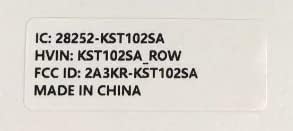
Figure 11.1: Product label with model number and regulatory information.
12. වගකීම් සහ සහාය
12.1 වගකීම් සේවාව
Kinstone provides a warranty service for your tablet. Within three months from the date of purchase, Kinstone offers replacement services for eligible issues, not repair. Please retain your proof of purchase.
12.2 පාරිභෝගික සහාය
For any questions, technical assistance, or warranty claims, please contact Kinstone customer support. You may also be eligible to receive a compatible leather case by contacting the seller after receiving your tablet.
Visit the official Kinstone store for more information and support: Kinstone Store on Amazon


