1. හැඳින්වීම
The OPTICON L-46X 2D Imager is a versatile barcode scanner designed to read both 1D and 2D barcodes. It incorporates Opticon’s advanced 2D CMOS imaging technology, enabling efficient point-and-shoot barcode scanning. The device features a disinfectant-ready protective casing, making it suitable for use in various environments, including healthcare settings.
2 ප්රධාන ලක්ෂණ
- උසස් ස්කෑනිං තාක්ෂණය: Utilizes next-generation scanning technology for optimal performance, durability, and reliability.
- ශක්තිමත් කල්පැවැත්ම: Constructed with a durable, lightweight, and ergonomic design for comfortable extended use. The scanner is drop-tested to withstand falls of up to 6 feet onto concrete.
- පාරිසරික ප්රතිරෝධය: Features an IP42 rating, providing protection against dust and water splashes, making it suitable for demanding environments such as retail, logistics, and healthcare.
- Disinfectant Ready: Designed with a protective casing that can be safely disinfected.
- සම්බන්ධතාවය: USB Cable for reliable connection to desktop and laptop computers.
3. පැකේජ අන්තර්ගතය
කරුණාකර සියලුම අයිතම පැකේජයේ ඇති බව තහවුරු කරගන්න:
- L-46X Barcode Scanner Unit
- USB සම්බන්ධතා කේබලය
- Stand Mount (if included with your specific model)
4. සැකසුම් මාර්ගෝපදේශය
Follow these steps to set up your L-46X Barcode Scanner:
- ස්කෑනරය ඉවත් කරන්න: Carefully remove the L-46X scanner and its accessories from the packaging.
- USB කේබලය සම්බන්ධ කරන්න: Insert the USB cable into the port at the base of the scanner. Connect the other end of the USB cable to an available USB port on your desktop or laptop computer.
- ධාවක ස්ථාපනය: The L-46X is typically a plug-and-play device. Your operating system (Windows, macOS, Linux) should automatically detect and install the necessary drivers. Wait for the installation to complete, which may take a few moments.
- ස්කෑනරය ස්ථානගත කරන්න: If your model includes a stand mount, assemble it according to its instructions and place the scanner securely in the stand. Ensure the scanner is positioned for easy access and comfortable use.
- ස්කෑනරය පරීක්ෂා කරන්න: Open a text editor (e.g., Notepad, Word) or a compatible application. Scan a known barcode. The barcode data should appear in the text editor or application, indicating successful setup.
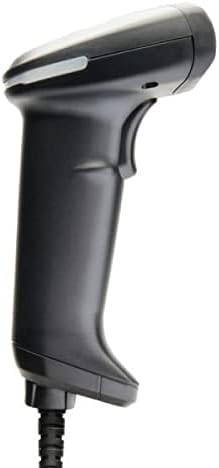
Image: The L-46X barcode scanner, a black handheld device with a trigger button and a USB cable extending from its base. This image illustrates the scanner's design and connectivity point.
5. මෙහෙයුම් උපදෙස්
To operate your L-46X Barcode Scanner:
- බල ගැන්වීම: බලගන්වන ලද USB පෝට් එකකට සම්බන්ධ වූ විට ස්කෑනරය ස්වයංක්රීයව ක්රියාත්මක වේ.
- Aim the Scanner: Point the scanning window of the L-46X directly at the barcode you wish to scan. Ensure the entire barcode is within the scanner's field of view.
- Press the Trigger: Press and hold the trigger button located on the handle of the scanner. A scanning beam or light will be emitted.
- ස්කෑන් කිරීම තහවුරු කරන්න: Upon a successful scan, the scanner will typically emit an audible beep and/or a visual indicator (e.g., an LED light will flash). The scanned data will be transmitted to your connected computer and appear in the active application.
- මුදා හැරීමේ ප්රේරකය: Release the trigger button after a successful scan.
The L-46X is capable of reading both 1D (linear) and 2D (matrix) barcodes, including QR codes, Data Matrix, and PDF417.
6. නඩත්තු කිරීම
Proper maintenance ensures the longevity and optimal performance of your L-46X scanner:
- ස්කෑන් කිරීමේ කවුළුව පිරිසිදු කිරීම: මෘදු, ලින්ට් රහිත රෙදි තරමක් භාවිතා කරන්න dampened with water or a mild, non-abrasive cleaning solution to gently wipe the scanning window. Avoid harsh chemicals or abrasive materials that could scratch the surface.
- සී පිරිසිදු කිරීමasing: The L-46X features a disinfectant-ready casing. You may use common disinfectant wipes or solutions to clean the exterior. Always follow the disinfectant manufacturer's instructions and ensure the scanner is powered off and disconnected before cleaning.
- ගබඩා: When not in use, store the scanner in a clean, dry environment, away from extreme temperatures, direct sunlight, and corrosive materials.
- කේබල් රැකවරණය: අභ්යන්තර වයර් වලට හානි විය හැකි බැවින්, USB කේබලය අධික ලෙස නැමීමෙන් හෝ ඇඹරීමෙන් වළකින්න.
7. දෝශ නිරාකරණය
ඔබේ L-46X ස්කෑනරය සමඟ ගැටළු ඇති වුවහොත්, පහත පොදු ගැටළු සහ විසඳුම් වෙත යොමු වන්න:
| ගැටලුව | විය හැකි හේතුව | විසඳුම |
|---|---|---|
| ස්කෑනරය ක්රියාත්මක නොවේ. | USB cable not properly connected or USB port is faulty. | USB කේබලය ස්කෑනරය සහ පරිගණකය යන දෙකටම ආරක්ෂිතව සම්බන්ධ කර ඇති බවට වග බලා ගන්න. ඔබේ පරිගණකයේ වෙනත් USB පෝට් එකක් උත්සාහ කරන්න. |
| ස්කෑනරය තීරු කේත කියවන්නේ නැත. | Barcode is damaged, poor quality, or not supported; scanner window is dirty; incorrect aiming. | Try scanning a different, known-good barcode. Clean the scanning window. Ensure the barcode is fully within the scanner's field of view and the trigger is pressed. Verify the barcode type is supported (1D/2D). |
| Scanned data appears incorrectly. | Keyboard layout mismatch or software conflict. | Ensure your computer's keyboard layout matches the scanner's default settings. Restart the computer and the application you are using. |
| No beep or visual confirmation after scanning. | Scanner settings may have disabled feedback. | Refer to the full programming manual (available from Opticon support) to enable audible/visual feedback. |
If the problem persists, please contact Opticon customer support for further assistance.
8. පිරිවිතර
| විශේෂාංගය | විස්තර |
|---|---|
| ආකෘතිය | L-46X |
| ස්කෑන් කිරීමේ තාක්ෂණය | 2D CMOS Imager (1D and 2D barcode support) |
| සම්බන්ධතාවය | USB කේබලය |
| බලශක්ති ප්රභවය | රැහැන් සහිත විදුලි (USB හරහා) |
| ගැළපෙන උපාංග | ඩෙස්ක්ටොප්, ලැප්ටොප් |
| අයිතමයේ බර | රාත්තල් 1.5 කි |
| කල්පැවැත්ම ශ්රේණිගත කිරීම | IP42 (දූවිලි සහ ඉසින ප්රතිරෝධී) |
| පතන පිරිවිතර | 6 feet to concrete |
| නිෂ්පාදකයා | ඔප්ටිකන් |
9. වගකීම් සහ සහාය
The OPTICON L-46X Barcode Scanner is backed by a අවුරුදු දෙකක නිෂ්පාදක වගකීම මිලදී ගත් දින සිට. මෙම වගකීම් සහතිකය සාමාන්ය භාවිතය යටතේ ද්රව්ය හා වැඩ කිරීමේ දෝෂ ආවරණය කරයි.
For technical support, warranty claims, or additional information, please contact Opticon customer service. You can typically find contact details on the official Opticon website or through your product reseller.
වගකීම් අරමුණු සඳහා කරුණාකර ඔබේ මිලදී ගැනීමේ සාක්ෂි තබා ගන්න.


