1. හැඳින්වීම
The BuzzTV B5 is an advanced Android 11 TV Box designed to deliver a superior 4K UHD streaming experience. This device allows you to access a wide range of entertainment, including movies, TV shows, and applications, directly on your television. This manual provides essential information for the proper setup, operation, maintenance, and troubleshooting of your BuzzTV B5.
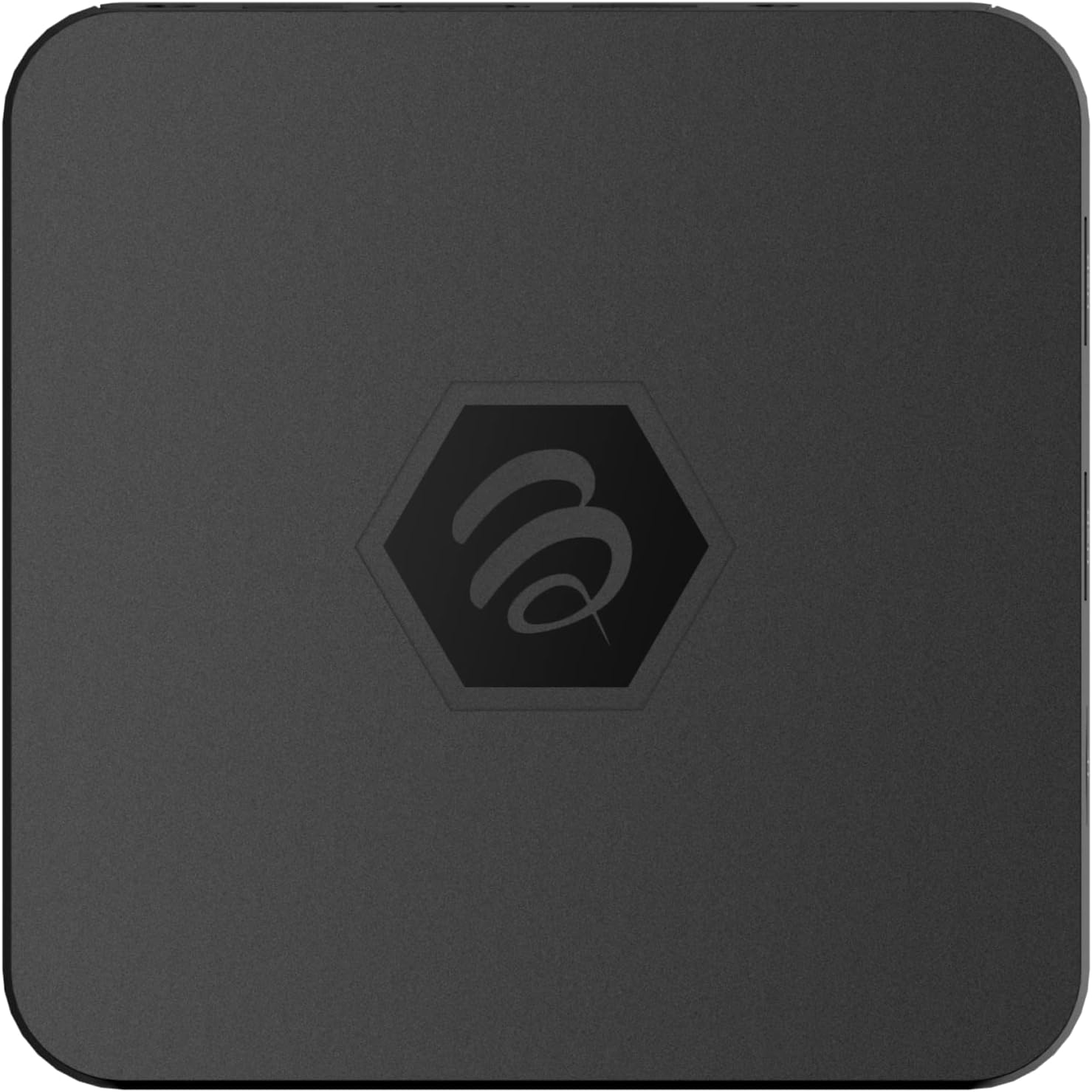
රූපය 1.1: ඉහළට view of the BuzzTV B5 Android 11 TV Box.
2. පැකේජ අන්තර්ගතය
Please verify that all items listed below are included in your BuzzTV B5 package:
- BuzzTV B5 Set Top Box
- IR-100 Remote Control
- බල සැපයුම් ඇඩැප්ටරය
- 2x AAA බැටරි (දුරස්ථ පාලකය සඳහා)
- HDMI කේබලය
- පරිශීලක අත්පොත (මෙම ලේඛනය)

Image 2.1: Contents included in the BuzzTV B5 retail package.
3. සැකසුම් මාර්ගෝපදේශය
Follow these steps to set up your BuzzTV B5 TV Box:
- රූපවාහිනියට සම්බන්ධ වන්න: Connect one end of the provided HDMI cable to the HDMI port on the BuzzTV B5 and the other end to an available HDMI input on your television.
- සම්බන්ධක බලය: Plug the power supply adapter into the DC 5V port on the BuzzTV B5, then plug the adapter into a wall outlet. The device should power on automatically or can be powered on using the remote control.
- දුරස්ථ පාලකයට බැටරි ඇතුළු කරන්න: Open the battery compartment on the back of the IR-100 Remote Control and insert the two AAA batteries, ensuring correct polarity (+/-).
- ජාල සම්බන්ධතාවය: Once the device boots up, follow the on-screen instructions to connect to your network. You can choose between Wi-Fi (wireless) or Ethernet (wired) connection. For a wired connection, connect an Ethernet cable from your router to the Ethernet port on the BuzzTV B5.
- මූලික පිහිටුවීම්: Complete the initial Android setup process, which may include language selection, Google account login, and time zone settings.

Image 3.1: Rear ports of the BuzzTV B5 for connectivity.
4. මෙහෙයුම් උපදෙස්
The BuzzTV B5 operates on Android 11, providing a user-friendly interface for navigation and content access.
4.1 දුරස්ථ පාලන කාර්යයන්
The IR-100 Remote Control is your primary interface for the BuzzTV B5. Key functions include:
- බල බොත්තම: උපාංගය සක්රිය හෝ අක්රිය කරයි.
- සංචාලන පෑඩ් (ඉහළ/පහළ/වම/දකුණ/හරි): මෙනු සැරිසැරීමට සහ අයිතම තේරීමට භාවිතා කරයි.
- පසුපස බොත්තම: පෙර තිරයට හෝ මෙනුවට නැවත පැමිණේ.
- මුල් පිටුව බොත්තම: ප්රධාන Android මුල් තිරය වෙත නැවත පැමිණේ.
- වෙළුම් බොත්තම්: ශ්රව්ය පරිමාව සීරුමාරු කරයි.
- App/Menu Buttons: Accesses specific applications or context menus.

Image 4.1: Layout of the IR-100 Remote Control.
4.2 යෙදුම් වෙත ප්රවේශ වීම
From the home screen, you can access pre-installed applications like Netflix and YouTube, or download new applications from the Google Play Store. Use the navigation pad on your remote to select and launch applications.
4.3 4K UHD Streaming
The BuzzTV B5 supports 4K UHD resolution. Ensure your television is 4K compatible and that you are using a high-speed HDMI cable for optimal picture quality. Streaming quality will also depend on your internet connection speed and the content source.
5. නඩත්තු කිරීම
To ensure the longevity and optimal performance of your BuzzTV B5, consider the following maintenance tips:
- පිරිසිදු කිරීම: උපාංගයේ බාහිර පෙනුම පිරිසිදු කිරීම සඳහා මෘදු වියළි රෙද්දක් භාවිතා කරන්න. දියර පිරිසිදු කරන්නන් හෝ උල්ෙල්ඛ ද්රව්ය භාවිතා කිරීමෙන් වළකින්න.
- වාතාශ්රය: අධික උනුසුම් වීම වැළැක්වීම සඳහා උපාංගය හොඳින් වාතාශ්රය ඇති ප්රදේශයක තබා ඇති බවට වග බලා ගන්න. වාතාශ්රය විවරයන් ආවරණය නොකරන්න.
- මෘදුකාංග යාවත්කාලීන: Periodically check for and install system updates to benefit from new features, performance improvements, and security patches. These can usually be found in the device's settings menu.
- බල චක්රය: If the device becomes unresponsive, disconnect the power adapter, wait 10 seconds, and then reconnect it to perform a power cycle.
6. දෝශ නිරාකරණය
If you encounter issues with your BuzzTV B5, refer to the following common problems and solutions:
| ගැටලුව | විය හැකි හේතුව | විසඳුම |
|---|---|---|
| බලය නැත | බල ඇඩැප්ටරය සම්බන්ධ වී නැත; පිටවන ස්ථානය ක්රියා නොකරයි. | බල ඇඩැප්ටරය උපාංගයට සහ ක්රියාකාරී බල අලෙවිසැලකට ආරක්ෂිතව සම්බන්ධ කර ඇති බවට වග බලා ගන්න. වෙනත් අලෙවිසැලක් උත්සාහ කරන්න. |
| රූපවාහිනියේ සංඥා නැත | Incorrect HDMI input selected; faulty HDMI cable. | Select the correct HDMI input on your TV. Check HDMI cable connections or try a different HDMI cable. |
| දුරස්ථ පාලකය ප්රතිචාර නොදක්වයි | Dead batteries; remote not paired (if applicable); obstruction. | Replace AAA batteries. Ensure no obstructions between remote and device. |
| ජාල සම්බන්ධතා ගැටළු | වැරදි Wi-Fi මුරපදය; රවුටර ගැටළු; දුර්වල සංඥා. | Verify Wi-Fi password. Restart your router. Move the device closer to the router or use an Ethernet cable. |
| Applications Crashing/Freezing | Insufficient memory; outdated app; software glitch. | Close background apps. Update the app or the device's firmware. Clear app cache/data in settings. |
7. පිරිවිතර
Detailed technical specifications for the BuzzTV B5 Android 11 TV Box:
- මෙහෙයුම් පද්ධතිය: Android OS 11
- CPU: Amlogic S905W2 Quad-Core A-35
- GPU: Mali-G31 MP2
- RAM: 2GB DDR
- ගබඩා: 16GB eMMC
- Wifi: Dual Band AC
- LAN: 10/100 Mbps ඊතර්නෙට්
- බ්ලූටූත්: 4.2
- USB Ports: 2x USB 2.0
- MicroSD Slot: 1
- බල අතුරුමුහුණත: DC 5V
- HDMI ප්රතිදානය: 1
- දෘශ්ය ශ්රව්ය ප්රතිදානය: 1
- ප්රතිදාන විභේදනය: 4K (32 FPS)
- මානයන්: අඟල් 9.06 x 5.63 x 2.32
- අයිතමයේ බර: රාත්තල් 1.01 කි

Image 7.1: BuzzTV B5 with a summary of its technical specifications.
8. වගකීම් තොරතුරු
For detailed warranty information regarding your BuzzTV B5, please refer to the warranty card included in your product packaging or visit the official BuzzTV webවෙබ් අඩවිය. වගකීම් නියමයන් සහ කොන්දේසි කලාපය සහ සිල්ලර වෙළෙන්දා අනුව වෙනස් විය හැකිය.
9. සහාය
If you require further assistance or have questions not covered in this manual, please contact BuzzTV customer support or visit their official webනිතර අසන ප්රශ්න, මෘදුකාංග බාගැනීම් සහ අමතර සම්පත් සඳහා අඩවිය.
BuzzTV Official Webඅඩවිය: www.buzztv.com