හැඳින්වීම
Thank you for choosing the EBTOOLS Bluetooth Remote Control Page Turner. This device offers convenient wireless control for various functions on your iOS and Android smartphones, including remote camera shutter, video page turning, and e-book navigation. Please read this manual carefully to ensure proper use and optimal performance.
නිෂ්පාදනය අවසන්view
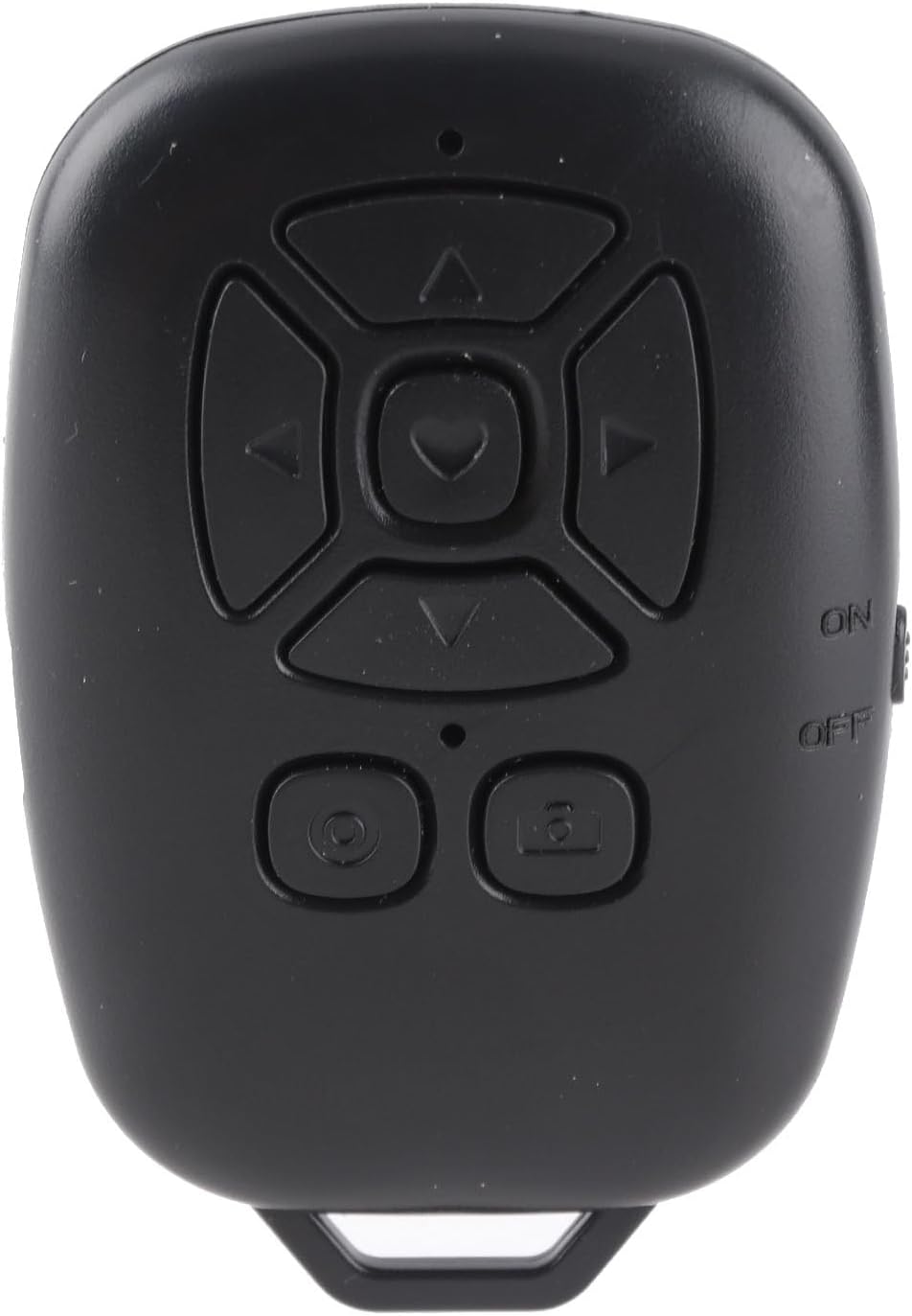
රූපය 1: ඉදිරිපස view of the EBTOOLS Bluetooth Remote Control, showcasing its compact design and intuitive button layout for various functions.
The EBTOOLS Bluetooth Remote Control is a compact and lightweight device designed for ease of use. It features a multi-directional control pad, dedicated camera/record buttons, and an ON/OFF switch. Its ergonomic design allows for comfortable handling, and the integrated loop enables attachment to keychains for portability.
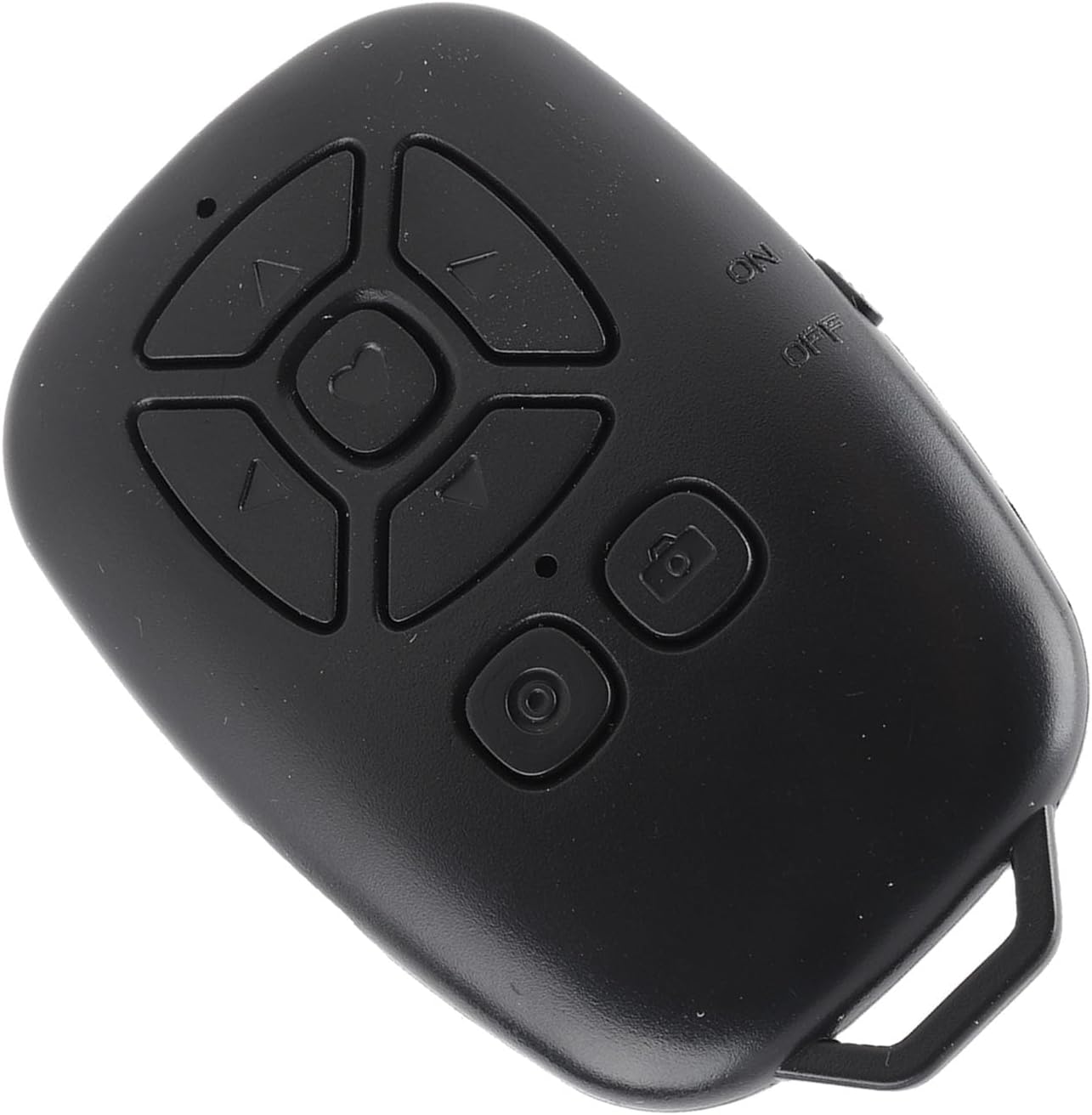
රූපය 2: කෝණික view of the EBTOOLS Bluetooth Remote Control, showing its ergonomic shape and the side-mounted ON/OFF switch.
පිරිවිතර
| විශේෂාංගය | විස්තර |
|---|---|
| බ්ලූටූත් අනුවාදය | බ්ලූටූත් 5.0 |
| සම්බන්ධතා තාක්ෂණය | බ්ලූටූත්, USB |
| ගැළපෙන උපාංග | Camera (Smartphones: iOS, Android) |
| දුරස්ථ පාලක බැටරි වර්ගය | Polymer Lithium Battery, 1 x CR2032 |
| බැටරි ධාරිතාව | 80mAh (බිල්ට්-ඉන්) |
| අයිතමයේ බර | අවුන්ස 1.2 කි |
| පැකේජ මානයන් | අඟල් 3.54 x 2.76 x 0.79 |
| ආදර්ශ අංකය | EBTOOLSdug3rt25po |
පැකේජයේ අන්තර්ගතය
ඔබේ පැකේජයට පහත අයිතම ඇතුළත් වේ:
- 1 x EBTOOLS Bluetooth Remote Control
- 1 x උපදෙස් අත්පොත (මෙම ලේඛනය)
- 1 x USB කේබලය (වර්ගය-C)
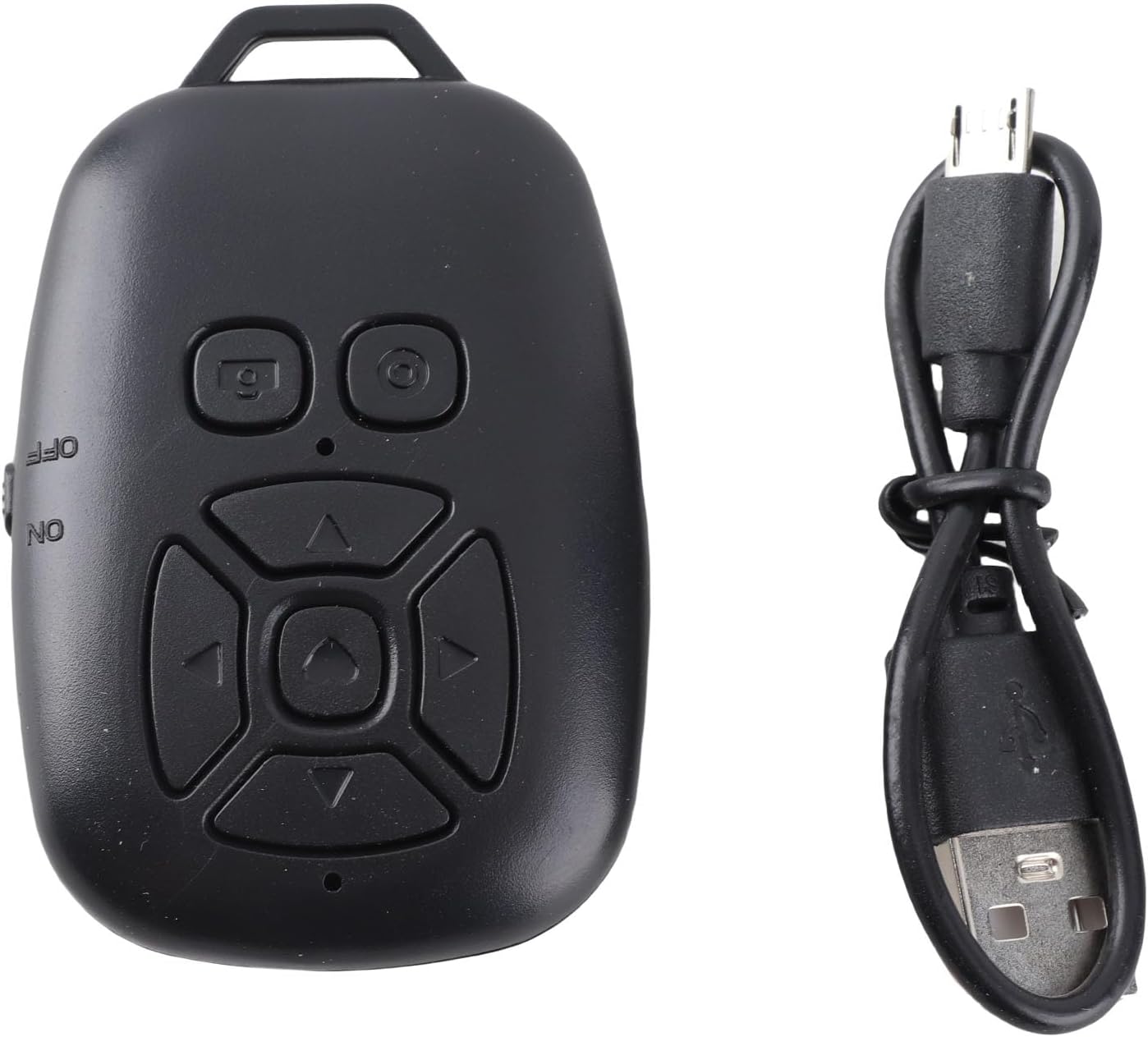
රූපය 3: The EBTOOLS Bluetooth Remote Control alongside its USB-C charging cable, highlighting the device's compact size and charging method.
සැලසුම
1. බ්ලූටූත් සම්බන්ධතාවය
- Ensure the remote control is charged (refer to the Charging section).
- Turn on the remote control using the ON/OFF switch located on the side.
- ඔබගේ ස්මාර්ට් ජංගම දුරකථනයෙන්, සංචාලනය කරන්න සැකසීම් > බ්ලූටූත්.
- ඒ සඳහා සොයන්න available Bluetooth devices. The remote control will appear as BLE M3.
- තෝරන්න BLE M3 to pair and connect. Once connected, the indicator light on the remote will typically stop flashing or turn solid.
2. For iOS Systems (Additional Settings)
After establishing the Bluetooth connection, iOS users may need to enable Accessibility features for full functionality:
- වෙත යන්න සැකසීම් > ප්රවේශ්යතාව > ස්පර්ශ කරන්න > සහායක ස්පර්ශය.
- ටොගල් කරන්න සහායක ස්පර්ශය දක්වා ON.
- සහතික කරන්න ස්පර්ශ අභිනයන් සිදු කරන්න is also set to ON within the AssistiveTouch settings.
3. For Android Systems
Once the Bluetooth connection is successfully established, the remote control is generally ready for use on Android devices without further specific settings.

රූපය 4: A person using the EBTOOLS Bluetooth Remote Control to capture a selfie with a smartphone, demonstrating its utility for remote photography.
මෙහෙයුම් උපදෙස්
Remote Shutter Function
Open your smartphone's camera application. Press the dedicated camera button on the remote control to remotely trigger the shutter for photos or start/stop video recording. This allows for stable shots and wider angles, especially when using a tripod.
Page Turning and Media Control
The directional buttons (up, down, left, right) and the central button can be used for various functions depending on the application:
- Short Video Apps: Use the up/down buttons to scroll through videos, and the left/right buttons for other navigation or interactions. The central button may act as a 'like' or 'play/pause' function.
- E-book Readers: Use the left/right buttons to turn pages.
- සංගීතය/වීඩියෝ නැවත ධාවනය: Control volume, skip tracks, or play/pause media.
Adjusting Camera Point (for specific apps)
If the camera point or cursor is not aligned in certain applications, you can adjust its position:
- Press and hold the camera button on the remote.
- While holding the camera button, use the up, down, left, or right directional keys to move the cursor on your screen to the desired camera position.
- Release the camera button once the cursor is correctly positioned.

රූපය 5: A user interacting with a smartphone, with the EBTOOLS Bluetooth Remote Control positioned nearby, illustrating its convenience for media control and page turning.
උපාංගය ආරෝපණය කිරීම
The EBTOOLS Bluetooth Remote Control features a USB Type-C charging port for convenient recharging. When the battery is low, connect the provided USB Type-C cable to the remote control and a standard USB power source (e.g., computer USB port, wall adapter). The indicator light will typically show charging status and turn off or change color when fully charged.
රැකවරණය සහ නඩත්තුව
- උපාංගය වියළිව තබා ගන්න. තෙතමනය ඉලෙක්ට්රොනික උපාංගවලට හානි කළ හැකිය.
- අධික උෂ්ණත්වයන්ගෙන් වළකින්න. සෘජු හිරු එළියට හෝ ඉතා සීතල පරිසරයන්ට නිරාවරණය නොවන්න.
- මෘදු වියළි රෙද්දකින් උපාංගය පිරිසිදු කරන්න. රළු රසායනික ද්රව්ය හෝ උල්ෙල්ඛ පිරිසිදු කරන්නන් භාවිතා නොකරන්න.
- භෞතික හානි වැළැක්වීම සඳහා උපාංගය භාවිතයේ නොමැති විට ආරක්ෂිත ස්ථානයක ගබඩා කරන්න.
දෝශ නිරාකරණ මාර්ගෝපදේශය
Device Not Connecting via Bluetooth
- Ensure the remote control is turned ON and fully charged.
- ඔබගේ ස්මාර්ට් ජංගම දුරකතනයේ බ්ලූටූත් සක්රීය කර ඇති බවට වග බලා ගන්න.
- Try unpairing and re-pairing the device from your phone's Bluetooth settings.
- ඔබගේ ස්මාර්ට් ජංගම දුරකථනය සහ දුරස්ථ පාලකය නැවත ආරම්භ කරන්න.
- වෙනත් බ්ලූටූත් උපාංග සම්බන්ධතාවයට බාධා නොකරන බවට වග බලා ගන්න.
Functions Not Working on iOS
- එය තහවුරු කරන්න සහායක ස්පර්ශය සහ ස්පර්ශ අභිනයන් සිදු කරන්න are enabled in your iOS Accessibility settings as described in the Setup section.
දුරස්ථ පාලකය ප්රතිචාර නොදක්වයි
- බැටරි මට්ටම පරීක්ෂා කර අවශ්ය නම් නැවත ආරෝපණය කරන්න.
- Ensure the remote is within the effective Bluetooth range (up to 30 feet/10 meters).
- Confirm the remote is paired and connected to your device.
වගකීම් සහ සහාය
EBTOOLS products are manufactured with quality and performance in mind. For specific warranty information, please refer to the documentation provided at the time of purchase or contact your retailer. If you encounter any issues or require technical assistance, please reach out to the customer support channel provided by your seller.