1. හැඳින්වීම
Thank you for choosing the SILENTWARE Air 1000 Black ATX Midi Tower PC Case. This manual provides essential information for the proper installation, operation, and maintenance of your new PC case. Please read this manual thoroughly before beginning the assembly process to ensure a smooth and successful build.
2 ආරක්ෂිත තොරතුරු
- පරිගණක කේස් එක තුළ ඇති ඕනෑම සංරචකයක් ස්ථාපනය කිරීමට හෝ ඉවත් කිරීමට පෙර සෑම විටම බිත්ති අලෙවිසැලෙන් බල සැපයුම විසන්ධි කරන්න.
- විද්යුත් ස්ථිතික විසර්ජනයෙන් (ESD) සිදුවන හානිය වළක්වා ගැනීම සඳහා සංරචක ප්රවේශමෙන් හසුරුවන්න. ප්රති-ස්ථිතික මැණික් කටු පටියක් භාවිතා කිරීම සලකා බලන්න.
- Be cautious of sharp edges inside the case.
- Do not attempt to modify the case or its components, as this may void your warranty and pose safety risks.
- Keep the case away from water, moisture, and extreme temperatures.
3. පැකේජ අන්තර්ගතය
කරුණාකර ඔබගේ පැකේජයේ සියලුම අයිතම ඇති බව තහවුරු කරගන්න:
- SILENTWARE Air 1000 Black ATX Midi Tower PC Case
- Pre-installed 4x 120mm ARGB Fans
- Accessory box (screws, cable ties, standoffs, etc.)
- පරිශීලක අත්පොත (මෙම ලේඛනය)
4. නිෂ්පාදන අවසන්view
The SILENTWARE Air 1000 is an ATX Midi Tower PC case designed for optimal airflow and component compatibility. It features a mesh front panel for maximum ventilation and a tempered glass side panel to showcase your build.


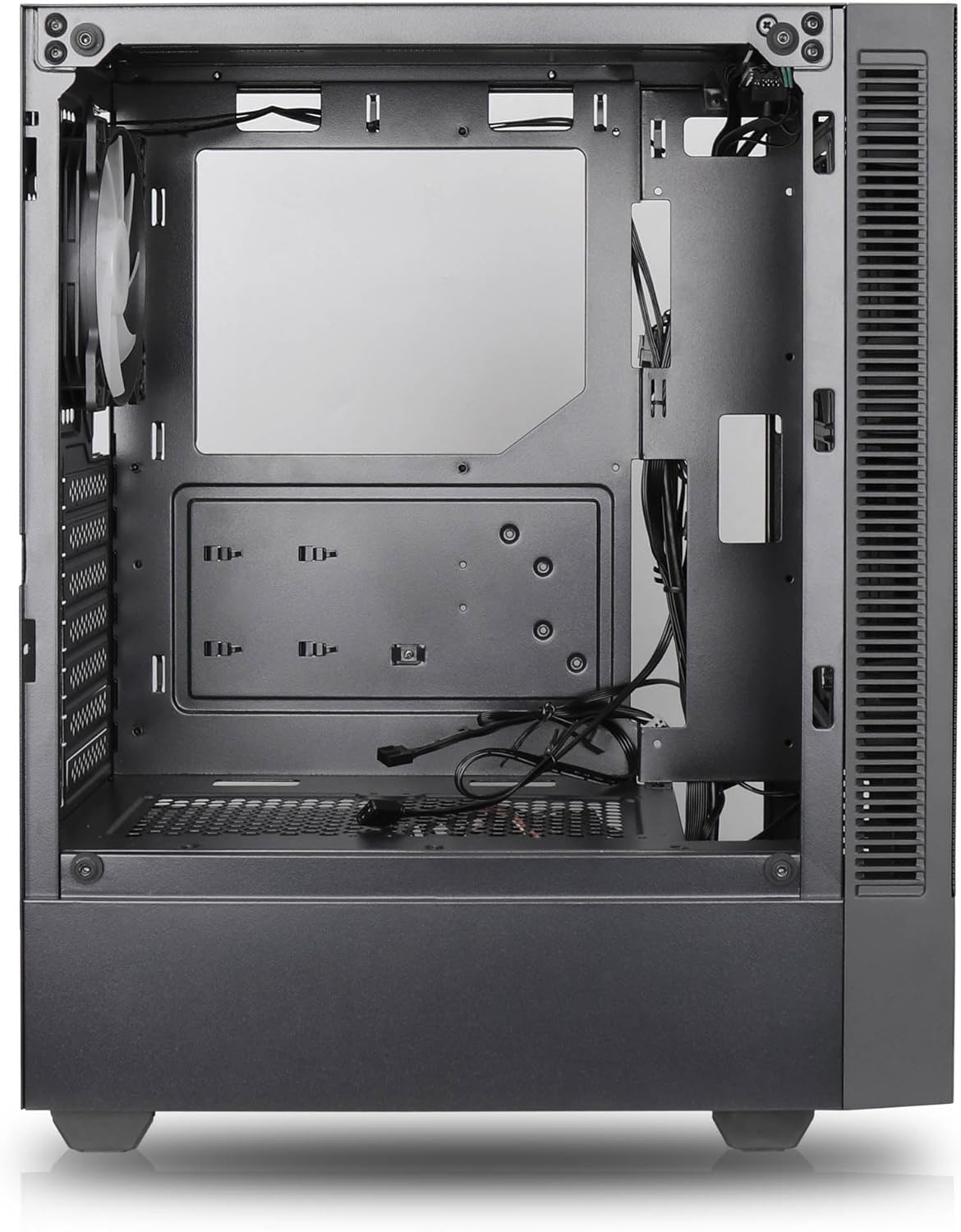

ප්රධාන ලක්ෂණ:
- උපරිම වායු ප්රවාහය: Large mesh front panel and four pre-installed 140mm A-RGB fans with hydraulic bearings ensure excellent ventilation.
- Easy PC Building: Thoughtful design with daisy-chain connections simplifies installation, eliminating the need for additional adapters or controllers.
- උසස් තත්ත්වයේ නිර්මාණය: Genuine tempered glass side panel showcases installed components and provides a minimalist, premium aesthetic.
- Flexible Lighting and Control: 3-pin A-RGB fans and 4-pin fan control allow for impressive lighting effects and easy adjustment of fan speed and curves directly from the motherboard.
- Powerful Component Compatibility: Supports GPUs up to 400mm long, radiators up to 360mm (front and top) and 140mm (rear), and space for up to 4 fans.
- Compact Case with Ampඅවකාශය: Midi tower format accommodates E-ATX, ATX, mATX, and ITX motherboards, up to two 2.5" SSDs, two 3.5" HDDs, and ATX power supplies.
5. ස්ථාපන මාර්ගෝපදේශය
Follow these steps for component installation. Refer to your individual component manuals for specific instructions.
5.1. නඩුව සකස් කිරීම
- නඩුව පැතලි, ස්ථාවර මතුපිටක් මත තබන්න.
- Carefully remove the tempered glass side panel by unscrewing the thumb screws and gently pulling it away. Set it aside on a soft, non-abrasive surface.
- Remove the solid right side panel by unscrewing the thumb screws and sliding it backward.
5.2. මවු පුවරු ස්ථාපනය
- නඩුවේ පසුපස විවරයට I/O පලිහ සවි කරන්න.
- Ensure the correct standoffs are installed for your motherboard form factor (E-ATX, ATX, mATX, ITX). Adjust or add standoffs as needed.
- ඔබේ මවු පුවරුව ස්ටෑන්ඩ්ඕෆ් මත ප්රවේශමෙන් තබන්න, ඉස්කුරුප්පු සිදුරු පෙළගස්වන්න.
- සපයා ඇති ඉස්කුරුප්පු වලින් මවු පුවරුව සුරක්ෂිත කරන්න. ඕනෑවට වඩා තද නොකරන්න.
5.3. බල සැපයුම් ඒකකය (PSU) ස්ථාපනය
- නඩුවේ පහළ පිටුපස කැපවූ මැදිරියේ PSU ස්ථානගත කරන්න.
- Ensure the PSU fan faces downwards (if the case has a bottom vent) or upwards, depending on your cooling preference.
- පිටුපසින් සපයා ඇති ඉස්කුරුප්පු භාවිතයෙන් PSU එක කේස් එකට සවි කරන්න.
5.4. ගබඩා ධාවක ස්ථාපනය
2.5" SSD:
- Locate the 2.5" drive mounts (typically behind the motherboard tray).
- Secure the SSDs using the provided screws.
3.5" HDD තැටි:
- Locate the 3.5" drive cages (usually near the PSU shroud).
- Slide the HDDs into the drive trays and secure them with screws or tool-less mechanisms if available.
5.5. ග්රැෆික් කාඩ් (GPU) ස්ථාපනය
- නඩුවේ පිටුපසින් අවශ්ය PCIe තව් ආවරණ ඉවත් කරන්න.
- Align your GPU with the PCIe slot on the motherboard and press firmly until it clicks into place.
- Secure the GPU to the case with screws.
5.6. කේබල් කළමනාකරණය
කේබල් කළමනාකරණය කිරීම සඳහා මවු පුවරුවේ තැටිය පිටුපස ඇති කේබල් රවුටින් කටවුට් සහ ගැටගැසීම් ස්ථාන භාවිතා කරන්න. මෙය වායු ප්රවාහය සහ සෞන්දර්යය වැඩි දියුණු කරයි.
6. මෙහෙයුම
6.1. බලගැන්වීම
After all components are installed and cables are connected, reattach the side panels. Connect the power cable to the PSU and a wall outlet, then press the power button on the top I/O panel of the case.
6.2. ARGB විදුලි පංකා පාලනය
The pre-installed ARGB fans feature 3-pin ARGB connectors for lighting control and 4-pin connectors for fan speed control. These can be connected directly to compatible headers on your motherboard. Use your motherboard's software or BIOS settings to customize lighting effects and fan curves.
7. නඩත්තු කිරීම
7.1 පිරිසිදු කිරීම
- Regularly clean dust filters (if present) to maintain optimal airflow.
- Use a can of compressed air to remove dust from inside the case and components.
- මෘදු, d සමඟ බාහිර පෘෂ්ඨයන් පිස දමන්නamp රෙදි. දරුණු රසායනික ද්රව්ය වලින් වළකින්න.
- For the tempered glass panel, use a glass cleaner and a microfiber cloth.
8. දෝශ නිරාකරණය
- PC not powering on: Check all power connections, including the 24-pin motherboard power, 8-pin CPU power, and GPU power cables. Ensure the PSU switch is in the 'ON' position.
- Fans not spinning/RGB not working: Verify that fan and ARGB headers are correctly connected to the motherboard. Check motherboard software for fan speed and lighting control settings.
- අධික උනුසුම් වීම: Ensure proper airflow by checking fan orientation and cleaning dust filters. Verify CPU cooler and GPU cooler are properly seated.
- සංදර්ශකය නැත: Confirm the monitor cable is connected to the graphics card (not the motherboard integrated graphics, unless you are using integrated graphics). Reseat the graphics card and RAM modules.
9. පිරිවිතර
| විශේෂාංගය | පිරිවිතර |
|---|---|
| වෙළඳ නාමය | SILENTWARE |
| මාදිලියේ නම | Silentware Flow 100 ARGB |
| අයිතම ආදර්ශ අංකය | FLOW100 |
| ASIN | B0CB8CZ5GF |
| වර්ණය | කළු |
| නඩු වර්ගය | මැද කුළුණ |
| ද්රව්ය | තෙම්පරාදු වීදුරු |
| මවු පුවරු අනුකූලතාව | ATX, මයික්රෝ ATX, මිනි ITX |
| ගැළපෙන උපාංග | ATX, mATX, ITX motherboards, GPUs up to 325mm, radiators up to 360mm, 2.5" and 3.5" storage drives |
| නිර්දේශිත භාවිතයන් | ක්රීඩා කිරීම |
| සිසිලන ක්රමය | වාතය |
| පෙර ස්ථාපිත විදුලි පංකා | 4x 120mm ARGB විදුලි පංකා |
| විදුලි පංකා ප්රමාණය | 140 Millimeters (Note: Product description mentions 140mm fans, while pre-installed are 120mm. Please verify with product packaging.) |
| බල සැපයුම් සවි කිරීමේ වර්ගය | පහළ කන්ද |
| උපරිම GPU දිග | 400 මි.මී |
| Radiator Support (Front/Top) | 360mm දක්වා |
| රේඩියේටර් ආධාරකය (පසුපස) | 140mm දක්වා |
| 2.5" ඩ්රයිව් බේස් | 2 දක්වා |
| 3.5" ඩ්රයිව් බේස් | 2 දක්වා |
10. වගකීම් සහ සහාය
For warranty information and technical support, please refer to the official SILENTWARE website or contact your retailer. Specific details regarding spare parts availability and software updates are not available in the provided product information.


