1. හැඳින්වීම
This user manual provides comprehensive instructions for the setup, operation, and maintenance of your FULLJA 17-inch Dual-WiFi Digital Picture Frame. This device allows you to instantly share photos and videos with loved ones from anywhere using the VPhoto app or email, supporting both 2.4 GHz and 5 GHz Wi-Fi networks. With its large display, ample storage, and versatile features, it is designed to preserve and display your precious memories with ease.
2 ආරක්ෂිත තොරතුරු
Please read all safety instructions carefully before using the device to ensure proper operation and to prevent damage or injury. Keep this manual for future reference.
- උපාංගය ජලයට හෝ අධික තෙතමනයට නිරාවරණය නොකරන්න.
- රේඩියේටර්, තාප රෙජිස්ටර්, උදුන් හෝ වෙනත් උපකරණ (ඇතුළුව) වැනි තාප ප්රභවයන් අසල උපාංගය තැබීමෙන් වළකින්න. ampලිෆයර්) තාපය නිපදවන.
- උපාංගය සමඟ සපයා ඇති බල ඇඩැප්ටරය පමණක් භාවිතා කරන්න.
- කිසිදු වාතාශ්රය විවරයක් අවහිර නොකරන්න. නිෂ්පාදකයාගේ උපදෙස් අනුව ස්ථාපනය කරන්න.
- විදුලි රැහැන ඇවිදීමෙන් හෝ ඇණ ගැසීමෙන්, විශේෂයෙන් ප්ලග්, පහසුව සඳහා භාජන සහ උපාංගයෙන් පිටවන ස්ථානය ආරක්ෂා කරන්න.
- අකුණු කුණාටු වලදී හෝ දිගු කාලයක් භාවිතා නොකළ විට උපාංගය විසන්ධි කරන්න.
- සියලුම සේවා සුදුසුකම් ලත් සේවා පුද්ගලයින් වෙත යොමු කරන්න. උපාංගයට කිසියම් ආකාරයකින් හානි වී ඇති විට, එනම් බල සැපයුම් ලණුව හෝ ප්ලග් වලට හානි වීම, දියර කාන්දු වීම හෝ උපාංගයට වස්තූන් වැටී ඇති විට, උපාංගය වර්ෂාපතනයට හෝ තෙතමනයට නිරාවරණය වී ඇති විට, සාමාන්යයෙන් ක්රියා නොකරන විට සේවා සැපයීම අවශ්ය වේ. , හෝ අතහැර දමා ඇත.
- වියළි රෙද්දකින් පමණක් පිරිසිදු කරන්න.
3. පැකේජ අන්තර්ගතය
සියලුම අයිතම පැකේජයේ ඇති බව තහවුරු කරගන්න:
- 1x FULLJA 17-inch Digital Picture Frame
- 1x පරිශීලක අත්පොත
- 1x බල ඇඩැප්ටරය
- 1x Bracket (for stand)
- 1x දුරස්ථ පාලකය
- 1x මයික්රෝ USB කේබලය

Image: FULLJA Brand Logo
This image displays the official FULLJA brand logo, typically found on product packaging and documentation.

Image: FULLJA 17-inch Digital Picture Frame
This image shows the 17-inch FULLJA Digital Picture Frame in a vertical orientation, resting on a surface.
4. නිෂ්පාදන අවසන්view
4.1. සංරචක සහ පාලන
Familiarize yourself with the various parts of your digital picture frame:
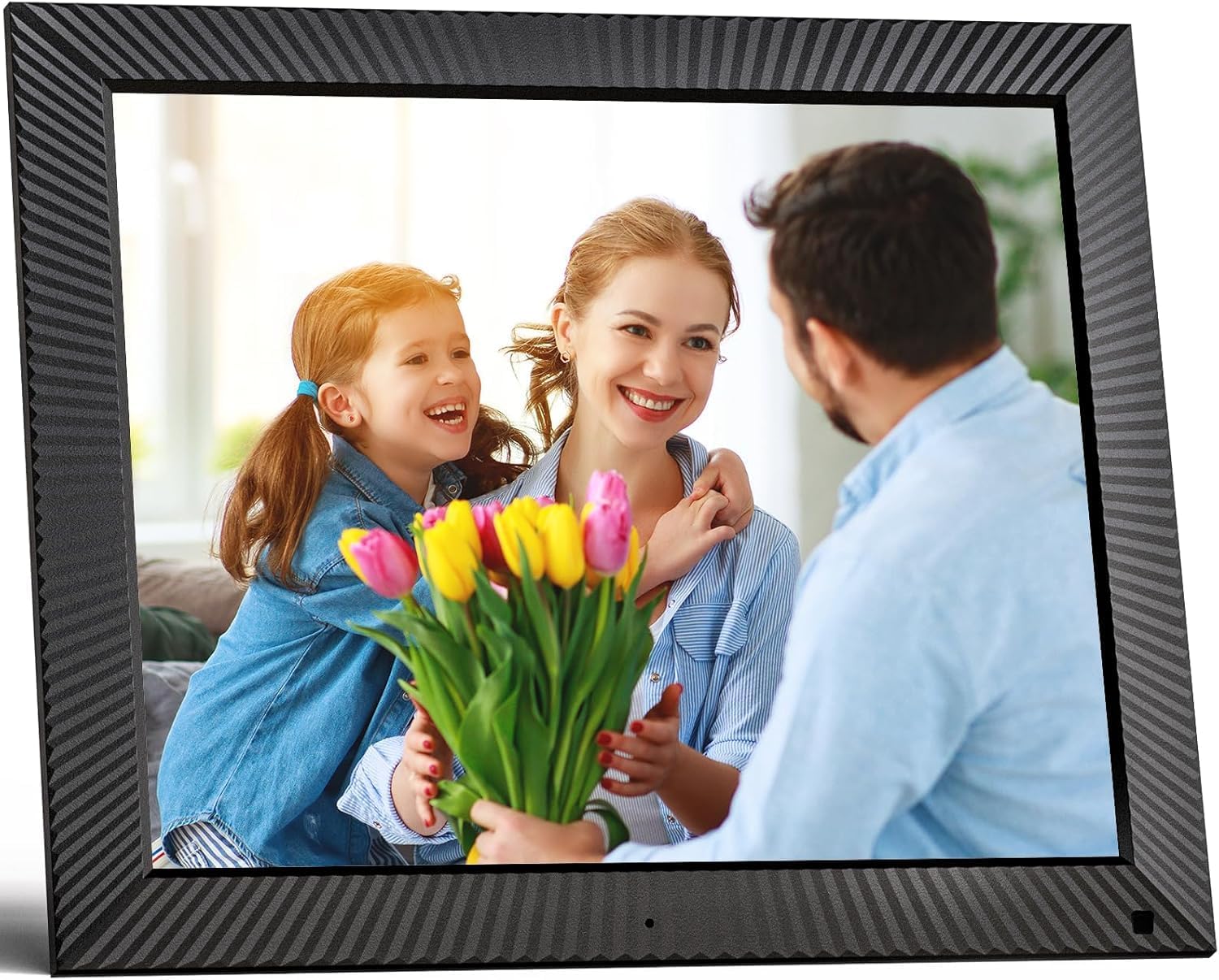
රූපය: ඉදිරිපස view of the FULLJA 17-inch Digital Picture Frame
This image displays the front of the digital picture frame, showcasing its large screen with a family photo displayed. The frame has a textured black border.

Image: Features of the FULLJA 17-inch Digital Picture Frame
This image highlights key features of the 17-inch digital picture frame, including its touch screen, HD 1280x1024 pixel resolution, 4:3 aspect ratio, and remote control functionality. It shows the frame in both landscape and portrait orientations, with a view of the back panel and stand.
- සංදර්ශක තිරය: 17-inch IPS display with 1280x1024 resolution. Touch-enabled for direct interaction.
- බල බොත්තම: Located on the back or side, used to turn the frame on/off or put it into standby.
- USB Port: For connecting USB sticks to transfer photos/videos.
- TF කාඩ් පත: For inserting TF (MicroSD) cards (up to 64GB) to expand storage or transfer media.
- මයික්රෝ USB පෝට්: For connecting to a computer for data transfer or firmware updates.
- DC බල ආදානය: බල ඇඩැප්ටරය සම්බන්ධ කිරීම සඳහා.
- චලන සංවේදකය: Detects presence to automatically turn the screen on/off, saving energy.
- බිල්ට් ස්පීකර්: For audio playback with videos or background music.
- බිත්ති සවි කිරීමේ සිදුරු: VESA compatible holes on the back for wall mounting.
- Stand Bracket: Attachable bracket for desktop placement in portrait or landscape orientation.
4.2. දුරස්ථ පාලකය
The included remote control provides convenient access to various functions without touching the screen.
- බලය: Turn the frame on/off.
- මෙනුව/සැකසීම්: ප්රධාන මෙනුව සහ සැකසුම් වෙත පිවිසෙන්න.
- සංචාලන බොත්තම් (ඉහළ/පහළ/වම/දකුණ): මෙනු සහ විකල්ප හරහා සංචාලනය කරන්න.
- හරි/ඇතුල් කරන්න: තේරීම් තහවුරු කරන්න.
- ආපසු/පිටවීම: Go back to the previous screen or exit a menu.
- වෙළුම +/-: ශ්රව්ය පරිමාව සකසන්න.
- වාදනය/විරාමය: මාධ්ය නැවත ධාවනය පාලනය කරන්න.
- ඊළඟ/පෙර: Skip to the next or previous photo/video.
5. පිහිටුවීම
5.1. මූලික බලය සක්රිය කිරීම
- Unpack the digital picture frame and all accessories.
- Attach the stand bracket to the back of the frame if you intend to place it on a desk or shelf. Ensure it is securely fastened.
- Connect the power adapter to the DC power input port on the frame, then plug the adapter into a wall outlet.
- The frame will automatically power on or you may need to press the power button.
- ඔබගේ භාෂාව සහ වේලා කලාපය තේරීමට තිරයේ ඇති විමසීම් අනුගමනය කරන්න.
5.2. Wi-Fi වෙත සම්බන්ධ වීම
A Wi-Fi connection is essential for sharing photos via the app or email.
- ප්රධාන මෙනුවෙන්, සංචාලනය කරන්න සැකසීම්.
- තෝරන්න Wifi.
- The frame will scan for available networks. Select your desired 2.4 GHz or 5 GHz network from the list.
- තිරයේ යතුරු පුවරුව භාවිතයෙන් ඔබගේ Wi-Fi මුරපදය ඇතුළත් කරන්න.
- තට්ටු කරන්න සම්බන්ධ කරන්න. Once connected, a Wi-Fi icon will appear on the screen.

Image: Digital Picture Frame with Wi-Fi Sharing
This image illustrates the capability of the digital picture frame to share photos and videos wirelessly via Wi-Fi. It shows the frame displaying a family photo, with a smartphone in the foreground indicating app-based sharing.
5.3. Installing the VPhoto App
The VPhoto app is available for both iOS and Android devices and is the primary method for sharing content remotely.
- ඒ සඳහා සොයන්න "VPhoto" in the Apple App Store (for iOS) or Google Play Store (for Android).
- ඔබගේ ස්මාර්ට් ජංගම දුරකතනයේ හෝ ටැබ්ලටයේ යෙදුම බාගත කර ස්ථාපනය කරන්න.
- Open the VPhoto app and create an account or log in.
- To connect your frame, go to the සැකසීම් menu on your digital picture frame and find the unique binding code.
- In the VPhoto app, select උපාංගය එක් කරන්න and enter the binding code displayed on your frame.
- Once connected, you can start sending photos and videos to your frame. Up to 30 app accounts can be bound to one frame.

Image: Sharing Options for Digital Picture Frame
This image demonstrates the various ways to share content with the digital picture frame, including the free VPhoto app for iOS and Android, unlimited cloud storage with 32GB built-in, and the ability to invite multiple family members to share. It shows the frame displaying a photo and a smartphone screen with the VPhoto app interface.
6. මෙහෙයුම් උපදෙස්
6.1. ඡායාරූප සහ වීඩියෝ යැවීම
There are multiple ways to send media to your FULLJA digital picture frame:
- Via VPhoto App: Open the VPhoto app, select the photos/videos you wish to send (up to 50 at a time), choose your connected frame, and tap send.
- විද්යුත් තැපෑල හරහා: Each frame has a unique email address. You can send photos and short videos as attachments to this email address. The frame will automatically receive and display them.
- Via USB Stick/TF Card: Insert a USB stick or TF card into the respective port. Navigate to the ඡායාරූප ෆෝල්ඩරය or වීඩියෝ section on the frame, select the external storage, and copy files to the internal memory if desired.

Image: Digital Picture Frame with 32GB Internal Storage
This image highlights the frame's built-in 32GB internal storage, capable of storing approximately 80,000+ photos. The main frame displays a photo of a mother and child, surrounded by smaller circular images representing the vast number of memories that can be stored.
6.2. මූලික කාර්යයන්
- Slideshow Playback: Photos and videos will automatically play in a slideshow. You can adjust the display interval and transition effects in the settings.
- Photo/Video Browsing: Tap the screen or use the remote to manually browse through your media.
- ශබ්ද පාලනය: Adjust the volume for videos or background music using the touch screen controls or the remote.
- ස්වයංක්රීය කරකැවීම: The frame automatically adjusts the display orientation (portrait or landscape) based on how it is positioned.
6.3. උසස් කාර්යයන්
- චලන සංවේදකය: Enable this feature in settings to have the frame automatically turn on when motion is detected and off when no motion is detected for a set period, saving energy.
- Auto Screen On/Off: Set specific times for the frame to automatically turn on and off daily.
- ඔරලෝසුව සහ දින දර්ශනය: Access the built-in clock and calendar functions from the main menu.
- අනතුරු ඇඟවීම: මතක් කිරීම් සඳහා එලාම සකසන්න.
- බෙදුම් තිරය: Display multiple photos simultaneously (check settings for layout options).
- Text Captions: Add captions to your photos via the VPhoto app.
- සංගීත වාදනය: Play background music during slideshows (ensure music files are on the frame's internal storage or connected USB/TF card).

Image: Digital Picture Frame with Function Icons
This image showcases the multi-functional capabilities of the digital picture frame, including Wi-Fi connectivity, weather display, clock, calendar, photo and video playback, music, and slideshow features. Two frames are shown, one on a wall and one on a cabinet, with icons representing these functions below.
7. නඩත්තු කිරීම
7.1. Cleaning the Frame
- Always unplug the frame before cleaning.
- තිරය සහ රාමුව මෘදු ලෙස පිස දැමීමට මෘදු, වියලි, ලින්ට් රහිත රෙද්දක් භාවිතා කරන්න.
- තිරය මත ඇති මුරණ්ඩු පැල්ලම් සඳහා, සැහැල්ලුවෙන් dampen the cloth with water or a screen-cleaning solution (specifically designed for electronics) and wipe carefully. Do not spray liquid directly onto the screen.
- උල්ෙල්ඛ පිරිසිදු කරන්නන්, ඉටි හෝ ද්රාවක භාවිතා කිරීමෙන් වළකින්න, මන්ද ඒවා මතුපිටට හානි කළ හැකිය.
7.2. මෘදුකාංග යාවත්කාලීන
Periodically check for software updates in the frame's settings menu to ensure optimal performance and access to new features. Updates are typically downloaded and installed over Wi-Fi.
7.3. ගබඩා කළමනාකරණය
While the frame has 32GB of internal storage and unlimited cloud storage, you may occasionally want to manage local files:
- වෙත පිවිසෙන්න ඡායාරූප ෆෝල්ඩරය or File කළමනාකරු in the settings to view, delete, or organize stored media.
- ඔබට මාරු කළ හැකිය files to/from a USB stick or TF card to manage internal storage.
8. දෝශ නිරාකරණය
If you encounter issues with your digital picture frame, refer to the following common problems and solutions:
| ගැටලුව | විය හැකි හේතුව / විසඳුම |
|---|---|
| රාමුව ක්රියාත්මක නොවේ. |
|
| Wi-Fi වෙත සම්බන්ධ විය නොහැක. |
|
| රාමුවේ ඡායාරූප/වීඩියෝ නොපෙන්වයි. |
|
| තිරය කැටි වේ හෝ ප්රතිචාර නොදක්වයි. |
|
| චලන සංවේදකය ක්රියා නොකරයි. |
|
9. පිරිවිතර
| විශේෂාංගය | විස්තර |
|---|---|
| ආදර්ශ අංකය | B0CCVBSM87 |
| වෙළඳ නාමය | ෆුල්ජා |
| තිර ප්රමාණය | අඟල් 17 |
| සංදර්ශක විභේදනය | 1280 x 1024 පික්සල (IPS) |
| දර්ශන අනුපාතය | 4:3 |
| අභ්යන්තර ගබඩාව | 32GB |
| බාහිර ගබඩා සහාය | USB stick, TF card (MicroSD) up to 64GB |
| Wi-Fi සම්බන්ධතාව | 2.4 GHz / 5 GHz Dual-Band |
| පාලන ක්රමය | Touch Screen, Remote Control, VPhoto App |
| චලන සංවේදකය | ඔව් |
| ස්වයංක්රීය කරකවන්න | ඔව් |
| බිත්ති සවි කළ හැකි | ඔව් |
| නිෂ්පාදන මානයන් | 29.67 x 43.51 x 2.51 සෙ.මී |
| නිෂ්පාදන බර | කිලෝ ග්රෑම් 2.52 කි |
| වර්ණය | කළු |
10. වගකීම් සහ සහාය
10.1. සීමිත වගකීම්
The FULLJA 17-inch Dual-WiFi Digital Picture Frame comes with a වසරක සීමිත වගකීමක් from the date of purchase. This warranty covers defects in materials and workmanship under normal use. It does not cover damage caused by accident, misuse, abuse, neglect, unauthorized modification, or improper installation.
To make a warranty claim, please retain your proof of purchase and contact FULLJA customer support.
10.2. පාරිභෝගික සහාය
For any questions, technical assistance, or support inquiries, please contact FULLJA customer service. We offer lifetime support and aim to provide a prompt response within 24 hours.
Please refer to the contact information provided on the product packaging or the official FULLJA webවඩාත්ම යාවත්කාලීන සහාය නාලිකා සඳහා අඩවිය.

