1. හැඳින්වීම
This manual provides comprehensive instructions for the installation, operation, and maintenance of your TAFFIO LMGQ9899-BO Android Head Unit. This 9-inch multimedia system is specifically designed for Porsche Cayenne models manufactured between 2003 and 2010, including compatibility with the Bose amplifier system. It features an Android 12 operating system, GPS navigation, integrated CarPlay, and Android Auto functionalities.
2 ආරක්ෂිත තොරතුරු
Please read all safety instructions carefully before installation and operation. Failure to follow these instructions may result in injury or damage to the device or vehicle.
- වෘත්තීය ස්ථාපනය නිර්දේශ කෙරේ: Due to the complexity of vehicle electronics, professional installation is highly recommended.
- විදුලිය විසන්ධි කිරීම: Always disconnect the vehicle's battery before beginning any installation work to prevent electrical shorts and damage.
- රැහැන් ඇදීම: Ensure all wiring connections are secure and properly insulated to prevent short circuits. Do not modify the wiring harness.
- රිය පැදවීමේ ආරක්ෂාව: රිය පැදවීමෙන් ඔබව අවධානය වෙනතකට යොමු කරන ආකාරයෙන් උපාංගය ක්රියාත්මක නොකරන්න. සෑම විටම මාර්ග ආරක්ෂාවට ප්රමුඛත්වය දෙන්න.
- වාතාශ්රය: Ensure the unit has adequate ventilation and is not obstructed by other components.
3. පැකේජ අන්තර්ගතය
පහත ලැයිස්තුගත කර ඇති සියලුම අයිතම ඔබේ පැකේජයට ඇතුළත් කර ඇති බව තහවුරු කරගන්න. කිසියම් අයිතමයක් අස්ථානගත වී හෝ හානි වී ඇත්නම්, කරුණාකර ඔබේ සිල්ලර වෙළෙන්දා අමතන්න.

රූපය 3.1: ඉවරයිview of included components. This image displays the main head unit, frame, MOST adapter, USB cables, GPS antenna, 4G antenna, RCA plugs, SIM card slot, backup camera cable, power cable with CAN BUS, antenna adapter, and mounting screws.
- 1x TAFFIO 9-inch Multimedia + Navigation System
- 1x Frame for Porsche Cayenne (2003-2010)
- 1x Power Cable with CAN BUS Decoder
- 1x MOST Adapter for BOSE AMP (for vehicles with Bose sound system)
- 1x GPS ඇන්ටනාව
- 1x 4G ඇන්ටෙනාව
- 2x USB කේබල්
- 1x RCA Audio/Video Cables Set (including video input, audio input, subwoofer output)
- 1x Backup Camera Input Cable
- 1x Antenna Adapter
- සවිකරන ඉස්කුරුප්පු
- 1x User Manual (English, PDF available for download)
4. පිහිටුවීම සහ ස්ථාපනය
The TAFFIO LMGQ9899-BO is designed for Plug & Play installation, minimizing the need for additional adapters or mounting frames. However, careful attention to wiring is crucial.
4.1 රැහැන් සටහන
Refer to the following diagram for proper connection of the head unit components.

රූපය 4.1: Connection points for the TAFFIO LMGQ9899-BO. This diagram illustrates the rear panel connections and the main wiring harness, detailing inputs for GPS, 4G, video, audio, camera, USB, power, CAN-BUS, and connections to the original car cables.
- ජීපීඑස් ඇන්ටෙනාව: සංචාලන ක්රියාකාරිත්වය සඳහා GPS ඇන්ටෙනාව සම්බන්ධ කරන්න.
- 4G ඇන්ටනා: ජංගම දත්ත සම්බන්ධතාවය සඳහා 4G ඇන්ටනාව සම්බන්ධ කරන්න.
- Video Plugs: Connect external video sources or outputs.
- Audio Plugs: Connect external audio sources or outputs (e.g., subwoofer).
- Camera IN: Connect a backup camera here. The unit supports automatic switching when reversing.
- USB (1 & 2): Connect USB devices for media playback or charging.
- බල කේබලය: Connect the main power cable to the vehicle's harness.
- CAN-BUS Connector: Connect the CAN-BUS decoder for vehicle communication.
- Connect to Original Car Cable (1 & 2): These are primary connections to the vehicle's existing wiring.
- Connect to TAFFIO Radio Cable: Specific connection for the radio antenna.
4.2 Bose AMP ඒකාබද්ධ කිරීම
For Porsche Cayenne models equipped with the Bose sound system, utilize the included MOST Adapter. This adapter ensures proper audio signal transmission and compatibility with the factory ampජීවිතාරක්ෂකයා.
4.3 ආරම්භක බල-අප්
After installation, reconnect the vehicle's battery. The unit should power on automatically with the ignition. Follow any on-screen prompts for initial setup, such as language selection and time zone.
5. මෙහෙයුම් උපදෙස්
The TAFFIO head unit features an intuitive Android interface with a capacitive multi-touch screen.
5.1 Main Interface Overview
The main screen provides quick access to core functions like Clock, Music, Navigation, and Radio.

රූපය 5.1: Main user interface with shortcuts to essential applications.
5.2 යෙදුම් කළමනාකරණය
Access the full list of installed applications by swiping up or tapping the app drawer icon. You can download additional apps from the Play Store.

රූපය 5.2: App drawer showing available applications.
5.3 GPS Navigation
The unit supports various navigation applications. Use the pre-installed navigation software or download your preferred app from the Play Store. The 2-Zone function allows navigation in the front while other media plays in the back.
5.4 කාර්ප්ලේ සහ ඇන්ඩ්රොයිඩ් ඔටෝ
The head unit features integrated Wireless CarPlay and Android Auto functionality, eliminating the need for external adapters.

රූපය 5.3: Wireless CarPlay interface.

රූපය 5.4: Android Auto interface.
To activate: Connect your smartphone via Bluetooth or USB. Follow the on-screen prompts to enable CarPlay or Android Auto.
5.5 බ්ලූටූත් කාර්යයන්
Pair your mobile phone via Bluetooth for hands-free calling and A2DP music streaming.
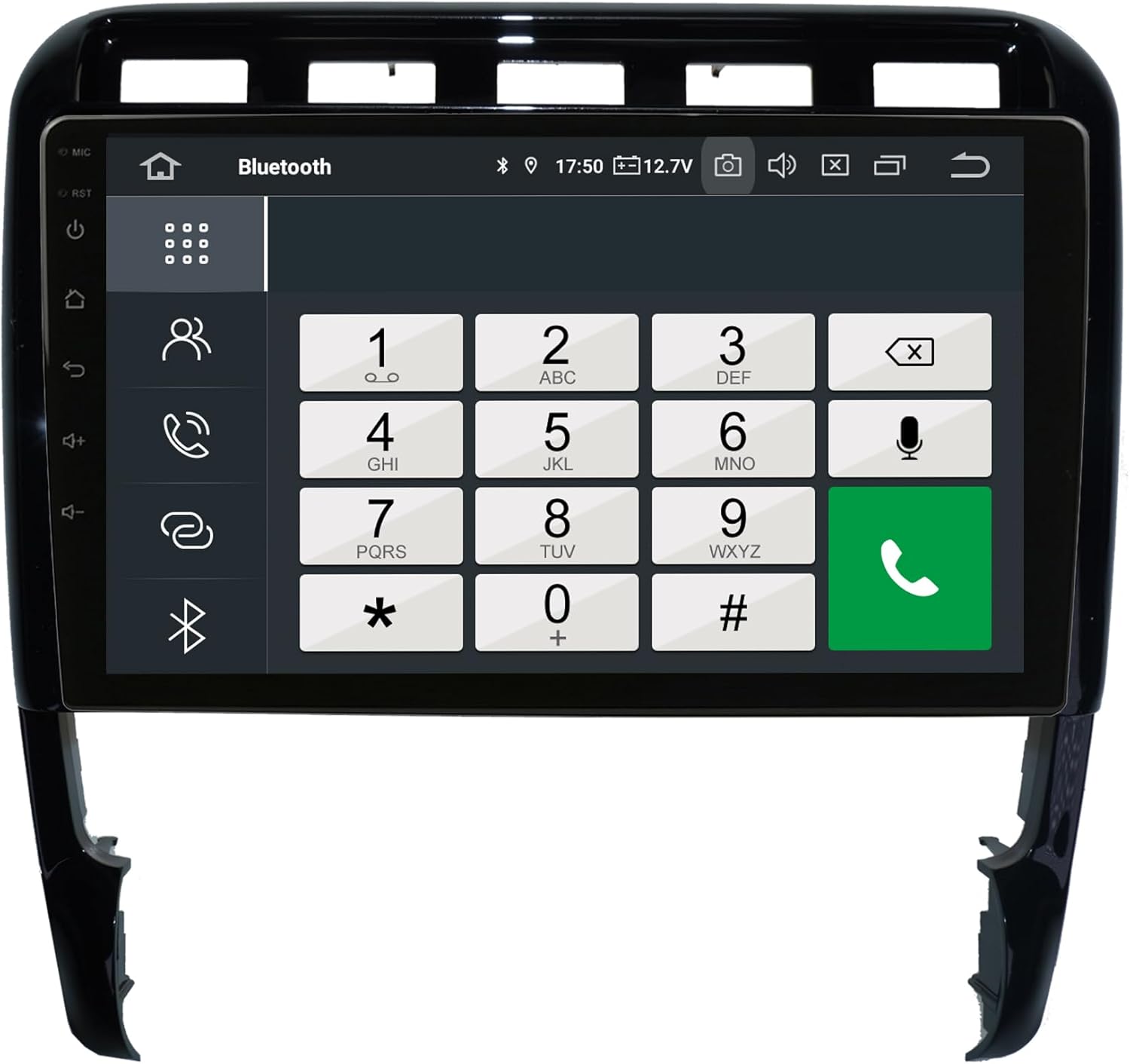
රූපය 5.5: Bluetooth phone dialer interface.
යුගල කිරීම: Go to Bluetooth settings on the head unit and your phone. ඒ සඳහා සොයන්න available devices and select the head unit. Confirm the pairing code.
5.6 රේඩියෝව (FM/AM)
The unit includes an FM/AM tuner with RDS (Radio Data System) for displaying station information.

රූපය 5.6: Radio tuner interface.
ස්කෑන් කිරීම: Use the scan function to find available stations. Save your favorite stations to presets.
5.7 ශ්රව්ය සැකසුම් (සමකරනය)
Adjust audio output using the integrated equalizer. Preset options (Pop, Classic, Rock, Jazz) and custom user settings for Bass/Treble/Balance are available.

රූපය 5.7: Amplifier and audio balance settings.
5.8 වෙනත් විශේෂාංග
- මාධ්ය නැවත ධාවනය: Play music, pictures, and videos directly from USB/SD/SDHC slots.
- WIFI: Connect to WLAN hotspots or your smartphone's hotspot for internet access.
- පසුපස කැමරාව: Automatic switching to the rear camera view ආපසු හරවන විට.
- ස්වයංක්රීය මතකය: All saved settings and positions are automatically retained.
- Day and Night Display: Automatic or manual adjustment of display brightness.
6. නඩත්තු කිරීම
Proper care ensures the longevity and optimal performance of your head unit.
- තිරය පිරිසිදු කිරීම: තිරය මෘදු ලෙස පිස දැමීමට මෘදු, ලින්ට් රහිත රෙද්දක් භාවිතා කරන්න. මුරණ්ඩු පැල්ලම් සඳහා, තරමක් dampජලය හෝ තිර-විශේෂිත පිරිසිදු කරන්නෙකු සහිත රෙදි. රළු රසායනික ද්රව්ය හෝ උල්ෙල්ඛ ද්රව්ය වලින් වළකින්න.
- සාමාන්ය පිරිසිදු කිරීම: Keep the unit and surrounding area free of dust and debris. Use a soft brush or compressed air for vents and crevices.
- උෂ්ණත්වය: ඒකකය අධික උෂ්ණත්වයට නිරාවරණය වීමෙන් වළකින්න.
- මෘදුකාංග යාවත්කාලීන: Periodically check for software updates to ensure optimal performance and access to new features. Refer to the manufacturer's website or the unit's settings for update procedures.
7. දෝශ නිරාකරණය
If you encounter issues, refer to the following common problems and solutions before contacting support.
| ගැටලුව | විය හැකි හේතුව | විසඳුම |
|---|---|---|
| ඒකකය බලය සක්රිය නොවේ. | බල සැපයුමක් නැත; පිපිරුණු ෆියුස්; වැරදි රැහැන් ඇදීම. | Check power connections and vehicle fuses. Ensure wiring is correct as per diagram. |
| ශබ්දයක් නැත හෝ දුර්වල ශබ්ද ගුණාත්මකභාවයක් ඇත. | Incorrect audio settings; Loose speaker wires; MOST adapter issue (for Bose systems). | Check volume and equalizer settings. Verify speaker connections. Ensure MOST adapter is correctly installed and functioning. |
| GPS සංඥාව දුර්වල හෝ සාවද්යයි. | GPS ඇන්ටෙනාව අවහිර වී හෝ නුසුදුසු ලෙස ස්ථාපනය කර ඇත. | GPS ඇන්ටෙනාව පැහැදිලි බව සහතික කර ගන්න view අහසේ සහ ආරක්ෂිතව සම්බන්ධ කර ඇත. |
| බ්ලූටූත් සම්බන්ධතා ගැටළු. | Phone not in pairing mode; Interference; Incorrect pairing process. | Ensure Bluetooth is enabled on both devices. Delete previous pairings and try again. Move closer to the unit. |
| CarPlay/Android Auto සම්බන්ධ නොවේ. | Incorrect phone settings; USB cable issue; Software glitch. | Ensure your phone is compatible and has the latest OS. Try a different USB cable. Restart both the head unit and your phone. |
| ස්පර්ශ තිරය ප්රතිචාර නොදක්වයි. | Temporary software issue; Screen damage. | Perform a soft reset (refer to device settings for reset option). If issue persists, contact support. |
For issues not covered here, please consult the PDF manual available for download or contact customer support.
8. පිරිවිතර
| විශේෂාංගය | පිරිවිතර |
|---|---|
| ආදර්ශ අංකය | LMGQ9899-BO |
| මෙහෙයුම් පද්ධතිය | Android 12 |
| CPU | Octa-Core 1.6Ghz |
| RAM | 4GB |
| අභ්යන්තර ගබඩාව | 64GB ෆ්ලෑෂ් |
| සංදර්ශක ප්රමාණය | අඟල් 9 |
| සංදර්ශක වර්ගය | ධාරිතා බහු-ස්පර්ශ තිරය |
| විභේදනය | සම්පූර්ණ HD |
| සම්බන්ධතාවය | Bluetooth, WIFI, USB, 4G (via antenna) |
| සංචලනය | GPS (Worldwide map support) |
| විශේෂ ලක්ෂණ | Integrated CarPlay & Android Auto, RDS Radio, 2-Zone Function, Back-Zone Function, Rear Camera Input, Play Store access |
| ශ්රව්ය ප්රතිදාන ප්රකාරය | AUX, 4x Audio Outputs, 1x Subwoofer Output |
| නිෂ්පාදකයා | Real Media GmbH & Co. KG - Germany |
9. වගකීම් සහ සහාය
Your TAFFIO LMGQ9899-BO head unit comes with a වසර 2ක වගකීමක් මිලදී ගත් දින සිට. මෙම වගකීම් සහතිකය සාමාන්ය භාවිතය යටතේ නිෂ්පාදන දෝෂ සහ අක්රමිකතා ආවරණය කරයි.
For warranty claims, technical support, or further assistance, please contact your retailer or the manufacturer directly. Ensure you have your proof of purchase and product model number readily available.
නිෂ්පාදකයා: Real Media GmbH & Co. KG - Germany


